Are you ready to dive into the world of game development with Godot 4? One of the many fantastic features of this game engine is the Line2D class. This class is a powerful tool in your game development arsenal, enabling you to create engaging and dynamic 2D games. Whether you’re a seasoned coder or just starting your journey, understanding Line2D can open up a whole new realm of possibilities in your game creation process.
Table of contents
What is Line2D?
Line2D is a class within the Godot 4 game engine. It’s a key component for creating and manipulating 2D lines within your games. These lines can be used for a variety of purposes, from outlining game objects to creating unique visual effects.
Why should I learn about Line2D?
Learning about Line2D is an important step in mastering Godot 4. This class gives you the ability to create intricate 2D designs and effects, enhancing the visual appeal of your games. By gaining a solid understanding of Line2D, you’ll be able to create more engaging and visually stunning games for your players.
Developer API
Ready to get started with Line2D? We recommend visiting the latest developer API for a comprehensive guide on this class. You’ll find all the information you need to start incorporating Line2D into your game development process. Check out the official documentation here.
Example Project
You can download the project files here.
Let’s add a Line2D node to our scene. When you select the Line2D node, you’ll see three new buttons show up on the section above the 2D editor. These are three modes we can be in, to interact with the line.
- Create points:
- LeftClick to add new point and extend the line at the mouse position.
- RightClick on an existing point to remove it.
- You can drag existing points to move them.
- You can click on the line between 2 points to add an additional point between them.
- Edit points:
- You cannot add points to extend the line in this mode.
- You can remove, drag or add points within the line as discussed above.
- Erase points
- LeftClick on an existing point to remove it.

Play around with these modes and try to draw some shapes to get a feel for it. Once you’re happy with the shape, take a look at the inspector. The Line2D has the points propety, which stores data of all the points that make the line. The type of this property is PackedVector2Array, it is the same as an array of Vector2s, with some additional optimizations.
Clicking on the slot in the points property expands it, and shows a list of all the points. Here you can make any minute adjustments or simply see exact position values of each point.
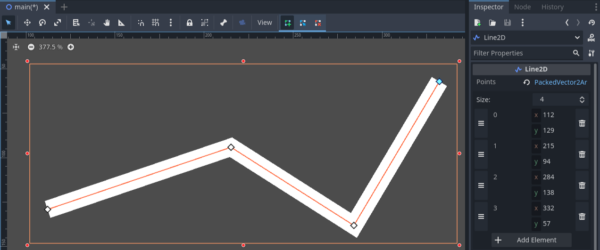
You can set the width of the line with the width property, optionally you can provide a curve in the width_curve property to have a curve control it.
Set the color to something you like, and under ‘Capping’, set join_cap_mode, begin_cap_mode and end_cap_mode to ‘Round’. These control how the edges of the line are visualized.
Check the closed property to on, this will join the starting and ending points of the line.
Drawing a box through code
The Line2D class has some helper methods to help with manipulating the points array easily.
add_point()clear_points()
Delete all the points in the editor, you can either do this with the viewport while being in the ‘Erase points’ mode, or remove all the elements in the points array in the inspector.
Make sure that the closed property is switched on. We will need to create 4 points through code, to represent each corner of the box.
Lets create a script on the root node of the scene called box_creator.gd.
We will be drawing a square in this example, but you can easily modify the code to create a rectangle (or any other shape) once you understand how to use all the methods listed above!
Our square needs a length, so let’s create a variable called length to represent it’s side length, lets set it to 100.
Lets make a draw_square() method that creates all the points required to make a square. This method can take a Vector2 parameter as the box position.
Head to Project Settings → Input Map and create a new input action called ‘lmb’ and assign the left mouse button as an action.

We can now check if this action was just pressed inside of _process() to call our draw_square() method, passing in the local mouse position by calling CanvasItem.get_local_mouse_position().
We can call add_point() to add a point. This method takes a Vector2 position to place the point at. Note that this is a point in that Line2D’s local space, so you will need to account for that.
Store a reference to the Line2D node and add a point in the draw_square() method.
extends Node2D

var length = 100
@onready var line_2d: Line2D = $Line2D

func _process(delta: float):
  if Input.is_action_pressed("lmb"):
    draw_square(get_local_mouse_position())

func draw_square(starting_position):
  line_2d.add_point(starting_position)
We want to draw a square starting from this point (top left corner),
- Our second point (top right corner) should be at an offset of
lengthon the x axis. - Our third point (bottom right corner) should be at an offset of
lengthon both axes. - Our fourth point (bottom left corner) should be at an offset of
lengthon the y axis.
extends Node2D

var length = 100
@onready var line_2d: Line2D = $Line2D

func _process(delta: float):
  if Input.is_action_just_pressed("lmb"):
    draw_square(get_local_mouse_position())

func draw_square(starting_position):
  line_2d.add_point(starting_position)
  line_2d.add_point(starting_position + Vector2(length, 0))
  line_2d.add_point(starting_position + Vector2(length, length))
  line_2d.add_point(starting_position + Vector2(0, length))
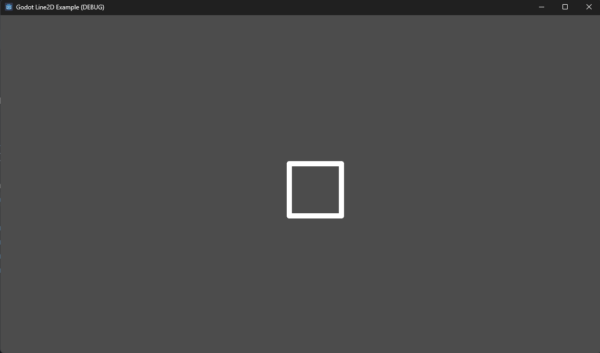
And there we go! When we run the game, we now have a box when we click!
However, when we try to click multiple times, we have an issue. This is because we’re adding the new points on top of the pre-existing array of points. What we want to do instead is to clear the preexisting points before adding new points.

We can call Line2D.clear_points() before we add new points, which will clear the array of points.
func draw_square(starting_position):
  line_2d.clear_points()

  line_2d.add_point(starting_position)
  line_2d.add_point(starting_position + Vector2(length, 0))
  line_2d.add_point(starting_position + Vector2(length, length))
  line_2d.add_point(starting_position + Vector2(0, length))
When we run the game, we can now see that the old points are properly cleared and a new square is created!
Breif look at some more helper methods
Lets quickly take a look at a few more helper methods at our disposal:
get_point_count(): Returns size of thepointsarray.remove_point(): Takes an index as an argument and removes the point at that index. For example, here you could doline2d.remove_point(3)to remove the bottom left point.- get_point_position(): Takes an index as an argument and returns the local position of the point at that index.
- set_point_position(): Takes an index and a position. Sets the position of the point at the passed in index. You can use this method to modify the position of a point that has already been added.
Full script code
You can download the Godot project here. The project was developed and tested in version 4.2.
extends Node2D

var length = 100
@onready var line_2d: Line2D = $Line2D

func _process(delta: float):
  if Input.is_action_just_pressed("lmb"):
    draw_square(get_local_mouse_position())

func draw_square(starting_position):
  line_2d.clear_points()

  line_2d.add_point(starting_position)
  line_2d.add_point(starting_position + Vector2(length, 0))
  line_2d.add_point(starting_position + Vector2(length, length))
  line_2d.add_point(starting_position + Vector2(0, length))
Where to Go Next?
Now that you’ve delved into the world of Line2D in Godot 4, you’re probably wondering, “What’s next?” At Zenva, we have an array of resources to help you continue your journey in game development.
One such resource is our Godot Game Development Mini-Degree. This comprehensive, self-paced learning pathway is designed for aspiring game developers at all skill levels. With a focus on the free, open-source Godot 4 engine, this program simplifies game development, covering a wide range of topics from 2D and 3D game creation to complex gameplay mechanics. Plus, you’ll get to earn a certificate upon completion!
For a broader collection, feel free to explore our Godot courses. Remember, at Zenva, we offer over 250 supported courses that can help boost your career, from beginner to professional. So, whether you’re just starting out or looking to enhance your skills, we’ve got you covered.
Did you come across any errors in this tutorial? Please let us know by completing this form and we’ll look into it!
FINAL DAYS: Unlock coding courses in Unity, Godot, Unreal, Python and more.


