
Welcome to the World of JSON in Godot 4
If you’ve embarked on the thrilling path of game development with Godot 4, you’re about to take a deeper dive into a crucial skill that will immensely aid in the way you handle data in your games. JSON, short for JavaScript Object Notation, is a lightweight data-interchange format that Godot leverages for a variety of tasks, from saving game states to networking. It stands as a readable and efficient way to serialize and transmit data between your game and servers, or even just between different scenes. Let’s unwrap the mysteries of JSON in Godot 4 and see how it enriches your game development toolkit!
What is JSON?
JSON is a universally loved data format used across various programming languages for storing and transporting data. It’s built on two simple structures:
- Objects: A collection of key/value pairs (akin to dictionaries in Godot)
- Arrays: An ordered list of values (similar to lists or arrays in most languages)
What is it for in Godot 4?
In Godot 4, the JSON class serves as a helper for creating and parsing JSON data, transforming Godot’s data types into JSON strings and vice versa. This dual functionality opens the door to a realm of possibilities, from persisting player preferences and game states to complex data transmission for multiplayer gameplay.
Why should I learn it?
Understanding JSON in Godot is a small learning curve with a huge payoff. With knowledge of JSON and how to manage it in Godot, you’ll be able to:
- Save and load game data seamlessly
- Communicate with web servers for features like high score tables or multiplayer matchmaking
- Design complex systems that require exchange of structured data
- Work with modding communities by providing a familiar and accessible data format
Equipped with the power of JSON, you’ll unlock the potential to bring your games to a broader audience and platform.
Developer API
For the latest version please visit the official documentation.
Example Project
You can download the project files here.
Let’s look at an example on how to save and load custom json data in godot.
Let us begin by creating a new scene called “UserInterface” with the root node being a Control and creating two Button nodes. Let us call them “SaveDataButton” and “LoadDataButton” and anchor them to the top right and bottom right of the screen respectively.
Let us then create a new VBoxContainer node and anchor it to the left. Let us now create another new scene called “DataSingleUI” with the root node being a PanelContainer to represent a generic block of data that we can instantiate into the scene. Under ‘Layout’, letsgive it a custom_minimum of (300, 100)px.
We will now add two Label nodes called “TitleLabel” and “DescriptionLabel” to represent this data. In this example, we are using a MarginContainer → VBoxContainer → TitleLabel, DescriptionLabel structure to organize them neatly. Let us set the autowrap_mode property to ‘Word’ on the DescriptionLabel so that it wraps neatly.

Let us create a script on the root node called data_single_ui.gd and create some helper methods to easily read and write to the labels.
extends PanelContainer

@onready var title_label: Label = $MarginContainer/VBoxContainer/TitleLabel
@onready var description_label: Label = $MarginContainer/VBoxContainer/DescriptionLabel

func get_title():
  return title_label.text

func set_title(text):
  title_label.text = text

func get_description():
  return description_label.text

func set_description(text):
  description_label.text = text
Back in our UserInterface scene, we can now instantiate the DataSingleUI scene as child scenes of the VBoxContainer node to visualize our data! Let us create two more buttons called “AddDataButton” and “RemoveDataButton” and position them appropriately. Additionally, let us create two LineEdit nodes called “TitleLineEdit” and “DescriptionLineEdit” and position them above the AddDataButton and give them some placeholder_text.
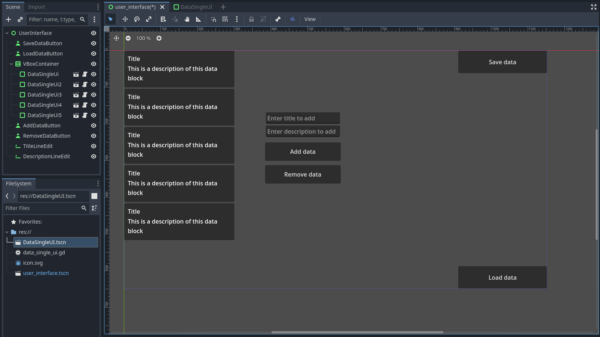
Wiring up the UI to interact with data
Let us then create a script on the Root node called user_interface.gd and in it’s _ready() method, In the script, we will
- Create a variable called
data_dictand assign an empty dictionary. - Create a method called
clear_data_visuals()- Loop through the children of the VBoxContainer and
queue_free()them.
- Loop through the children of the VBoxContainer and
- Call
clear_data_visuals()to start with a blank slate when we start the game. - Connect to the each of the buttons’
pressedsignal (All four buttons we’ve made so far) and create handler methods for them. - Also store references to the two LineEdit nodes we’ve created.
extends Control

@onready var v_box_container: VBoxContainer = $VBoxContainer

@onready var add_data_button: Button = $AddDataButton
@onready var remove_data_button: Button = $RemoveDataButton
@onready var save_data_button: Button = $SaveDataButton
@onready var load_data_button: Button = $LoadDataButton

@onready var title_line_edit: LineEdit = $TitleLineEdit
@onready var description_line_edit: LineEdit = $DescriptionLineEdit

var data_dict = {}

func _ready():
  clear_data_visuals()

  add_data_button.pressed.connect(_on_add_data_button_pressed)
  remove_data_button.pressed.connect(_on_remove_data_button_pressed)
  save_data_button.pressed.connect(_on_save_data_button_pressed)
  load_data_button.pressed.connect(_on_load_data_button_pressed)


func _on_add_data_button_pressed():
  print("Adding data")

func _on_remove_data_button_pressed():
  print("Removing last data block")

func _on_save_data_button_pressed():
  print("Saving data to JSON file")

func _on_load_data_button_pressed():
  print("Loading data from from JSON file")

func clear_data_visuals():
  for child in v_box_container.get_children():
    child.queue_free()
Let us store the data_single_ui.tscn scene in a member variable called data_single_ui_scene and call preload(), passing in the path to the scene file.
To store our data, we will use the title as the key and the description as the value in our dictionary.
- In
_on_add_data_button_pressed(),- Use the TitleLineEdit’s text as the key and the DescriptionLineEdit’s text as the value.
- Call
instantiate()on the storeddata_single_ui_scene. - Add it as a child of the VBoxContainer node.
- Call the helper methods we created earlier to set the title and description.
- In
_on_remove_data_button_pressed(),- Get the last child of the VBoxContainer node. We can do this by passing
-1intoNode.get_child() - Get the title of that data block by calling the
get_title()helper method we created earlier. - Clear the key with that title from the dictionary using
Dictionary.erase(). queue_free()the last child.
- Get the last child of the VBoxContainer node. We can do this by passing
var data_single_ui_scene = preload("res://data_single_ui.tscn")

func _on_add_data_button_pressed():
  var title_text = title_line_edit.text
  var description_text = description_line_edit.text

  data_dict[title_text] = description_text
  var inst = data_single_ui_scene.instantiate()
  v_box_container.add_child(inst)
  inst.set_title(title_text)
  inst.set_description(description_text)

func _on_remove_data_button_pressed():
  print("Removing last data block")
  var last_child = v_box_container.get_child(-1)
  var title = last_child.get_title()

  data_dict.erase(title)
  last_child.queue_free()
When we play the game, we should now be able to create data blocks by entering the title and description in the LineEdit nodes and clicking on the AddDataButton! Clicking on the RemoveDataButton will remove the last data block.

Saving our dictionary as a JSON file
We will need to convert our dictionary into a JSON string to be able to store it in that format. Fortunately the JSON class in godot makes this process extremely simple!
Lets create two new variables called save_path and save_file_name and assign a path and name for our save file. Let us also store the full_path to the file.
When we click the SaveDataButton, we will first create a folder called “SaveFiles” in the ‘user://’ folder. We can use the static method DirAcess.dir_exists_absolute() to check if the folder exists already, and use static method DirAccess.make_dir_absolute() to create the folder if it doesn’t.
We will then need to create a new file and write to it. We can call the static method FileAccess.open() and pass in the path to the file, along with a FileAccess.ModeFlags enum value to gain write access to the file. This will create a new file with the provided name if it doesn’t exist, or overwrite it if it does.
The static method JSON.stringify() can be used to automatically convert a godot Variant type into a JSON string. To save the data, in our _on_save_data_button_pressed() method, we can simply call stringify() and pass in our dictionary as a second parameter, we can pass in a string to control how the content is indented. We can pass in “\t” (Backslash) to signify a tab indent.
We can call FileAccess.store_string() on the file we are writing to, to write the json data. In this example, we will be storing the file in the “user://” folder.
var save_path = "user://SaveFiles"
var save_file_name = "SaveData.json"
var full_path = save_path + "/" + save_file_name

func _on_save_data_button_pressed():
  print("Saving data to JSON file")
  if not DirAccess.dir_exists_absolute(save_path):
    DirAccess.make_dir_absolute(save_path)
  var file = FileAccess.open(full_path, FileAccess.WRITE)
  var json_text = JSON.stringify(data_dict, "\t")
  file.store_string(json_text)
When we run our game, we can now add some data blocks like we’ve done earlier, and press the SaveDataButton to write this data into a json file! We can take a look at the user by navigating to the top left corner of the editor and clicking on Project → Open User Data Folder. This will open the user folder for this project.

We should now see a folder called “SaveFiles” (Or whatever you’ve named it in the save_path), with the JSON file properly created! We can open up the file with any text editor to see that the dictionary has been properly converted to JSON!
{
	"Title 1": "Description for data 1",
	"Title 2": "Description for data 2",
	"Title 3": "Description for data 3"
}
Loading JSON data back into the dictionary
Now that we know how to write data into the JSON file, let us take a look at how we can read from it and populate our UI visuals to reflect the stored data!
In _on_load_data_button_pressed(), we will call FileAccess.open() again, this time passing in FileAccess.READ as the second argument. Static method FileAccess.file_exists can be used to check if the file exists first for additional safety.
We get the json content using FileAccess.get_as_text().
We must create a new JSON object to facilitate converting the data back to a godot dictionary. We can do this like this: var json = JSON.new().
We can then call JSON.parse() on the newly created JSON object and pass in the json string. This method returns a @GlobalScope.Error enum value, which we can check against to see if the parsing was successful. If it is not, we can use the methods JSON.get_error_line() and JSON.get_error_message() to get details about why the parsing has failed.
Finally, we can retrieve the parsed data by accessing the JSON.data property, which we can store in our data_dict dictionary. We can now clear any existing visuals by calling our clear_data_visuals() method and loop over the returned data and manually instantiate the data_single_ui_scene scenes and call the helper methods like we did earlier. You could refactor some of the common logic into another method, but we will be keeping it simple in this example and rewriting the instantiation code.
func _on_load_data_button_pressed():
  print("Loading data from from JSON file")

  if FileAccess.file_exists(full_path):
    var file = FileAccess.open(full_path, FileAccess.READ)

    var json_string = file.get_as_text()
    var json = JSON.new()
    var result = json.parse(json_string)
    if result != OK:
      print("JSON Parse Error: ", json.get_error_message(), " at line ", json.get_error_line())
      return

    data_dict = json.data

    clear_data_visuals()
    for key in data_dict:
        var title_text = key
        var description_text = data_dict[key]

        var inst = data_single_ui_scene.instantiate()
        v_box_container.add_child(inst)
        inst.set_title(title_text)
        inst.set_description(description_text)
  else:
    print("No save file to load!")
And there we have it! When we play the game, we can now press the LoadDataButton to load the data stored in the JSON file, and also visually populate the data in our scene!
Full script code
You can download the Godot project here. The project was developed and tested in version 4.2.
user_interface.gd
extends Control

var data_single_ui_scene = preload("res://data_single_ui.tscn")

@onready var v_box_container: VBoxContainer = $VBoxContainer

@onready var add_data_button: Button = $AddDataButton
@onready var remove_data_button: Button = $RemoveDataButton
@onready var save_data_button: Button = $SaveDataButton
@onready var load_data_button: Button = $LoadDataButton

@onready var title_line_edit: LineEdit = $TitleLineEdit
@onready var description_line_edit: LineEdit = $DescriptionLineEdit

var data_dict = {}

var save_path = "user://SaveFiles"
var save_file_name = "SaveData.json"
var full_path = save_path + "/" + save_file_name

func _ready():
  clear_data_visuals()

  add_data_button.pressed.connect(_on_add_data_button_pressed)
  remove_data_button.pressed.connect(_on_remove_data_button_pressed)
  save_data_button.pressed.connect(_on_save_data_button_pressed)
  load_data_button.pressed.connect(_on_load_data_button_pressed)


func _on_add_data_button_pressed():
  var title_text = title_line_edit.text
  var description_text = description_line_edit.text

  data_dict[title_text] = description_text
  var inst = data_single_ui_scene.instantiate()
  v_box_container.add_child(inst)
  inst.set_title(title_text)
  inst.set_description(description_text)

func _on_remove_data_button_pressed():
  print("Removing last data block")
  var last_child = v_box_container.get_child(-1)
  var title = last_child.get_title()

  data_dict.erase(title)
  last_child.queue_free()

func _on_save_data_button_pressed():
  print("Saving data to JSON file")
  if not DirAccess.dir_exists_absolute(save_path):
    DirAccess.make_dir_absolute(save_path)
  var file = FileAccess.open(full_path, FileAccess.WRITE)
  var json_text = JSON.stringify(data_dict, "\t")
  file.store_string(json_text)

func _on_load_data_button_pressed():
  print("Loading data from from JSON file")

  if FileAccess.file_exists(full_path):
    var file = FileAccess.open(full_path, FileAccess.READ)

    var json_string = file.get_as_text()
    var json = JSON.new()
    var result = json.parse(json_string)
    if result != OK:
      print("JSON Parse Error: ", json.get_error_message(), " at line ", json.get_error_line())
      return

    data_dict = json.data

    clear_data_visuals()
    for key in data_dict:
        var title_text = key
        var description_text = data_dict[key]

        var inst = data_single_ui_scene.instantiate()
        v_box_container.add_child(inst)
        inst.set_title(title_text)
        inst.set_description(description_text)
  else:
    print("No save file to load!")

func clear_data_visuals():
  for child in v_box_container.get_children():
    child.queue_free()
data_single_ui.gd
extends PanelContainer

@onready var title_label: Label = $MarginContainer/VBoxContainer/TitleLabel
@onready var description_label: Label = $MarginContainer/VBoxContainer/DescriptionLabel

func get_title():
  return title_label.text

func set_title(text):
  title_label.text = text

func get_description():
  return description_label.text

func set_description(text):
  description_label.text = text
Conclusion
In your journey through Godot 4 and JSON, you’ve unlocked a treasure trove of tools to enhance your game’s data management and expand its capabilities. Embrace the power of JSON to save game states, manage settings, and even create dynamic, interactive experiences for your players. But the adventure doesn’t stop here. Continue to forge your path in game development with our Godot Game Development Mini-Degree, where you will transform theoretical knowledge into tangible skills that bring your imaginations to life.
We at Zenva are excited to be a part of your learning story, to witness your growth into a skilled developer, and to offer you all the resources you need. The world of game development is vast and full of opportunities – and it’s yours to explore. So what are you waiting for? Take the next step in your game creation journey with Zenva and make your mark in the gaming industry!
Want to explore binary serialization for game states instead? Try the free video tutorial below!
Did you come across any errors in this tutorial? Please let us know by completing this form and we’ll look into it!
FINAL DAYS: Unlock coding courses in Unity, Godot, Unreal, Python and more.


