
Welcome to our tutorial on Godot 4’s ItemList class—a versatile and powerful component for developing user interfaces in your games and applications. As aspiring or seasoned developers, understanding how to utilize UI elements effectively is critical for creating engaging and intuitive experiences for your players. The ItemList class is particularly noteworthy for its functionality in displaying a scrollable list of selectable items, making it an essential tool to master within the Godot engine.
What Is ItemList?
ItemList is an invaluable UI control in Godot 4 that provides a vertical list of selectable items which can span across one or multiple columns. Each item within this list can be adorned with text and an associated icon, enhancing the visual appeal and user clarity.
What Is It For?
ItemList can be used for various in-game scenarios such as inventories, menus, dialogue options, or any situation where a list selection is required. This control supports features like reselection, context menu opening through right-click, and double-clicking or pressing Enter to activate items, offering a rich set of functionalities for developers to take advantage of.
Why Should I Learn It?
Learning to implement ItemList is beneficial for various reasons:
– It provides a smooth user experience with its built-in selection and navigation capabilities.
– The control is flexible, with support for single or multiple columns and customization options such as icon placement and size.
– It also promotes accessibility, with increment search options to quickly navigate through list items.
By mastering ItemList, you’ll be able to create functional and visually-appealing UI elements that can dramatically improve the interaction aspect of your Godot projects. Whether you’re a beginner just starting out or an experienced coder looking to polish your UI skills, getting to grips with ItemList is a step toward building more engaging and professional games.
Developer API
For the latest version please visit the official documentation.
Example Project
You can download the project files here.
Lets start with creating a new scene with the root node of type Control and call it user_interface.tscn, this will be our main scene.
Create a HBoxContainer node. We are doing this to neatly arrange multiple ItemList nodes that we will be creating soon. Set it’s Anchor Preset to ‘Center’.
As a child of the HBoxContainer, create a new ItemList node by pressing Ctrl + A, rename it to “EditorItemList” and set it’s Anchor Preset to ‘Center’. Let’s give it a custom_minimum of 150px on the x axis and 200 on the y axis. Optionally, we could set the auto_height property to true, which will handle the height automatically based on the number of items in our ItemList, but we will be leaving it at false for this demonstration.
Managing items in the editor
The way we create new items in the list is by using the ‘Add Element’ button under the ‘Items’ dropdown. Note that this is not an array, it cannot directly be accessed through code, but we will take a look at how we can manipulate the items through code shortly.
When we click on the ‘Add Element’ button, a new item is created. We can give the item a text label, an icon, and set whether it can be selected or if it is disabled.
Lets create three items called ‘Item A’, ‘Item B’ and ‘Item C’, and set the icon property of each of them to any icon. We will be using the default godot icon.svg for this. When we do this, you will see that the icons are too large.
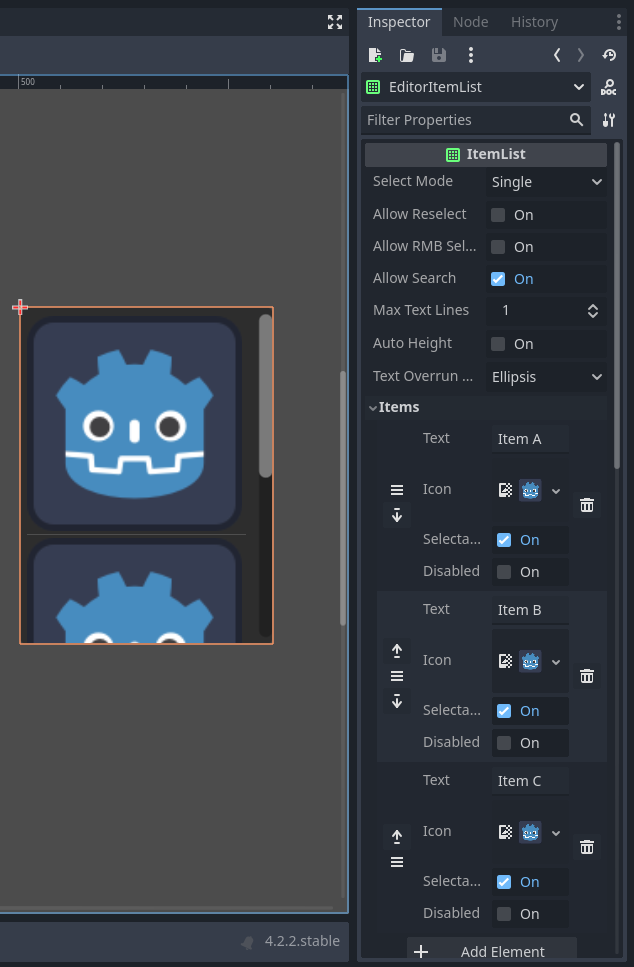
We can fix this in two ways, in the inspector under the ‘Icon’ dropdown:
- Set
icon_scaleto a value lower than 1 such as 0.2 - Set
fixed_icon_sizeto a value such as (150, 150)
Our icons are now properly scaled.
When we run the game, we can see that the items are displayed just like how we set them up in the inspector. You can click on an item to select it.
You can optionally set the select_mode property to ‘Multi’ to be able to select multiple items at once. You can do this by holding the shift key and clicking on multiple items.
Managing items through code
Select the ItemList node and press Ctrl + D to duplicate it. Rename the duplicate to “CodeItemList”. Remove all the items of this ItemList by clicking on the trash icon next to each item.
Create a new script on this node called code_item_list.gd.
We can add items dynamically by calling the add_item() method.
extends ItemList

func _ready():
  add_item("Item A")
  add_item("Item B")
  add_item("Item C")
When we run the game, we should see these items being displayed on our CodeItemList. We can give them an icon by passing the texture as a second argument. We can use add_icon_item() to add an item that has an icon but no text.
extends ItemList

var icon = preload("res://icon.svg")

func _ready():
  add_item("Item A", icon)
  add_item("Item B", icon)
  add_item("Item C", icon)
  add_icon_item(icon)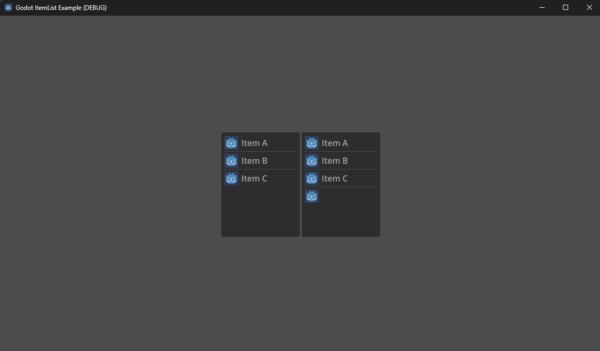
Detecting when an item is selected
We can detect when a specific item was pressed by connecting to the item_clicked signal. This signal passes in the index, the click position, and the mouse button index as arguments for us to be able to run checks on how the item was interacted with.
We could also connect to the item_selected signal, which is a simpler signal that gets emitted when an item is selected. This signal passes just the index as a parameter, so you could think of this signal as a lightweight version of item_clicked.
Lets connect to the item_selected signal and print out the name of the item that was selected. Since we have access to the index of the selected item, we can use get_item_text() to get the text contained in the item at that index.
func _ready():
  item_selected.connect(_on_item_selected)

func _on_item_selected(index):
  print(get_item_text(index) + " has been selected!")
When we run the game, we should see the appropriate message printed when we select an item!
Deselecting items
You may have noticed that we are unable to deselect the item once we select one. We can connect to the empty_clicked signal to deselect manually when an empty space in the ItemList is clicked.
Be sure to declare the correct parameters in the signal handler method.
We can call deselect_all() to deselect all selected items. Note that you can also use deselect() , which takes a specific index to deselect. This would be useful to deselect specific items.
func _ready():
  empty_clicked.connect(_on_empty_clicked)

func _on_empty_clicked(at_position, mouse_button_index):
  deselect_all()
Now, when we click on the empty space below the items (within the ItemList node), all selected items will be deselected.
Activating items
We can connect to the item_activated signal to get notified when an item is double clicked, or if the ‘enter’ key is pressed while an item is currently selected. In practice, this could be useful to spawn a pop up window, or run some other custom logic in our game.
For the purpose of this example, we will print a message that an item was activated, similar to how we did with item selection.
func _ready():
  item_activated.connect(_on_item_activated)

func _on_item_activated(index):
  print(get_item_text(index) + " has been ACTIVATED!!!")
Now when we double click on an item, we should see the relevant message being printed to the output! (Note that we also get the ‘selected’ print statement, this is because the first click registers as a selection and the second click registers as the activation)

There you have it! You now know how to interact with the ItemList node to be able to use it in your own projects! Now, by no means is this an exhaustive guide on how to use this node and what is possible with it. The ItemList node is extremely robust, and provides many more signals and methods to achieve fine grain control.
Now that you’ve had an introduction to how some of the core functionality works, you should be able to figure out the rest with the help of the godot documentation!
Full script code
You can download the project files here.
extends ItemList

var icon = preload("res://icon.svg")

func _ready():
  add_item("Item A", icon)
  add_item("Item B", icon)
  add_item("Item C", icon)
  add_icon_item(icon)

  item_selected.connect(_on_item_selected)
  empty_clicked.connect(_on_empty_clicked)
  item_activated.connect(_on_item_activated)

func _on_item_selected(index):
  print(get_item_text(index) + " has been selected!")

func _on_empty_clicked(at_position, mouse_button_index):
  deselect_all()

func _on_item_activated(index):
  print(get_item_text(index) + " has been ACTIVATED!!!")
Conclusion
Whether your aspiration lies in crafting narratives through role-playing games, designing challenging puzzles, or developing the next big indie hit, mastering UI components like the ItemList is a step towards bringing your visions to life. Of course, the learning doesn’t stop here. For example, you might want items that can be picked up and integrated with this UI controller. With tons of resources available, like the free video tutorial below, it’s easy to expand your skills.
As you journey through the realms of game creation, remember that each tool and technique you learn from the Godot Game Development Mini-Degree can become a fundamental piece of your development arsenal, enabling you to create interactive and polished titles that resonate with your audience.
Embrace the power of knowledge and continued education to transform the way you design and develop games. If you’re keen to further your adventure and hone your skills, don’t hesitate to revisit our Godot Game Development Mini-Degree and immerse yourself in a learning experience that sets the foundation for success. Join us at Zenva, where we strive to provide you with the resources and guidance needed to turn your game development dreams into reality. Happy developing!
Did you come across any errors in this tutorial? Please let us know by completing this form and we’ll look into it!
FINAL DAYS: Unlock coding courses in Unity, Godot, Unreal, Python and more.


