Learning how to make games with Mistral raises a practical question: can it produce something you can actually play, or just a convincing plan? Zenva’s experience helping a community of over 1,000,000 learners and developers gain digital skills shapes the practical focus here: you’ll connect Mistral to Blender and Godot, plan a monster-truck game, test the first build, and use Codex when the result falls short.
This tutorial assumes you already have OpenCode, Blender and Godot installed and are familiar with their basic interfaces.
If you’d like a more structured way to learn AI-assisted development, explore Zenva Academy. You can keep following this free tutorial to see how the tools work together and what happens when a generated game needs more help.
How to Make Games With Mistral Using OpenCode
Start by separating the AI model from the tool that lets it work on your project. Mistral is a French AI company, and Mistral Large 4 is the model used for this build. OpenCode is the coding harness: it provides the interface for working with the model. It’s an open-source alternative to Claude Code or Codex, available as a terminal CLI or a desktop app.
In OpenCode, add Mistral as a provider. Sign up to Mistral, obtain an API key, and add it to OpenCode. With the provider configured, you can select the model and chat with it.
The project uses two more tools: Blender for the 3D models and Godot for the game itself. The AI connects to these through Blender MCP and the Godot AI plugin.
Connect Blender Through MCP
Get the Blender MCP server from the Blender website to connect the AI to Blender. Part of its setup is configuring your AI client, so pass its latest-package page to OpenCode when setting up that connection.
If you’ve already configured Blender MCP for Codex or Claude Code, ask OpenCode to inspect the existing setup and see whether it can configure its connection without reinstalling it. That is the approach used here, with the existing Blender integration reused for OpenCode.
Connect Godot to OpenCode
Find the Godot AI plugin in Godot’s Asset Store and install and enable it. Open Clients & Tools, find OpenCode, and attach it.
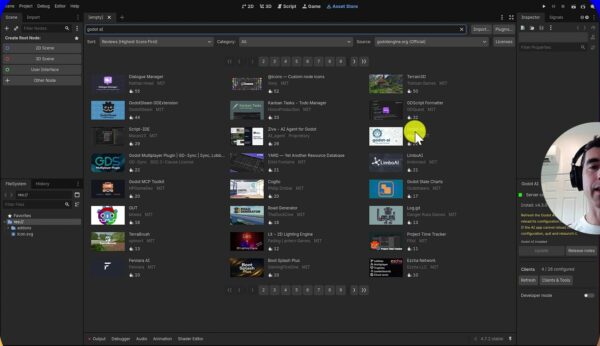
With these connections in place, the model can work with Blender for the assets and Godot for the game implementation.
Plan the Monster Truck Game Before Building It
Begin with a game design document, not an immediate request to build the whole game. The idea here is a 3D monster-truck game: drive around a city and crash into parked cars. The request specifies no violence against people, with playful destruction and pieces of junk flying around.
Organize the initial instructions into four areas:
- Overview: describe the monster truck, city setting and parked-car destruction.
- Game Feel: explain the satisfying destruction you want the player to experience.
- Tools / Environment: identify Blender for the models and Godot for the game.
- Scope: keep this attempt to a 30-minute game build.
Also give the agent two explicit constraints: don’t modify anything outside the project folder, and don’t install packages without asking first. These boundaries are part of the request, alongside the game concept.
Ask for the design document first so you can review it before approving implementation. In this run, that document took about eight minutes to generate and opened directly inside OpenCode.
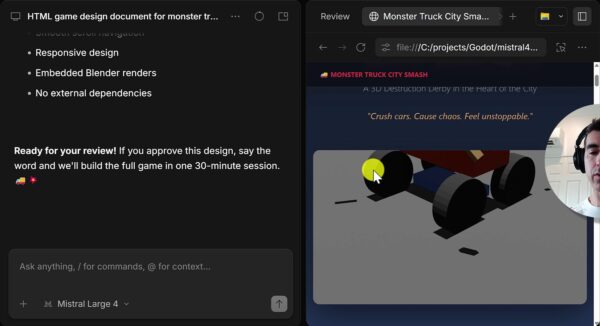
Review the concept, core loop, visual style, city destruction, constraints and out-of-scope items. Treat the early Blender renders as design concepts, not final game assets. A document that looks complete is still only the starting point for the build.
Refine the Visual Direction
Once the design is acceptable, adjust anything that doesn’t match the look you want. Here, the initial color palette wasn’t a good fit, so a concept image generated in ChatGPT supplied a visual reference.
You can give specific feedback without rewriting the whole design. The visual revision request used for this build was:
I’m fine with it but I don’t like the color palette, re the visuals, yes low poly, but you can use some texturing, and color gradients, so it’s not so plain. Providing here a concept screenshot just for reference, use color palette based on it. You can make the game now.
This keeps the low-poly direction but asks for more texture, gradients and a palette based on the reference image. After that revision request, let the agent start building. The feedback was deliberately kept brief to see what Mistral could produce with limited back-and-forth.
Test the Mistral Build in Godot
When the agent reports completion, open Godot and press F5 to run the game. Test the result instead of relying on the completion message.
After roughly 30 minutes, Mistral reported that it had created the game and 3D models. The first run, however, couldn’t be controlled and appeared to get stuck. Inspecting the monster-truck asset also revealed a very basic model that wasn’t suitable for the intended game.
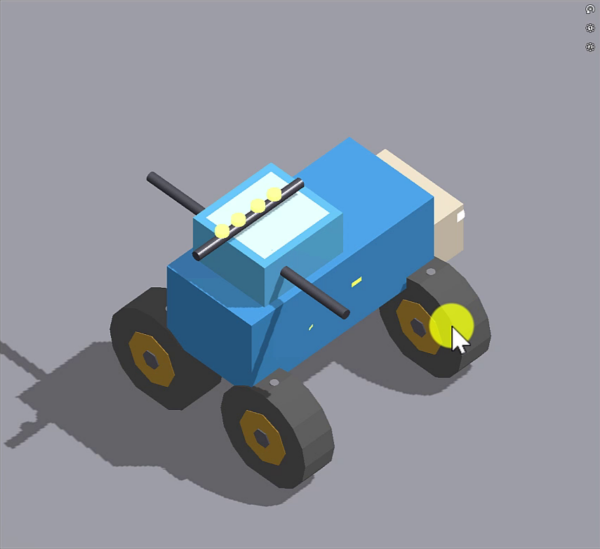
Check both parts of the result: whether the gameplay works and whether the assets match the game you planned. In this build, neither was good enough to stop there. The generated document and completion message had not translated into a usable game.
Use Codex to Repair and Rebuild the Game
If the first build isn’t playable, start by addressing that immediate problem. For this project, the next request went to Codex and focused on being able to play the game, rather than getting the points system right.
About five minutes later, the truck could move and hit cars. That was progress, but the scene was still a simple prototype.
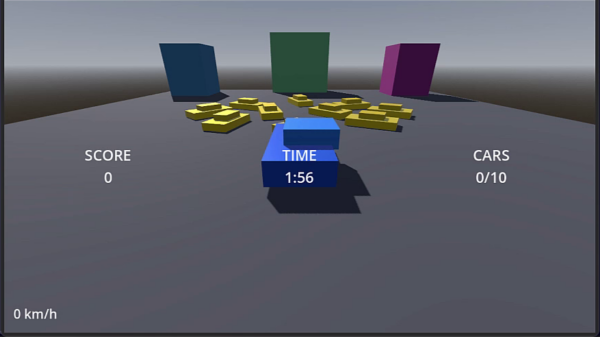
To take it further, ask Codex to read the existing game design document, implement that game using the MCP server, and recreate the 3D models. Keep the original design as the reference rather than starting with a different game idea.
The rebuild took about 17–18 minutes in this run. The result was a much more complete city scene, with a monster truck driving through streets and smashing parked cars.
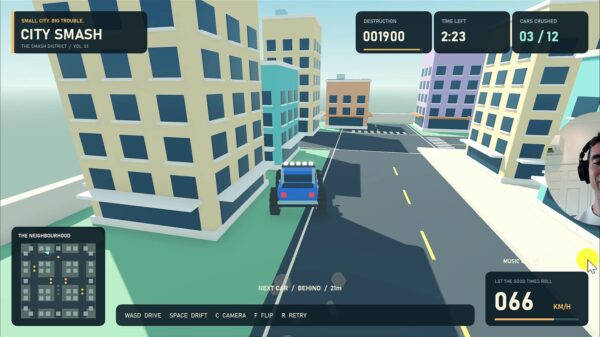
The rebuilt game displays destruction points, time remaining, cars crushed, a minimap and a speedometer. Its on-screen controls are:
| Input | Action |
|---|---|
| WASD | Drive |
| Space | Drift |
| C | Camera |
| F | Flip |
| R | Retry |
These visuals, controls and timings belong to this particular build, not a guaranteed result from the same request. AI outputs can vary, so adapt the feedback and test what your own project actually does.
What You Can Take From This Workflow
You’ve followed a design-first workflow from connecting the tools to inspecting a playable rebuild. The practical steps are:
- Use OpenCode with Mistral and connect Blender MCP and Godot AI.
- Request a game design document before implementation.
- Set project-folder and package-installation constraints.
- Review the visual direction and provide a reference when needed.
- Run the game and inspect its assets, rather than trusting a completion claim.
- Use the existing design document to guide a repair or rebuild.
Mistral produced the plan, but its initial implementation fell short in this test. Codex first restored basic playability, then rebuilt the game into something much closer to the intended car-smashing experience. The useful next step is to apply the same planning and testing process to your own project.
Build your AI-development skills with practical, guided learning at Zenva Academy, and develop the confidence to plan, review and improve your own games and apps.
Did you come across any errors in this tutorial? Please let us know by completing this form and we’ll look into it!
FINAL DAYS: Unlock coding courses in Unity, Godot, Unreal, Python and more.