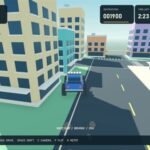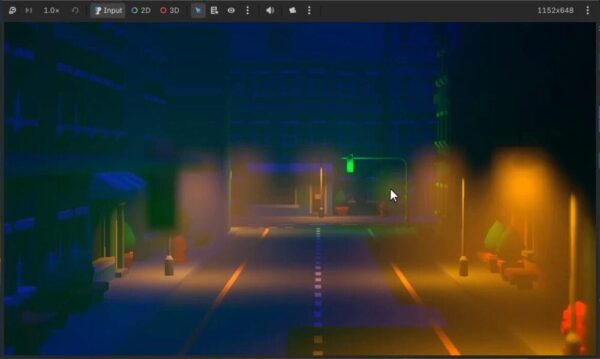
Getting a cutscene shot right means controlling more than the camera’s position. In this Godot cinematic camera tutorial, Zenva’s experience teaching coding and game development through over 400 courses guides a step-by-step approach to target tracking, handheld shake, and shot settings. You’ll then bring multiple viewpoints together with a camera manager that switches between them by ID.
This tutorial assumes you’re familiar with Godot and GDScript and are using the cutscene project’s existing 3D street scene, lights, and camera.
Download Project Files
The files and full project are available through the course included in the Godot 4 Game Development Mini-Degree if you want to follow the complete guided project. You can keep reading this free tutorial to work through the camera setup.

Build Your Godot Cinematic Camera
Creating the CinematicCamera Script
In the FileSystem dock, create a Scripts folder. Inside it, create cinematic_camera.gd. Extend Camera3D so you retain its existing functionality, and give the script the class name CinematicCamera:
class_name CinematicCamera
extends Camera3D
Save the script, select the existing Camera3D node in the main scene, and attach it.
Tracking a Target
Automatic tracking lets the camera rotate to keep looking at a subject, such as a car moving toward it. Start with an exported reference to the target:
@export var track_target : Node3D
In _process, check that a target has been assigned, then call look_at with its global position:
func _process (delta : float):
	if track_target != null:
		look_at(track_target.global_position)
The check skips the tracking call when track_target is null. To test it, drag a streetlight such as Streetlight3 into the camera’s Track Target field and press Play. The camera should face the light.
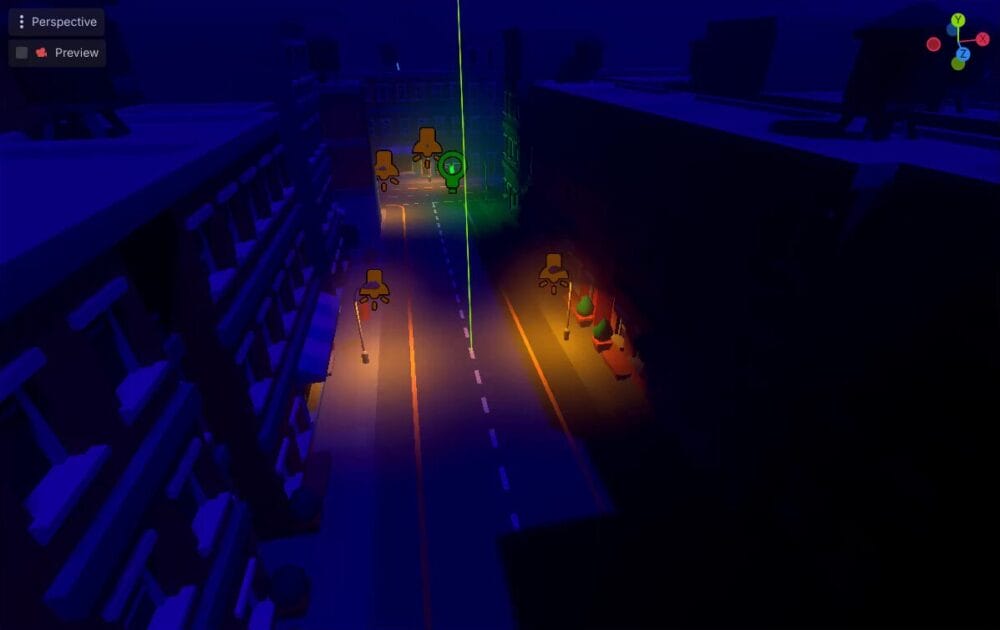
While the game runs, return to Godot and switch the Scene panel to Remote. Find Streetlight3 among the live nodes and move it. Return to the game view to check that the camera keeps facing the light as its position changes.
Adding a Handheld Feel
For a subtle handheld effect, use the camera’s h_offset and v_offset properties. Adjusting them shifts the camera view horizontally and vertically while leaving the node’s position unchanged.
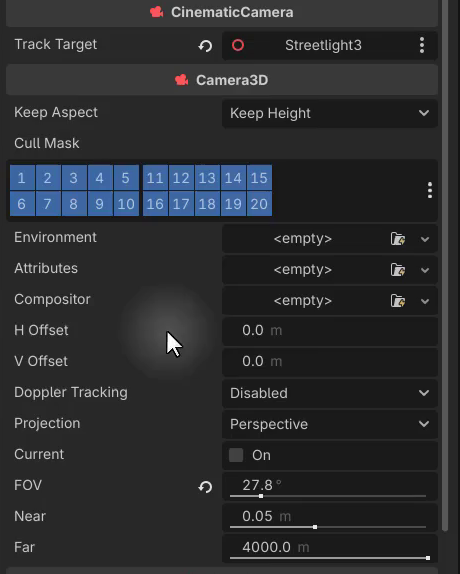
You’ll drive these offsets with noise so the movement varies smoothly over time. Add these exported variables:
@export var do_handheld : bool
@export var handheld_noise : FastNoiseLite
@export var handheld_amplitude : float
@export var handheld_frequency : float
do_handheldtoggles the effect.handheld_noiseholds theFastNoiseLiteresource used to generate it.handheld_amplitudecontrols the size of the offset.handheld_frequencycontrols how quickly the effect moves.
Understanding the FastNoiseLite Resource
Save and select the camera. In its Handheld Noise field, create a new FastNoiseLite resource, then expand it to see the noise preview.
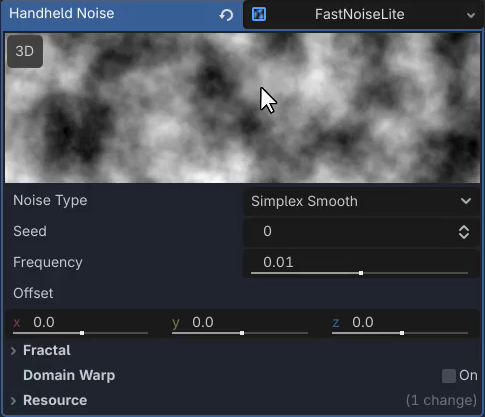
Think of the preview as a two-dimensional graph. As you sample changing positions across it, its smooth light and dark variations produce a value that rises and falls. That changing value will drive the camera offsets.
Leave the noise resource’s default properties in place. The camera’s amplitude and frequency settings will control the effect: an amplitude of 0.01 gives a subtle result, while 0.1 produces much larger movement. A higher frequency makes the shake faster.
Applying the Handheld Offset in Code
After the tracking code in _process, add an early return so the remaining logic runs only when handheld movement is enabled:
if not do_handheld:
	return
Add a script-level variable to keep track of time:
var time : float
Inside _process, after the early return, increase it by delta:
time += delta
Multiply time by the handheld frequency to calculate the position you’ll sample in the noise:
var offset : float = time * handheld_frequency
For example, a frequency of 100 makes the sampling offset advance by 100 each second. To begin with horizontal movement, sample along X while keeping Y at zero:
h_offset = handheld_noise.get_noise_2d(offset, 0)
With Do Handheld enabled, this unscaled sample can produce excessive movement. Multiply it by handheld_amplitude to keep the offset small:
h_offset = handheld_noise.get_noise_2d(offset, 0) * handheld_amplitude
Use an amplitude such as 0.01 and run the scene. Watch an object near the edge of the frame to see the horizontal movement.
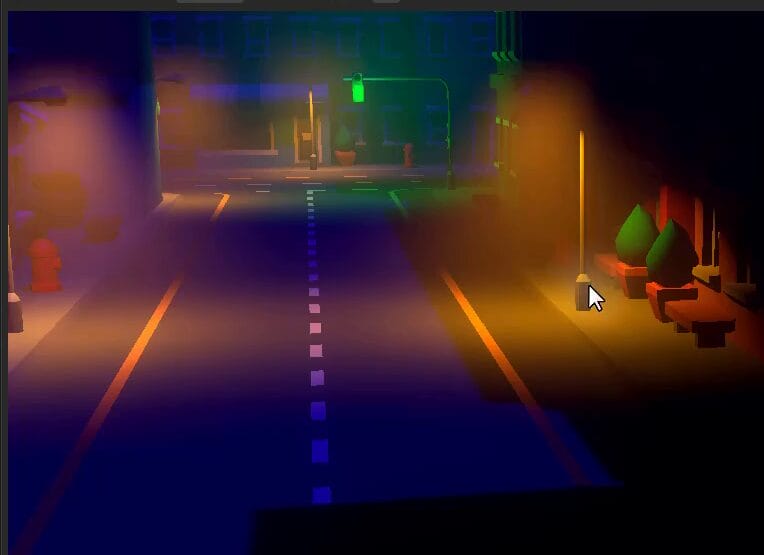
For vertical movement, sample along Y instead, keeping X at zero:
v_offset = handheld_noise.get_noise_2d(0, offset) * handheld_amplitude
Save and run again to see the two-axis effect. If 0.01 is hard to notice, try 0.02 temporarily, then return to the subtler value.
The CinematicCamera Script So Far
With tracking and handheld movement combined, the script looks like this:
class_name CinematicCamera
extends Camera3D

@export var track_target : Node3D

@export var do_handheld : bool
@export var handheld_noise : FastNoiseLite
@export var handheld_amplitude : float
@export var handheld_frequency : float

var time : float

func _process (delta : float):
	if track_target != null:
		look_at(track_target.global_position)

	if not do_handheld:
		return

	time += delta

	var offset : float = time * handheld_frequency
	h_offset = handheld_noise.get_noise_2d(offset, 0) * handheld_amplitude
	v_offset = handheld_noise.get_noise_2d(0, offset) * handheld_amplitude
You now have the camera behavior in place. Next, you’ll use camera attributes to adjust how the shot looks.
Adjust Exposure and Depth of Field
Adding a Camera Attributes Resource
Select the camera and find Attributes in the Inspector. Click the empty resource slot to see the available types:

- CameraAttributesPhysical uses real-world camera units, such as focal length.
- CameraAttributesPractical offers simpler controls for adjusting the image.
Choose CameraAttributesPractical and expand it. You’ll see groups for depth of field blur, exposure, and auto exposure.
Exposure
With the camera selected, enable Preview in the 3D viewport so you can see the shot while changing settings.
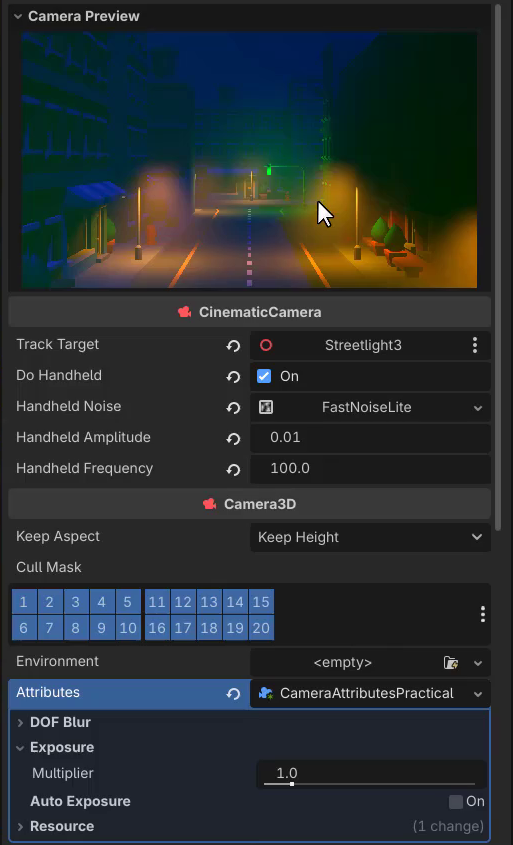
Under Exposure, increasing Multiplier brightens the image; lowering it makes the image darker. Try the control to see its effect, then leave the multiplier at its default for this shot.
Depth of Field Blur
Reposition the camera so a traffic light appears in the foreground. You can leave Preview to move the camera in the regular viewport, or enable Pilot inside Preview and hold the right mouse button while moving with WASD.
To soften the scene’s overwhelming light glare, select the traffic light’s OmniLight3D and lower its Volumetric Fog Energy.
Return to the camera attributes and open DOF Blur. The two options affect different parts of the shot:
- Far Enabled blurs distant objects.
- Near Enabled blurs objects close to the camera.
Enable Near to soften the foreground traffic light while keeping the street behind it sharp.
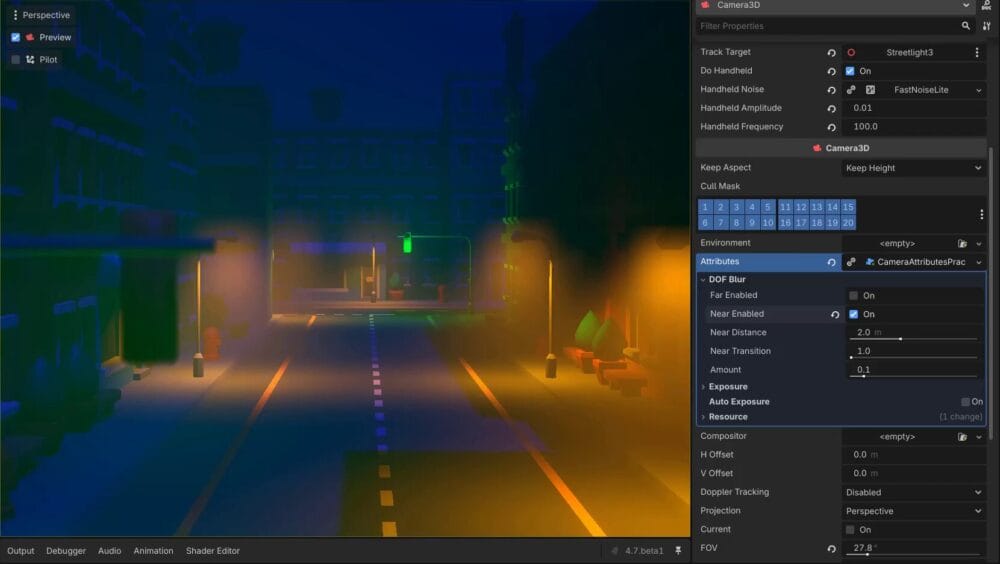
Use the remaining controls to shape the effect:
- Near Distance: objects closer than this threshold receive full blur. Increase it to extend that region farther into the scene, or lower it to bring the blur closer to the camera.
- Near Transition: controls the fade from full blur to no blur. Larger values give a gentler falloff; try 5 to see the difference.
- Amount: controls blur strength. Try around 0.1, then about 0.2 to make the effect more visible.
To compare the opposite effect, disable Near and enable Far. Reduce Far Distance and try a Far Transition of 20 to soften the background. Return to Near blur for the foreground light in this shot.
Focal Length and Field of View
Use the camera’s Field of View setting to refine the framing. With Preview enabled, try a narrower value such as 18 and watch how the view changes.
In the camera’s Transform, set its X position to 0 to center it on the road, then move it back slightly to place the streetlight in the shot. Adjust the near blur for the new framing by increasing Near Distance and setting Near Transition to around 3.
Before running the scene, turn Preview off and clear Track Target so the camera holds this composition instead of rotating toward a target.

The shot now combines a narrower field of view with a softened foreground. Next, you’ll prepare additional viewpoints and a way to select them.
Switch Between Cutscene Cameras
The Problem With Multiple Cameras
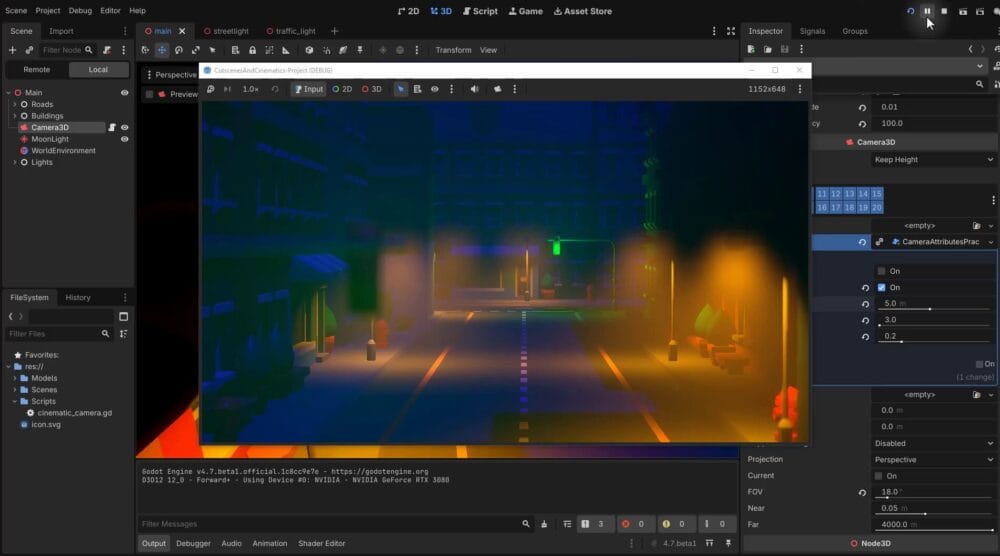
Duplicate the camera and move the copy elsewhere in the scene. With two cameras available, you need to control which one supplies the active view.
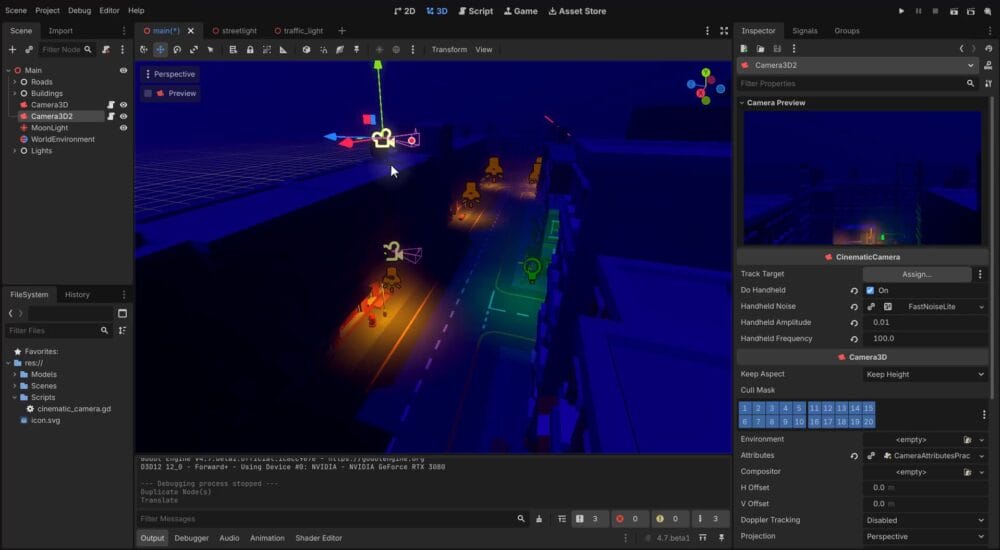
Relying on the cameras’ order in the Scene tree makes that choice fragile: rearranging the nodes can change the initial viewpoint. Use the camera’s own activation setting instead.
Using the Current Property
Select the camera you want to use, find Current in its Camera3D settings, and enable it. This marks it as the active camera. Setting another camera’s current property to true at runtime switches the view to that camera.
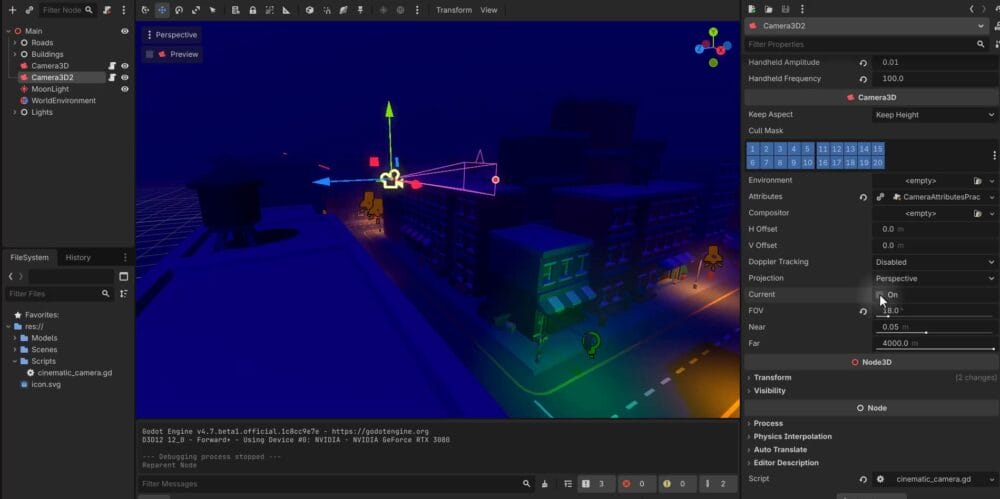
The manager you’ll build next uses this property to perform each camera cut.
Rather than adding a separate animation track to toggle each camera, you can give a manager the available camera references and expose one function that selects a camera by ID.
Use an exported array instead of requiring every camera to be a child of the manager. That keeps the setup flexible for cameras that will later sit under moving objects, such as a car.
Creating the CameraManager Node and Script
Add a plain Node to the scene and name it CameraManager. Attach a new script named camera_manager.gd:
class_name CameraManager
extends Node

# Array of CinematicCamera nodes that can be managed
@export var cameras : Array[CinematicCamera]
The exported array lets you assign camera nodes from the Inspector, even when they occupy different places in the scene hierarchy.
Identifying Cameras With an ID
Open cinematic_camera.gd and add an exported string to identify each camera:
# Unique identifier for this camera instance
@export var id : String
Give each instance a unique ID. The manager will use that value to find the camera you want to activate.
The activate_camera Function
In camera_manager.gd, add activate_camera. It loops through the array, compares each ID with the requested value, and makes the matching camera current:
class_name CameraManager
extends Node

# Array of CinematicCamera nodes that can be managed
@export var cameras : Array[CinematicCamera]

# Activates the CinematicCamera with the matching camera_id
func activate_camera (camera_id : String):
	for cam in cameras:
		if cam.id == camera_id:
			cam.current = true
You don’t need a separate assignment to turn the previous camera off. Making the matching camera current transfers the active view to it.
Assigning the Cameras in the Inspector
Select CameraManager, add two elements to its Cameras array, and drag the two camera nodes into the slots.
Rename the camera looking down the street to intro and set its Id to intro. Rename the second camera to tracking, give it the ID tracking, and position and rotate it to face down the street, ready for the planned car shot.
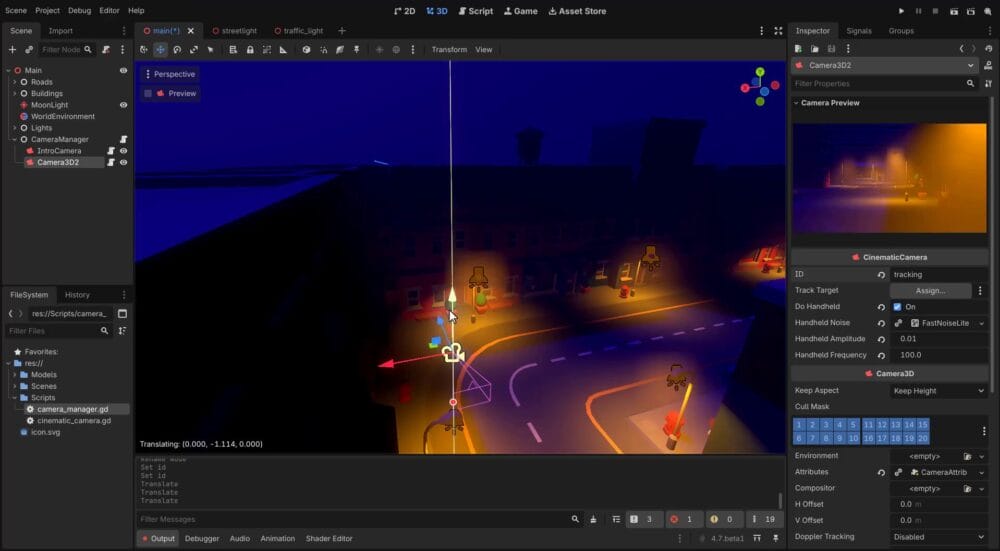
Use the camera preview to refine the framing. Vehicle animation and the timing of camera cuts come later; this setup gives you the camera controls and manager they will use.
Put Your Cinematic Camera Setup to Work
Your street scene now has a reusable cinematic camera script, shot controls, and a central way to switch viewpoints. You’ve covered how to:
- Track a
Node3Dtarget withlook_at. - Drive horizontal and vertical handheld offsets with
FastNoiseLite. - Adjust exposure, near and far depth of field, and field of view.
- Assign camera IDs and select a viewpoint through
CameraManager.
With those pieces in place, you’re ready to continue the cutscene project and refine the shots as the vehicles are animated.
Continue with the Godot 4 Game Development Mini-Degree for the full course project and a structured path through Godot game development. Build on this camera setup as you keep developing your skills.
Did you come across any errors in this tutorial? Please let us know by completing this form and we’ll look into it!
FINAL DAYS: Unlock coding courses in Unity, Godot, Unreal, Python and more.