Moving from Unity to Godot means learning new syntax for familiar tasks. This Godot mouse look tutorial shows you how to build a first-person camera that responds to mouse movement, captures the cursor, and limits how far you can look up or down.
With experience teaching coding and game development through over 400 courses, Zenva guides you through the transition step by step: first comparing C# and GDScript, then bringing the camera controls together in a complete script.
This tutorial assumes you’re comfortable with basic Unity C# scripting and have Godot ready with the project’s 3D scene and Camera3D node.
Download Project Files
The files and full project are available through the course included in the Godot 4 Game Development Mini-Degree if you want the complete guided path. You can keep reading this free tutorial to compare the scripting patterns and build the camera look behavior.

Compare Unity Scripting With GDScript
The small examples below compare individual pieces of syntax. After those comparisons, you’ll put the camera-specific pieces together in a complete camera_look.gd script.
Creating and Opening Scripts
In either engine, create a script asset and double-click it to open it. Godot includes a script editor inside the engine, while Unity typically opens an external tool such as Visual Studio.
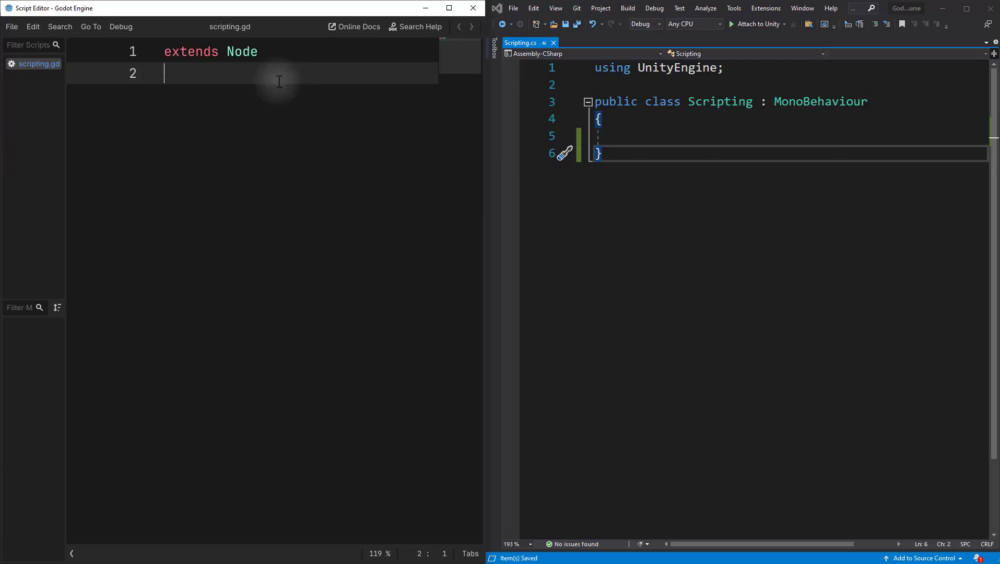
The Unity example begins with a using UnityEngine; declaration. The GDScript example doesn’t need a corresponding library declaration.
Inheritance and Class Declaration
In Unity, the script explicitly declares a class and its base type. Here, Scripting inherits from MonoBehaviour:
using UnityEngine;

public class Scripting : MonoBehaviour
{

}
GDScript uses extends to declare its base type. This example extends Node:
extends Node
If you want to reference the script’s type by a name in other scripts, add class_name:
extends Node
class_name Scripting
Declaring Variables
A C# field can specify access, type, name, and an initial value. This example declares a private integer:
private int number = 5;
In GDScript, use var followed by the name and value. You don’t add a public or private keyword:
var number = 5
You can also include a type annotation after the name:
var number : int = 5
The typed version makes the intended value type explicit.
Exposing Variables in the Editor
To expose the private C# field in Unity’s Inspector, use SerializeField:
[SerializeField]
private int number = 5;
In Godot, use @export to make the variable editable in the Inspector:
@export var number : int = 5
Built-In Functions
Unity’s Start and Godot’s _ready are the initialization callbacks used in these examples. Unity prints a message with Debug.Log:
void Start ()
{
    Debug.Log("Start of game");
}
GDScript declares functions with func and writes the message with print:
func _ready ():
	print("Start of game")
For per-frame work, Unity uses Update:
void Update ()
{
    Debug.Log("Update");
}
Godot uses _process, which receives the elapsed frame time as delta:
func _process (delta):
	print("Update")
In Unity, you’d access that frame time through Time.deltaTime. Godot passes it into the callback instead.
For fixed-step physics work, Unity has FixedUpdate. Godot provides _physics_process, with the physics frame’s delta passed in:
func _physics_process (delta):
	print("Physics update")
Functions That Return a Value
C# places a function’s return type before its name. This function takes two integers and returns their sum:
int Add (int a, int b)
{
    return a + b;
}
In GDScript, parameter types follow their names, while an optional return type follows -> at the end of the signature:
func add (a : int, b : int) -> int:
	return a + b
Notice that the C# statements shown end with semicolons, while the GDScript examples do not.
Events and Signals
Unity offers several ways to work with events. For the UnityAction example, start with its namespace:
using UnityEngine.Events;
Declare an event carrying an integer health value:
public event UnityAction<int> OnTakeDamage;
The invocation syntax sends that value with Invoke:
OnTakeDamage.Invoke(10);
Godot uses signals for this kind of notification. The following declaration carries an integer health value too:
signal OnTakeDamage (health : int)
Use emit to send the value:
OnTakeDamage.emit(10)
Connecting a Function to an Event
In Unity, a handler takes the event’s value, and += subscribes it to the event:
void TakeDamage (int health)
{
}

OnTakeDamage += TakeDamage;
Godot uses connect to connect the signal to a function. The empty GDScript function uses pass as its placeholder body:
func take_damage (health : int):
	pass

OnTakeDamage.connect(take_damage)
These comparisons give you the variable and callback syntax to follow the camera implementation next.
Build Godot Mouse Look for a First-Person Camera
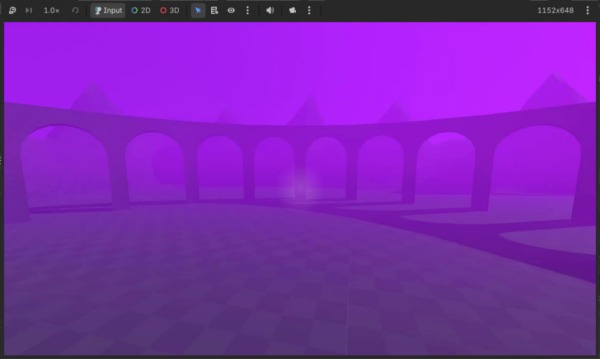
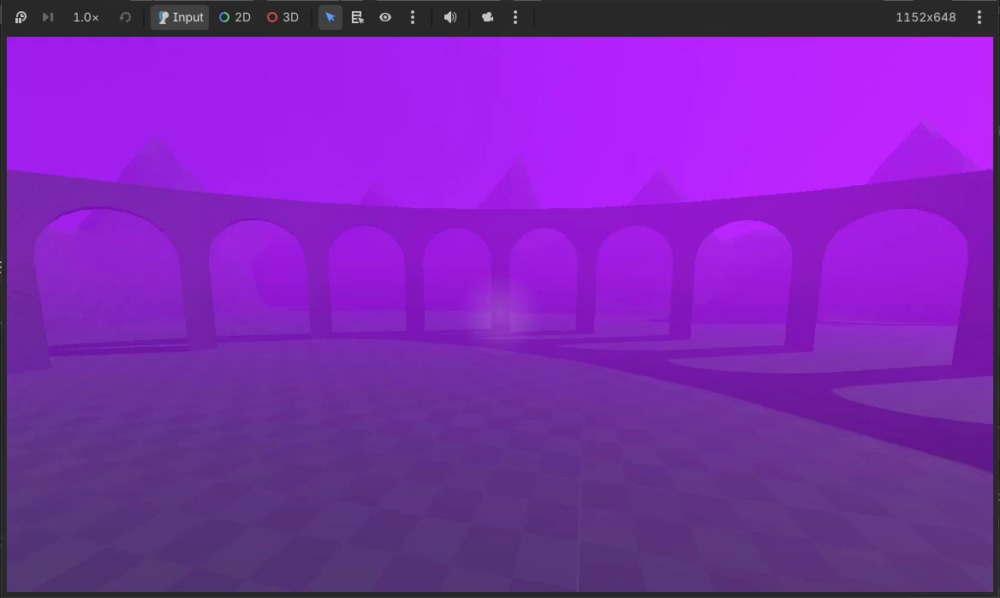
The camera behavior captures the mouse, rotates the view from mouse movement, and limits how far you can look up or down. Here is the Unity scene used as the reference:
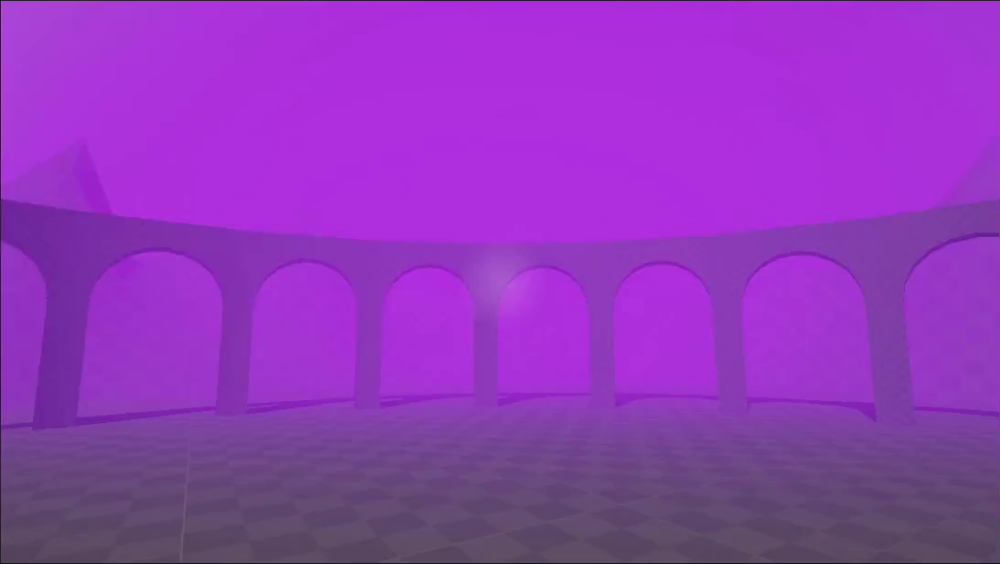
The Unity Version for Reference
The Unity script stores sensitivity, mouse movement, and the vertical rotation. It locks the cursor in Start, reads input in Update, and applies a new rotation vector:
using UnityEngine;
using UnityEngine.InputSystem;

public class CameraLook : MonoBehaviour
{
    [SerializeField]
    private float lookSensitivity = 0.1f;

    private Vector2 mouseDelta;
    private float xRot;

    void Start ()
    {
        // Hide/lock the mouse cursor
        Cursor.lockState = CursorLockMode.Locked;
    }

    void Update ()
    {
        // Get the X and Y the mouse moved this frame
        mouseDelta = Mouse.current.delta.value;

        // Adjust X rotation (up/down)
        xRot -= mouseDelta.y * lookSensitivity;
        xRot = Mathf.Clamp(xRot, -80, 80); // Prevent looking beyond straight up/down

        // Adjust Y rotation (left/right)
        float yRot = transform.eulerAngles.y + (mouseDelta.x * lookSensitivity);

        // Apply the rotation to the Transform component
        transform.eulerAngles = new Vector3(xRot, yRot, 0);
    }
}
The final assignment builds a new Vector3 from the cached X and Y rotations. The Godot version below can modify the rotation axes directly.
Setting Up the Script in Godot
Select the scene’s Camera3D, attach a new script, and save it in the scripts folder as camera_look.gd.
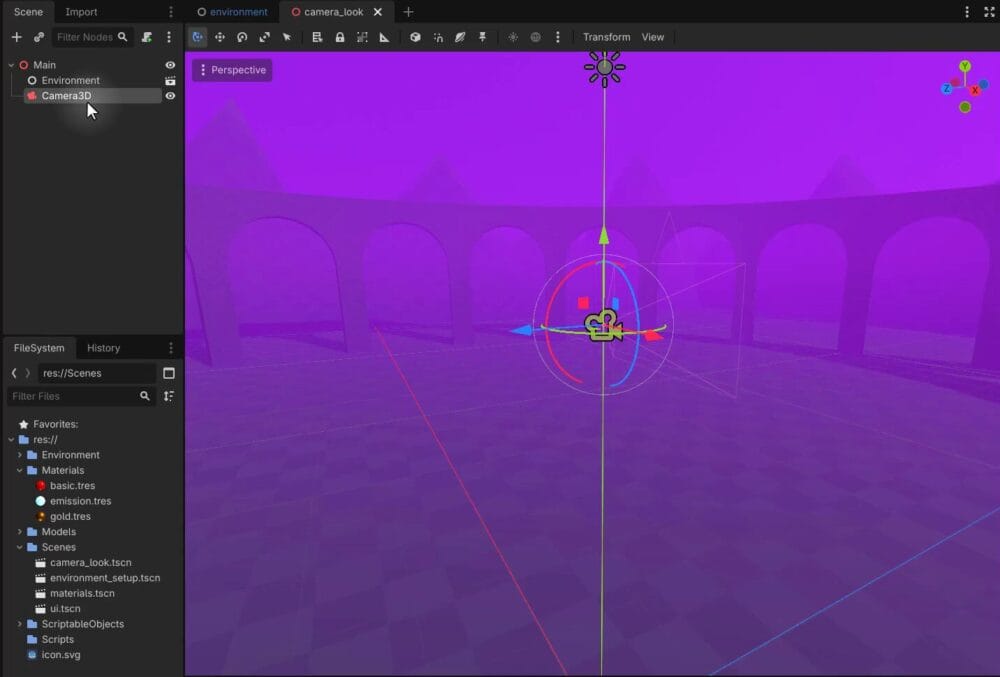
Extend the node type the script is attached to:
extends Camera3D
The Look Sensitivity Variable and Naming Conventions
Add a sensitivity variable to control how quickly mouse movement rotates the camera:
var look_sensitivity : float = 0.1
The name look_sensitivity uses snake_case: lowercase words separated by underscores. The camera’s GDScript variables and functions follow that naming style.
Replace the declaration with an exported version so you can adjust it in the Inspector:
@export var look_sensitivity : float = 0.1
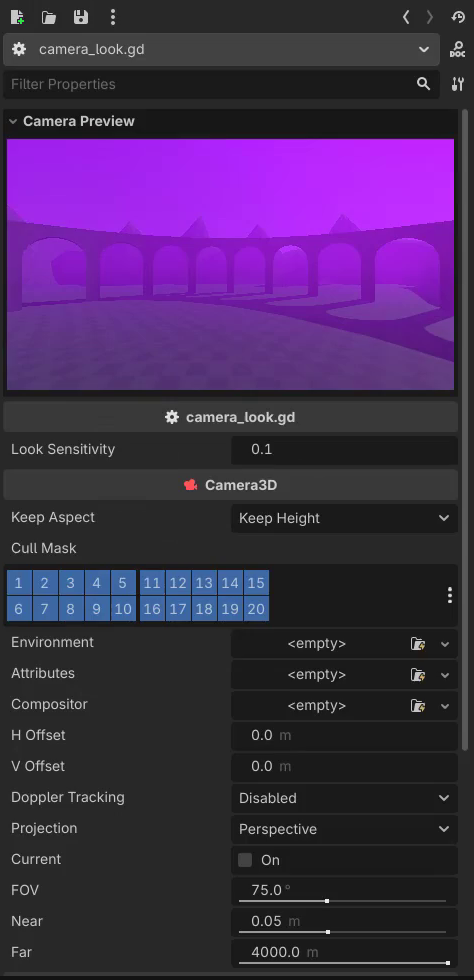
Hiding the Mouse Cursor
In _ready, set the mouse mode to captured. This provides the behavior corresponding to the Unity example’s locked cursor:
func _ready():
	Input.mouse_mode = Input.MOUSE_MODE_CAPTURED
Run the scene to check that the cursor becomes invisible and captured. You can use Alt Tab to leave the game window and close it when you finish testing.
Detecting the Mouse Delta
Instead of polling mouse movement in _process, use an input callback. Godot offers _input and _unhandled_input; the latter lets earlier input handling, such as UI interaction, take priority before your game controls respond.
In _unhandled_input, check whether the event is an InputEventMouseMotion. Its relative value gives you the mouse movement:
func _unhandled_input(event):
	# Is this input the mouse delta?
	if event is InputEventMouseMotion:
		var mouse_delta : Vector2 = event.relative
Store it as a Vector2 named mouse_delta so the rotation code can use its horizontal and vertical components.
Rotating the Camera
The camera’s rotation property uses radians. For this example, work with rotation_degrees so the angles are in degrees.
Inside the mouse-motion condition, subtract the vertical mouse movement multiplied by sensitivity from the X rotation:
rotation_degrees.x -= mouse_delta.y * look_sensitivity
Then use clampf to keep that angle between -80 and 80 degrees:
rotation_degrees.x = clampf(rotation_degrees.x, -80, 80)
For left and right movement, update the Y rotation using the horizontal mouse delta:
rotation_degrees.y -= mouse_delta.x * look_sensitivity
The complete camera_look.gd script combines mouse capture, input detection, and both rotation axes:
extends Camera3D

@export var look_sensitivity : float = 0.1  # Adjusts rotation speed based on mouse movement

# Hide/disable the mouse cursor
func _ready ():
	Input.mouse_mode = Input.MOUSE_MODE_CAPTURED

# Called when an input is detected
func _unhandled_input(event):
	# Is this input the mouse delta?
	if event is InputEventMouseMotion:
		var mouse_delta : Vector2 = event.relative

		# Modify the X rotation (up/down)
		rotation_degrees.x -= mouse_delta.y * look_sensitivity
		rotation_degrees.x = clampf(rotation_degrees.x, -80, 80)  # Limit vertical look angle

		# Modify the Y rotation (left/right)
		rotation_degrees.y -= mouse_delta.x * look_sensitivity
Save and run the scene. Move the mouse to look around, then check that vertical movement stops at the limits while horizontal rotation remains unrestricted.
Key Differences From Unity
These are the two main implementation differences in the examples:
| Task | Unity Example | Godot Example |
|---|---|---|
| Read mouse movement | Read mouse delta in Update each frame. | Read event.relative in _unhandled_input when mouse motion arrives. |
| Apply camera rotation | Cache X and Y angles and assign a new Vector3. | Modify individual axes through rotation_degrees. |
Review Your GDScript and Camera Look Setup
You now have a first-person camera look script and a set of C#-to-GDScript comparisons to help you understand it. You’ve covered how to:
- Declare a base type, variables, exported properties, and typed functions in GDScript.
- Recognize initialization, per-frame, and physics callbacks.
- Declare, emit, and connect signals in the comparison examples.
- Capture the cursor and read mouse-motion input.
- Rotate a camera in degrees and clamp its vertical angle.
You can now tune the exported sensitivity as you continue working with the first-person view in the example scene.
Continue with the Godot 4 Game Development Mini-Degree for the full course project and a structured path through Godot game development. Build on this camera behavior while putting your existing programming knowledge into practice.
Did you come across any errors in this tutorial? Please let us know by completing this form and we’ll look into it!
FINAL DAYS: Unlock coding courses in Unity, Godot, Unreal, Python and more.