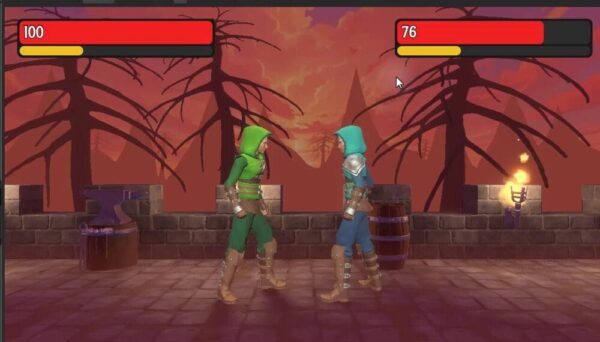
Build a Godot fighting game camera that follows both players, then connect the HUD and screen shake to damage events. You will work through camera positioning and on-screen feedback together, guided by Zenva’s coding and game-development teaching experience across a catalog of over 400 courses.
This tutorial assumes you have the supplied fighting-game project open in Godot, including its fighters, imported UI font, health system, and GlobalEvents autoload.
Download Project Files
The files and full project are available through the course included in the Intermediate Godot Mini-Degree if you want the complete guided path. You can also keep reading this free tutorial to work through camera tracking, the fighter HUD, and damage-triggered shake.
Build the Godot Fighting Game Camera Follow System
Start by keeping the camera centered between the fighters. You will then smooth its horizontal movement and adjust its distance as the players move apart.
Positioning the Camera
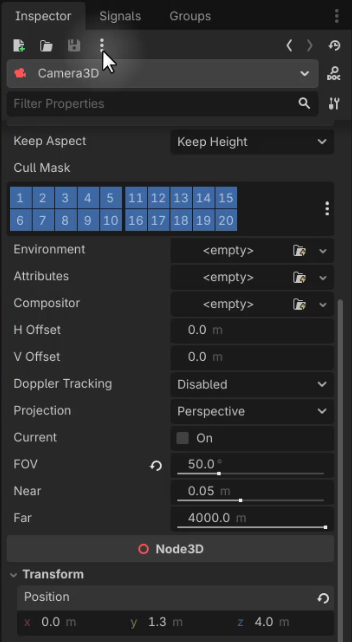
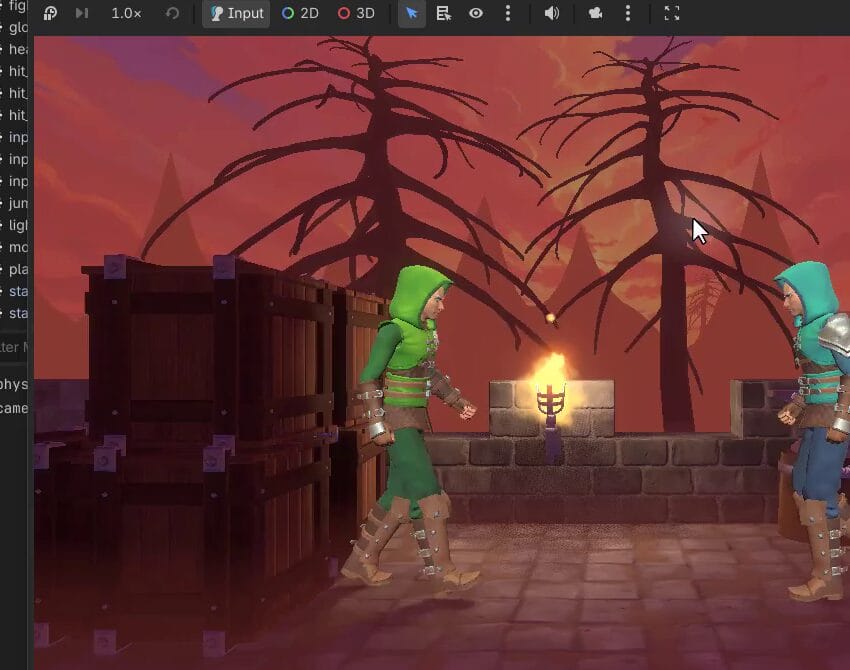
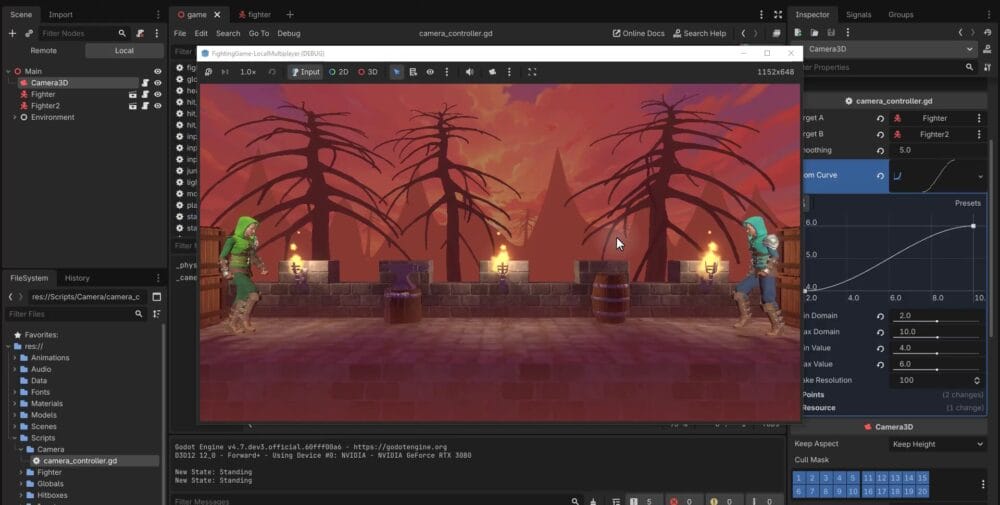
Select the scene’s Camera3D and set its position to approximately X: 0, Y: 1.3, Z: 4. The Z value sets its distance from the action, while the Y value leaves space above the fighters for the HUD. The script will control the horizontal position.
Creating the Camera Controller Script
Create a Camera folder inside Scripts, then create camera_controller.gd. Extend Camera3D and export two target references:
extends Camera3D

@export var target_a : Node3D
@export var target_b : Node3D
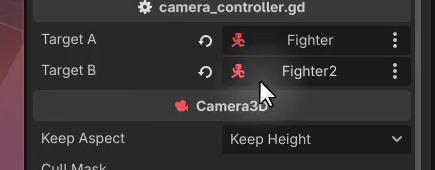
Attach the script to the Camera3D node. In the Inspector, assign the first fighter to Target A and the second fighter to Target B.
Following the Players
Call _camera_follow every physics frame. Find the midpoint between the fighters with a lerp weight of 0.5, then use that midpoint for the camera’s X position:
func _physics_process(delta):
	_camera_follow(delta)

func _camera_follow (delta : float):
	var center_pos : Vector3 = target_a.global_position.lerp(target_b.global_position, 0.5)

	position.x = center_pos.x
Linear interpolation takes a start, an end, and a weight. A weight of 0 returns Target A’s position, 1 returns Target B’s position, and 0.5 returns the midpoint. This keeps the camera horizontally between both fighters.
Adding Smoothing
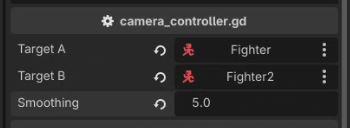
Directly assigning the midpoint makes the camera mirror every quick movement. To soften that response, add an exported smoothing value:
@export var smoothing : float
Replace the direct X assignment with an interpolation from the current position toward the midpoint:
position.x = lerp(position.x, center_pos.x, smoothing * delta)
Set Smoothing to a value such as 5 in the Inspector. The camera can now ease toward the center instead of snapping to every dash or small movement.
Dynamic Zoom with a Curve
When the fighters are close, the camera should move closer. When they separate, it should pull back to keep them in view. Export a Curve resource to map the distance between the players to the camera’s Z position:
@export var zoom_curve : Curve
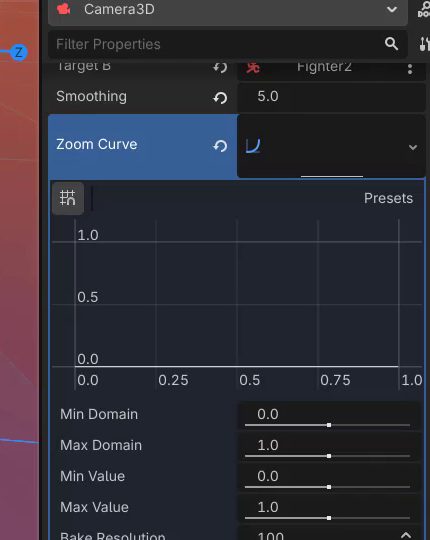
The curve’s horizontal axis represents fighter separation, and its vertical axis represents camera distance.
Configuring the Zoom Curve
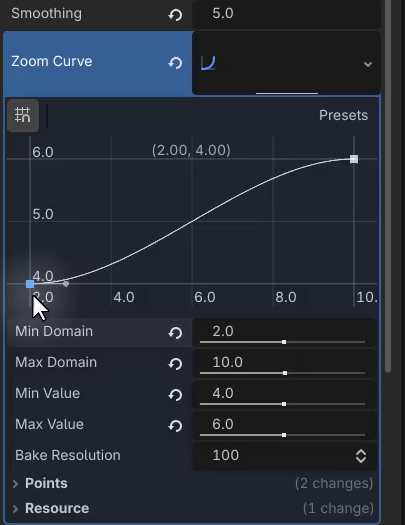
Create a new resource in the Zoom Curve field, open its editor, and set these ranges:
- Min Value:
4, the closest camera Z position. - Max Value:
6, the furthest camera Z position. - Min Domain:
2, the minimum fighter distance used by the curve. - Max Domain:
10, the maximum fighter distance used by the curve.
Add a bottom-left control point at distance 2, Z position 4 and a top-right point at distance 10, Z position 6. With this mapping, a separation of about 6 units gives a camera Z position of roughly 5.
Sampling the Zoom Curve in Code
Calculate the distance between the targets and pass it to zoom_curve.sample():
func _camera_follow (delta : float):
	var center_pos : Vector3 = target_a.global_position.lerp(target_b.global_position, 0.5)
	var distance : float = target_a.global_position.distance_to(target_b.global_position)

	position.x = lerp(position.x, center_pos.x, smoothing * delta)

	position.z = zoom_curve.sample(distance)
distance_to measures the separation, and sampling the curve returns the corresponding camera Z value. You can tune the value range, domain, and curve shape to suit the arena and change how strongly the camera responds at different distances.
Build the Health and Stamina HUD Layout
With the action framed, add a HUD panel for each fighter. The health bar will show live damage updates; the stamina bar will be prepared for a later system.
Creating the HUD Panel
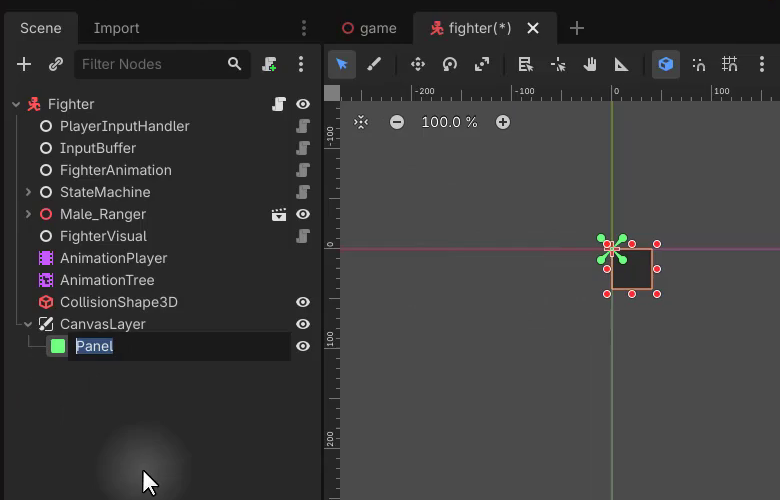
Open the Fighter scene and add a CanvasLayer child. This keeps the interface separate from the 3D scene. Add a Panel beneath it, rename the panel Hud, and resize and position it near the top of the screen.
Adding the Health Bar
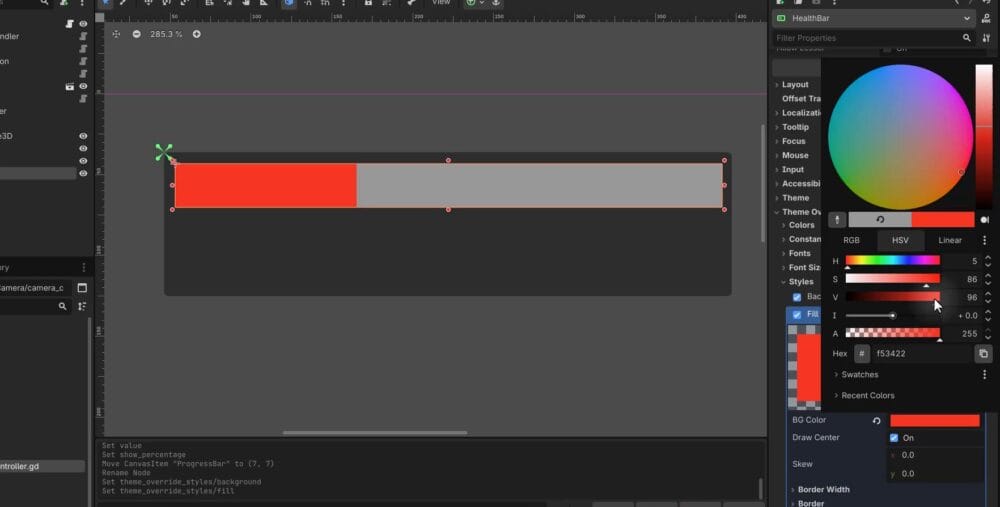
Add a ProgressBar beneath Hud, rename it HealthBar, and position it inside the panel. Disable Show Percentage to remove the default text overlay.
Under Theme Overrides > Styles, give both Background and Fill a new StyleBoxFlat. Use dark gray for the background and red for the fill.
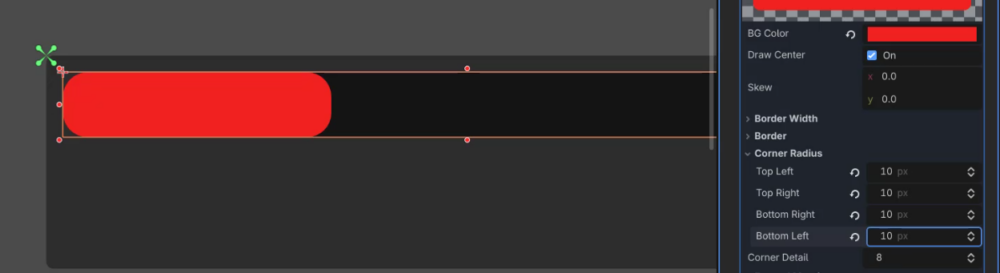
Set the Corner Radius to 10 on both style resources to round the bar’s corners.
Adjusting the Project Resolution
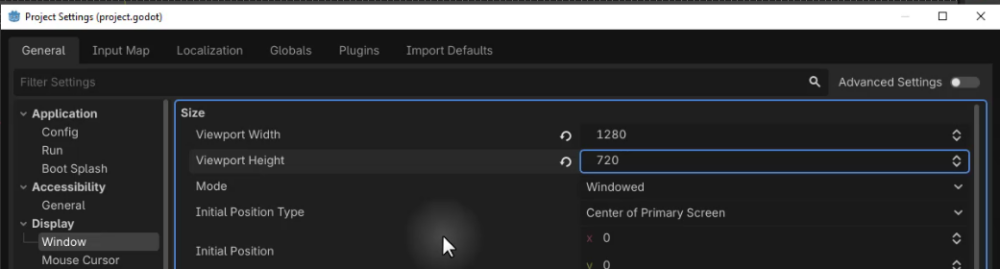
Open Project > Project Settings > Display > Window. Set Viewport Width to 1280 and Viewport Height to 720.
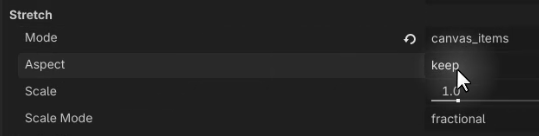
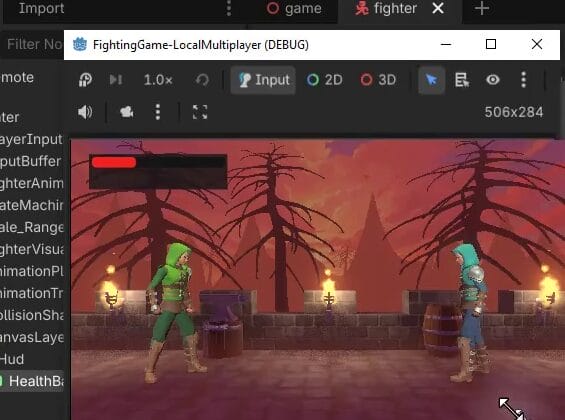
In the Stretch section, set Mode to Canvas Items and Aspect to Keep so the interface scales with the window while keeping its aspect ratio.
Resizing the HUD and Adding Health Text
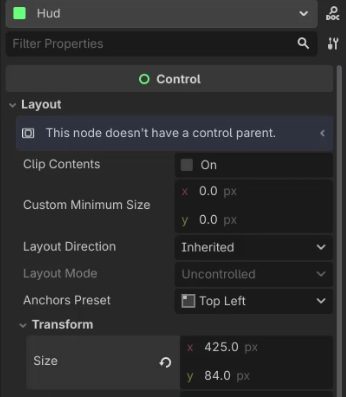
Select Hud and set its size under Layout > Transform to 425 by 84 pixels. Increase the HealthBar’s height to fill more of the panel.
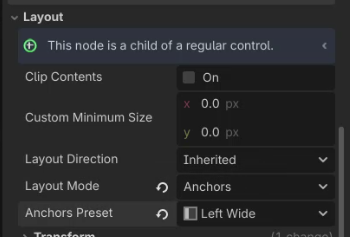
Add a Label child to HealthBar and rename it HealthText. Set Layout Mode to Anchors and choose the Left Wide preset.
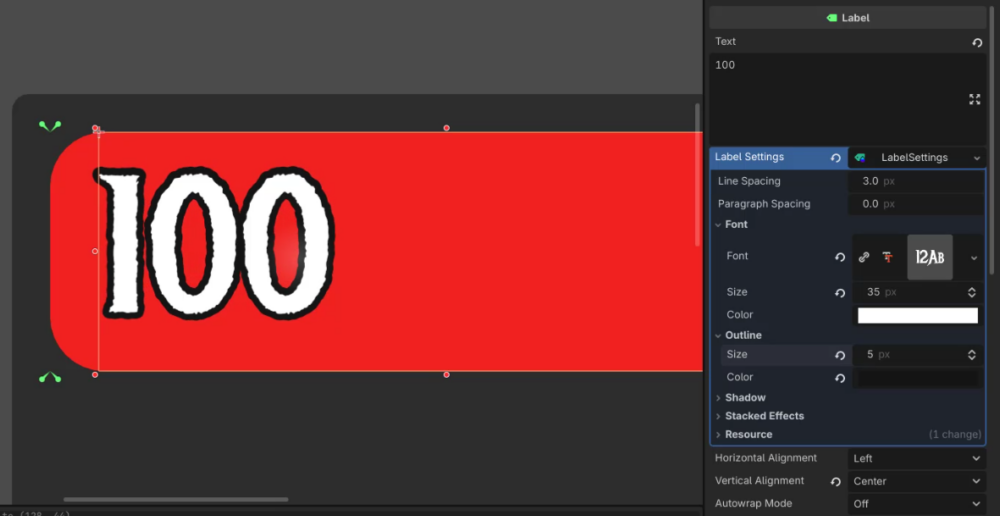
Use 100 as sample text and set Vertical Alignment to Center. In Label Settings, assign the project’s imported font, increase the font size, and add a dark Outline to keep the number readable against the red fill.
Styling the HUD Panel Background
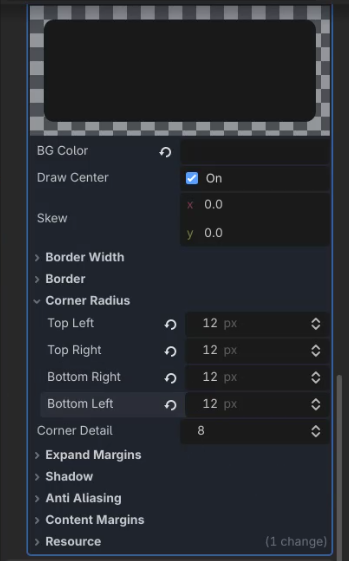
On Hud, open Theme Overrides > Styles > Panel and assign a new dark StyleBoxFlat. Make the health bar’s background slightly lighter than the panel, then set the panel’s Corner Radius to 12.
Adding the Stamina Bar with a VBoxContainer
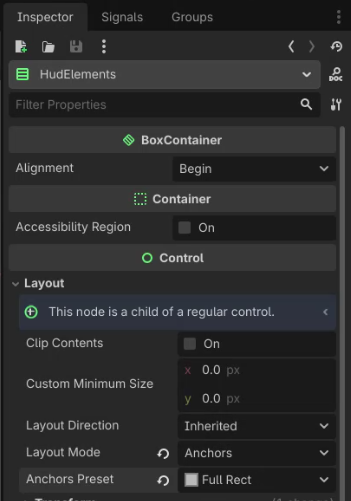
Add a VBoxContainer beneath Hud and rename it HudElements. Set its Layout Mode to Anchors and its preset to Full Rect.
Move HealthBar beneath HudElements.
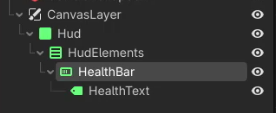
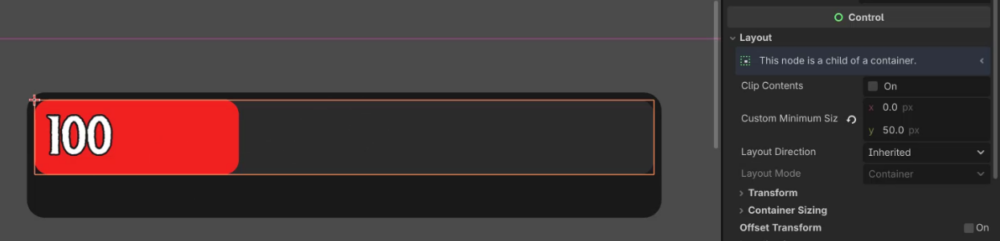
Set HealthBar’s Y Custom Minimum Size to 50 so it remains visible inside the container. Adjust the container margins to add padding around the panel’s edges.
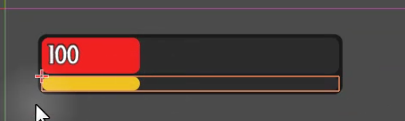
Duplicate HealthBar within HudElements and make these changes:
- Rename the copy StaminaBar.
- Set its Y Custom Minimum Size to
20. - Delete its HealthText child.
- Open Theme Overrides > Styles > Fill, choose Make Unique, and change the fill to a yellowish color.
Making the fill resource unique lets you change the stamina color without changing the health bar’s style.
Setting Up Player Position Nodes
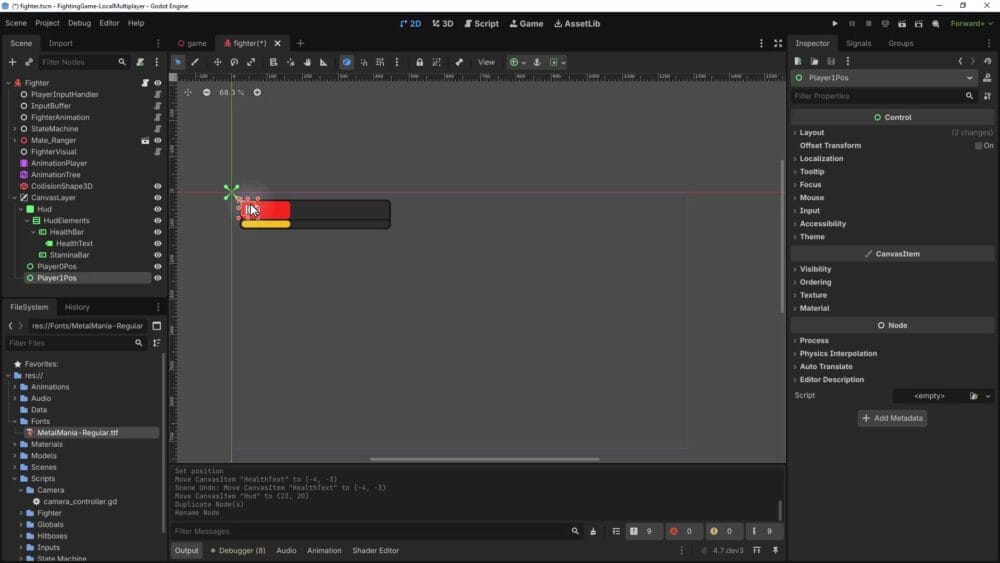
Both fighters’ HUDs initially appear on the left. Add a Control child beneath CanvasLayer named Player0Pos, with position X: 27, Y: 25.
Duplicate it as Player1Pos, choose the Top Right anchor preset, and set its position to X: 839, Y: 25. The HUD script will use these two markers to place each panel.
Connect Each Fighter’s HUD to Health Updates
Creating the Fighter HUD Script
Create fighter_hud.gd in Scripts/Fighter, extend Panel, and attach it to Hud. Add references to the Fighter root, the bars, the health label, and the position markers:
extends Panel

@onready var fighter : Fighter = $"../.."

@onready var health_bar : ProgressBar = $HudElements/HealthBar
@onready var health_text : Label = $HudElements/HealthBar/HealthText

@onready var stamina_bar : ProgressBar = $HudElements/StaminaBar

@onready var player_0_pos : Control = $"../Player0Pos"
@onready var player_1_pos : Control = $"../Player1Pos"
The relative path to fighter goes up through CanvasLayer to the Fighter node. The other references match the HUD hierarchy you just built.
Positioning the HUD
In _ready, use the fighter’s player_id to select its position marker:
func _ready ():
	# Position HUD based on player ID
	if fighter.player_id == 0:
		position = player_0_pos.position
	elif fighter.player_id == 1:
		position = player_1_pos.position
Player ID 0 uses the left marker, while ID 1 uses the right marker. Save and run the game to check that each panel appears on its corresponding side.
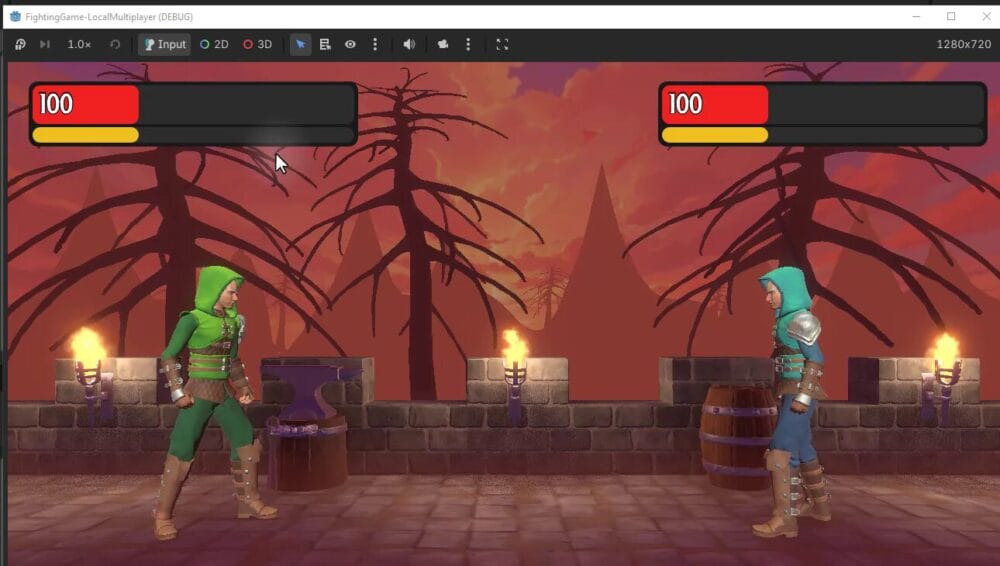
Updating the Health Bar
The project’s GlobalEvents.FighterDamaged signal reports when a fighter takes damage. Because GlobalEvents is an autoload, the HUD can access it without a separate node reference.
Extend _ready to set the bar’s maximum, display the initial health, and connect the damage event:
func _ready ():
	if fighter.player_id == 0:
		position = player_0_pos.position
	elif fighter.player_id == 1:
		position = player_1_pos.position

	# Health bar
	health_bar.max_value = fighter.max_health
	_update_health_bar(fighter)

	# Events
	GlobalEvents.FighterDamaged.connect(_update_health_bar)
Add _update_health_bar. It checks which fighter was damaged before updating the bar and label, so one player’s event does not change the other player’s HUD:
func _update_health_bar (damaged_fighter : Fighter):
	if damaged_fighter != fighter:
		return

	health_bar.value = fighter.current_health
	health_text.text = str(fighter.current_health)
Fixing Decimal Display
Because current_health is a float, the label initially shows values such as 92.0.
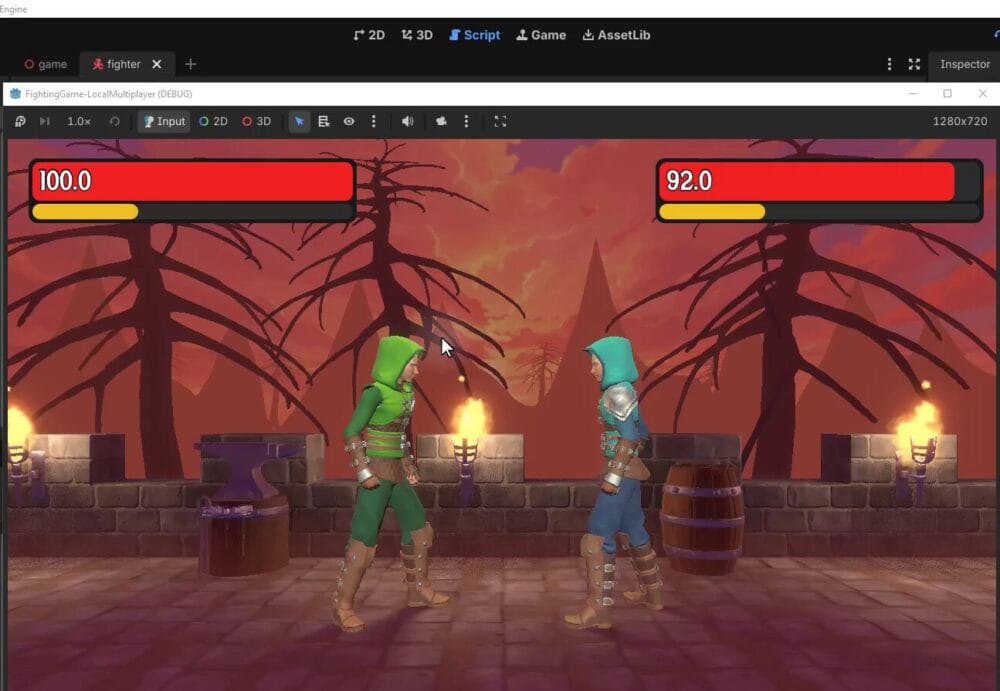
Convert the health value to an integer before turning it into a string. int() truncates the decimal portion:
func _update_health_bar (damaged_fighter : Fighter):
	if damaged_fighter != fighter:
		return

	health_bar.value = fighter.current_health
	health_text.text = str(int(fighter.current_health))
The health number now displays as a whole number when damage updates arrive.
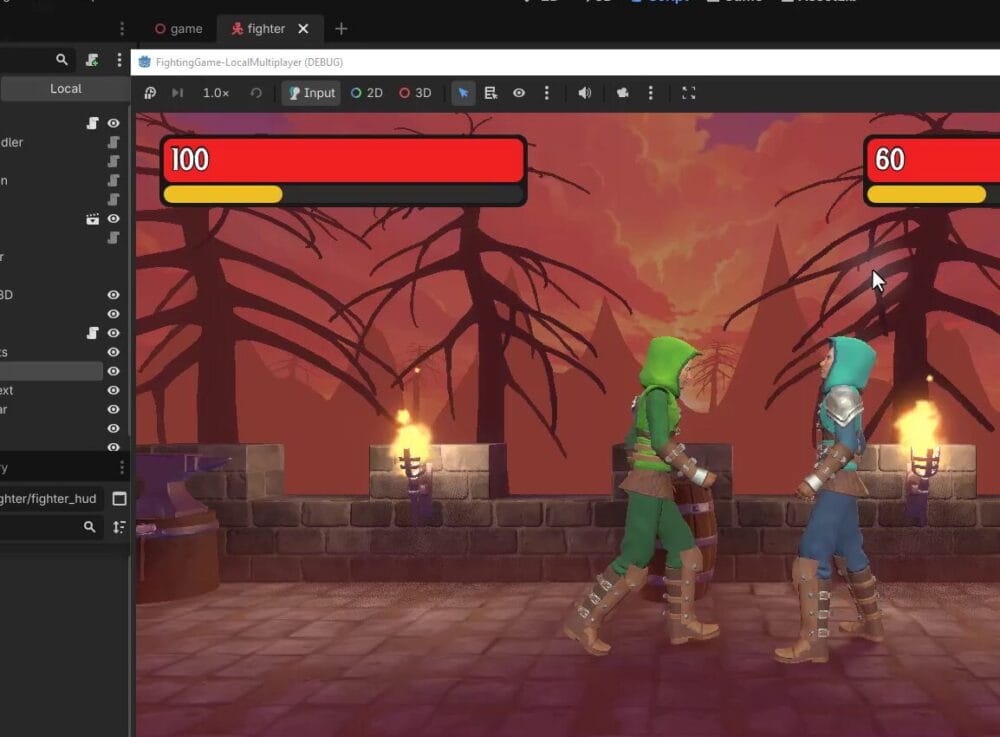
Preparing the Stamina Bar
Add a function that accepts a stamina value and updates the bar:
func _update_stamina_bar (stamina : float):
	stamina_bar.value = stamina
This is preparation only. Connecting a stamina update signal and setting the bar’s max_value belong to the later stamina implementation.
Summary
Each HUD now selects its screen position from the player ID and updates its health bar and number through the damage event. You can use that same event to add camera feedback next.
Add Damage-Triggered Camera Shake
The existing hit flash already indicates damage. A brief shake adds another visual response while retaining the camera-follow system.
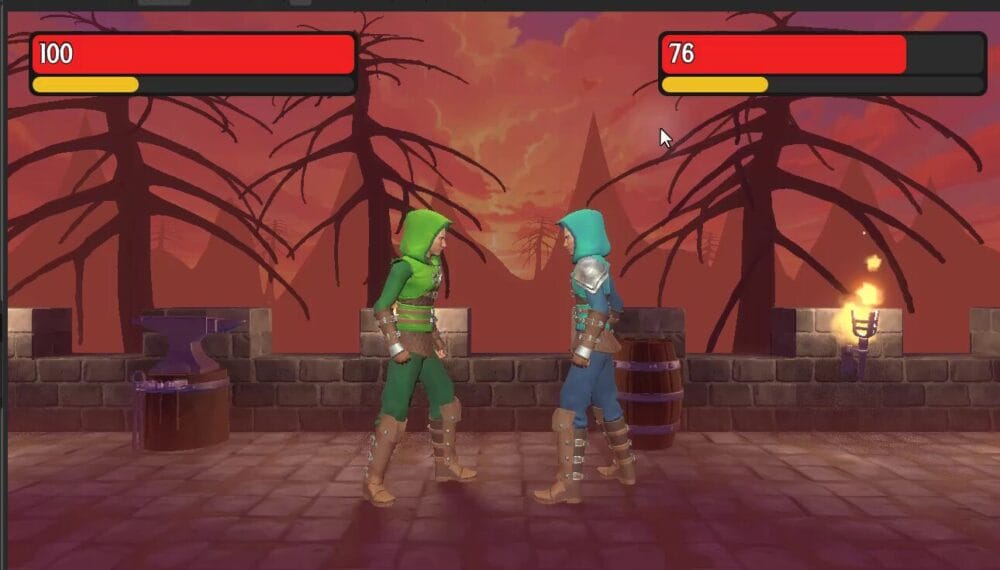
Understanding Camera Offset Properties
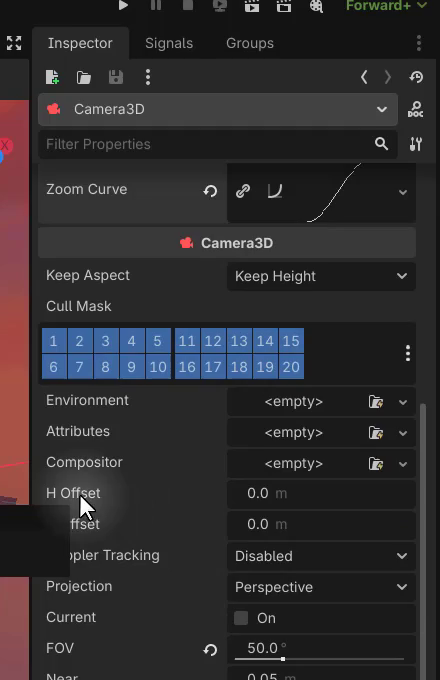
Camera3D exposes H Offset and V Offset for horizontal and vertical view offsets. These let you shift the view without changing the camera node’s position, so the follow logic can continue positioning it between the fighters.
Adding the Intensity Variable
In camera_controller.gd, add an intensity value below the exports:
var intensity : float = 0.0
This controls the maximum random offset applied each frame. Damage raises the intensity, and damping gradually reduces it toward zero.
Connecting to the FighterDamaged Signal
Add a damage callback that sets the initial shake intensity. It accepts a Fighter parameter to match the signal:
func _on_fighter_damaged (fighter : Fighter):
	intensity = 0.05
Connect the callback in _ready:
func _ready ():
	GlobalEvents.FighterDamaged.connect(_on_fighter_damaged)
Processing the Camera Shake
Inside _physics_process, after _camera_follow(delta), damp the intensity and assign random horizontal and vertical offsets:
if intensity > 0:
	intensity = lerpf(intensity, 0, delta * 10)
	h_offset = randf_range(-intensity, intensity)
	v_offset = randf_range(-intensity, intensity)
lerpf moves the intensity toward zero at a rate based on delta * 10. A higher damping multiplier shortens the shake; a lower one lets it last longer. randf_range chooses an offset between negative and positive intensity for each axis.
Creating Export Variables for Tweaking
Expose the amount and damping so you can adjust them in the Inspector:
@export var shake_amount : float = 0.05
@export var shake_damping : float = 10.0
Update the damage callback to use shake_amount:
func _on_fighter_damaged (fighter : Fighter):
	intensity = shake_amount
Then replace the hard-coded damping multiplier with shake_damping:
if intensity > 0:
	intensity = lerpf(intensity, 0, delta * shake_damping)
	h_offset = randf_range(-intensity, intensity)
	v_offset = randf_range(-intensity, intensity)
Complete Camera Shake Code
The complete camera controller combines midpoint tracking, horizontal smoothing, distance-based zoom, and damage-triggered shake:
extends Camera3D

@export var target_a : Node3D
@export var target_b : Node3D

@export var smoothing : float
@export var zoom_curve : Curve

var intensity : float = 0.0

@export var shake_amount : float = 0.05
@export var shake_damping : float = 10.0

func _ready ():
	GlobalEvents.FighterDamaged.connect(_on_fighter_damaged)

func _on_fighter_damaged (fighter : Fighter):
	intensity = shake_amount

func _physics_process(delta):
	_camera_follow(delta)

	if intensity > 0:
		intensity = lerpf(intensity, 0, delta * shake_damping)
		h_offset = randf_range(-intensity, intensity)
		v_offset = randf_range(-intensity, intensity)

func _camera_follow (delta : float):
	var center_pos : Vector3 = target_a.global_position.lerp(target_b.global_position, 0.5)
	var distance : float = target_a.global_position.distance_to(target_b.global_position)

	position.x = lerp(position.x, center_pos.x, smoothing * delta)

	position.z = zoom_curve.sample(distance)
The starting values of 0.05 for shake amount and 10.0 for damping give a subtle effect. Adjust them in the Inspector to tune the response to hits.
Recap and Next Steps
Your camera and HUD now work together to frame the fight and communicate damage. You have:
- Centered the camera between two targets with smoothed horizontal tracking.
- Mapped fighter separation to camera distance through a configurable zoom curve.
- Built separate HUD panels and connected health bars and whole-number labels to damage events.
- Added adjustable camera shake using offsets that leave the follow positioning intact.
The stamina update function is ready for the next stage, where you can connect the stamina system to the prepared bar. Continue with the Intermediate Godot Mini-Degree for the full guided fighting-game project.
Did you come across any errors in this tutorial? Please let us know by completing this form and we’ll look into it!
FINAL DAYS: Unlock coding courses in Unity, Godot, Unreal, Python and more.