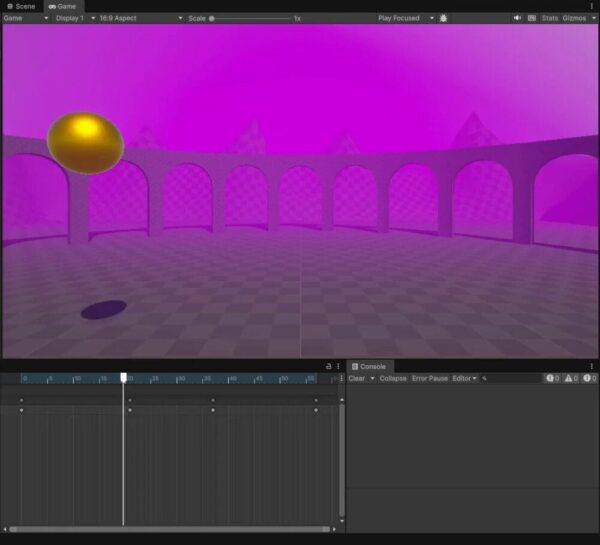
If you know Unity’s animation tools, Godot’s node-and-track workflow can take some getting used to. This Godot 3D animation tutorial walks you through moving a ball with AnimationPlayer, adding keyframes, smoothing the motion, and playing the animation automatically.
To guide you through that transition, Zenva brings its experience helping a community of over 1,000,000 learners and developers gain digital skills. You’ll start with the ball animation, then compare Unity’s reusable data assets and UI tools with Godot’s resources and controls.
This tutorial assumes you’re familiar with basic Unity workflows and have Godot installed with the example scenes and assets ready.
Download Project Files
The files and full project are available through the course included in the Godot 4 Game Development Mini-Degree if you want the complete guided path. You can continue with this free tutorial to compare the workflows and follow the examples.
Create a Godot 3D Animation With AnimationPlayer
Start with a simple animation that moves a ball around a scene. The keyframe concept carries across from Unity, but Godot uses an AnimationPlayer node and animation tracks to organize the work.
Animations in Unity
In the Unity example, the Animation window contains a clip called BallMove. Creating the animation produces the clip and an animation controller for the ball.
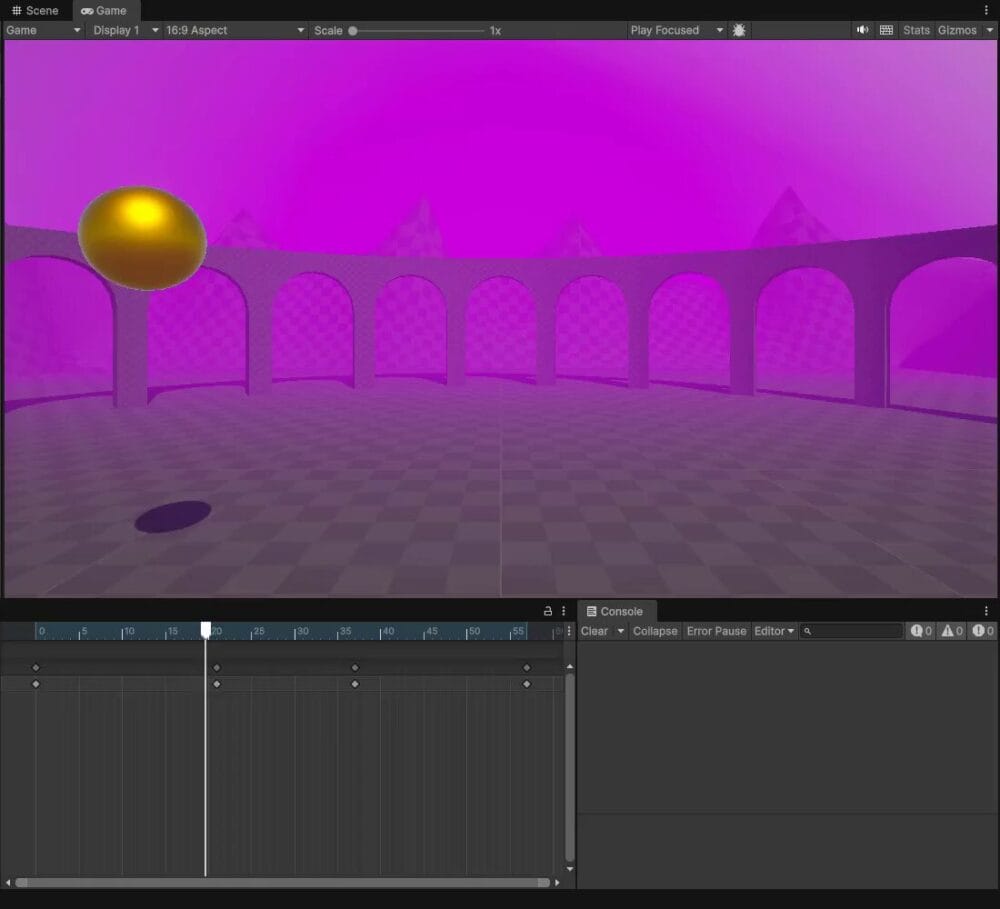
Selecting the ball shows its Animator component with the Ball controller assigned. The controller handles transitions between animations; in this single-animation example, the clip plays automatically.
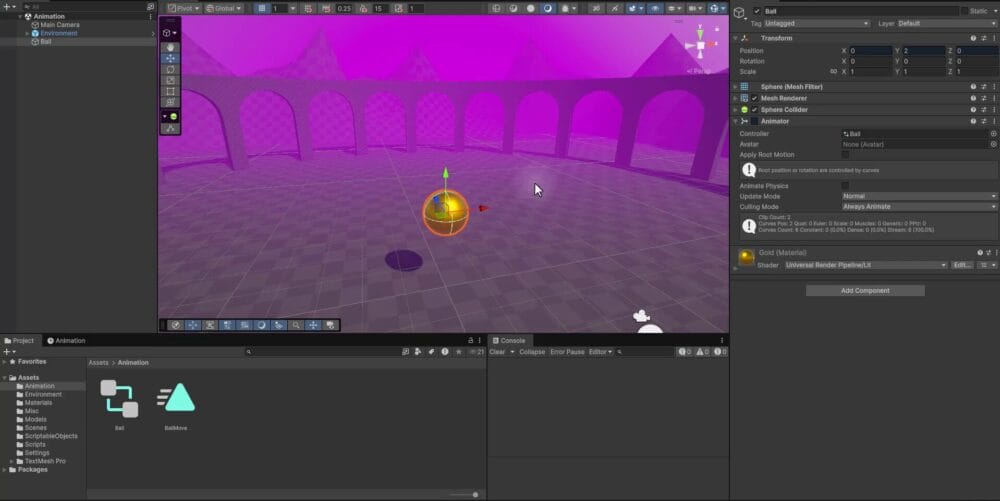
Keep the distinction between the clip and its controller in mind as you recreate the motion in Godot.
Setting Up Animation in Godot
In the Godot scene, right-click the ball, choose Add Child Node, and add an AnimationPlayer. This node lets you define and play animations for the object.
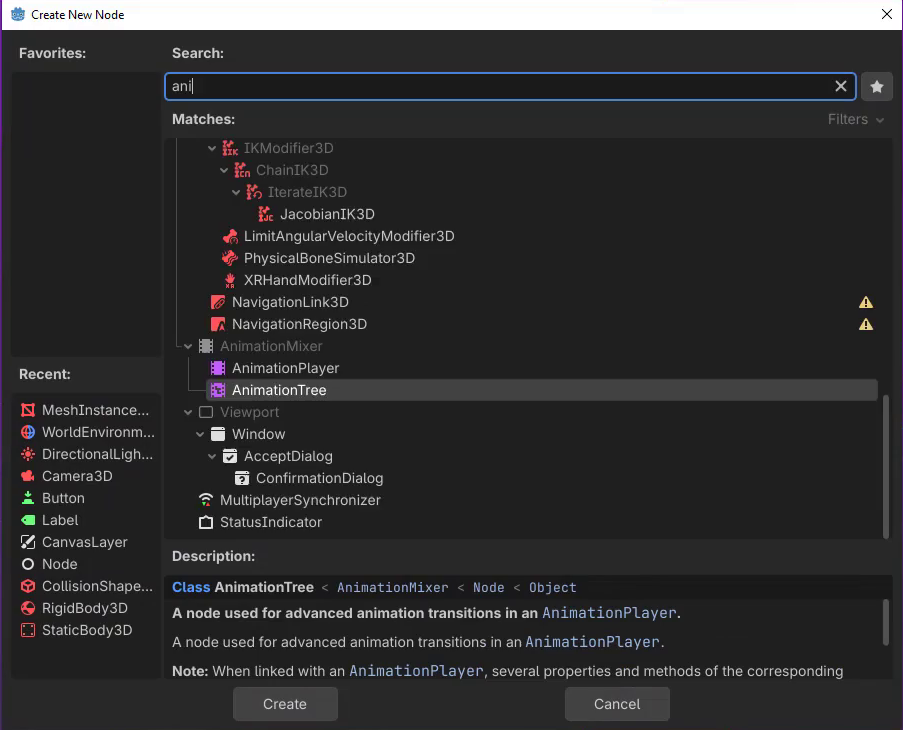
Creating a New Animation
Select the AnimationPlayer to open the Animation panel at the bottom of the editor. If the panel isn’t visible, click its tab. Choose Animation > New, name the animation ball_move, and confirm with OK.
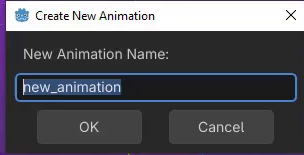
The layout should look familiar: properties and tracks are on the left, with the timeline on the right. Godot organizes the animated values into tracks.
Adding a Position Track
Click the plus icon in the Animation panel and choose 3D Position Track. When Godot asks which node to animate, select the ball and click OK.
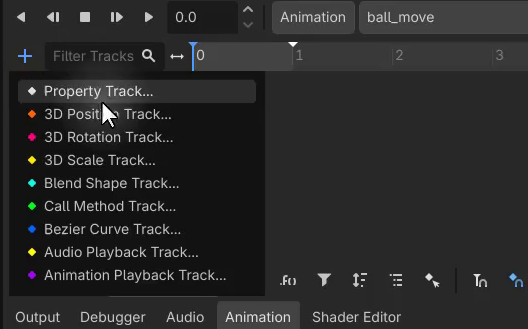
You now have a position track for the ball and a timeline where you can add its keyframes.
Defining the Animation Length and Playback
In this Godot workflow, set the animation’s length before adding its motion. Drag the small white arrow at the end of the timeline or enter a value in the duration field. Set the length to five seconds.
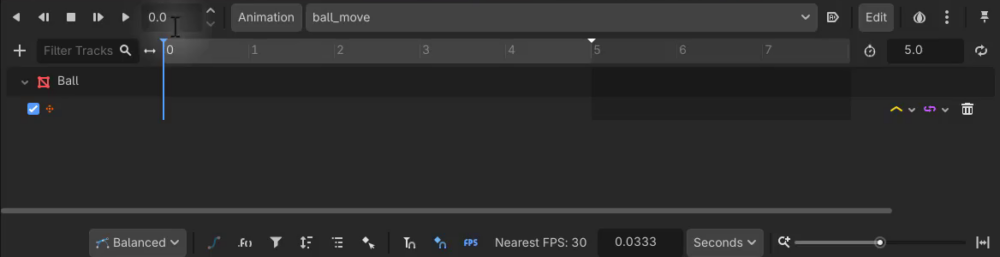
Use D to play the animation and S to pause it. Press S again to return to the start. You can also drag the playhead to inspect a point on the timeline.
Creating Keyframes
A keyframe stores a property’s value at a particular time. Move the playhead to the start, right-click the position track, and choose Insert Key.
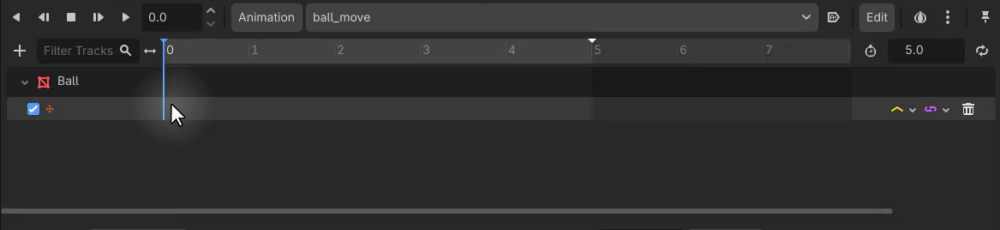
With the key selected, use the Inspector to set the ball’s Y position to 2 at time zero. Move the playhead forward and insert another key.
If two keys have the same value, a white line between them indicates that the property doesn’t change. Double-click a key to move the playhead to it, then edit its position values. For example, set the next key’s X position to -3.

Scrub the timeline to see the ball move between the positions. Add more keys to shape the motion, raising Y and moving X for one key, then lowering the ball for a final key. Press D to play back the result.
Smoothing Motion With Interpolation Modes
The track uses linear interpolation by default, so the ball moves directly between its keyed positions. To smooth the movement, find the interpolation dropdown on the right side of the track.

Change the interpolation mode from Linear to Cubic. This gives the motion between keyframes the smoother feel shown in the Unity example.
Playing the Animation Automatically
Saving the animation doesn’t make it run when the game starts. With the AnimationPlayer selected, enable Autoplay on Load in the Animation panel.

Save and run the scene. The ball animation now starts automatically.
Replace Unity ScriptableObjects With Godot Resources
Next, compare reusable data assets. Unity calls these ScriptableObject assets; in Godot, you can define a custom Resource to store the same kind of item data.
ScriptableObjects in Unity
The Unity example defines an ItemData class with a display name, description, and integer rarity. The CreateAssetMenu attribute adds a way to create instances through the editor’s Create menu:
using UnityEngine;

[CreateAssetMenu(fileName = "Item Data", menuName = "Item Data")]
public class ItemData : ScriptableObject
{
    public string DisplayName;      // Name shown to players
    public string Description;      // Item's descriptive text
    public int Rarity;              // Higher numbers indicate rarer items
}
Right-clicking in the Project window and choosing Create > Item Data produces an asset based on this template. In the example, the asset is named Sword, and its properties are editable in the Inspector.
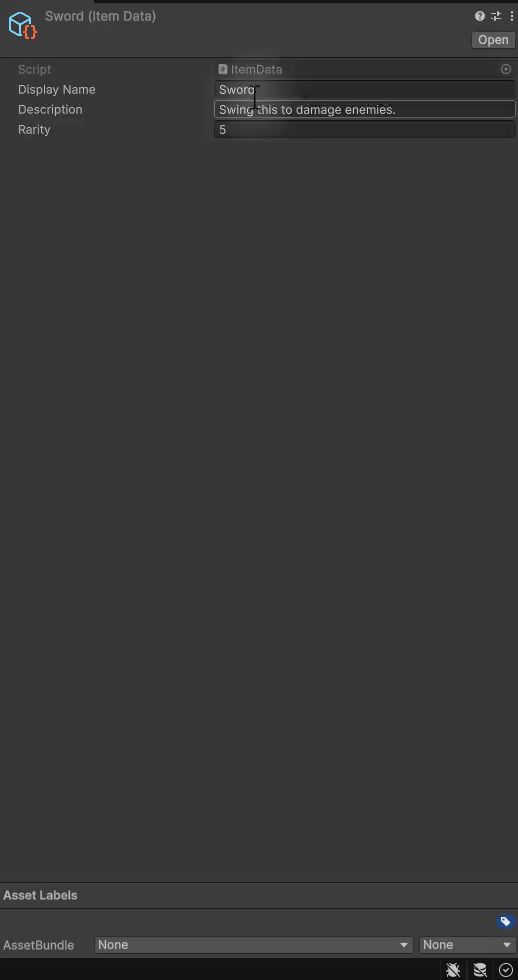
A component or script can reference that asset to access the stored item data.
Creating a Custom Resource Script in Godot
In Godot’s FileSystem dock, right-click the folder where you want the data script, choose Create New > Script, and create the item data script. Like the Unity class, it defines the fields your resource will hold.
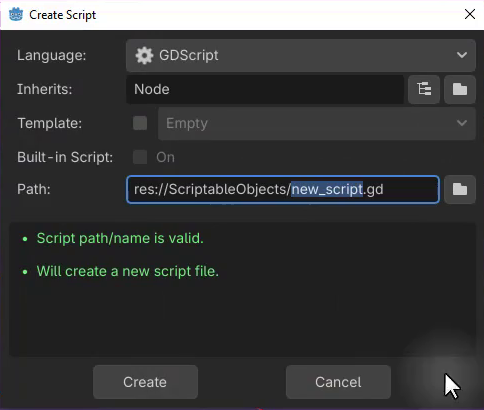
Giving the Script a Class Name and Extending Resource
Open the script and give it the class name ItemData. Change its base type from Node to Resource:
class_name ItemData
extends Resource
The class_name declaration names the custom type you’ll select when creating a resource instance.
Adding and Exporting Properties
Add a string for the display name, a string for the description, and an integer for the rarity:
class_name ItemData
extends Resource

var display_name : String
var description : String
var rarity : int
These fields won’t appear in the Inspector yet. Add @export before each declaration so you can edit their values there:
class_name ItemData
extends Resource

@export var display_name : String
@export var description : String
@export var rarity : int
Creating a Resource Instance
Return to the FileSystem dock, right-click the folder, and choose Create New Resource. Search for the item data type, click Create, and name the resource sword. Godot saves it as sword.tres.
Double-click the resource to see its exported display name, description, and rarity in the Inspector.
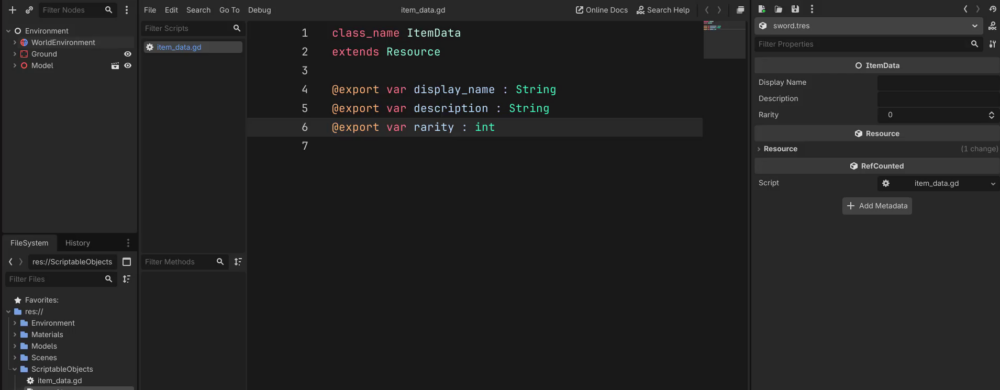
You now have a reusable item-data asset, much like the Sword ScriptableObject in Unity. Other parts of the game can reference this resource.
Build and Scale UI in Godot
The final example creates text and a button, then adjusts anchoring and scaling. Start with the Unity concepts before setting up their Godot counterparts.
Building UI in Unity
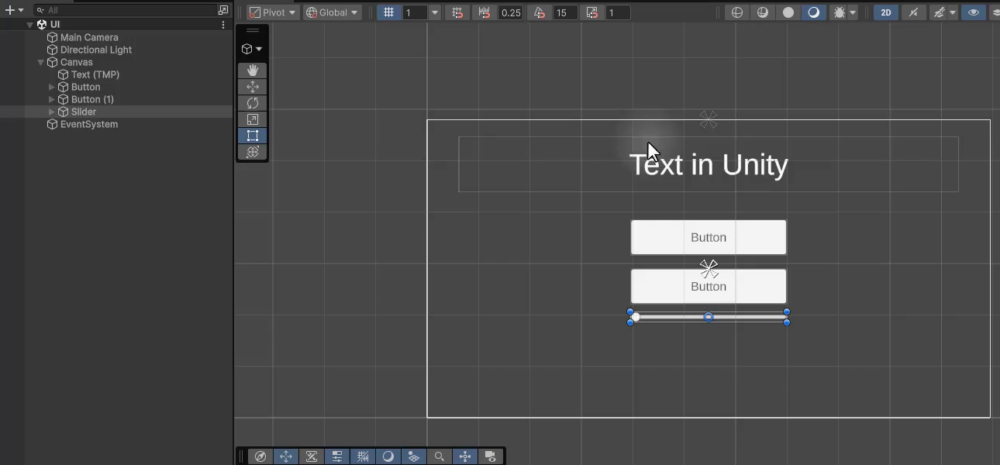
Unity places UI elements such as text, buttons, and sliders inside a Canvas. In the example, the Canvas contains a title and two buttons and is visible alongside the scene’s 3D content in the editor.
Anchoring and Scaling in Unity
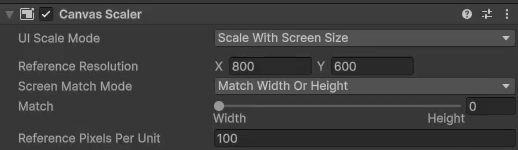
Anchors determine how a UI element repositions or resizes as the screen’s resolution and aspect ratio change. Canvas scaling controls how large the elements appear at different resolutions.
With Constant Pixel Size, elements retain their pixel dimensions, so they occupy a smaller portion of a higher-resolution screen. Scale With Screen Size scales the UI with the display instead.
How Godot Separates 2D and 3D
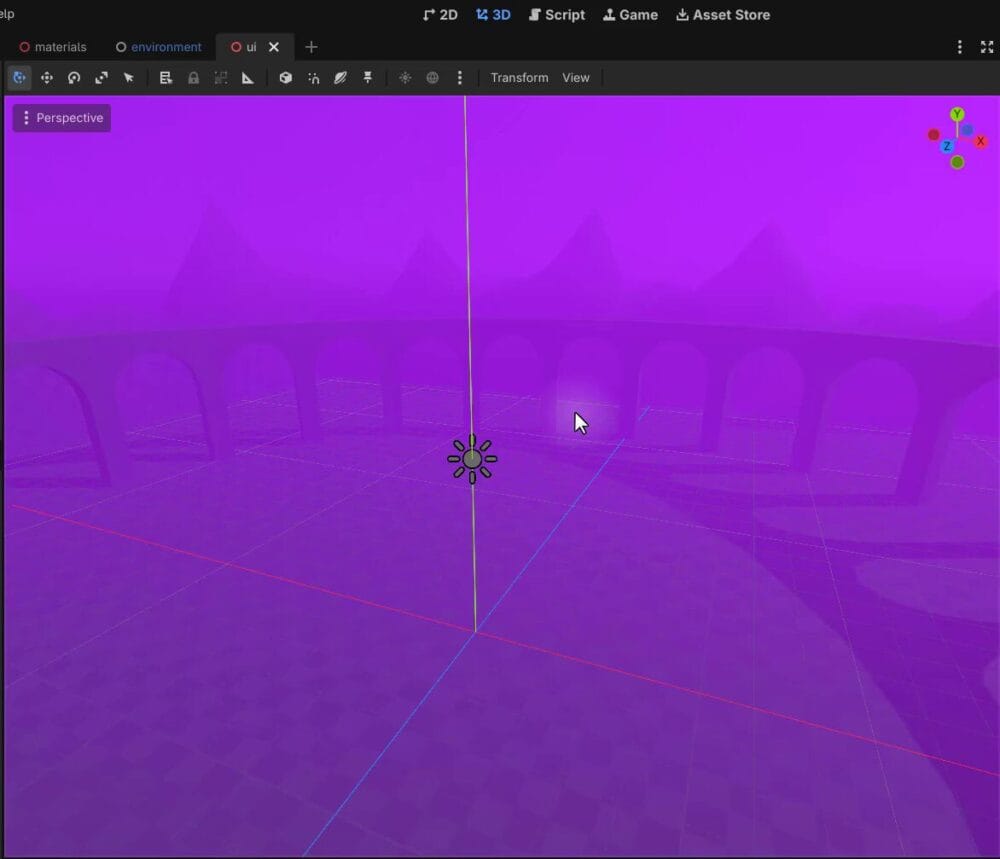
Godot provides separate 2D and 3D workspaces. Its nodes include 3D nodes, 2D nodes, and UI nodes, also called control nodes. You’ll build the interface in the 2D workspace, even when the game itself is 3D.
Adding a Canvas Layer for UI
For the example’s 3D game, create a CanvasLayer node to hold the interface. Switch to the 2D workspace, where the blue rectangle represents the screen’s resolution and aspect ratio. Place the UI elements inside that rectangle.
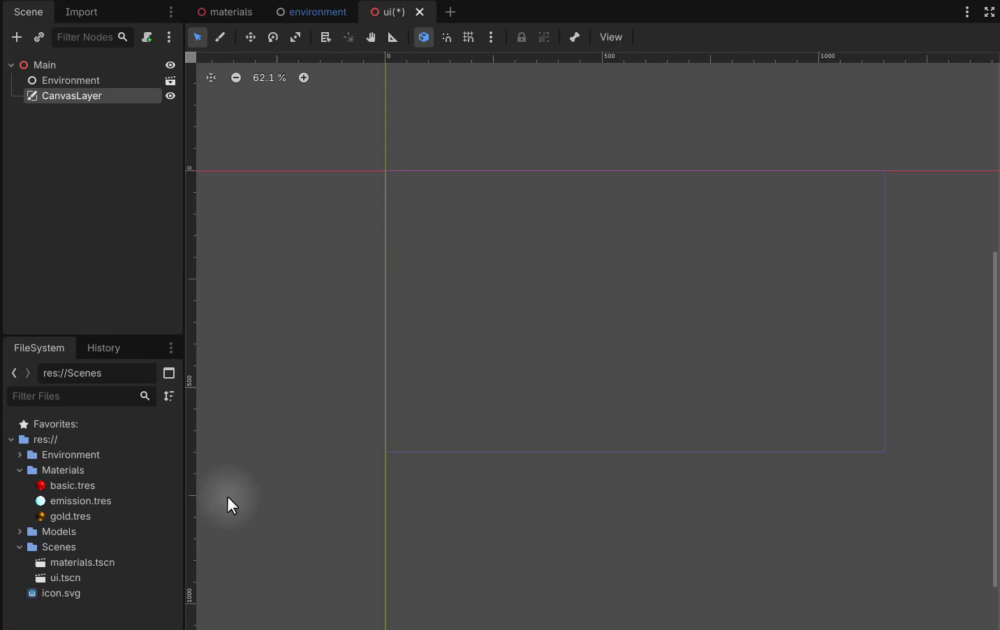
Creating Text With Labels
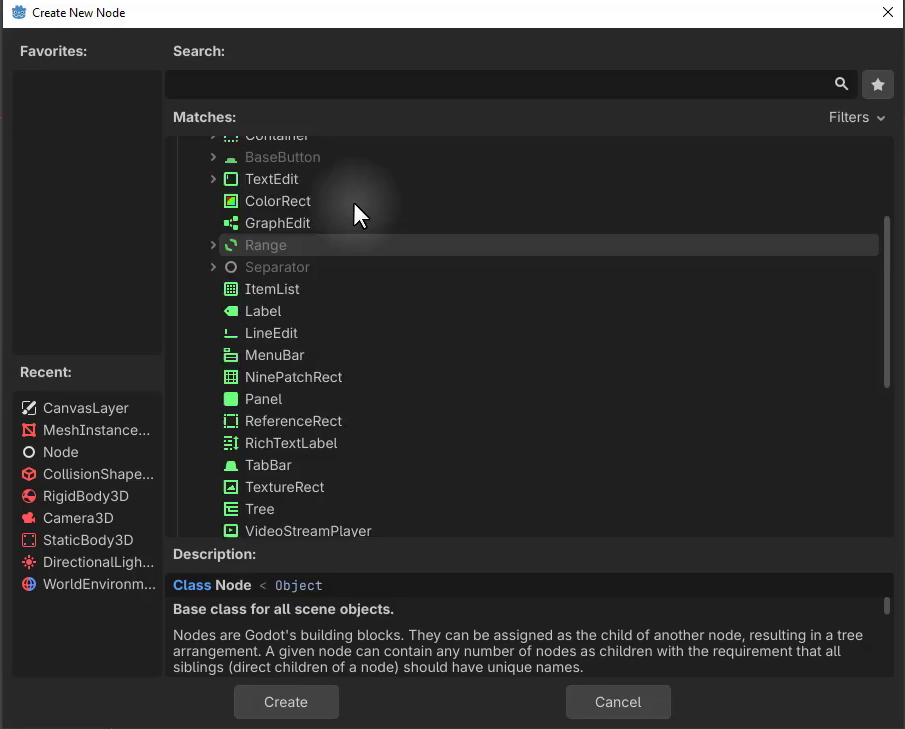
Right-click the CanvasLayer, choose Add Child Node, and find the green control nodes. A Label provides standard text and styling, while a RichTextLabel supports additional formatting such as bold, italics, underline, and strikethrough. Add a standard Label for this example.
Use the label’s orange handles to move and resize it, then set its Text property in the Inspector. To change the font size, create a new Label Settings sub-resource and expand it to access the font options.
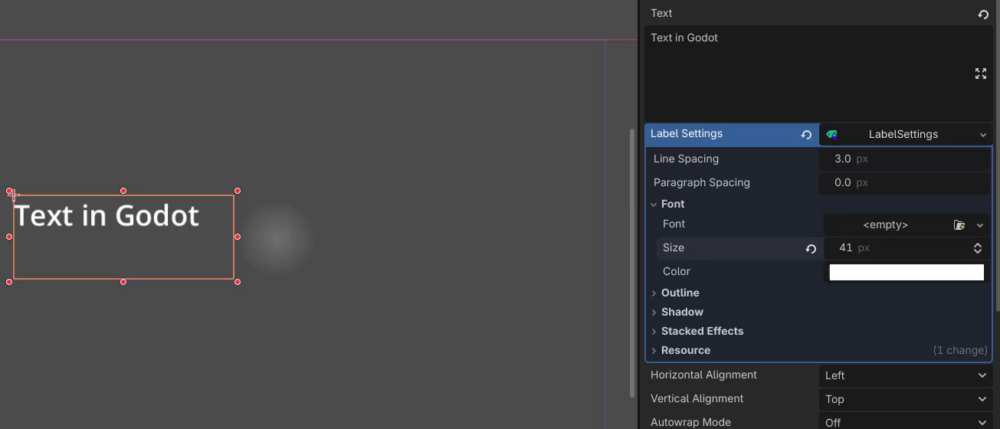
You can also adjust the horizontal and vertical alignment to position the text within the label.
Anchoring Controls in Godot
With the label selected, expand Layout in the Inspector and open Anchors Preset. Choose the placement you want, such as Center Top. Godot snaps the element to that anchor position.
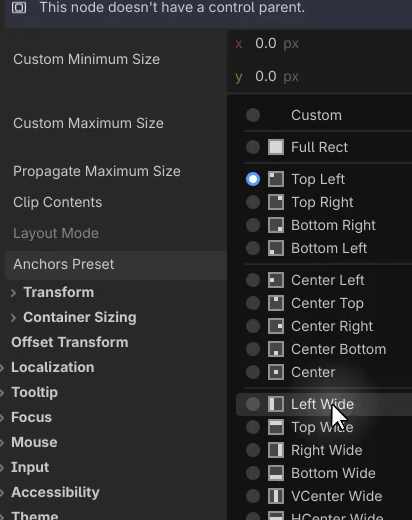
Adding Buttons and Connecting Signals
Right-click the CanvasLayer again, choose Add Child Node, and search for a button. Select the standard Button, then move and resize it as needed.
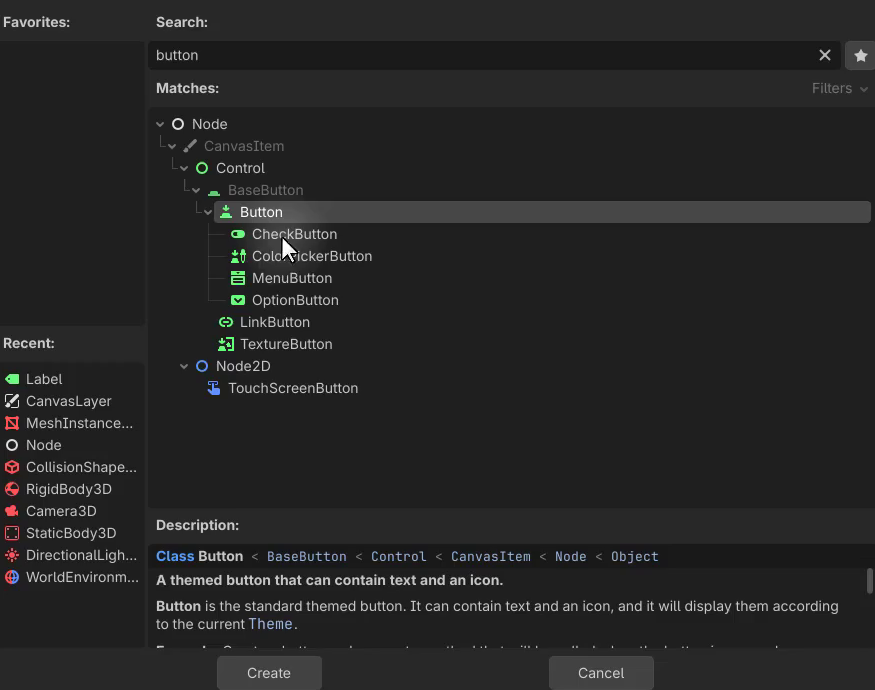
Unlike the Unity example’s button text, Godot’s button text doesn’t need a separate child node. Set the Text field directly on the button in the Inspector.
To respond to interaction, select the button and open the signals dock. Instead of Unity’s OnClick listener setup, Godot exposes signals including button_down, button_up, pressed, and toggled.
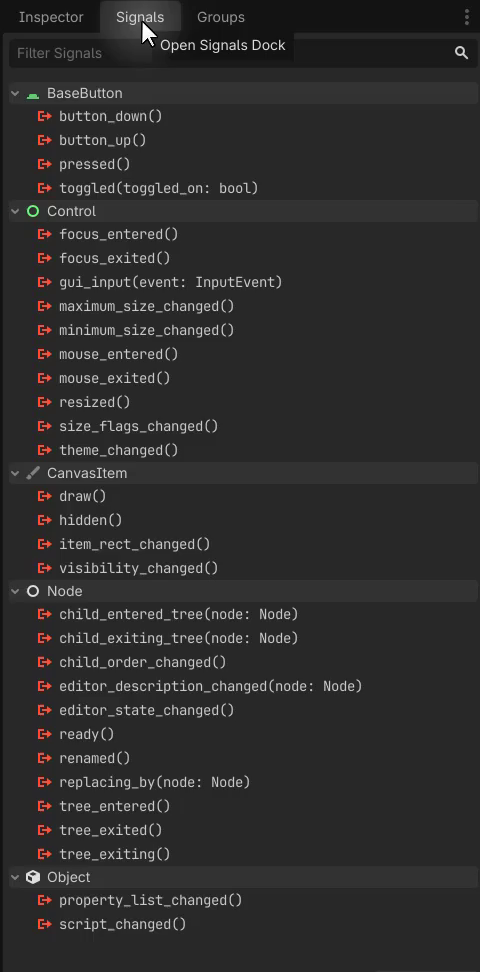
Double-click a signal, select the node containing your script, and choose an existing function or enter a new function name. Godot can create that function in the script for you.
Scaling the UI With the Screen
Run the game and resize its window. Initially, the text and button retain their size. To scale them with the window, open Project > Project Settings, go to Display > Window, and find the Stretch settings.
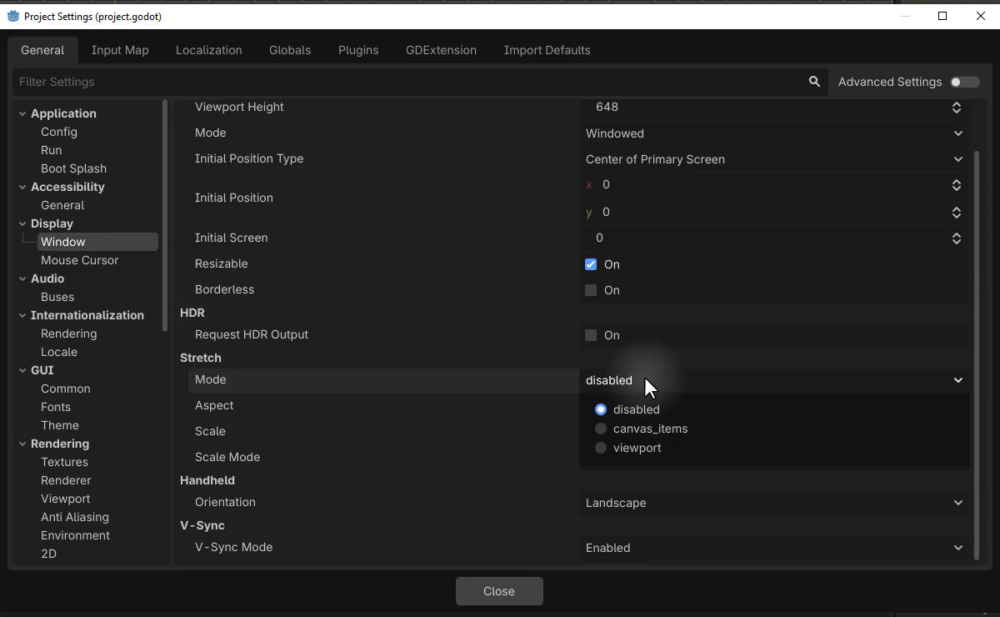
Change Mode from disabled to canvas_items so the UI items scale. The Aspect setting controls how the aspect ratio responds: keep preserves it, while ignore lets it change to match the new resolution.
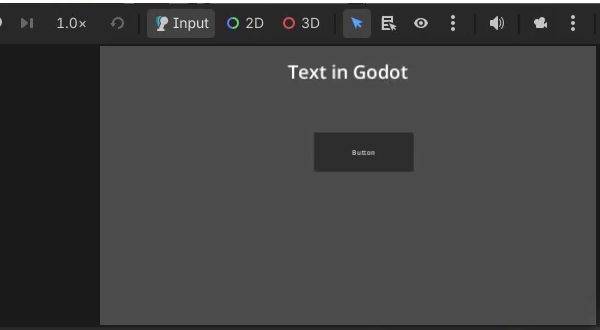
Run the game again and resize the window. The text and button now scale with it.
Review Your Godot Animation Setup
You now have a ball animation built with keyframes, cubic interpolation, and autoplay. You’ve also explored reusable item data and UI while comparing familiar Unity tools with their Godot equivalents:
- Use an
AnimationPlayer, position track, and keyframes to animate a ball. - Set interpolation and autoplay to control how that animation moves and starts.
- Define an
ItemDataresource with exported properties and create asword.tresinstance. - Add labels and buttons under a
CanvasLayer, and connect button signals to script functions. - Use anchors and stretch settings to position and scale the interface.
Try adjusting the ball’s keyframes to explore how its motion changes, then revisit the resource and UI examples as you get more familiar with Godot.
Continue with the Godot 4 Game Development Mini-Degree for the full course project and a structured path through Godot game development. Build on these foundations with guided lessons that help you put your existing skills to use in the engine.
Did you come across any errors in this tutorial? Please let us know by completing this form and we’ll look into it!
FINAL DAYS: Unlock coding courses in Unity, Godot, Unreal, Python and more.