Zenva has helped a community of over 1,000,000 learners and developers gain digital skills, and this tutorial puts that teaching experience to work on a familiar Unity-to-Godot problem: recreating glossy, metallic, and glowing surfaces. You’ll build Godot materials for all three, then use environment controls to add the sky, lighting, reflections, fog, and ambient occlusion around them.
This tutorial assumes you know the basics of Unity materials and lighting and have Godot ready with the project’s example meshes and environment assets.
Download Project Files
The files and full project are available through the course included in the Godot 4 Game Development Mini-Degree if you want the complete guided path. You can keep reading this free tutorial to follow the material and environment setup.

Create Godot Materials From Unity Examples
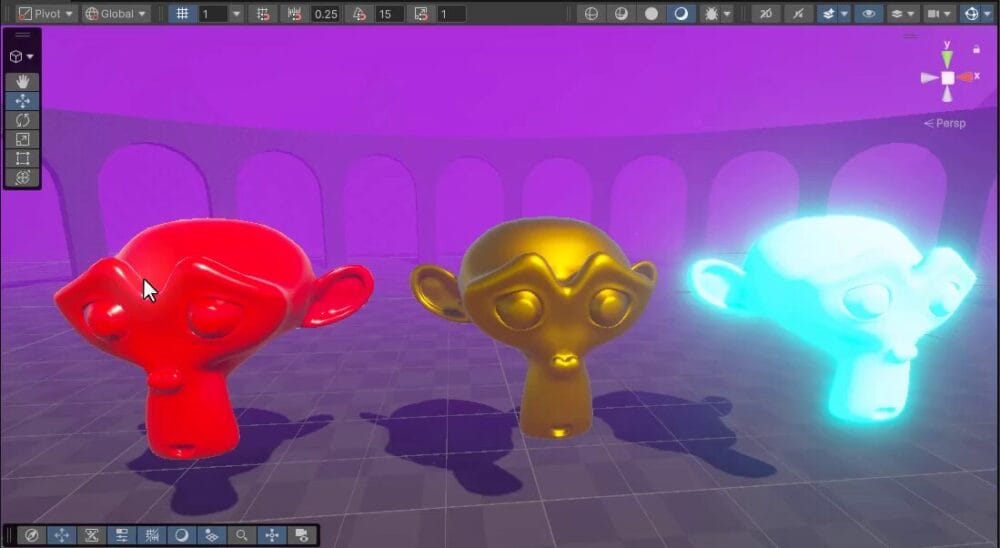
Start with three familiar Unity looks: a glossy red material, metallic gold, and a blue emissive surface. In both engines, the basic workflow is to create a material and apply it to a mesh.
Creating a Material Resource
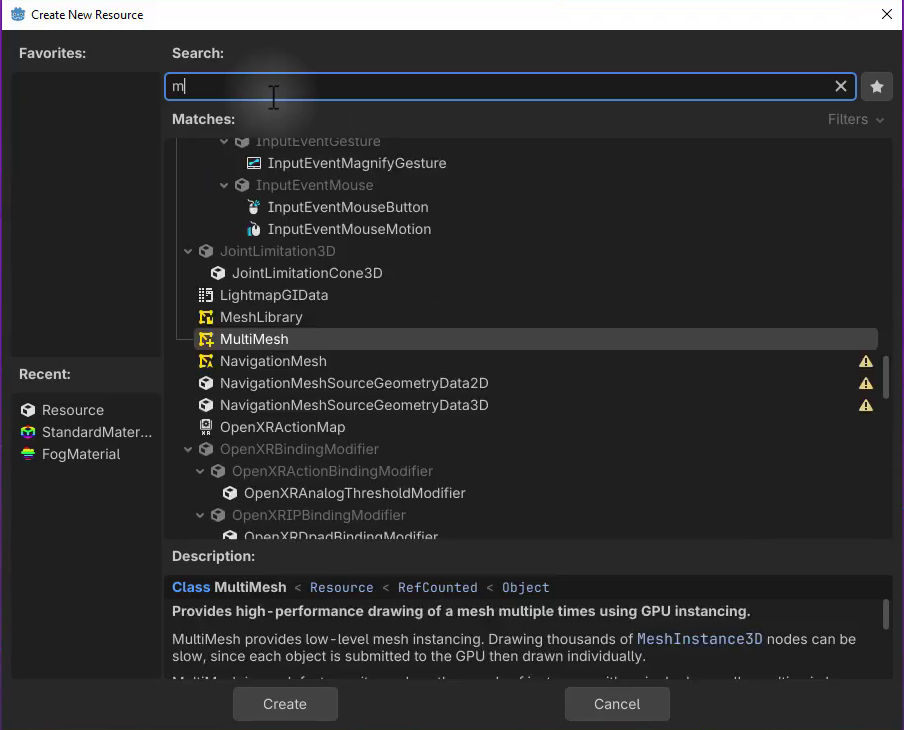
In Godot’s FileSystem dock, open the project’s materials folder. Right-click it and choose to create a new resource, then search for material.
Select StandardMaterial3D, click Create, and name it basic. This is the material resource you’ll use for the first surface.
Editing Material Properties
Double-click the material to open its properties in the Inspector. Expand Albedo and click the color box to choose a red base color.
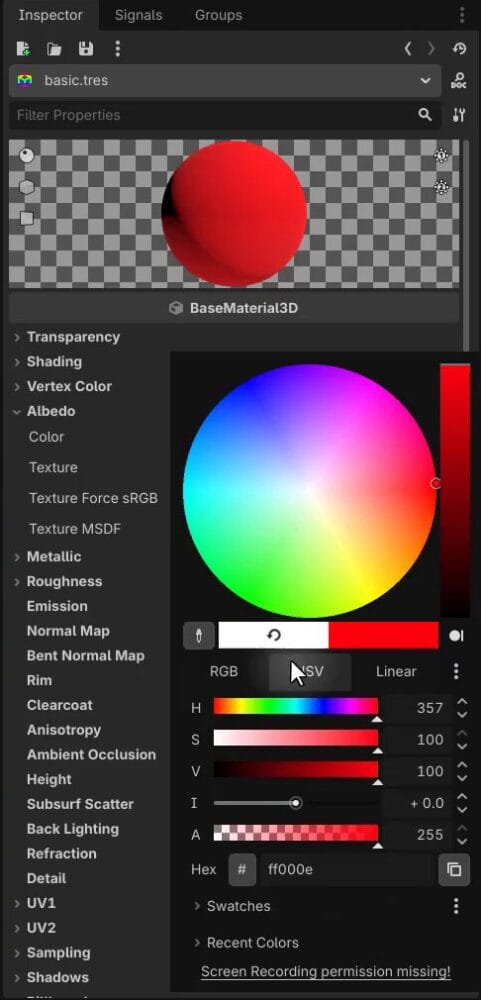
The color picker supports RGB and hue, saturation, and value controls. If you prefer a layout closer to Unity’s picker, use its style icon to choose the HSV rectangle.
Applying a Material to a Mesh
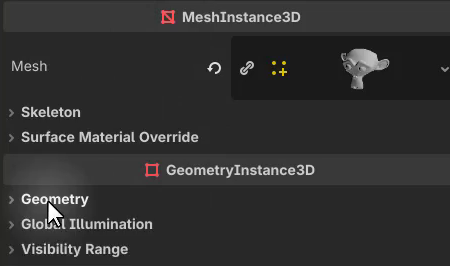
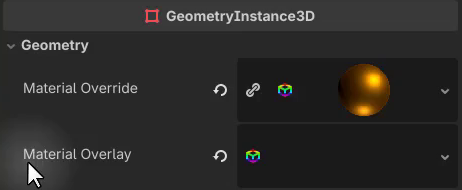
Drag the material from the FileSystem onto the mesh in the viewport. Alternatively, select the mesh instance, expand Geometry in the Inspector, and drag the resource into Material Override.
Metallic and Roughness
Godot exposes Metallic and Roughness in separate sections. Metallic ranges from 0 to 1. Roughness works in the opposite direction to Unity’s smoothness control: 1 gives a matte appearance, while 0 gives sharp reflections.
Use those two settings together to control how shiny and reflective the surface looks.
Recreating the Gold Material
Create another StandardMaterial3D in the materials folder, name it gold, and apply it to a mesh. Set Albedo to a warm golden orange, raise Metallic to 1, and bring Roughness to roughly halfway.
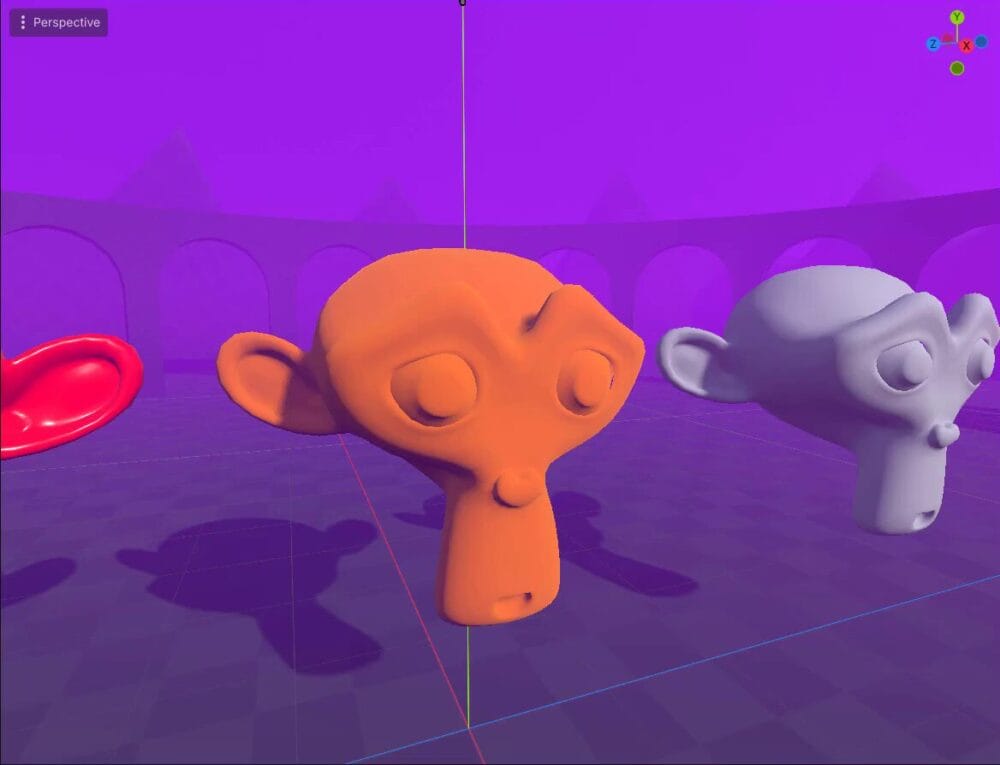
You now have the red and gold examples side by side. Next, you’ll build the emissive material and connect it to the scene’s glow effect.
Emission and Glow
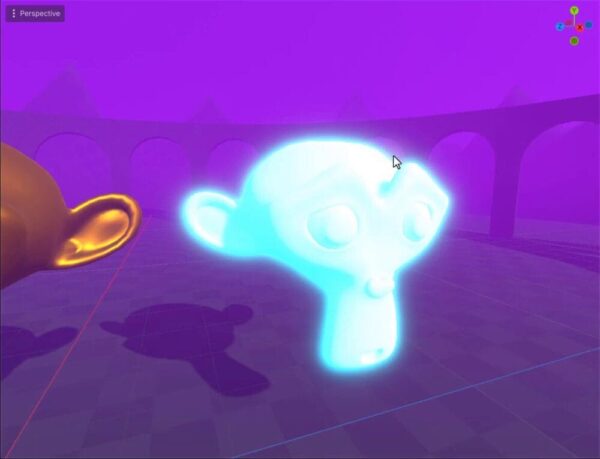
Create a material named emission and apply it to the third model. Find Emission in the Inspector, enable the feature, and choose a blue emission color.
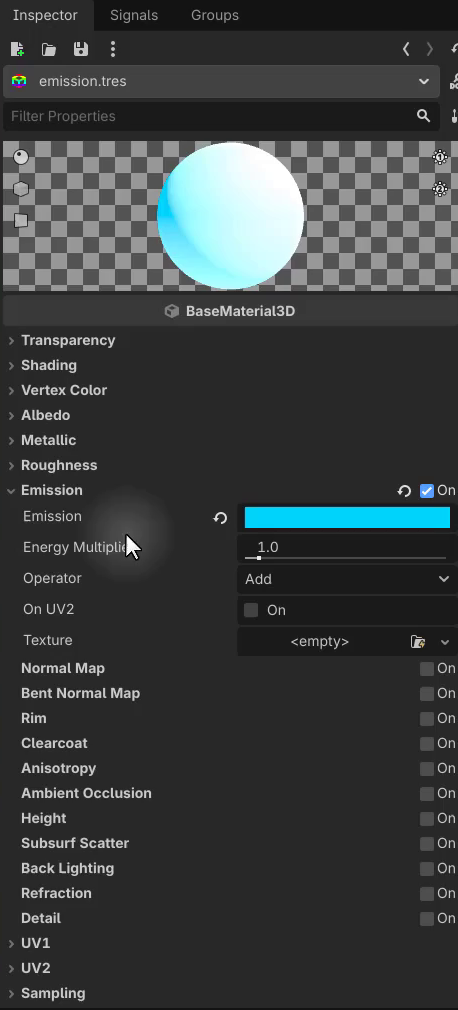
The color alone doesn’t produce the surrounding glow. Increase the material’s Energy Multiplier to raise the emission intensity. The color picker’s intensity control is another option, but the multiplier is the more direct adjustment here.
Then select the scene’s WorldEnvironment node, or add one if needed. In its Environment settings, enable Glow. The environment setup later in this tutorial covers creating the Environment resource.
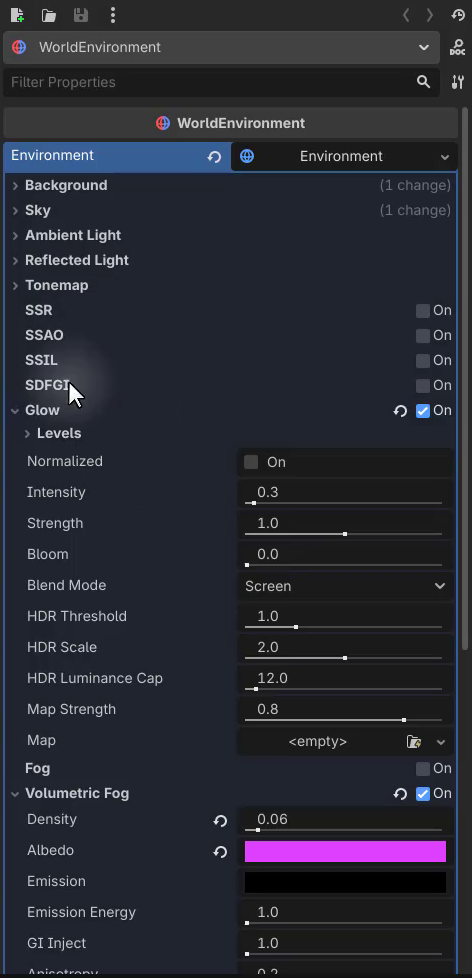
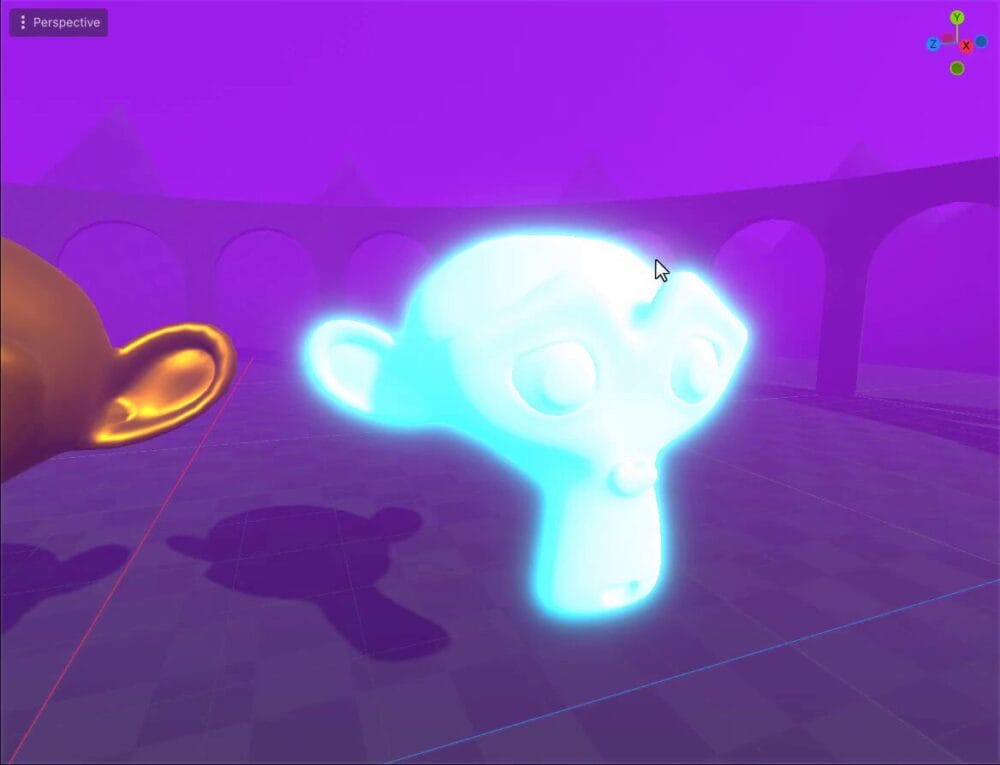
This is the naming shift to remember: Unity’s bloom corresponds to Godot’s glow. With emission energy raised and Glow enabled, the mesh has a visible halo.
Explore Additional Material Features
Scroll through the material Inspector to find features such as Rim, Clearcoat, and Subsurface Scattering.
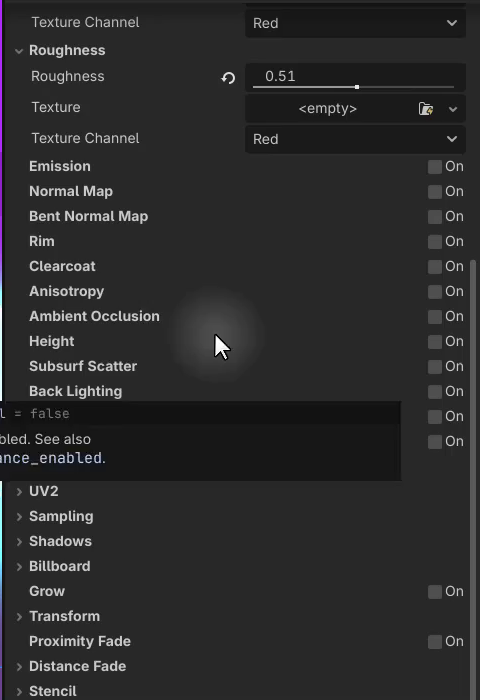
For a quick example, enable Rim. If the effect is difficult to see on a highly metallic material, reduce its Metallic value. A subtle rim light should appear along the mesh’s edges.
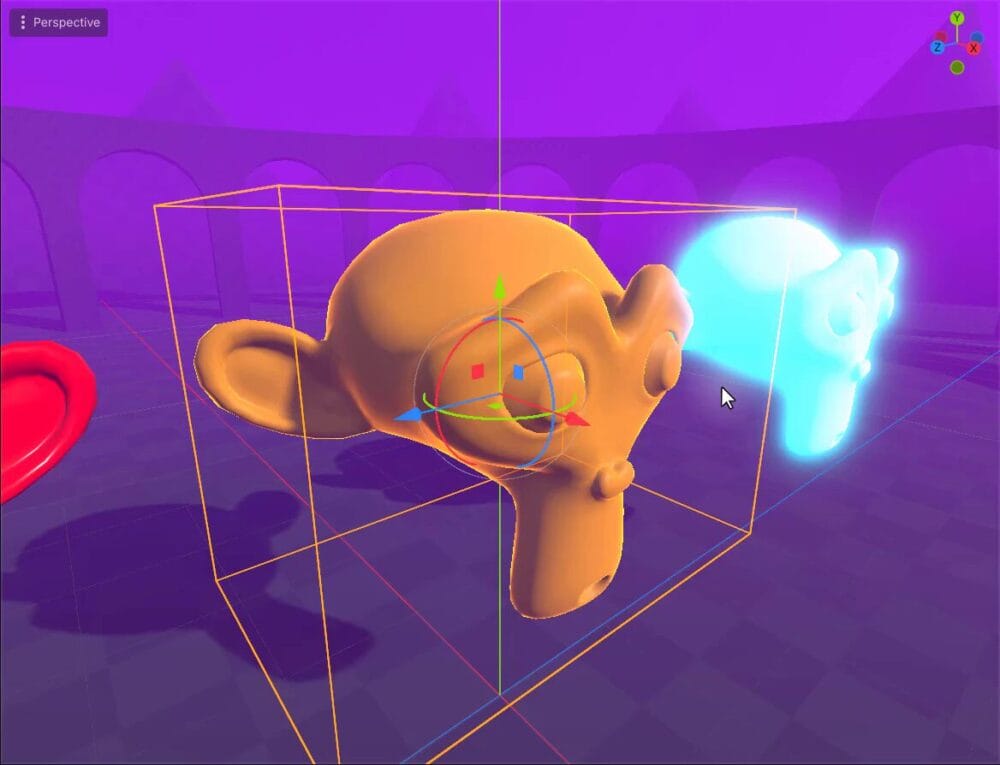
This edge emphasis can help an object stand out, for example when highlighting it as a player hovers over it.
Overlay Materials
Select a mesh and look beside its Material Override setting for Material Overlay. Override sets the main material; Overlay adds another material over the existing one.
You can use that extra layer for details such as blood, scars, or wear on a character without replacing its base material.
Set Up the Scene Environment
How Unity Handles Environments and Lighting
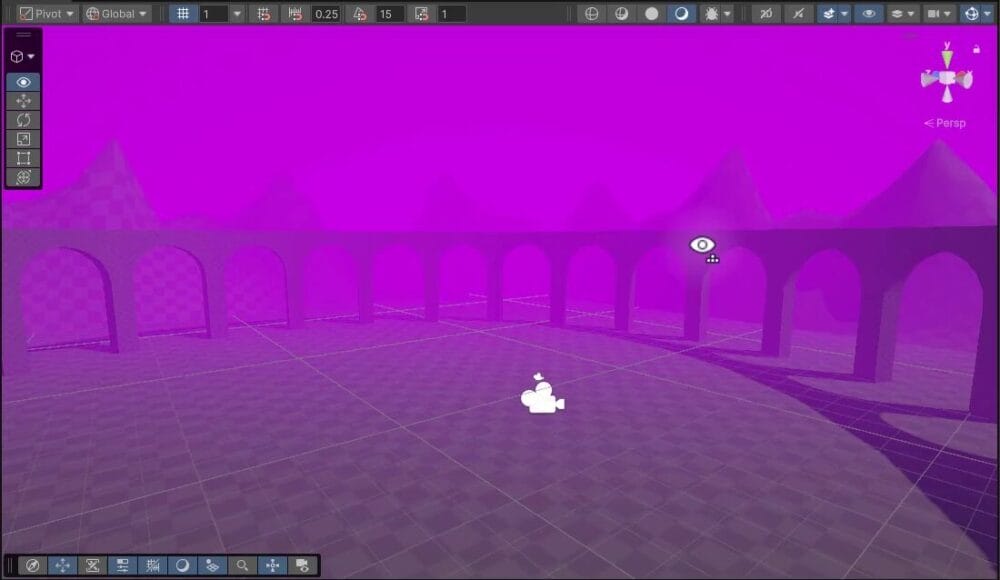
The environment comparison starts with a Unity scene containing a stone archway and colored fog. Several pieces control its appearance:
- A directional light provides the main light direction.
- A global volume and its profile control screen effects such as bloom, tone mapping, and color adjustments.
- The lighting settings contain environment lighting, reflections, and fog controls.
In Godot, you’ll add a directional light and use WorldEnvironment for much of the scene-wide setup.
Starting a Fresh 3D Scene in Godot
Create a new 3D scene and bring in the example ground collider and textured model. You may already see a sky and sunlight in the viewport, even though neither has a node in the Scene tree.
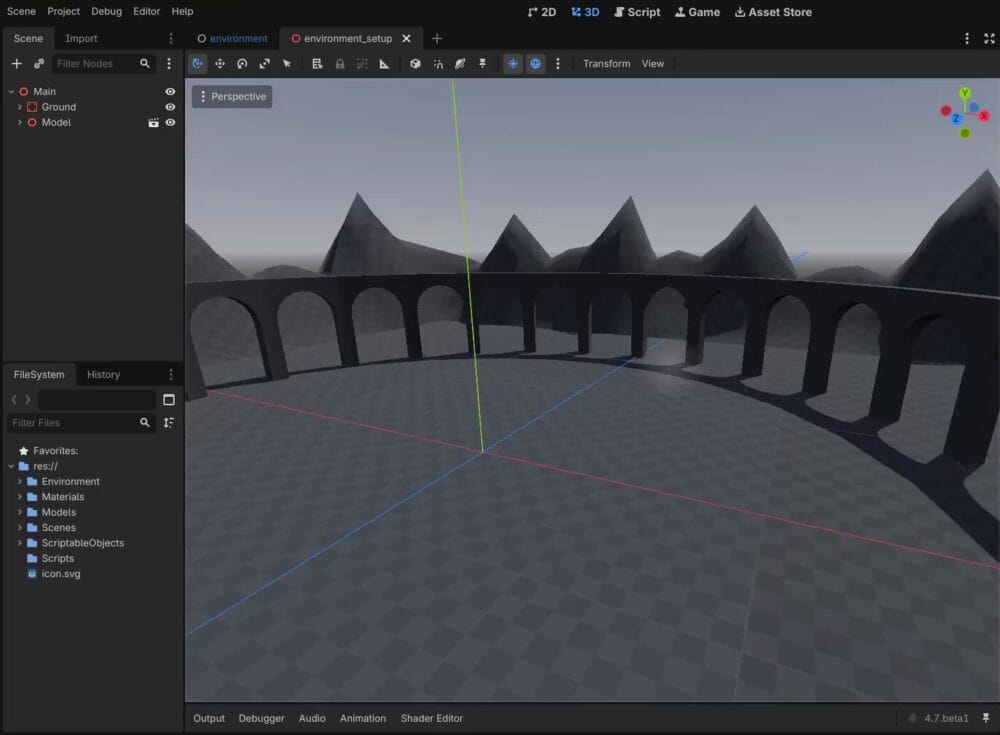
Those are Godot’s editor previews. Use the Toggle Preview Sunlight and Toggle Preview Environment buttons at the top of the viewport to turn them off and inspect the scene without that preview setup.
Add a camera node and run the scene to compare the result. The previews do not carry over into the running game, so you’ll need actual lighting and environment nodes to reproduce the look.
Adding a Directional Light
Add a DirectionalLight3D and rotate it to face down onto the environment. Its rotation determines the light direction; its position does not affect that direction.
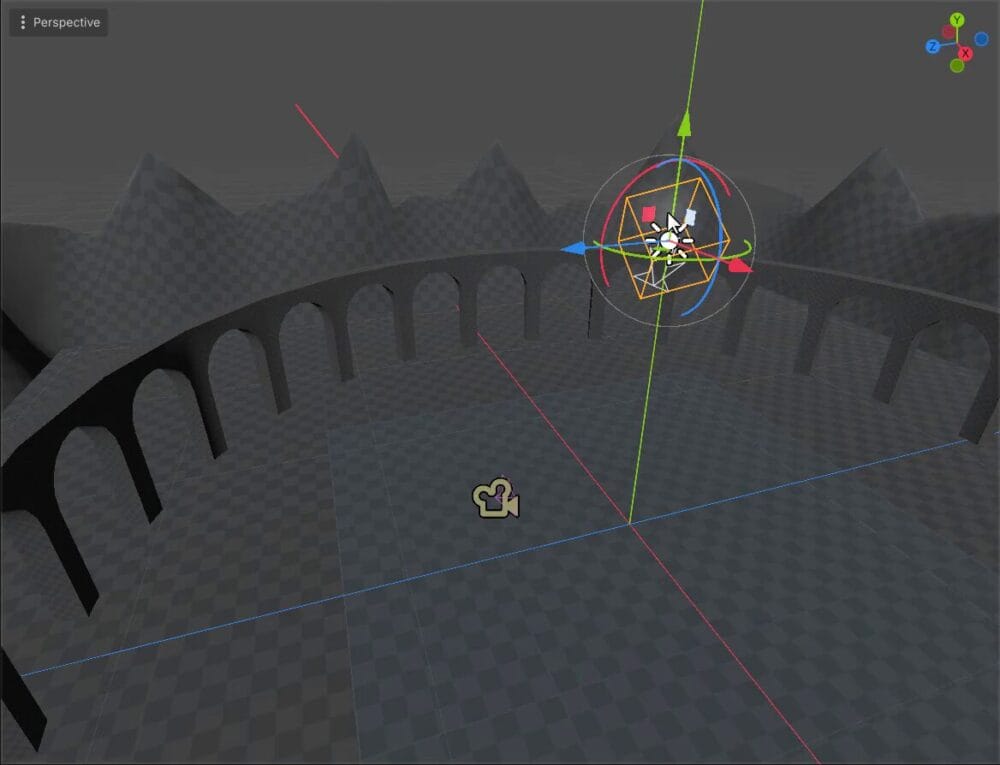
In the Inspector, open Shadow and enable shadows. You can then adjust settings such as normal bias and opacity. Under Light, set the color and energy, which serves the role of light intensity in Unity.
Creating the WorldEnvironment Node
Without the editor preview or a configured environment, the example scene has a plain background when run.
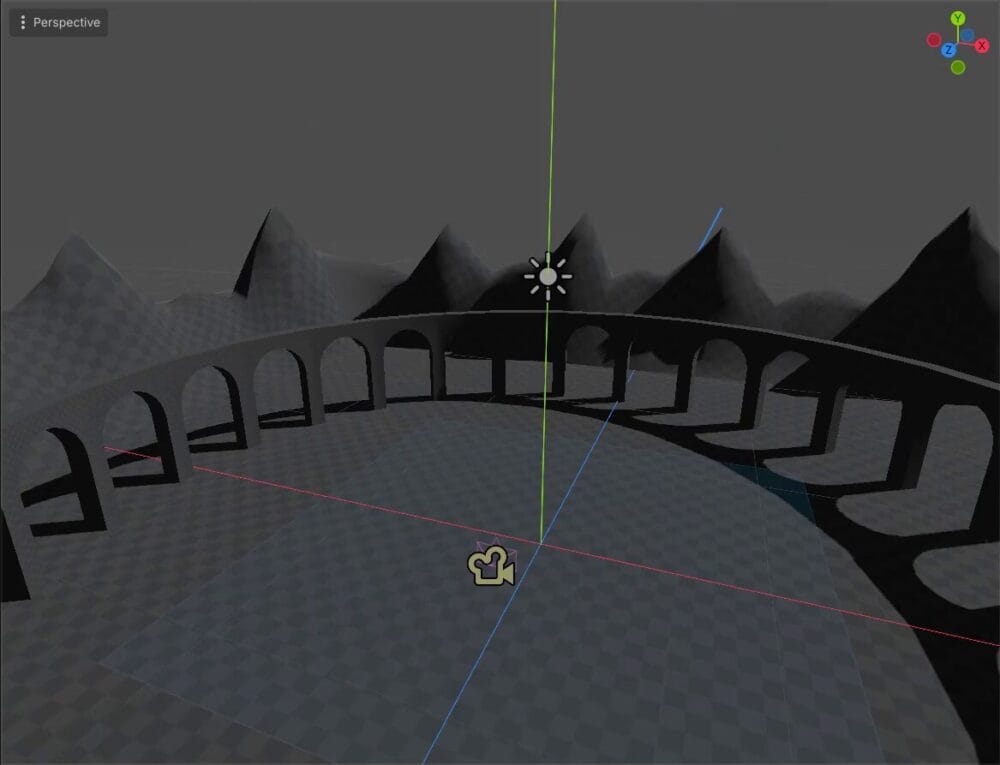
Add a WorldEnvironment node. Select it and create a new Environment resource in the Inspector’s resource slot. Expand the resource to access background, lighting, reflection, and fog settings.
Setting Up the Skybox
Under Background, change Mode from Clear Color to Sky. This is where you choose between a sky and a plain background in the environment setup.
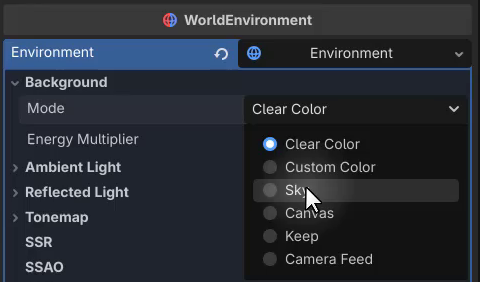
The background initially turns black because no sky has been assigned. Open the Sky section, create a new Sky resource in its slot, then assign a sky material inside it.
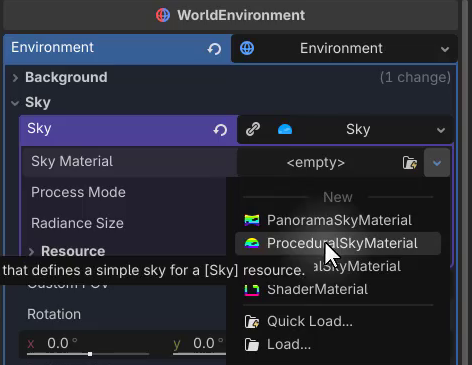
Choose ProceduralSkyMaterial for a sky similar to the Unity reference. A PanoramaSkyMaterial is another option when working from a texture instead.
The procedural sky gives you blue above the horizon and a brown tone below it. Save and run the scene to confirm that the sky appears in the game.
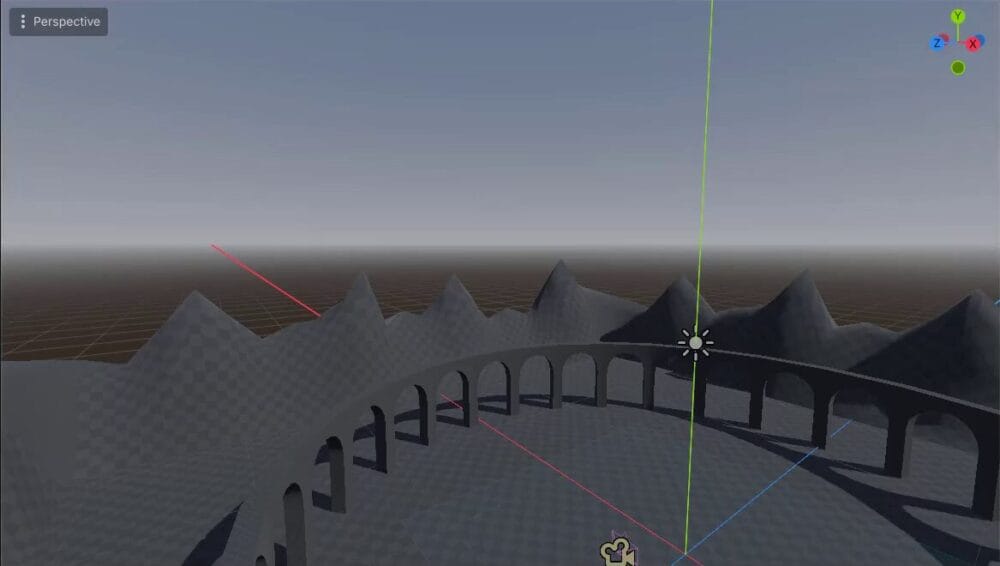
Adjusting Environment Lighting
Back under Background, adjust the Energy Multiplier to change how strongly the sky contributes to the scene’s lighting.
Environment Reflections
A gold sphere makes the reflection comparison easy to see: its shiny surface reflects the surrounding sky.
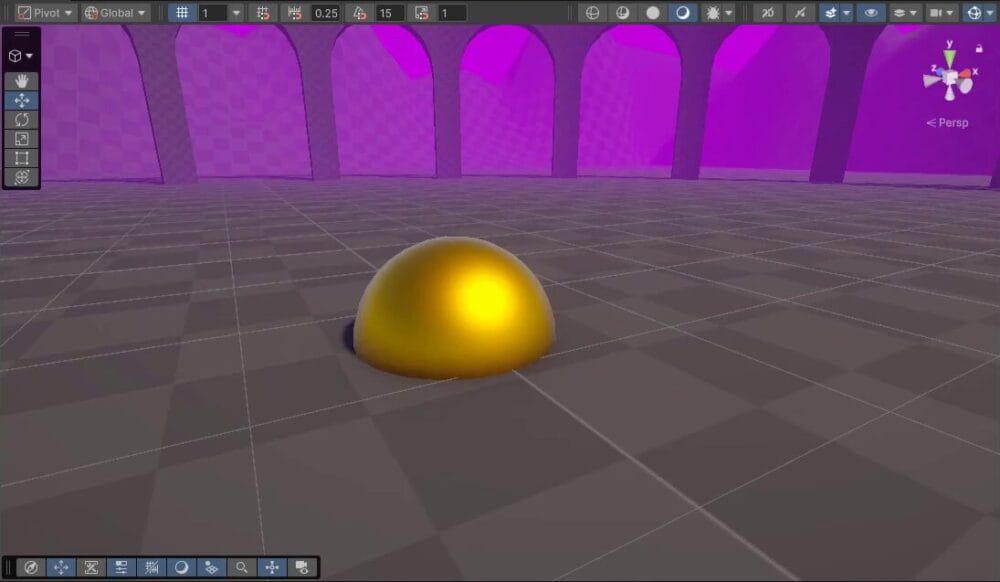
In WorldEnvironment, use the Reflected Light source setting. Choose Background to use the background as the reflection source, or Disabled to turn that reflected light off.
To change how reflective a particular object looks, return to its material and adjust Roughness and Metallic.
Adding Fog
Enable Fog in the Environment resource. Set its light color to a purple tone to match the example, then adjust density and light energy to shape the effect.
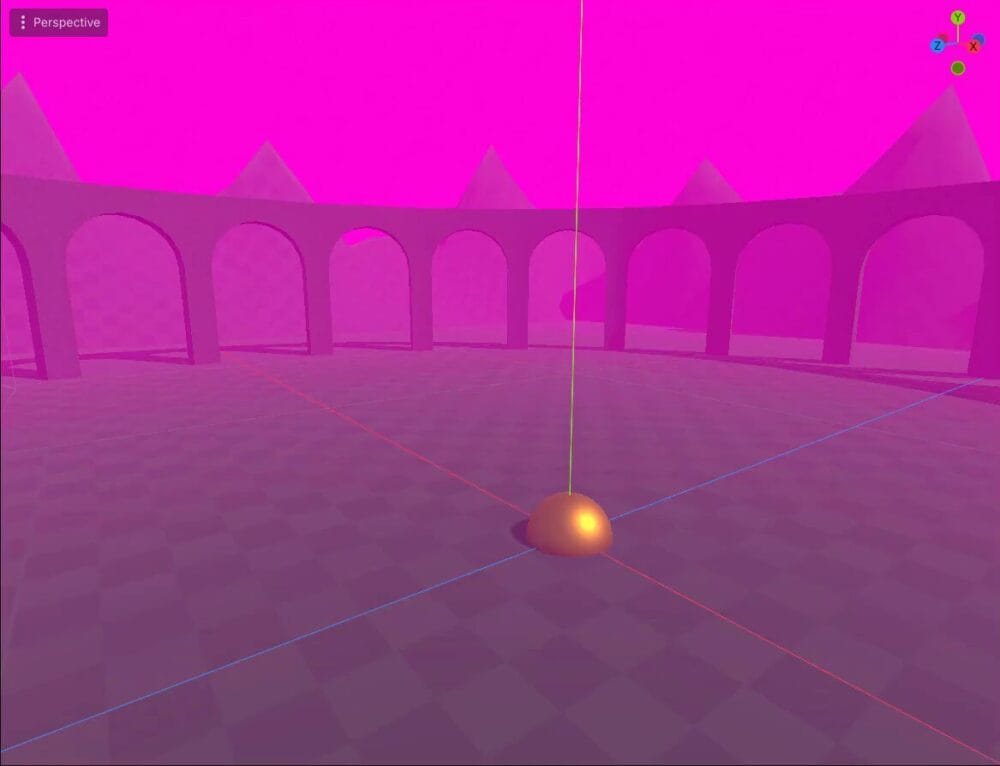
Volumetric Fog
For the second fog example, enable Volumetric Fog. It adds depth to the atmosphere and interacts with the scene’s lighting.
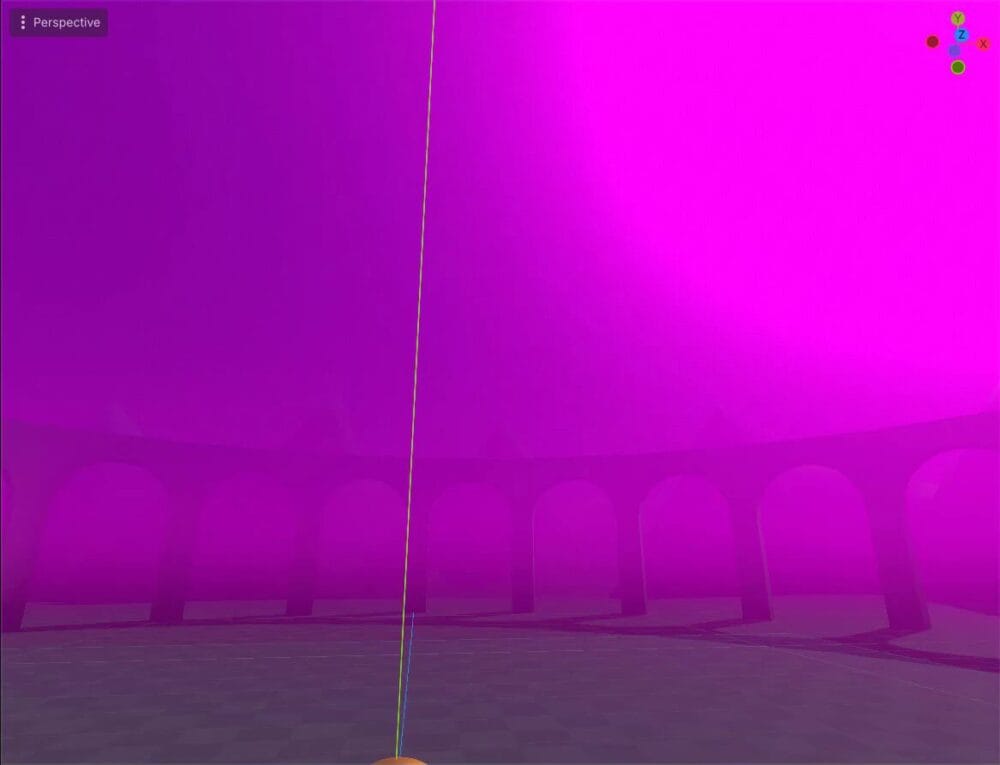
Try a pink Albedo, increase Density for thicker fog, and adjust Ambient Inject to brighten the ambient light within it. These controls let you explore a different look from the standard fog example.
Screen Space Ambient Occlusion
Screen space ambient occlusion adds subtle darkening to corners and crevices where surfaces meet. In the Unity reference, it appears as a renderer feature in the renderer data settings.

In Godot, find and enable SSAO in the WorldEnvironment settings. You can then adjust its controls to refine the effect.
Review Your Materials and Environment
You now have the material examples and scene-wide controls needed to recreate the demonstrated look in Godot. You’ve covered how to:
- Create and apply
StandardMaterial3Dresources. - Use Albedo, Metallic, and Roughness for red and gold surfaces.
- Combine emission energy with environment Glow for an emissive halo.
- Explore rim lighting and layer materials with Material Overlay.
- Add scene lighting, a procedural sky, environment reflections, fog, and SSAO.
You can now refine these surfaces and environmental effects together as you continue working on the example scene.
Continue with the Godot 4 Game Development Mini-Degree for the full course project and a structured path through Godot game development. Use the guided projects to keep turning familiar concepts into practical skills.
Did you come across any errors in this tutorial? Please let us know by completing this form and we’ll look into it!
FINAL DAYS: Unlock coding courses in Unity, Godot, Unreal, Python and more.