To build a Godot input buffer, you first need a consistent way to collect each fighter’s controls. This walkthrough applies Zenva’s experience teaching coding and game development across over 400 courses to that sequence: set up the fighter, separate the players’ inputs, then keep a rolling history for recent-input checks.
This tutorial assumes you have Godot installed and the supplied project assets and two-player Input Map already set up.
Download Project Files
The files and full project are available through the course included in the Intermediate Godot Mini-Degree if you want the complete guided path. You can also keep reading this free tutorial to work through the fighter setup and input system.
Set Up the Fighting Game Character
Start with the reusable fighter scene. It will hold the character model, animations, and collision shape before you add the scripts that read and store input.
Creating the Fighter Scene
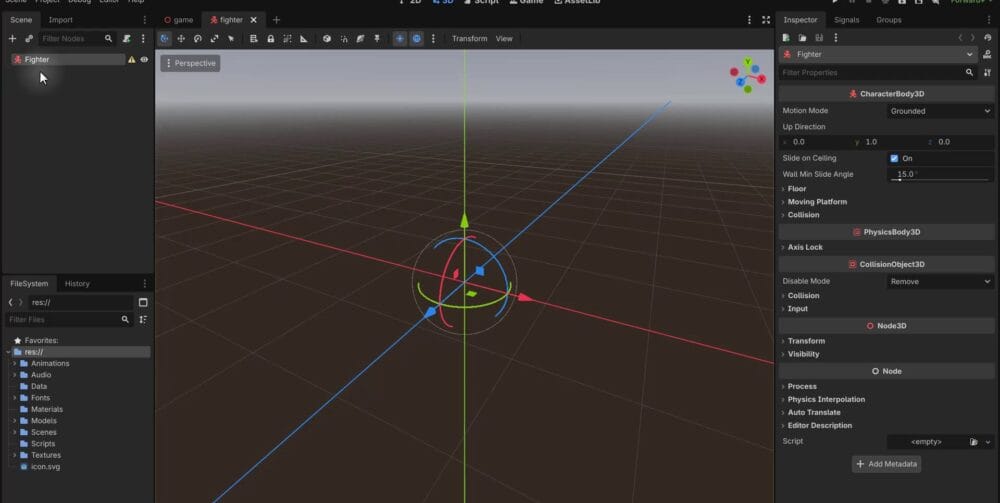
Choose Scene > New Scene, select Other Node, and create a CharacterBody3D root. Rename it Fighter.
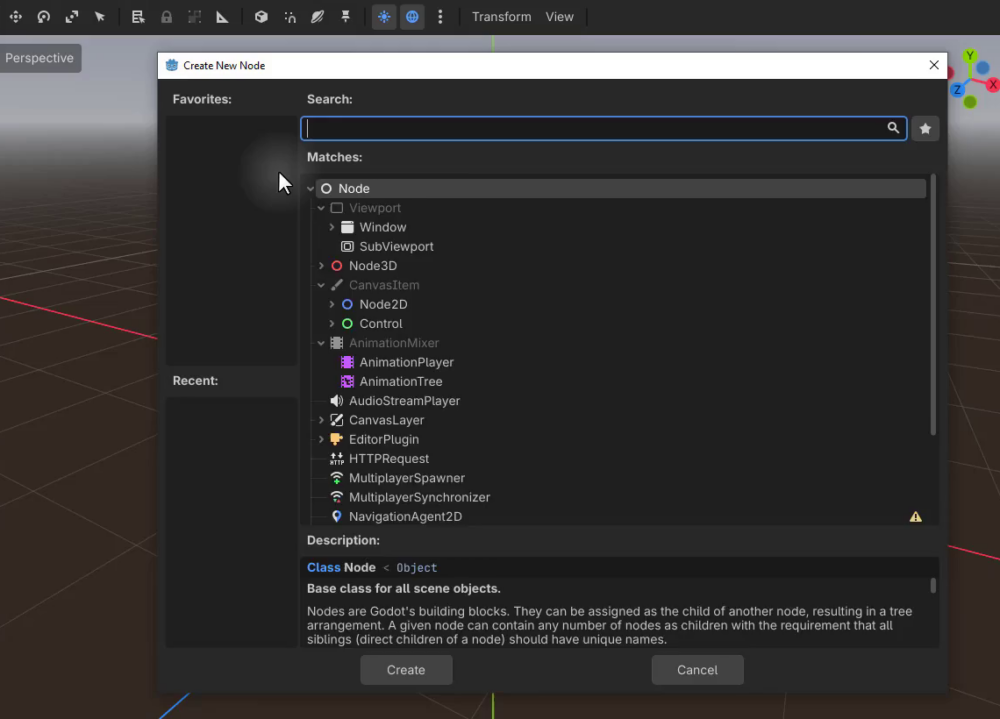
Create a Fighters folder inside Scenes and save the scene there as fighter.tscn.
Adding the Character Model
In Models > Outfits, drag Male Ranger into the Fighter scene. Set its position and rotation to zero so it lines up with the root.
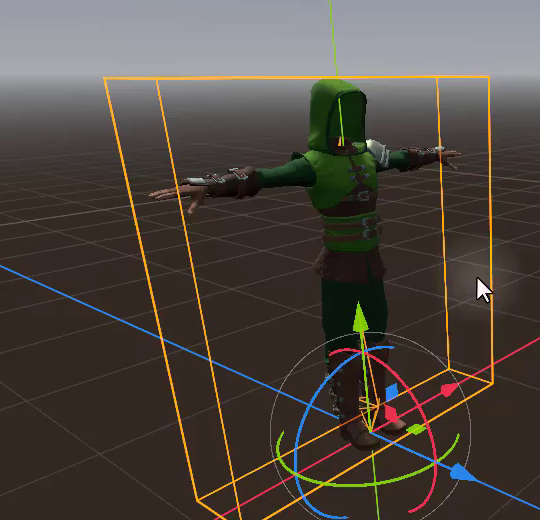
The outfit does not include a complete face. The supplied assets keep the outfit and head parts separate, so you will attach the missing pieces to the character’s skeleton next.
Attaching the Head to the Skeleton
In Models > Fighter Head, find the face, the second face mesh used for eyebrows, and the sphere forming the head. Drag all three into the scene. Adding them at the origin is only the first step: these meshes also need to follow the body’s animation.
A skeleton contains bones that drive the animated mesh. Enable Editable Children on Male Ranger to expose its Armature and GeneralSkeleton.
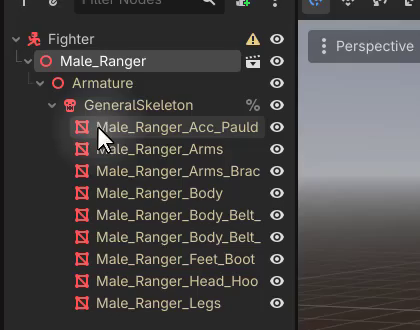
For each of the three head meshes:
- Reparent it directly under GeneralSkeleton.
- Set its Skeleton property in the Inspector to GeneralSkeleton.
- Reset its position to
(0, 0, 0)and its rotation to zero.
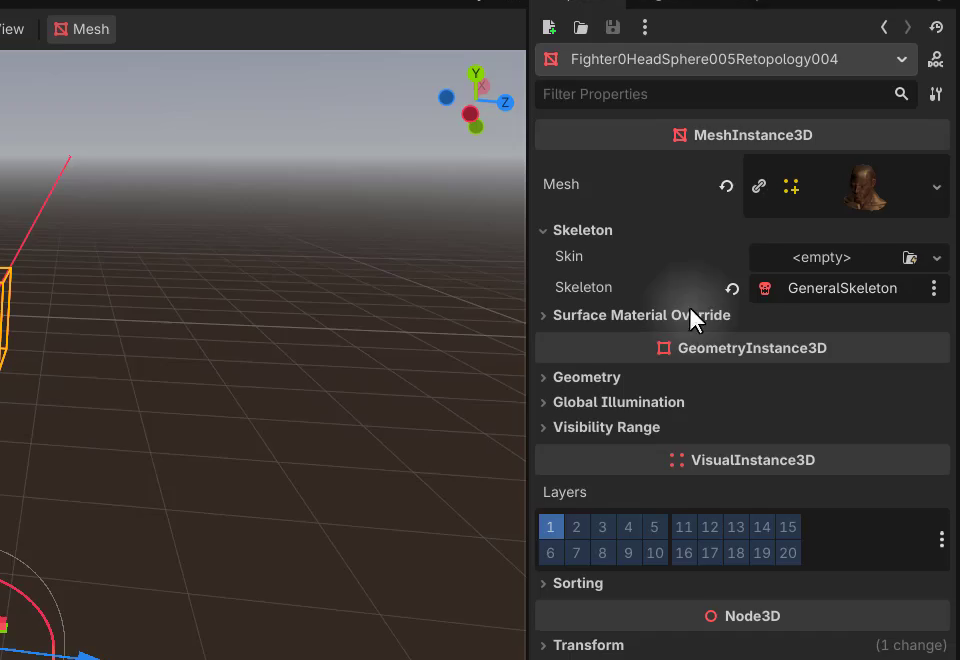
With the meshes parented and bound correctly, the head parts can follow the body’s animated bones instead of staying behind.
Setting Up the AnimationPlayer
Add an AnimationPlayer node to the Fighter scene. Set its Root Node to Male Ranger so the animations target the character model, then open the Animation panel at the bottom of the editor.
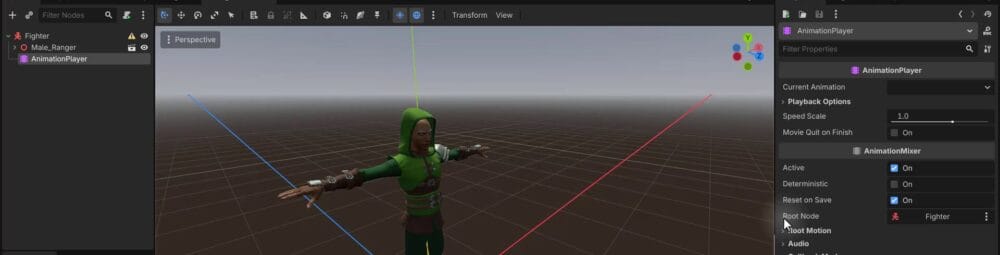
Creating an Animation Library
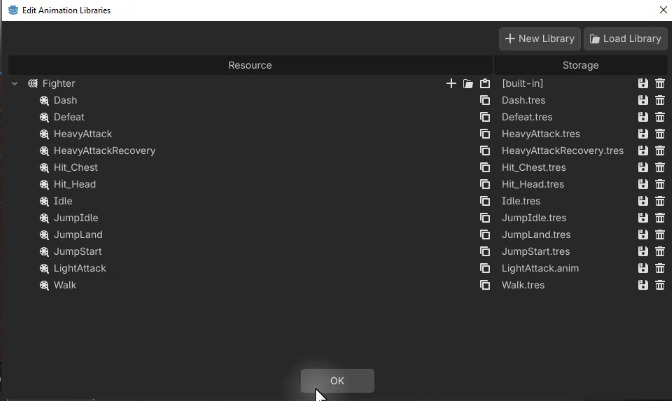
Choose Animation > Manage Animations and create a library named fighter. Use the library’s folder icon to load the animation files from the supplied Animations directory.
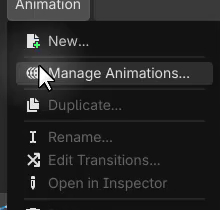
Testing the Animations
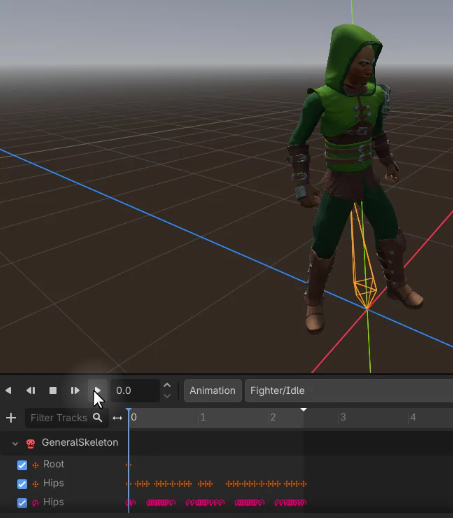
Select Idle and play it in the editor. Check that the body, head, eyes, and eyebrows move together.
Then preview HeavyAttack. Its larger movements make it easier to spot head parts that are not following the skeleton.
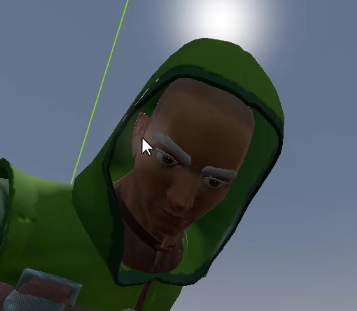
If a head part stays in place, check that it is a direct child of GeneralSkeleton, its Skeleton property points there, and its position and rotation are zero. These are manual animation previews; gameplay-driven animation will use an AnimationTree later in the project.
Adding a Collision Shape
Add a CollisionShape3D child to Fighter and choose a Capsule shape. Move and resize it to roughly fit the character’s body.
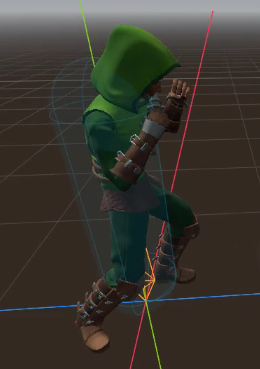
This shape handles collisions with the environment. It is not the fighter’s attack hit detection, which the wider project handles separately with custom hitboxes and hit senders.
Summary and Challenge
Your reusable Fighter scene now contains the model, its attached head meshes, an animation library, and an environment collision shape. Try building a platform and positioning a side-on camera in the main game scene before following the setup below.
Build a Two-Fighter Test Scene
Building the Test Platform
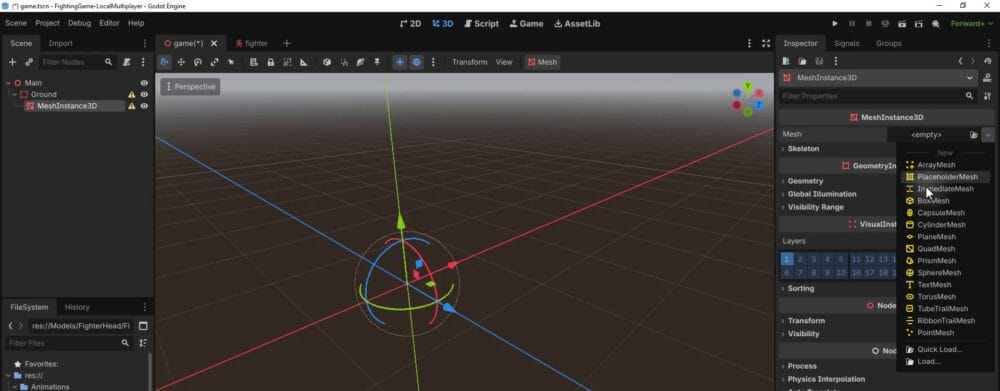
In the main game scene, add a StaticBody3D named Ground. Give it a MeshInstance3D with a BoxMesh, then add a CollisionShape3D with a box shape that matches the platform.
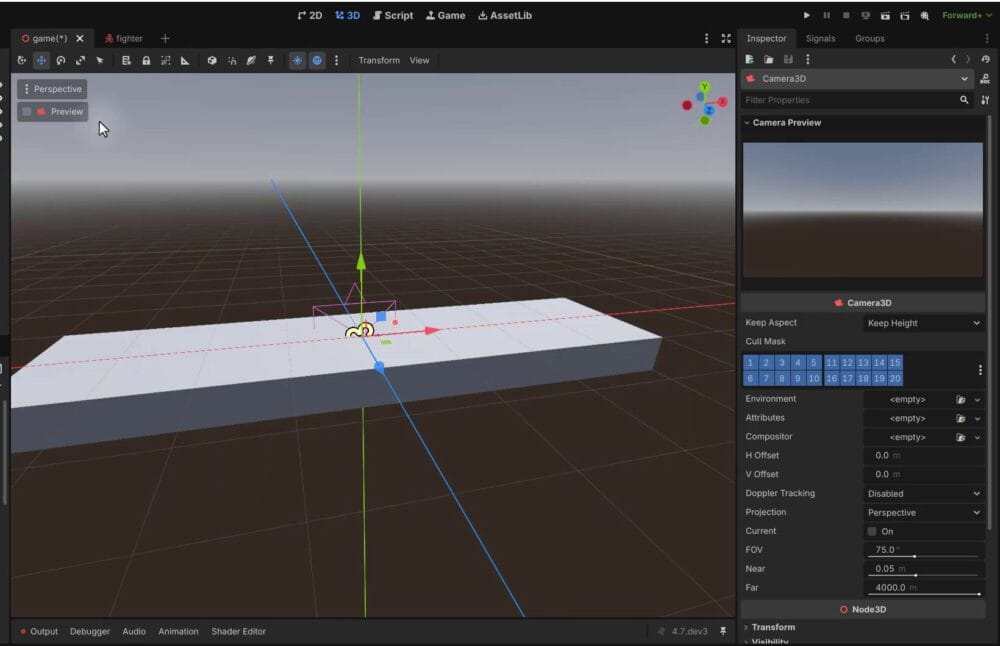
Add a Camera3D and position it so you can see the ground from the side. Set its field of view to 50 and pull it back until the platform fits in view.
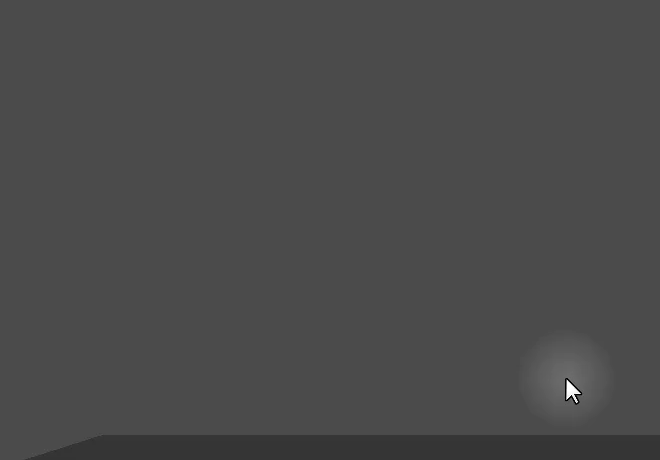
Set this game scene as the main scene and run it. At this stage, it may look dark because you have not added lighting.
Adding Lighting and a Skybox
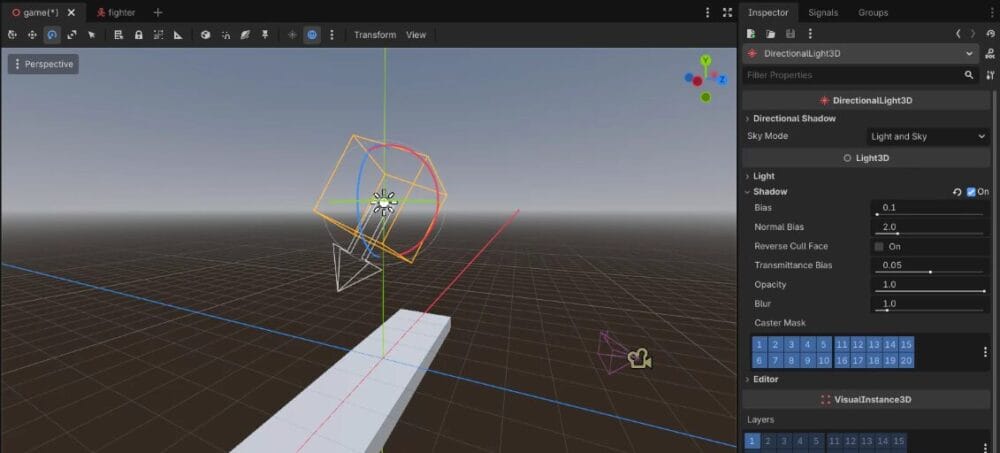
Add a DirectionalLight3D above the platform, angle it downward, and enable shadows. The scene should now be easier to see.
For the background, add a WorldEnvironment and configure it in the Inspector:
- Create a new Environment resource.
- Set Background > Mode to Sky.
- Create a new Sky resource.
- Set its Sky Material to a new ProceduralSkyMaterial.
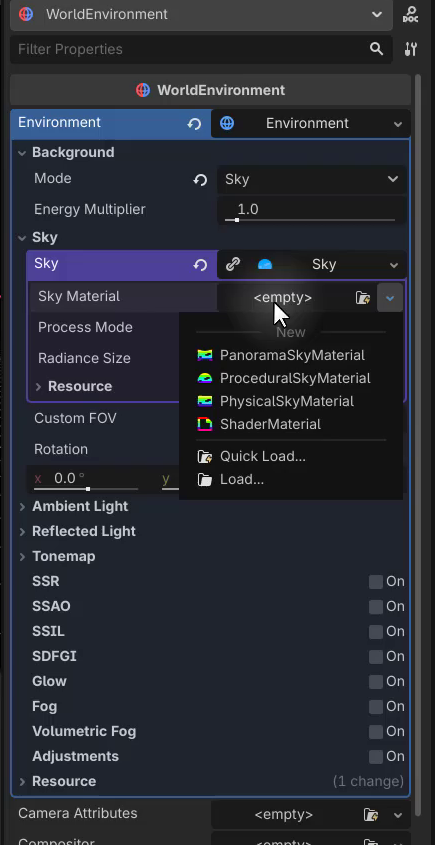
Save the scene and run it to check the lit platform and procedural sky.
Placing the Fighters
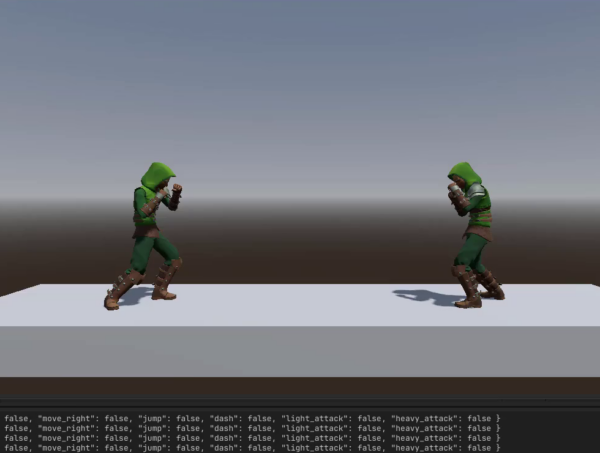
Drag the Fighter scene from Scenes > Fighters into the game. Place the first fighter on one side, facing right, then duplicate it and place the second on the opposite side, facing left.
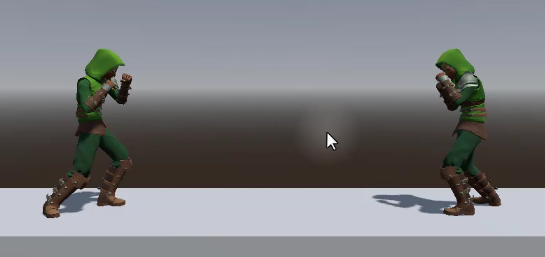
You can ignore the default animation plane attached to the character for this setup.
Attaching the Fighter Script
Open the original Fighter scene to attach its script, rather than attaching it only to an instance in the game. Create a Fighter folder under Scripts, select the Fighter scene root, and attach a new script saved as fighter.gd in that folder.
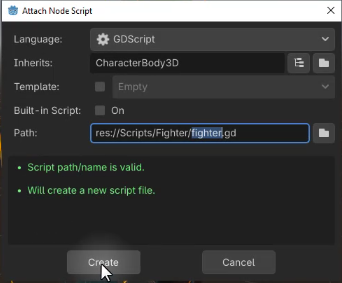
Define the Fighter class and an exported player ID:
class_name Fighter
extends CharacterBody3D

@export var player_id : int
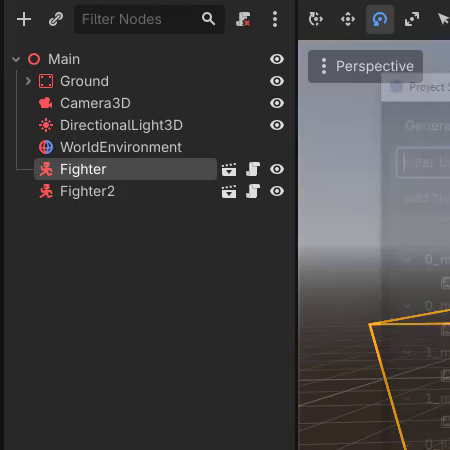
Back in the game scene, set the first fighter’s Player Id to 0 and the second fighter’s to 1. The input system will use these IDs to select each player’s existing Input Map actions.
What’s Next
The two characters now share a reusable scene but have distinct player IDs. They do not respond to controls yet. Next, you will turn each player’s input into a packet that the fighter can request.
Create Player Input Packets and Handlers
Creating the Inputs Folder and input_packet Script
Create an Inputs folder under Scripts, then create input_packet.gd.
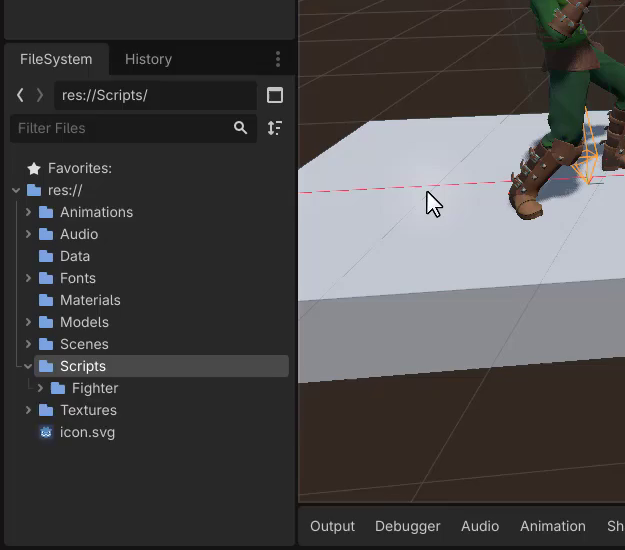
An input packet stores data in memory; it does not need to be attached to a node in the scene. Remove the default extends Node line and name the class:
class_name InputPacket
Defining the inputs Dictionary
A dictionary uses custom keys instead of numeric array indexes. Add a typed dictionary with a string key and a boolean value for each action. All six actions start as false:
class_name InputPacket

var inputs : Dictionary[String, bool] = {
    "move_left": false,
    "move_right": false,
    "jump": false,
    "dash": false,
    "light_attack": false,
    "heavy_attack": false
}
Each packet records whether the player is pressing left, right, jump, dash, light attack, or heavy attack. This gives the rest of the input system a consistent set of values to read.
Adding the is_pressed Helper
Add a helper for checking an action by name:
func is_pressed (input_string : String) -> bool:
    return inputs.get(input_string, false)
For example, packet.is_pressed("jump") reads the jump value. The second argument to get makes the method return false if the requested key does not exist.
Creating the Base InputHandler Script
Create input_handler.gd in the same folder. This base class extends Node, stores a reference to its Fighter, and defines the method that input handlers will provide:
class_name InputHandler
extends Node

@export var fighter : Fighter

func get_input_packet () -> InputPacket:
    return null
The base method returns null. You will implement packet creation in a player-specific subclass, rather than attach this base handler directly. Keeping the interface separate leaves room for other input sources, such as AI or network handlers.
Creating the PlayerInputHandler
Create player_input_handler.gd and extend InputHandler:
class_name PlayerInputHandler
extends InputHandler
Override get_input_packet to create and return a fresh packet:
func get_input_packet () -> InputPacket:
    var packet : InputPacket = InputPacket.new()

    return packet
Start by filling the left-movement value from the first player’s action:
func get_input_packet () -> InputPacket:
    var packet : InputPacket = InputPacket.new()

    packet.inputs["move_left"] = Input.is_action_pressed("0_move_left")

    return packet
This reads 0_move_left, but hard-coding player zero would make both fighters use that same action. The handler needs to build the action name from its Fighter’s player ID.
Supporting Both Players with _full_action_name
Add this helper to PlayerInputHandler:
func _full_action_name (action : String) -> String:
    return str(fighter.player_id, "_", action)
It combines fighter.player_id, an underscore, and the action name. Use it to replace the hard-coded action in get_input_packet:
func get_input_packet () -> InputPacket:
    var packet : InputPacket = InputPacket.new()

    packet.inputs["move_left"] = Input.is_action_pressed(_full_action_name("move_left"))

    return packet
The same handler can now read the appropriate left-movement action for either player.
Challenge
Before continuing, try applying the same pattern to the five remaining actions: move_right, jump, dash, light_attack, and heavy_attack. The next section shows the completed method.
Connect and Test the Player Input System
Completing the PlayerInputHandler
Finish get_input_packet by reading all six actions through _full_action_name:
func get_input_packet () -> InputPacket:
	var packet : InputPacket = InputPacket.new()

	packet.inputs["move_left"] = Input.is_action_pressed(_full_action_name("move_left"))
	packet.inputs["move_right"] = Input.is_action_pressed(_full_action_name("move_right"))
	packet.inputs["jump"] = Input.is_action_pressed(_full_action_name("jump"))
	packet.inputs["dash"] = Input.is_action_pressed(_full_action_name("dash"))
	packet.inputs["light_attack"] = Input.is_action_pressed(_full_action_name("light_attack"))
	packet.inputs["heavy_attack"] = Input.is_action_pressed(_full_action_name("heavy_attack"))

	return packet
Each call creates a packet, fills its dictionary with the current input values, and returns it.
How the Input System Works
The Fighter’s player ID determines which Input Map actions the handler checks. For player 0, asking for jump produces 0_jump; player 1 uses the corresponding player-one action. The supplied Input Map assigns separate controls to each player.
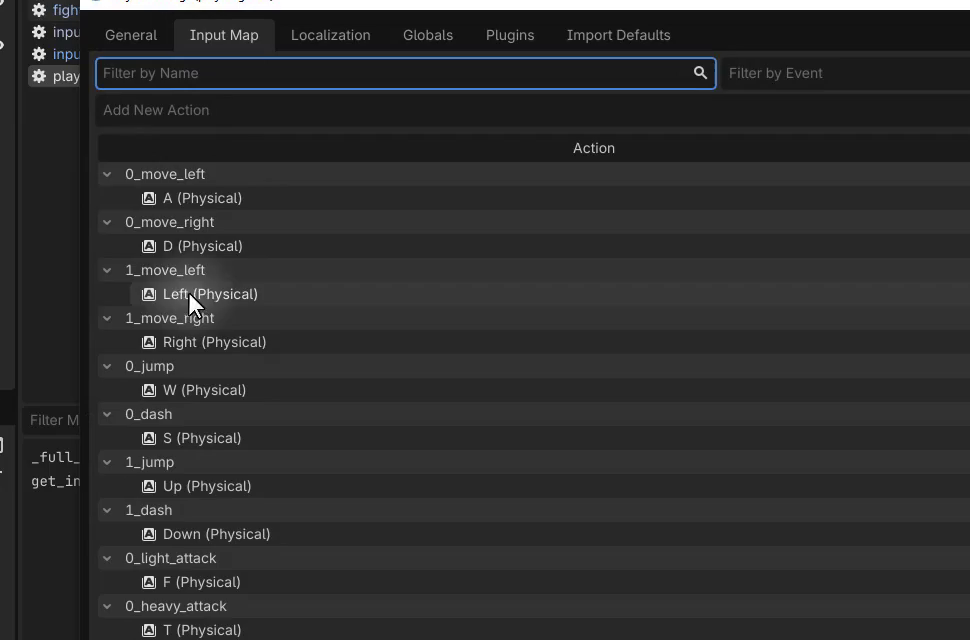
Player index 0 uses keys such as A, D, W, S, F, and T. Player index 1 uses the arrow keys and the other designated keys.
This keeps input collection in one place. The fighter can request an InputPacket without checking every key itself.
Adding the PlayerInputHandler Node
Open the Fighter scene and add a PlayerInputHandler child node. Move it to the top of the child list for organization, then assign the Fighter root to the handler’s exported Fighter property.
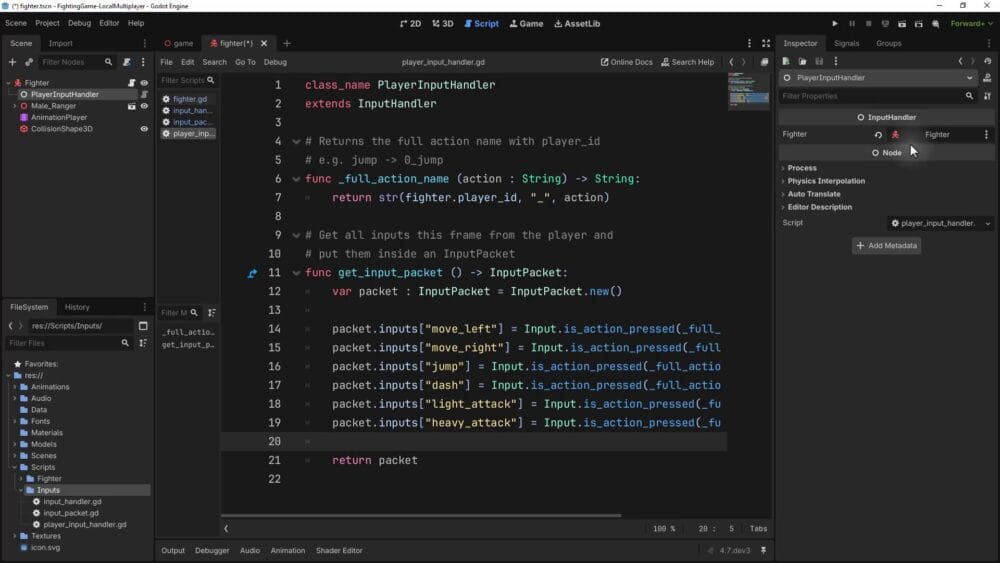
The handler now has the reference it needs to read player_id.
Connecting the Input Handler to the Fighter Script
In fighter.gd, add an exported handler reference:
@export var input_handler : InputHandler
Use the base InputHandler type so the Fighter is not tied specifically to the local-player subclass. In the Inspector, assign the PlayerInputHandler child to the Fighter’s Input Handler property.
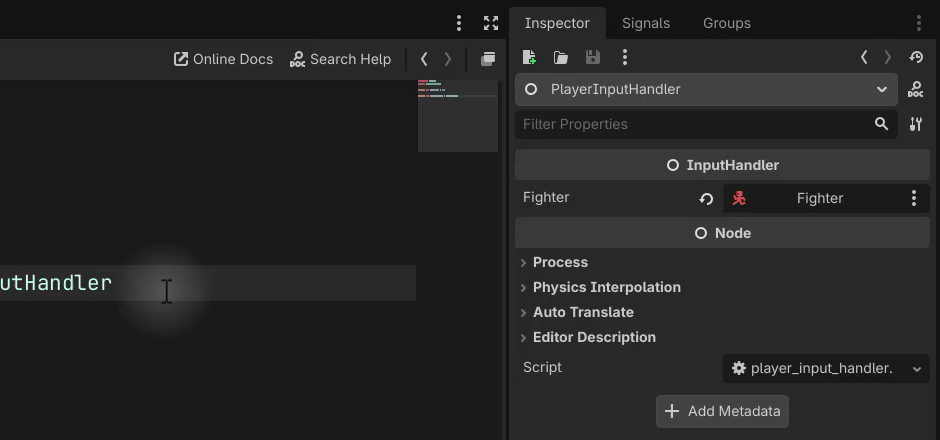
The Physics Process Function
Add _physics_process to the Fighter script and request an input packet:
func _physics_process (delta : float):
	# 1. Get the input packet
	var input_packet : InputPacket = input_handler.get_input_packet()
	print(input_packet)
This uses the fixed physics step rather than the render-frame timing of _process. The wider fighter system will use CharacterBody3D movement through move_and_slide() and frame-specific durations for actions such as attacks and stuns in this loop.
The planned sequence is to get the packet, pass it to the input buffer, update the state machine, update facing, and apply movement. You have implemented the first step here and will add the buffer step below; the remaining steps come later in the project.
Testing the Input System
Run the game with the two fighter instances set to player IDs 0 and 1. Use the temporary print while testing packet retrieval, and check each player’s configured controls independently and together.
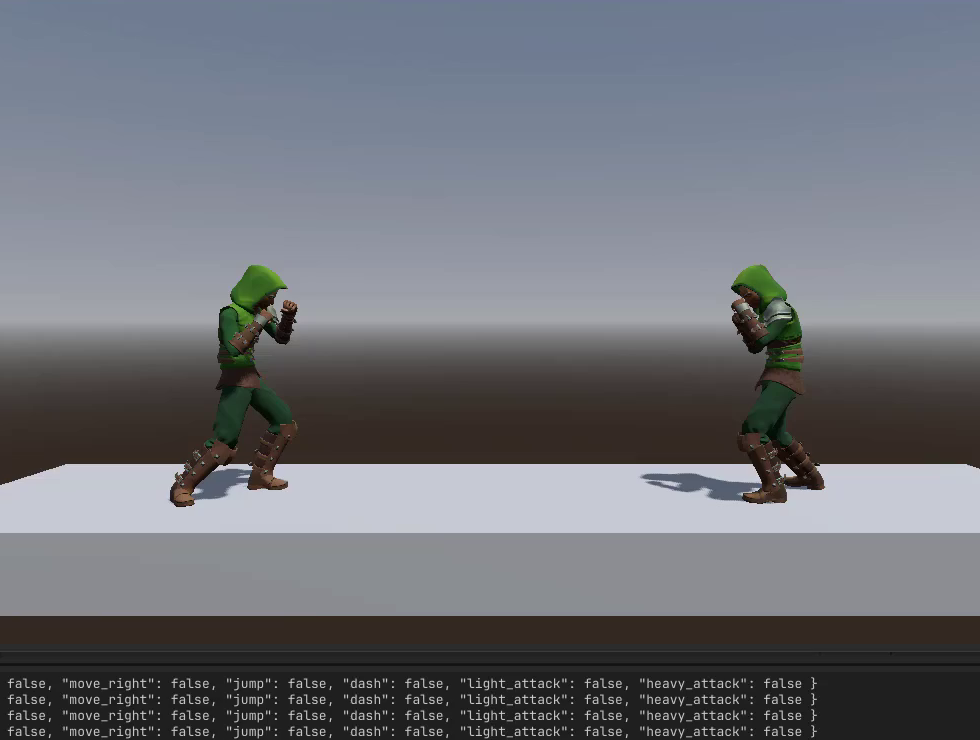
Test movement, jump, dash, and both attack inputs for each player. You are checking input collection at this stage, not character movement or attacks. Remove the temporary print after testing so it does not keep filling the output panel.
Build the Godot Input Buffer
Why Do We Need an Input Buffer?
A player may press punch just before the fighter is ready to attack. If the game only checks input at the moment it can accept that action, an early input can be missed.
An input buffer stores recent frames so later action logic can look back over a short window. You will build that history and its query methods here; the state machine that uses them comes later.
How the Rolling Buffer Works
Think of the buffer as an array of input packets. The newest packet sits at index 0. Each new packet pushes the older entries back, and the oldest entry is removed once the buffer exceeds its limit.
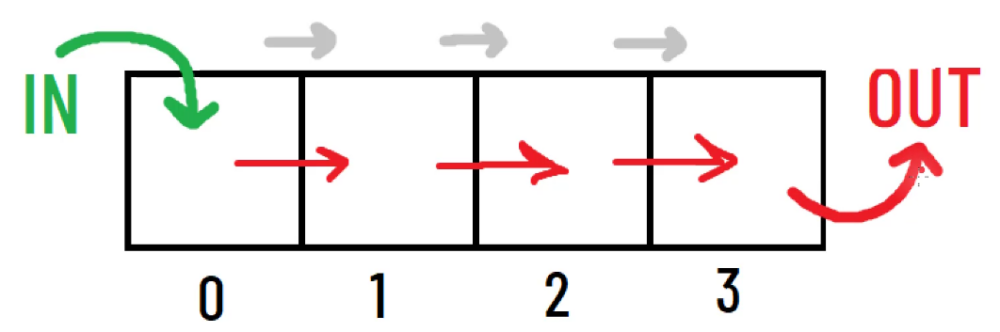
The illustration uses four slots to show the sequence. Your implementation will retain 20 frames of input history.
Creating the InputBuffer Script
Create input_buffer.gd in Scripts > Inputs and define the node class:
class_name InputBuffer
extends Node
Add a typed array to store the packets:
var buffer : Array[InputPacket] = []
Defining the Buffer Size as a Constant
Set the history limit with a constant:
const BUFFER_SIZE : int = 20
A constant cannot change after it is defined. BUFFER_SIZE gives the script a single value to use when initializing and trimming the array.
Initializing the Buffer in _ready
Fill the array with empty packets when the game starts:
func _ready ():
	for i in range(BUFFER_SIZE):
		buffer.push_front(InputPacket.new())
Each new InputPacket starts with all actions set to false. Pre-filling the buffer means its query methods have packets to read from the beginning, before real input has filled the history.
Receiving New Input Packets
Add a method that inserts the latest packet at the front and removes the oldest one if needed:
func receive_input (packet : InputPacket):
	buffer.push_front(packet)

	if buffer.size() > BUFFER_SIZE:
		buffer.pop_back()
After each update, index 0 contains the newest packet and the buffer stays within its 20-packet limit.
Checking the Current Frame with is_pressed
To check the current frame, read the newest packet and use its helper:
func is_pressed (input_string : String) -> bool:
	var packet : InputPacket = buffer[0]
	return packet.is_pressed(input_string)
This method looks only at the latest input, not the older packets in the buffer.
Getting the Movement Direction
Add a helper that turns the left and right inputs into one direction value:
func move_direction () -> int:
	var dir : int = 0

	if is_pressed("move_left"):
		dir -= 1
	if is_pressed("move_right"):
		dir += 1

return dir-1means only left is pressed.1means only right is pressed.0means neither is pressed, or both are pressed and cancel each other.
Checking Recent Frames with was_pressed
For a recent-input check, search a short window of packets:
func was_pressed (input_string : String, buffer_window : int = 3) -> bool:
	for i in range(min(buffer_window, buffer.size())):
		if buffer[i].is_pressed(input_string):
			return true

	return false
The default window is 3 frames. min(buffer_window, buffer.size()) keeps the loop within the available history, even if a larger window is requested.
The method returns true as soon as it finds the requested action pressed in one of those packets. If it finds no match, it returns false.
Plugging the Buffer into the Fighter
In fighter.gd, export a reference to the buffer:
@export var input_buffer : InputBuffer
Then, inside _physics_process, add the following immediately after retrieving the input packet:
# 2. Receive the input in the buffer
input_buffer.receive_input(input_packet)
Add an InputBuffer child node to the Fighter scene alongside the input handler.

Select the Fighter root and assign that child to its exported Input Buffer property.
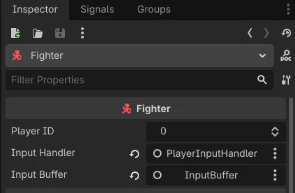
The Fighter can now request a packet from its input handler and pass it into the buffer on each physics step.
Wrapping Up
Your fighter has a rolling input history with methods for checking current actions, movement direction, and recent inputs. The buffer is ready for the state machine to use; it does not make the character move or attack by itself.
Recap and Next Steps
You have connected a reusable fighter scene to a two-player input system and a 20-frame history. Along the way, you have:
- Attached the character’s head meshes to its skeleton, loaded animations, and fitted an environment collision shape.
- Built a lit test platform with a camera and two fighters with separate player IDs.
- Created input packets and a player-aware handler for six actions.
- Stored incoming packets in a rolling buffer and added current-frame, direction, and recent-input queries.
The next stage is the fighter state machine, which will use this input foundation as you build out character behavior. Continue with the Intermediate Godot Mini-Degree for the full guided project and its next implementation steps.
Did you come across any errors in this tutorial? Please let us know by completing this form and we’ll look into it!
FINAL DAYS: Unlock coding courses in Unity, Godot, Unreal, Python and more.