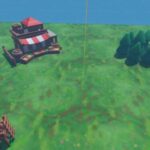
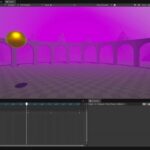
Learning how to improve Godot game graphics with Opus 5.5 involves more than asking for new features: you also need a way to test and refine what it builds. Zenva’s experience teaching coding and game development through a catalog of over 400 courses informs this practical approach to improving a Godot planet-exploration game with Claude Code.
You’ll work through faster iteration, developer controls, richer terrain, water, biome variation, and shorter loading times. This tutorial assumes you already have a Godot exploration project and Claude Code set up.
If you’d like a structured path for building your coding and game-development skills, explore Zenva Academy. You can also keep reading to apply this workflow to your own project.
How to Improve Godot Game Graphics With Opus 5.5: Start With Faster Iteration
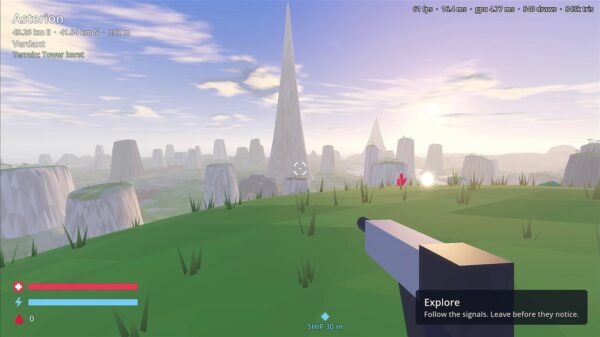
The starting project already lets you fly a ship and explore a planet. Earlier work added biomes and improved the terrain; the focus here is taking that existing game further, not generating the entire game in one session.
The changes covered here used almost all of one five-hour Claude allowance on the $20-per-month plan. Treat that as an example of one build’s usage, not a promise about how much your session will produce. Generated tools and visual results can vary, so adapt the requests to your project and test the results.
Start by asking Claude to improve the iteration cycle. Before requesting more biomes or terrain features, focus on reducing token use and avoiding unnecessary Godot launches.
In this build, that work produced a Python script, project skills, and local files that record how to run the game. The generated tools/dev.py client can launch it and run a command script in one call, then return compact results. The workflow also supports changing the starting location and turning audio on or off.
These options from the generated Python client illustrate how launches can be controlled:
r.add_argument("--no-wait", action="store_true", help="don't wait for terrain load first")
r.add_argument("--spawn-seed", type=int, default=1, help="fixed spawn for reproducible runs; -1 = random")
r.add_argument("--audio", action="store_true", help="enable sound (default silent dummy driver)")
Add Developer Controls Before Refining the World
Next, ask for an admin toolbar available in development mode. This gives you a way to tweak parameters while playing rather than repeatedly stopping and restarting the game.
The generated tools in this project include an F1 developer panel and an F2 performance overlay. The panel shows performance information alongside controls for time of day, day length, and weather.
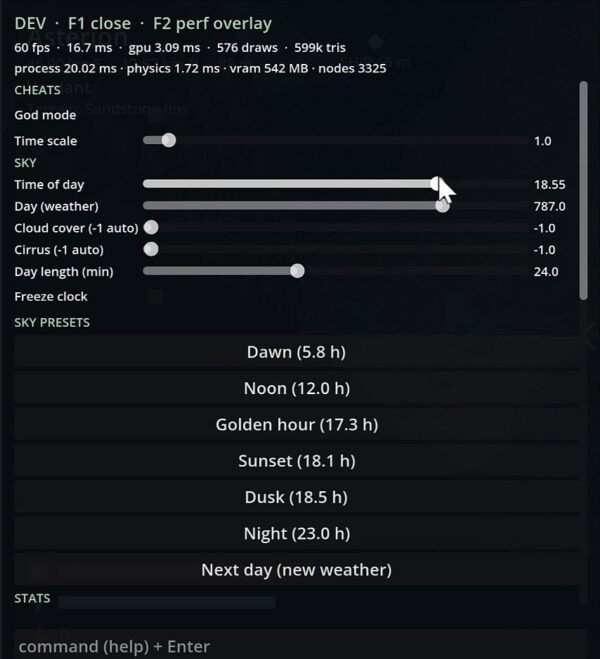
Use those controls to try different conditions as you refine the environment. The sky controls include cloud cover, a freeze-clock option, and presets such as dawn, noon, sunset, and night. These shortcuts make it easier to inspect the same world under different conditions.
Improve the Sky and Terrain
With the development controls in place, move on to the sky and visual effects. Ask Claude to add clouds and improve the sky, including nighttime stars. You can then change the time of day from the developer panel to explore the resulting daytime and nighttime views.
After the sky improvements, turn to the terrain. The goal is more complex geographical features that change as you travel, rather than a planet that looks the same everywhere. This build includes terrain such as rift valleys, volcanic fields, and badlands.
Add Lakes and Terrain-Based Rivers
Water is the next part of the environment to improve. Lakes were the simpler addition in this build; rivers required more work because their routes depend on the terrain’s slopes.
The river workflow precalculates the terrain map before gameplay begins and saves its slope information. Rivers are then derived from those slopes, connecting their placement to the landscape.
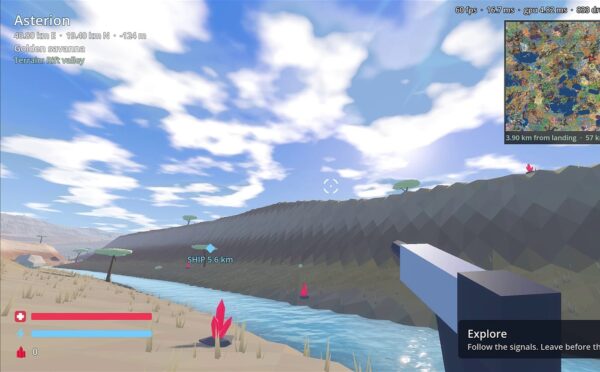
This is still a work-in-progress environment. Floating lakes and other artifacts remained in the build, so adding water did not mean that every placement issue had been resolved.
Increase Biome Variety Within Each Region
Initially, the planet had a few regions with different colors, but each region used the same color throughout. Improve that in two stages: first ask Claude to increase the variety by 10 times, then ask for variation within each biome or region.
The second request matters because adding more regions alone does not change their uniform interiors. With intra-region variation, colors change as you move through a single region, making the landscape feel less repetitive.
The generated changes in this build mix palettes as you travel, vary colors on slopes, and add smaller patches of vegetation and mineral coloration. The aim is variety across one planet, rather than treating the entire world as a single desert or snow biome.
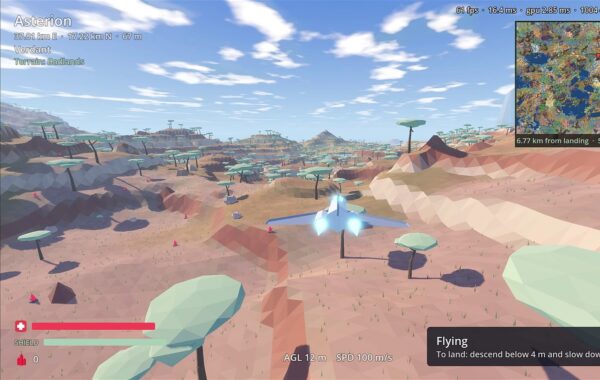
Terrain and prop variety are separate pieces of work. The trees still look alike because the session’s allowance ran out before the props were improved. More varied props remained a next step, not a completed feature.
Smooth Terrain LOD Transitions
As you fly around, the terrain uses a level-of-detail (LOD) system. Faraway terrain is coarse and has less resolution; closer terrain appears with more detail.
Moving more slowly gives the terrain more time to build. The transition between detail levels was initially abrupt, so Claude added a dithering effect: dotted pixels soften the change instead of making it appear as a sudden switch.
Check the transition while traveling through your own world. The improvement here is smoother movement between detail levels, not the removal of every terrain artifact.
Reduce the Wait Before Gameplay
Finally, review startup performance. This game originally took around 20 to 30 seconds to be ready. After the changes, launching it in Godot brings up the home screen within a few seconds, and selecting Begin Descent starts gameplay almost immediately.
The change is in when content loads: the game no longer loads everything before you can play. It gets you into gameplay first, while additional content continues loading afterward.
Put the Workflow Into Practice
You now have a sequence for improving an existing Godot exploration game with Opus 5.5, starting with the development workflow and then refining the world. The key areas covered are:
- Reduce repeated launches with generated development tools and reusable project instructions.
- Adjust sky and weather settings through an in-game developer panel.
- Improve terrain, add water, and vary colors within biomes.
- Soften terrain LOD transitions and shorten the wait before gameplay.
Keep exploring and testing the resulting world, with remaining water artifacts and repetitive props as areas for further work. For a guided way to strengthen the coding and game-development skills behind your projects, explore Zenva Academy and choose your next learning path.
Did you come across any errors in this tutorial? Please let us know by completing this form and we’ll look into it!
FINAL DAYS: Unlock coding courses in Unity, Godot, Unreal, Python and more.