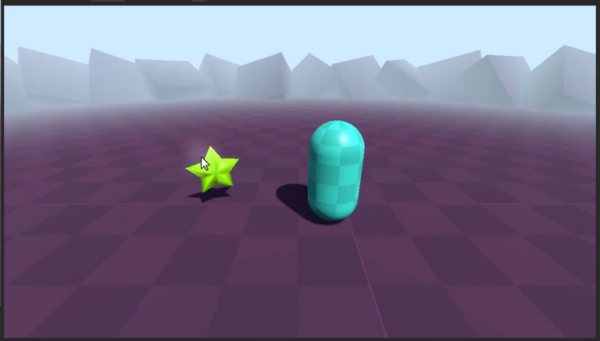
One pickup needs to spin, another needs to pulse, and a third needs to change color and detect the player. Godot composition lets you combine those behaviors without putting every variation into one large script. In this guided refactor from Zenva, whose digital-skills teaching has helped a community of over 1,000,000 learners and developers, you will compare composition with inheritance and split a star pickup into reusable components.
This tutorial assumes you know basic GDScript and are using the supplied Godot project with its player controller, pickup scene, and assets.
Download Project Files
The project files and full project are available through the course included in the Intermediate Godot Mini-Degree. You can follow that guided path for the full project or continue with the free composition tutorial below.
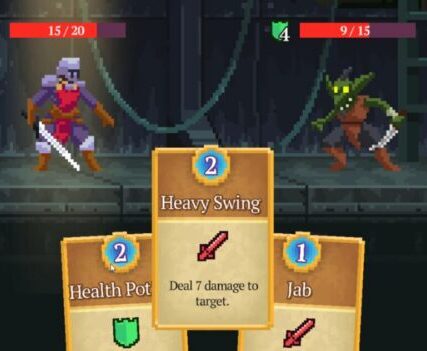
Understand Godot Composition and Inheritance
Composition and inheritance offer different ways to organize the code behind your game objects. Start with the inheritance approach, then look at what changes when an object needs a different combination of features.
What Is Inheritance?
Inheritance lets a child class or script use the properties and functions of its parent. It is a foundation of object-oriented programming, including GDScript.
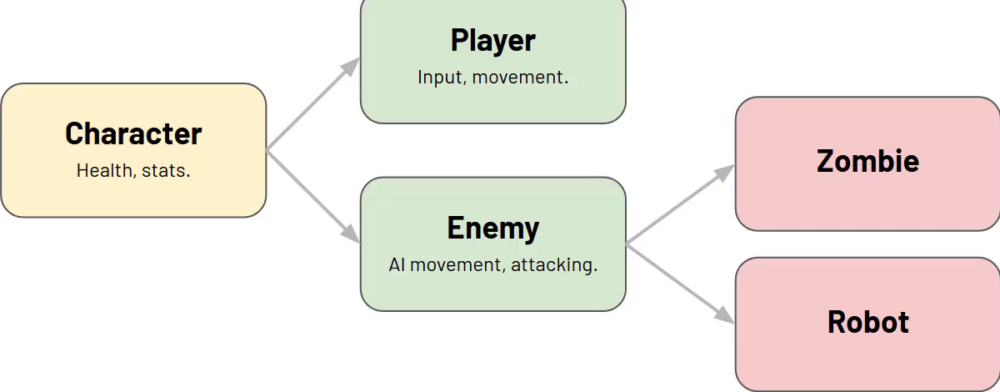
Imagine a game with players and enemies. A general Character class can hold shared health, stats, and damage functions, while more specialized classes add their own behavior:
- Player inherits from Character and adds keyboard and mouse input, plus movement.
- Enemy inherits from Character and adds AI movement and attacks.
- Zombie and Robot inherit from Enemy and add their own unique behavior.
This creates a tree, branching from the most general class into more specific variants.
Where Inheritance Starts to Break Down
Now add a Bat enemy. Inheriting from Enemy seems straightforward until you need flight: the existing Enemy class handles movement on the ground.
You have two ways to extend the hierarchy:
- Add flight to Enemy. Zombie and Robot then inherit flying properties and functions they do not use.
- Add intermediate classes. Grounded Enemy can sit above Zombie and Robot, while Flying Enemy sits above Bat.
The second approach keeps each concrete enemy inheriting what it needs, but the tree becomes deeper as you introduce more combinations of behavior.
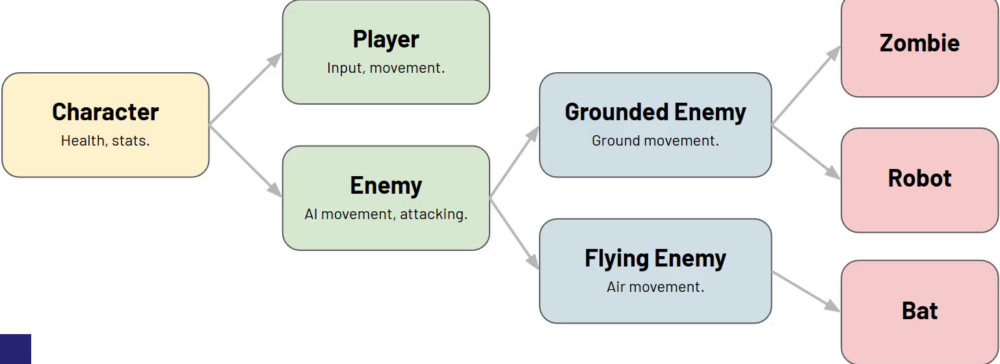
That need to mix features is where composition becomes useful.
The Composition Approach
Instead of placing all behavior in a branching class hierarchy, split it into small, focused components. Each component has one job, and an object uses the combination it needs.
For the character example, those components could be:
- Health: manages the current health value and changes to it.
- Combat: takes a target and deals damage.
- Ground Movement: moves along a surface.
- Air Movement: handles flight.
- Player Input: reads keyboard and mouse input and passes it to other components.
- AI Targeting: finds and tracks targets.
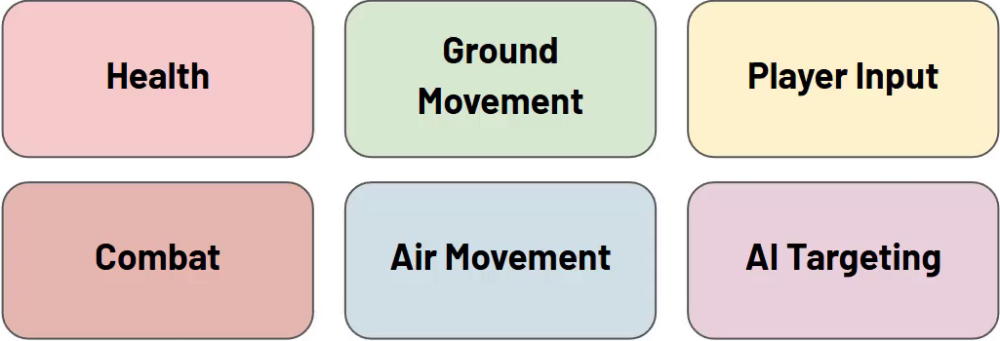
Composing a Bat Enemy
A bat can combine Health, Air Movement, Combat, and AI Targeting. It does not need Ground Movement or Player Input, so you simply leave those components out.
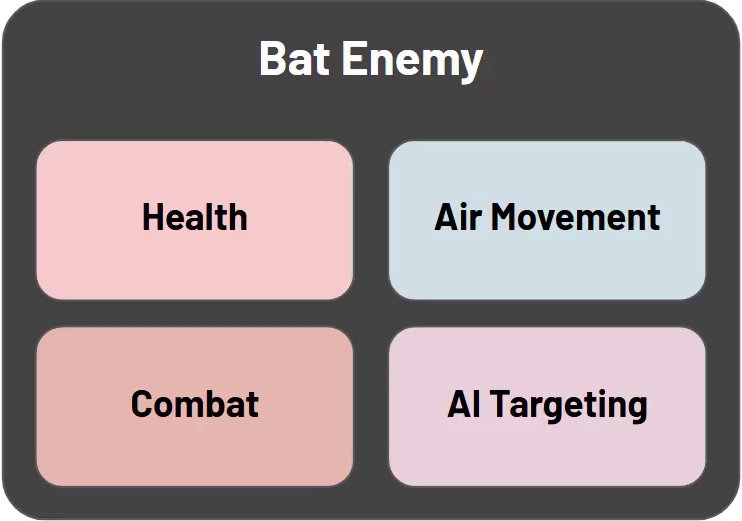
You can reuse those focused pieces in other combinations without forcing every object into the same class tree.
Composition in Godot
Godot’s node system already follows this pattern. When you build a character, you combine nodes with different responsibilities:
- A MeshInstance supplies its visual appearance.
- A CollisionShape defines its physical bounds.
- A particle system adds effects such as movement particles.
- An audio player supplies sound effects.
Each contributes a separate function to the character. You can use the same approach in your own scripts, starting with the pickup example.
Refactor a Pickup Into Focused Components
The supplied scene gives you a working pickup to refactor. You will separate its behaviors into custom nodes, beginning with rotation.
How Godot Uses Composition
A collectible can use an Area3D with CollisionShape3D and MeshInstance3D children. Each node has a focused role:
MeshInstance3Drenders the model.CollisionShape3Drepresents its collider in 3D space.Area3Dhandles interaction and overlap detection.
Keeping these responsibilities separate lets you choose a different collider or leave out the mesh when an object does not need one.
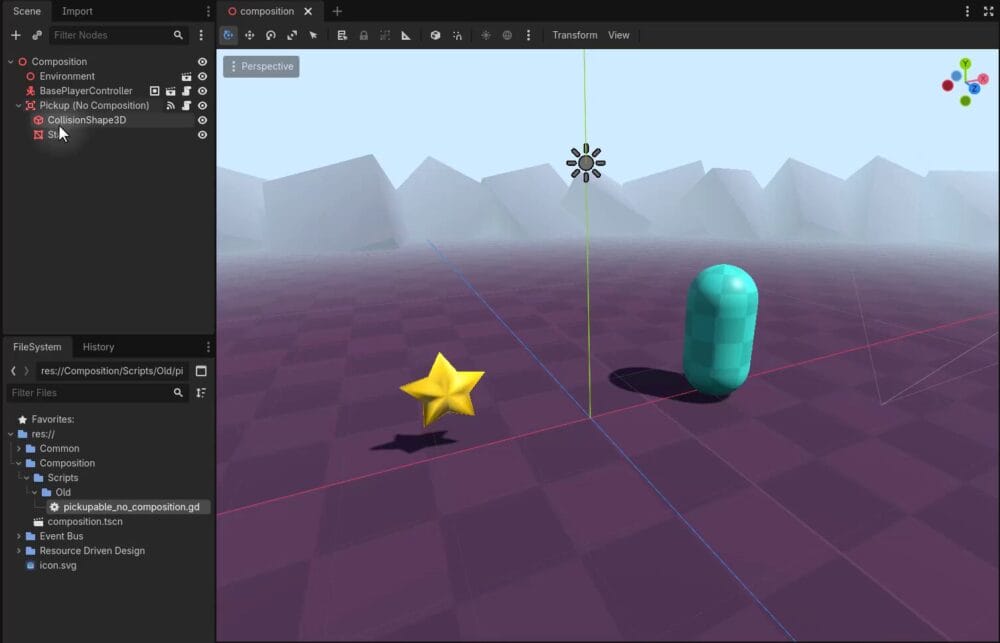
The Problem With a Single, Large Script
Run the starting scene. The star pickup rotates, pulses, and changes color. When the player enters it, the Output panel prints Player detected!.
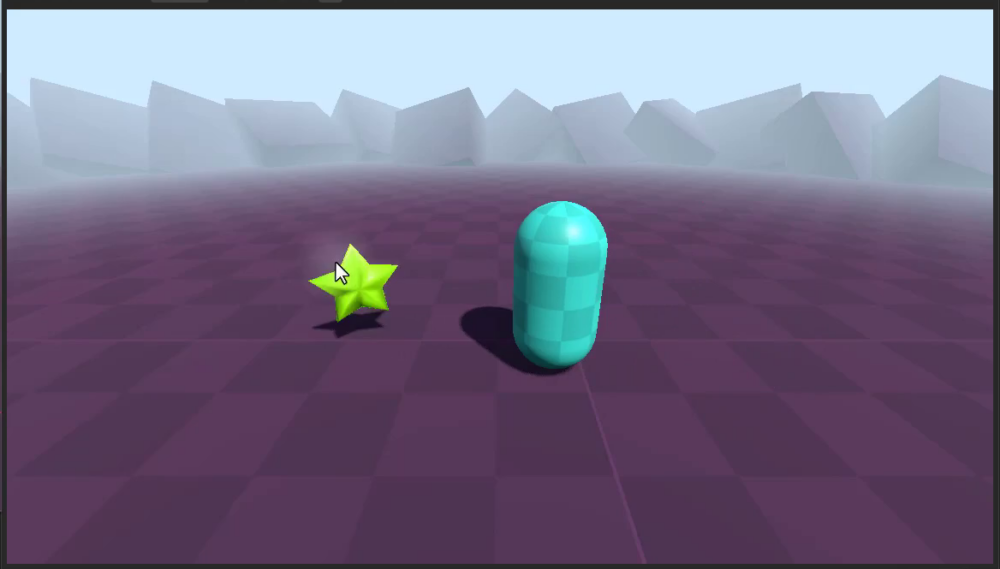
A single script on Pickup (No Composition) handles rotation, scaling, color changes, and player detection:
extends Node3D

# Expose these properties to the editor for easy tweaking
@export var rotate_speed : float = 180.0

@export var scale_amount : float = 0.2
@export var scale_speed : float = 5.0

@export var color_range : Gradient
@export var color_change_rate : float = 0.5
@export var mesh : MeshInstance3D

func _process (delta):
	# rotation
	rotation_degrees += Vector3.UP * rotate_speed * delta

	# scale - creates a pulsing effect using a sine wave
	var t = sin(Time.get_unix_time_from_system() * scale_speed)
	var new_scale = remap(t, -1, 1, 1.0, 1.0 + scale_amount)
	scale = Vector3.ONE * new_scale

	# color - samples a gradient based on a ping-ponging time value
	var mat : StandardMaterial3D = mesh.get_active_material(0)
	var color_sample : float = pingpong(Time.get_unix_time_from_system() * color_change_rate, 1.0)
	var color : Color = color_range.sample(color_sample)
	mat.albedo_color = color

func _on_body_entered(body):
	# Check if the colliding body belongs to the "Player" group
	if body.is_in_group("Player"):
		print("Player detected!")
That works for this pickup, but what if the next one should only scale, or should rotate without changing color? You could add flags to switch features on and off, but the script would still carry behavior that some pickups never use.
Splitting the Behavior Into Components
Instead, separate the behavior into four scripts:
- Rotate an object over time.
- Scale an object over time.
- Change its color over time.
- Detect the player.
Then a pickup can use rotation alone, rotation plus scaling, or player detection plus color changes. Its behavior comes from the components you attach.
Creating the Component Script Files
Open Composition, go into Scripts, and create a New subfolder. Inside it, create four GDScript files:
rotate_over_time.gdscale_over_time.gdchange_color_over_time.gdplayer_detector.gd
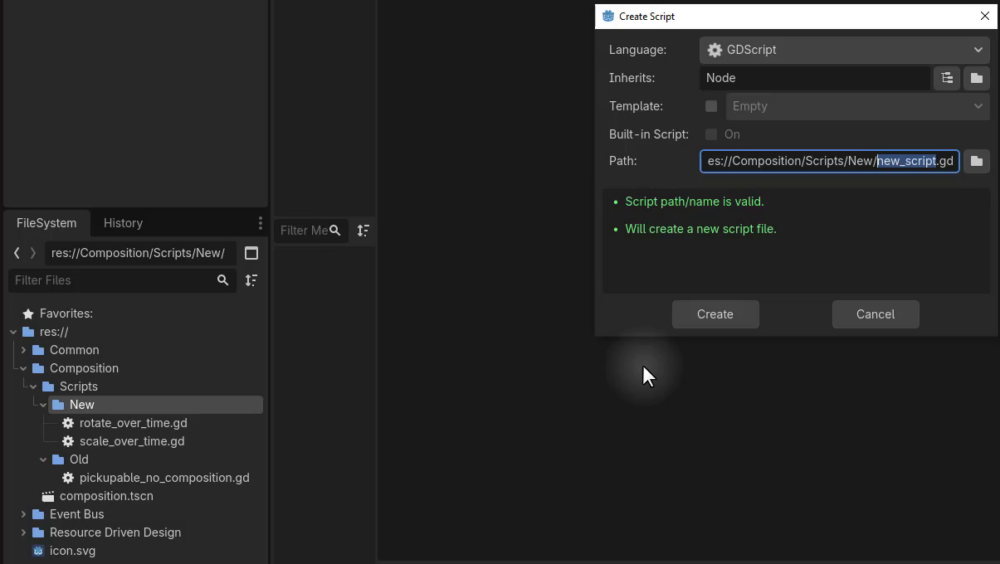
Writing the Rotate Over Time Component
Open rotate_over_time.gd and copy the rotate_speed property from the original script. Extend Node3D and declare class_name RotateOverTime so the script appears as a custom type in the Create New Node dialog.
This component will be a child of the object it rotates, so it needs to modify its parent. Use @onready and get_parent() to get that reference, then rotate target in _process:
class_name RotateOverTime
extends Node3D

# Speed of rotation in degrees per second
@export var rotate_speed : float = 180.0
# Automatically gets the parent node to rotate it
@onready var target : Node3D = get_parent()

func _process (delta):
	# Rotate the parent around the Y-axis based on time elapsed since last frame
	target.rotation_degrees += Vector3.UP * rotate_speed * delta
Each frame, the component adds to the parent’s Y-axis rotation using rotate_speed and delta, producing a smooth spin.
Building a Pickup From Components
In the 3D scene, create a Node3D named Pickupable (With Composition). Use a plain Node3D, not an Area3D, because a separate component will handle player detection.
Drag the star model, such as star.obj from the common Models folder, into the scene as a child of this root. Assign the star material and set the model’s local position to (0, 0, 0). You can then move the parent to position the pickup in the level.
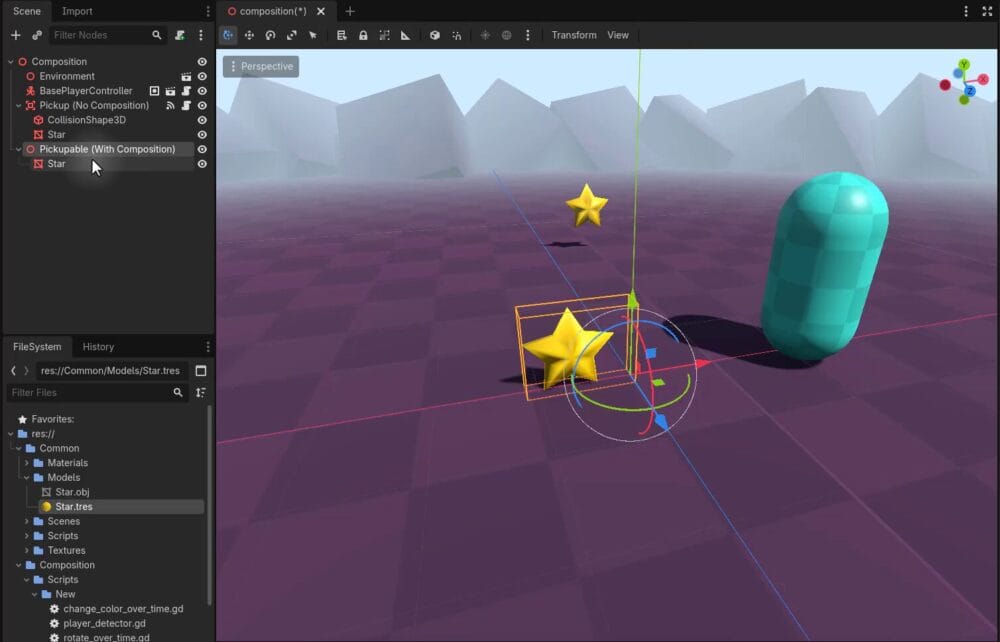
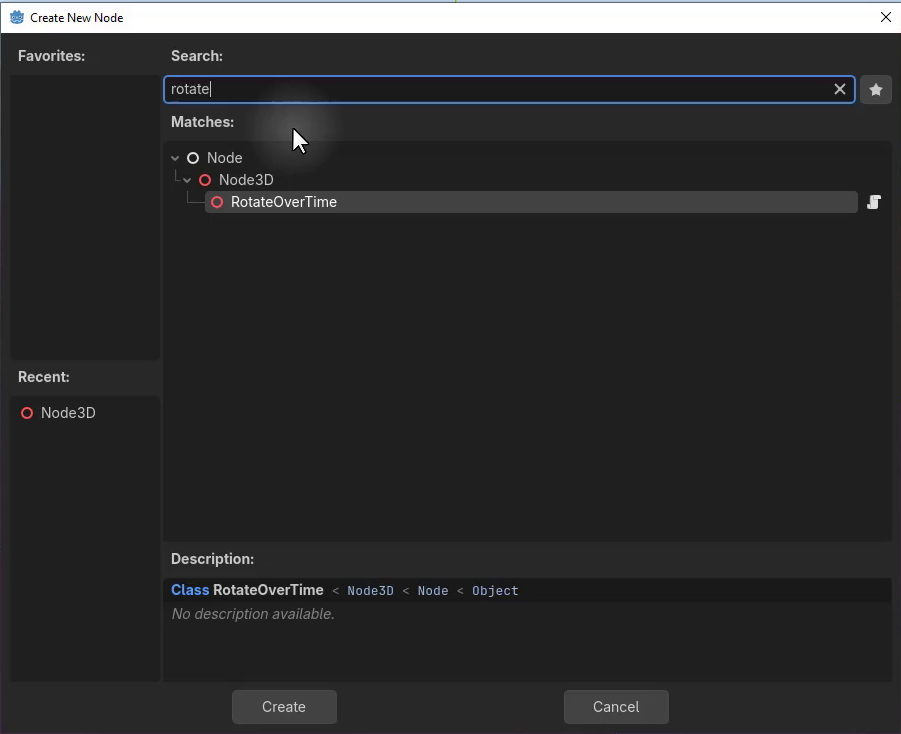
Right-click Pickupable (With Composition), choose Add Child Node, and search for RotateOverTime. The class name makes your component available directly in this dialog.
Add it and select the new child. Its exported Rotate Speed property is available in the Inspector; for example, set it to 180 degrees per second.
You can delete the old Pickup (No Composition) node from the scene to keep the test focused on the new pickup.
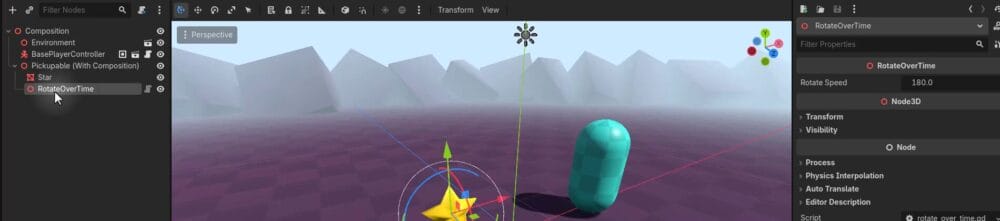
Press Play. The pickup now rotates through its dedicated child component.
Your Turn
Before looking at the next implementation, try creating ScaleOverTime yourself. Bring over the scale amount, scale speed, and scaling logic, get a reference to the parent, and update its scale inside _process. Then compare your version with the component below.
Add Scaling, Color Changes, and Player Detection
Finish the refactor by moving the remaining behavior from pickupable.gd into three more components. Each will handle one part of the pickup.
The ScaleOverTime Component
Open scale_over_time.gd. Extend Node3D and give it the class name ScaleOverTime so it appears in the Add Child Node dialog.
Copy the scale_amount and scale_speed exports and scaling logic from pickupable.gd. Leave out everything unrelated to scaling.
As with rotation, modify the parent rather than self.scale. An @onready reference named target retrieves the parent, and _process updates its scale:
class_name ScaleOverTime
extends Node3D

@export var scale_amount : float = 0.2
@export var scale_speed : float = 5.0

@onready var target : Node3D = get_parent()

func _process (delta):
	# Generate oscillating value using sine wave based on system time
	var t = sin(Time.get_unix_time_from_system() * scale_speed)
	# Remap sine output from [-1,1] to [1, 1+scale_amount] for smooth scaling
	var new_scale = remap(t, -1, 1, 1.0, 1.0 + scale_amount)
	target.scale = Vector3.ONE * new_scale
Right-click the pickup root, choose Add Child Node, and add ScaleOverTime. Adjust scale_amount and scale_speed in the Inspector, then press Play to see rotation and scaling working together.
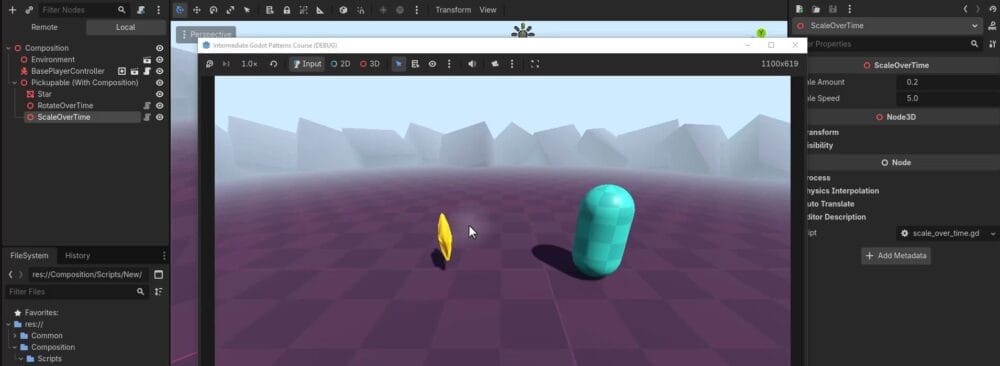
The two effects now live in independent child nodes. You can change the combination of behaviors without adding feature flags to a single large script.
The ChangeColorOverTime Component
Open change_color_over_time.gd, extend Node3D, and name the class ChangeColorOverTime. It needs a Gradient, a color-change rate, and a reference to the MeshInstance3D to recolor.
Each frame, a time-based pingpong value selects a point in the gradient. The sampled color is then applied to the material’s albedo:
class_name ChangeColorOverTime
extends Node3D

# Gradient defining the range of colors to cycle through
@export var color_range : Gradient
# Speed at which the color cycles through the gradient
@export var color_change_rate : float = 0.5
# The mesh whose material color will be changed
@export var mesh : MeshInstance3D

func _process (delta):
	# Get the first material from the assigned mesh
	var mat : StandardMaterial3D = mesh.get_active_material(0)
	# Calculate a value that oscillates between 0.0 and 1.0 over time
	var color_sample : float = pingpong(Time.get_unix_time_from_system() * color_change_rate, 1.0)
	# Sample the gradient at the current oscillating position
	var color : Color = color_range.sample(color_sample)
	# Apply the sampled color to the material
	mat.albedo_color = color
The focus here is separating the effect from the larger script, not changing its math.
Save the script and add ChangeColorOverTime as a child of the pickup. In the Inspector, create a new Gradient for Color Range and adjust its color stops. Drag the star’s MeshInstance3D into the Mesh property.
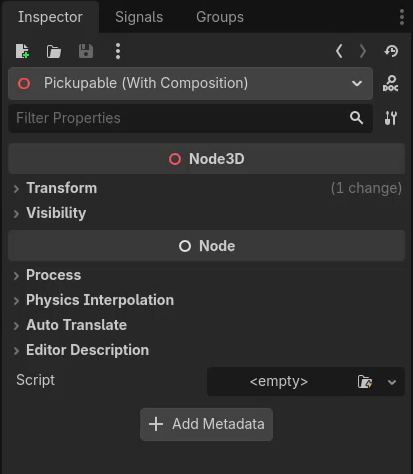
Press Play. The star should now rotate, scale, and cycle through the gradient’s colors.
The PlayerDetector Component
Player detection needs an area that can respond to physics overlaps, so this component extends Area3D instead of Node3D. Open player_detector.gd and declare the PlayerDetector class.
Define an OnPlayerDetected signal that other nodes can connect to. The handler checks whether an entering body belongs to the Player group, then emits the signal and prints a message.
Connect the built-in body_entered signal in _ready to keep the wiring inside the component, without needing a manual connection in the editor:
class_name PlayerDetector
extends Area3D

# Emitted when a body in the "Player" group enters this area
signal OnPlayerDetected

func _ready():
	# Connect the engine's signal to our custom handler
	body_entered.connect(_on_body_entered)

func _on_body_entered(body):
	# Check if the entering body is part of the Player group
	if body.is_in_group("Player"):
		OnPlayerDetected.emit()
		print("Player detected!")
Add PlayerDetector as a child of the pickup. Under it, add a CollisionShape3D and assign a shape, such as SphereShape3D, to define the detection volume.
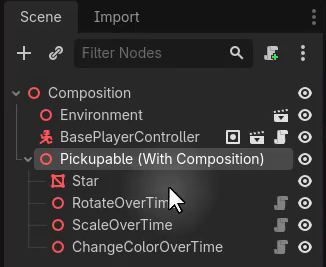
Press Play and walk the player into the star. The Output panel should print Player detected!.
The Power of Composition
Your pickup now uses four focused behavior components. To make a variant that no longer pulses, delete its ScaleOverTime child. Run the scene again: the pickup still rotates and changes color, but no longer scales. You do not need to change its code.
The same approach applies to players and enemies. Combine components with single responsibilities instead of building a deeper inheritance tree or adding more flags to a large script.
When components need to cooperate, they can check for one another at runtime and interact without making that dependency mandatory. Keeping components optional and reusable gives you entities that are easier to adjust, debug, and extend.
Review Your Reusable Pickup Components
You have turned a pickup with one large script into an object assembled from focused child nodes. The refactor gives you a practical example of Godot composition:
- Compared an inheritance tree with components you can mix and match.
- Used
class_nameto make scripts available as custom node types. - Rotated and scaled a parent through dedicated components.
- Cycled a mesh material through a gradient with a separate color component.
- Detected the player through an
Area3Dcomponent and a custom signal.
Try the pickup with different combinations of these nodes, such as rotation without scaling, to see how the scene’s structure controls its behavior. You can apply the same component-based thinking when organizing players and enemies.
Develop your Godot skills further with the Intermediate Godot Mini-Degree. Follow a structured path through intermediate topics and build on patterns like composition as you improve your game projects.
Did you come across any errors in this tutorial? Please let us know by completing this form and we’ll look into it!
FINAL DAYS: Unlock coding courses in Unity, Godot, Unreal, Python and more.