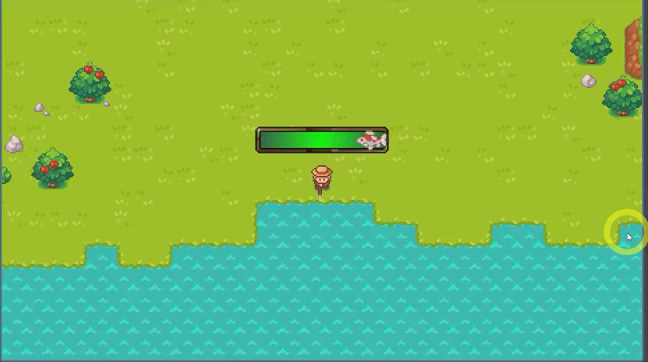
Want to add a Godot fishing minigame to your cozy game? Drawing on Zenva’s experience teaching coding and game development across over 400 courses, this tutorial walks you through a fishing mechanic with water detection, directional animations, and a timing-based catch challenge.
You will let the player cast beside water, cancel fishing with movement, and press the action key when a fish reaches the center of an on-screen bar.
This tutorial assumes basic Godot and GDScript knowledge and the cozy-game project setup, including its player, tool system, water layer, animations, and graphics.
Download Project Files
The files and full project are available through the course included in the Godot 4 Game Development Mini-Degree. If you want the full guided path, start there; you can also keep reading the free tutorial below.
Godot Fishing Minigame Setup
Start with the fishing state, water detection, and looping animation. These give your cozy game’s fishing mechanic a foundation before you add the timing challenge.
Initial Preparations
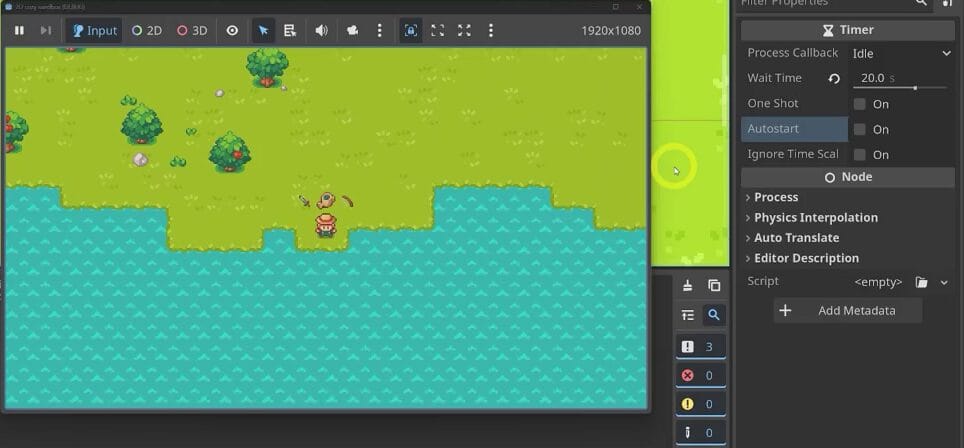
Before testing, temporarily disable the project’s blob enemies so they do not interrupt the fishing setup.
- Select
BlobSpawnTimerin the Scene dock. - In the Inspector, uncheck Autostart to stop blobs spawning during testing.
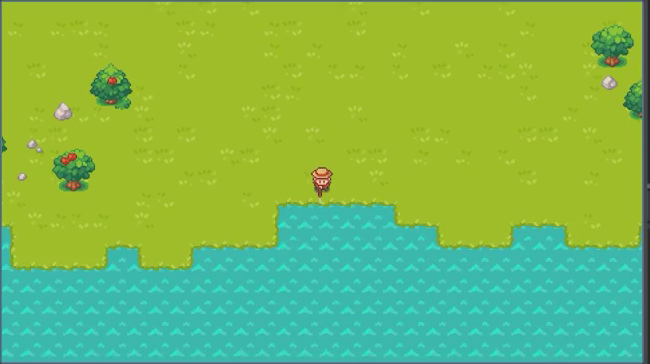
The aim is to let the player use the selected fishing rod beside water, then stay in place while the fishing animation plays.
Triggering the Fishing Action
First, add a Boolean variable to player.gd to track whether the player is fishing. Set it to false by default.
extends CharacterBody2D

# ... existing variables
var fishing := false
# ...
In get_input, the existing action-button logic checks the selected tool. Add a fishing-rod branch that sets fishing to true, waits for the tool-use animation to finish, and emits tool_interact. The interaction position uses the player’s facing direction and tool offset to target the tile in front of them.
# In player.gd, inside get_input()

if Input.is_action_just_pressed("action"):
	# ... existing tool handling
	if current_tool in [Global.Tools.HOE, Global.Tools.WATER]:
		await $AnimationTree.animation_finished
		tool_interact.emit(current_tool, position + last_direction * tool_offset)
	elif current_tool == Global.Tools.FISH:
		fishing = true
		await $AnimationTree.animation_finished
		tool_interact.emit(current_tool, position + last_direction * tool_offset)
The flag alone does not change anything visually yet. The signal passes the interaction to the game scene, where you can check the fishing spot.
Validating the Fishing Spot
Handle water detection in game.gd, inside _on_player_tool_interact. Start by checking for the fishing tool and printing a message to confirm that the signal reaches this function.
The interaction arrives as a Vector2 in world coordinates, but WaterLayer uses grid coordinates. This project’s water tiles are 16 pixels wide, so convert the position before reading the tile data.
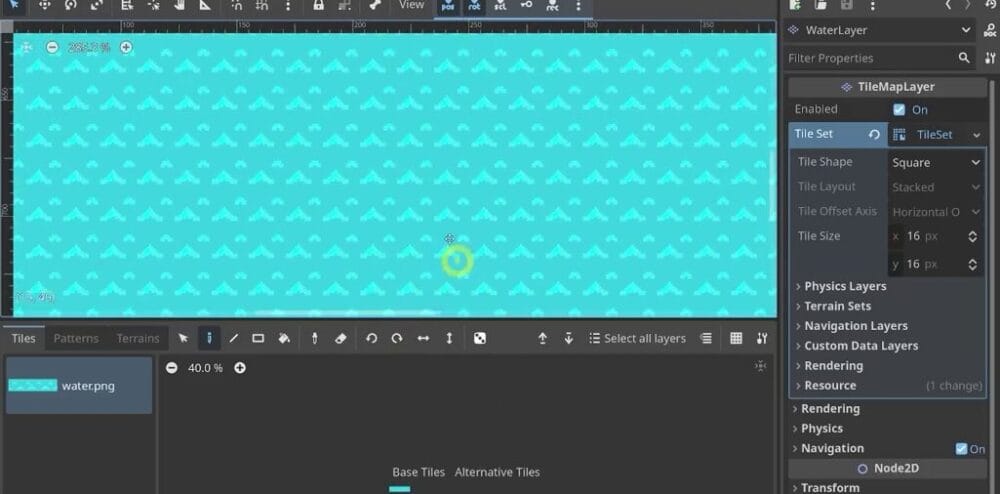
Divide each position component by Global.TILE_SIZE, explicitly convert it with int(...), and build a Vector2i. The explicit conversion avoids the warning about narrowing a float to an integer. Define grid_coord at the top of the function, outside the tool check, so other tools can reuse it. Using the global constant also avoids hard-coding 16.
# In game.gd

func _on_player_tool_interact(tool: int, pos: Vector2) -> void:
	var grid_coord = Vector2i(int(pos.x / Global.TILE_SIZE), int(pos.y / Global.TILE_SIZE))
	# ... other tool cases
	if tool == Global.Tools.FISH:
		if not $Layers/WaterLayer.get_cell_tile_data(grid_coord):
			await get_tree().create_timer(0.5).timeout
			$Objects/Player.stop_fishing()
get_cell_tile_data returns an object for a painted water tile and null otherwise. Instead of blocking the initial fishing action, this check stops it when the target is not water: wait half a second, then call the player’s stop_fishing function. For now, add a temporary version that prints a message.
# In player.gd

func stop_fishing():
	print("no fish")
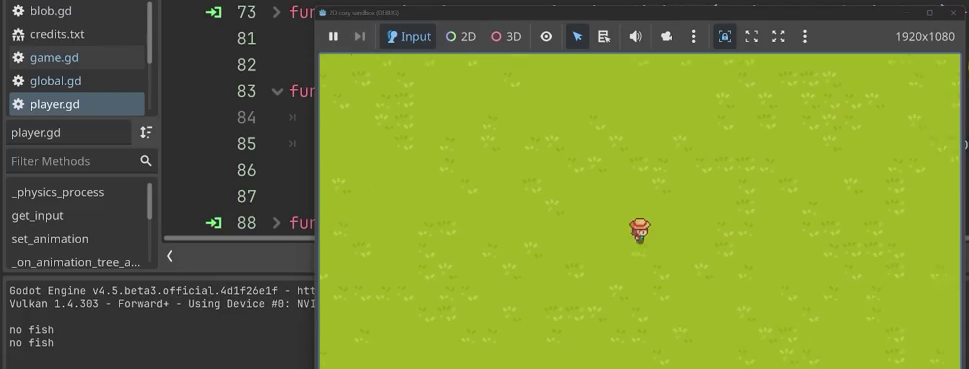
Test the rod on grass: after the short delay, the Output panel should print no fish. Using it beside water does not trigger that message. This confirms that the water check distinguishes the two cases.
Setting Up the Fishing Animation Tree
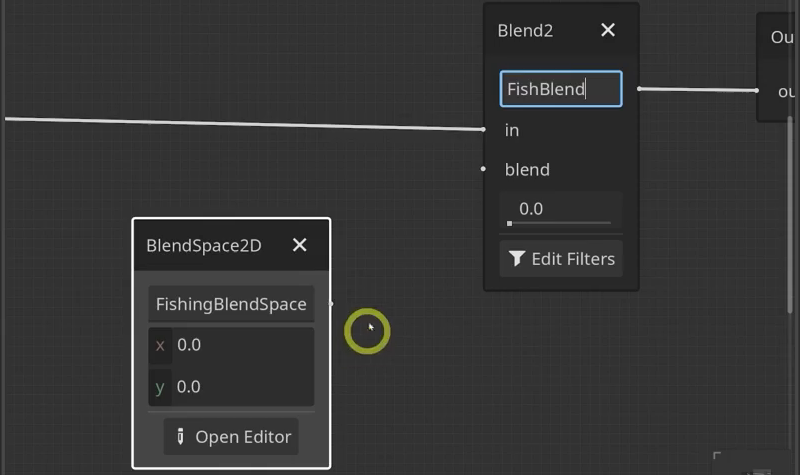
Next, extend the player’s AnimationTree to support a continuous fishing animation. Move the Output node to the right to make space, then add a Blend2 node named FishBlend. It blends the normal animation with the fishing animation before passing the result to the output.
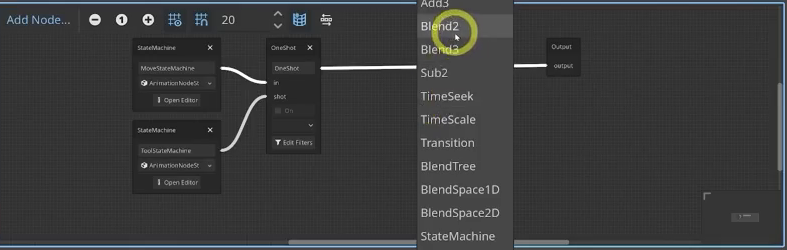
Add a BlendSpace2D node named FishingBlendSpace to select the directional fishing animation. Connect the main animation state machine to the first input of FishBlend, connect FishingBlendSpace to its second input, and connect FishBlend to Output.
Configuring the Fishing Blend Space
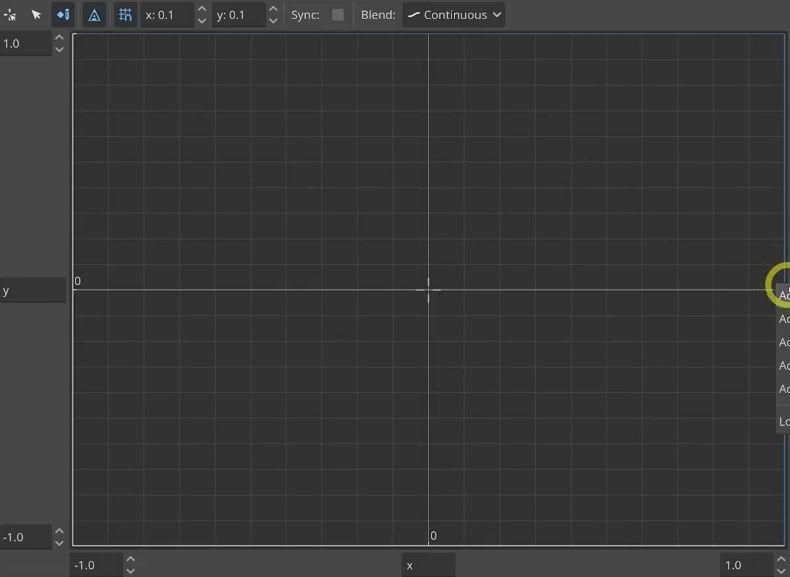
Open FishingBlendSpace and assign the project’s prepared looping fishing animations to points on the grid:
- On the right, add mid-right, top-right, and bottom-right points, each using
Fish Right Idle. - On the left, use the corresponding points with
Fish Left Idle. - Use
Fish Up Idleat the top andFish Down Idleat the bottom. Positive Y points down. - Add a default center point using
Fish Down Idleas a safeguard.
Blending Into the Fishing Animation
In set_animation, update FishingBlendSpace‘s blend position with the same direction vector used for the other blend spaces. This makes the fishing idle face the correct direction.
# In player.gd, inside set_animation()

func set_animation():
	if direction:
		# ... existing blend position updates
		$AnimationTree.set("parameters/ToolStateMachine/" + state + "/blend_position", direction_animation)
		$AnimationTree.set("parameters/FishingBlendSpace/blend_position", direction_animation)
	else:
		move_state_machine.travel('idle')
Then update _on_animation_tree_animation_finished. When the player is not fishing, restore movement by setting can_move to true. When they are fishing, set FishBlend‘s blend_amount to 1 and leave movement disabled. Keep the two properties distinct: blend_position selects the directional animation, while blend_amount controls the fishing animation’s contribution.
# In player.gd

func _on_animation_tree_animation_finished(_anim_name: StringName) -> void:
	if not fishing:
		can_move = true
	else:
		$AnimationTree.set("parameters/FishBlend/blend_amount", 1)
	# ... sound logic
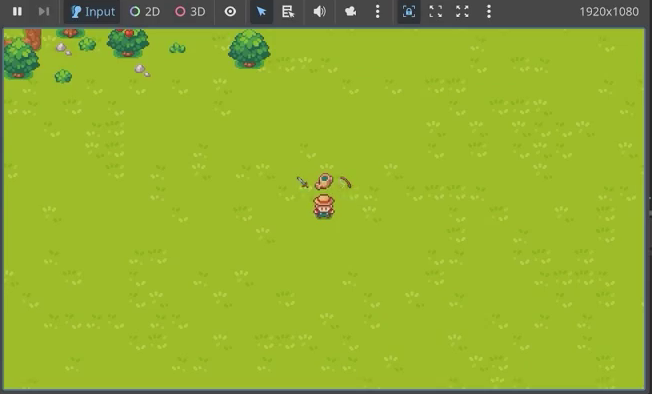
Using the rod beside water now plays the cast animation, then switches into the fishing idle while the player stays in place. Before building the minigame, give the player a way to leave this state.
Cancel Fishing and Restore Movement
The player can enter the fishing loop, but cannot leave it yet. Next, add automatic cancellation on land and let movement input cancel fishing at the water.
Stopping the Fishing Action on Land
The water check already calls stop_fishing on dry land. Replace its temporary print statement with the reset logic so the player no longer stays in the fishing loop.
In player.gd, update stop_fishing to clear the fishing flag, re-enable movement, and reset the fishing animation blend amount to zero.
func stop_fishing():
	fishing = false
	can_move = true
	$AnimationTree.set("parameters/FishBlend/blend_amount", 0)
The check in game.gd still waits half a second before calling this function when the target tile is not part of the water layer.
Test both locations again. Fishing on grass should now stop after the delay, while fishing over water continues.
Canceling Fishing by Moving
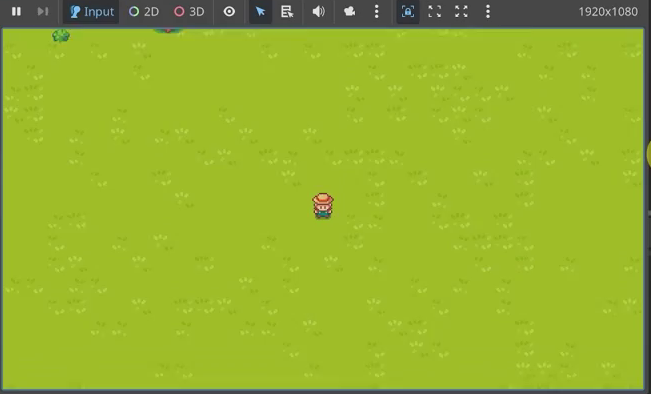
To let the player walk away, separate normal input from fishing input in player.gd‘s _physics_process. Run the usual input and animation logic when can_move is true; otherwise, call a dedicated fishing-input function when fishing is true.
func _physics_process(_delta: float) -> void:
	if can_move:
		get_input()
		set_animation()
	elif fishing:
		get_fishing_input()
Add get_fishing_input below get_input. Read movement with Input.get_vector, just as in the normal input function. If the player presses a direction, call stop_fishing.
func get_fishing_input():
	direction = Input.get_vector("left", "right", "up", "down")
	if direction:
		stop_fishing()
Adding a Delay Before Canceling
Canceling immediately after starting to fish causes an animation glitch in this setup. Add a short delay before movement input can end fishing.
In the Player scene, add a Timer named FishDelayTimer under Timers, matching the node path below. Set Wait Time to one second and enable One Shot.
Start the timer in get_input‘s fishing-tool branch, immediately after setting fishing to true and before awaiting the animation.
		elif current_tool == Global.Tools.FISH:
			fishing = true
			$Timers/FishDelayTimer.start()
			await $AnimationTree.animation_finished
			tool_interact.emit(current_tool, position + last_direction * tool_offset)
Update get_fishing_input to allow cancellation only after the timer finishes. Its time_left is greater than zero while running and zero when finished. Since zero evaluates to false, not makes this condition true once the delay has elapsed.
func get_fishing_input():
	direction = Input.get_vector("left", "right", "up", "down")
	if direction and not $Timers/FishDelayTimer.time_left:
		stop_fishing()
Keep set_animation inside the can_move check shown earlier. This prevents directional input during fishing from updating the animation and removes the remaining glitch.
The player can now start fishing at the water, wait one second, then press a movement key to cancel and walk away.
Build the Fishing Minigame UI and Catch Logic
With the fishing state working, add the timing challenge: a fish moves back and forth inside a bar above the player, and pressing the action key near the center succeeds. Build this as a separate UI scene, then connect it to the player’s fishing input.
Setting Up the FishGame Scene
Create a new scene with a User Interface (Control) root that spans the available space. Name it FishGame and save it in scenes/UI.
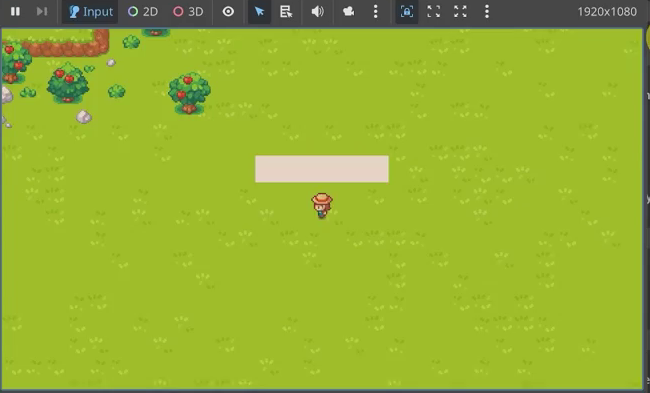
For an initial layout check, add a white ColorRect covering the whole space. This is a temporary placeholder that you will remove when the real UI elements are ready.
Integrating With the Player
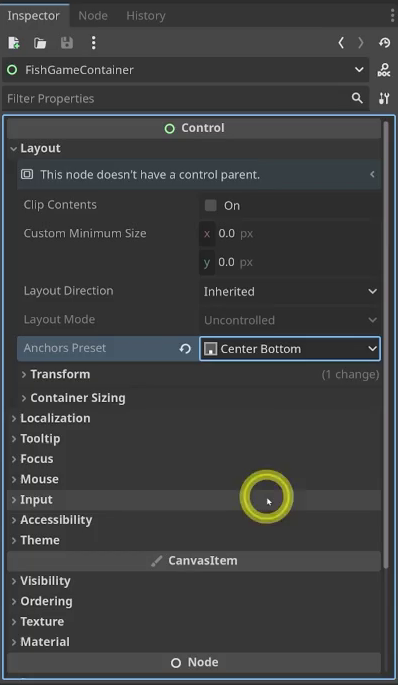
Open the player scene and add a Control child to Player, named FishGameContainer. Instance FishGame inside it. The container reserves space above the player for the minigame.
Select the container, set Anchors Preset to Center Bottom, and set Custom Minimum Size to 100 by 20 pixels. Then switch to Custom and set position Y to negative 20 pixels to lift the UI above the player.
Run the game to check that the placeholder box appears above the character.
Designing the Minigame UI
Return to FishGame and remove the placeholder ColorRect. You can now replace it with the frame, background, and fish.
Add a NinePatchRect covering the available space and assign graphics/UI/frame.png as its texture. Set all four Patch Margin values to 4 to correct the stretched appearance, then save the scene.
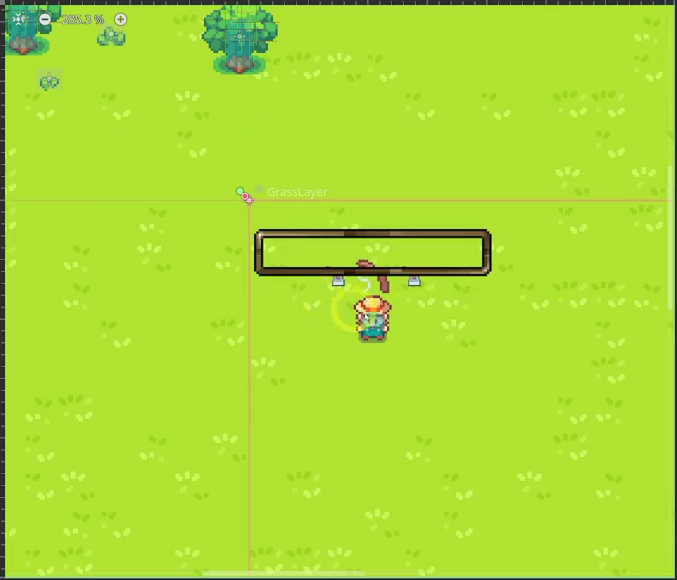
For the background, add a TextureRect child to FishGame and move it below the NinePatchRect in the scene tree. Create a GradientTexture1D in its Texture property and set Expand Mode to Fit Width.
To keep the background away from the frame’s corners, change its layout from full rectangle to Custom. Set the left and top anchor offsets to 2 pixels, and the right and bottom offsets to negative 2 pixels. This gives the background 2 pixels of padding.
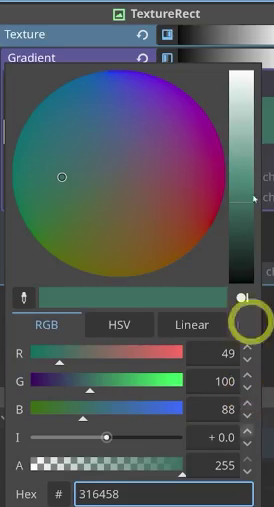
Edit the gradient with 316458 at the left and right stops, and add a middle stop using 00FA00.
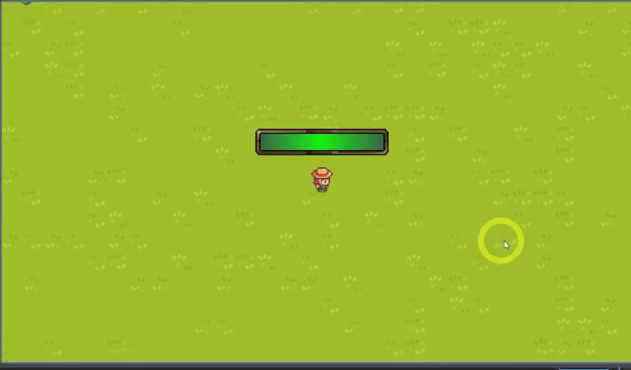
Check the bar in the running game before adding the fish.
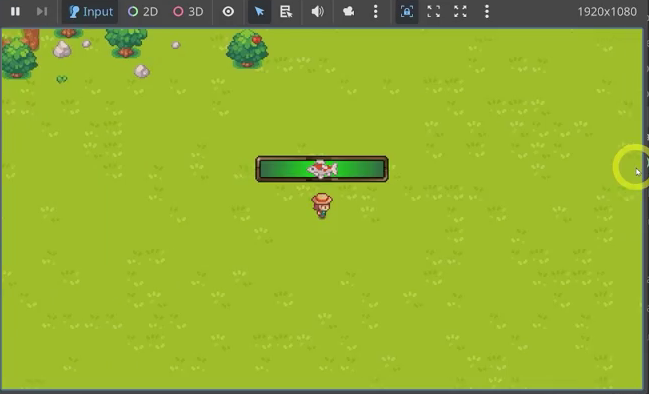
Add another TextureRect, center it, and name it FishRect. Choose the silverfish graphic as its texture, keeping its stretch mode. In the custom layout, remove the offsets so the fish sits in the center of the bar.
Animating the Fish
Attach a script to FishGame. In _ready, create a tween that moves FishRect by animating its offset_left property.
Tween to 100 over one second, then to negative 60 over one second. The left target avoids the overshoot seen when moving farther left in this setup. Call set_loops so the movement repeats.
extends Control


func _ready() -> void:
	var tween = get_tree().create_tween()
	tween.set_loops()
	tween.tween_property($FishRect, "offset_left", 100, 1)
	tween.tween_property($FishRect, "offset_left", -60, 1)
The fish now travels back and forth continuously inside the bar.
Catching the Fish
Return to the player script’s get_fishing_input. Check whether the action key, the spacebar in this project, was just pressed. Call FishGame‘s get_fish function and stop fishing if it reports a successful catch.
func get_fishing_input():
	direction = Input.get_vector("left", "right", "up", "down")
	if direction and not $Timers/FishDelayTimer.time_left:
		stop_fishing()
	if Input.is_action_just_pressed("action"):
		if $FishGameContainer/FishGame.get_fish():
			stop_fishing()
Next, add get_fish to the FishGame script. It checks whether the fish’s offset_left is within the center range.
Godot does not support chaining the two bounds into one comparison. You could combine separate comparisons with and; here, use the shorter check that the absolute offset is less than 40. Success prints get fish and returns true. This version confirms the catch in the Output panel; it does not award a fish resource yet.
func get_fish() -> bool:
	if abs($FishRect.offset_left) < 40:
		print('get fish')
		return true
	else:
		return false
The Boolean result lets the player script end fishing on success. A miss returns false, so the player can keep trying.
Showing and Hiding the Minigame
Make FishGame invisible by default. In the player’s input handling, show it when fishing starts:
$FishGameContainer/FishGame.show()
Update stop_fishing to hide the minigame again along with resetting the player state.
func stop_fishing():
	fishing = false
	can_move = true
	$AnimationTree.set("parameters/FishBlend/blend_amount", 0)
	$FishGameContainer/FishGame.hide()
Testing the Minigame
Test the full loop by walking to the water and starting to fish. The minigame bar should appear above the player.
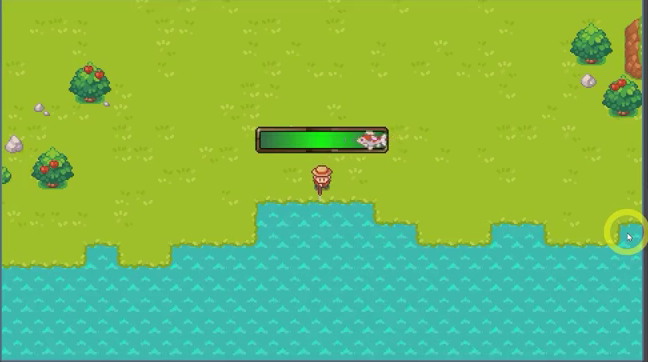
Press the action key when the fish reaches the center. A successful catch should print its confirmation, hide the minigame, and let the player move again.
Your Cozy Game Fishing Mechanic Recap
You now have the fishing setup and timing challenge connected in your cozy-game project. Along the way, you covered how to:
- Check water tiles using the tool interaction position.
- Blend into directional fishing animations and manage the player’s movement state.
- Cancel fishing on land or through movement input after a short delay.
- Build a framed fishing bar and animate its fish with a looping tween.
- Detect a successful catch near the center and hide the UI when fishing ends.
As you continue working on the project, use the grass, water, cancellation, and catch checks above to revisit each part of the fishing loop.
For a structured path to building your own Godot games, explore the Godot 4 Game Development Mini-Degree and continue learning through guided, project-based courses.
Did you come across any errors in this tutorial? Please let us know by completing this form and we’ll look into it!
FINAL DAYS: Unlock coding courses in Unity, Godot, Unreal, Python and more.