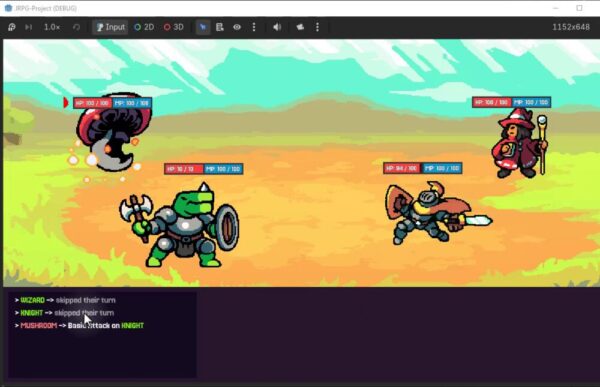
Enemies that attack a random party member every single turn get predictable fast. What if an enemy could heal itself when its health drops, poison your healthiest hero, or throw in a heavy attack every so often? In this Godot enemy AI tutorial, you’ll build exactly that: a rule-based AI system where each enemy holds an ordered list of conditions and actions in configurable resources. You’ll construct it the same data-driven way Zenva teaches across its catalog of over 400 coding and game development courses, with every decision living in a resource rather than hard-coded branches.
This tutorial assumes you have Godot installed, are comfortable with GDScript and the Inspector, and already have your battle manager, battlers, useables, and statuses working, since the AI plugs directly into that turn flow.
Download Project Files
The AI resources, useables, and full project files are available through the course included in the Intermediate Godot Mini-Degree if you’d like to follow along with the completed project.
What Godot Enemy AI Needs
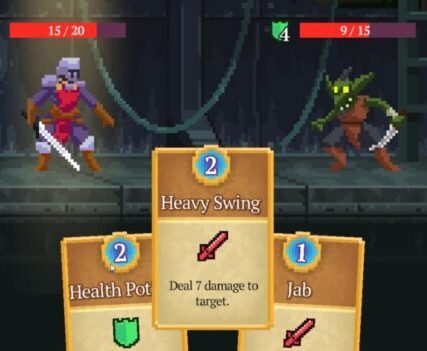
At the moment, enemies always perform a basic attack against a random party member. That behavior works as a fallback, but it does not respond to the state of the battle. You can make combat more interesting by allowing an enemy to heal when its health is low, apply a status effect, or choose another skill when specific conditions are met.
Building AI From Ordered Rules
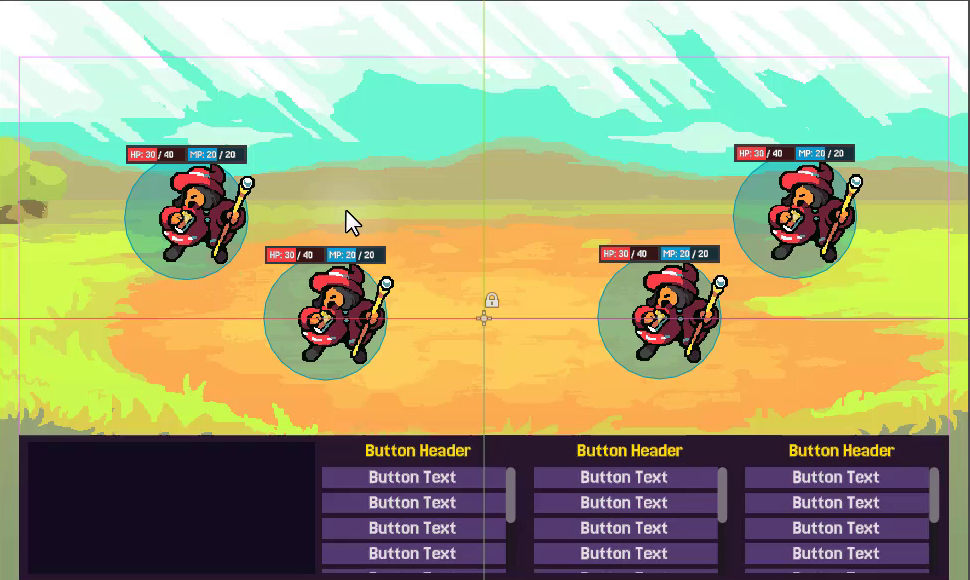
Each enemy gets an EnemyAI resource. This resource contains an ordered array of AIRule resources. Every rule combines a condition, which determines whether the rule is valid, with an action for the enemy to perform.
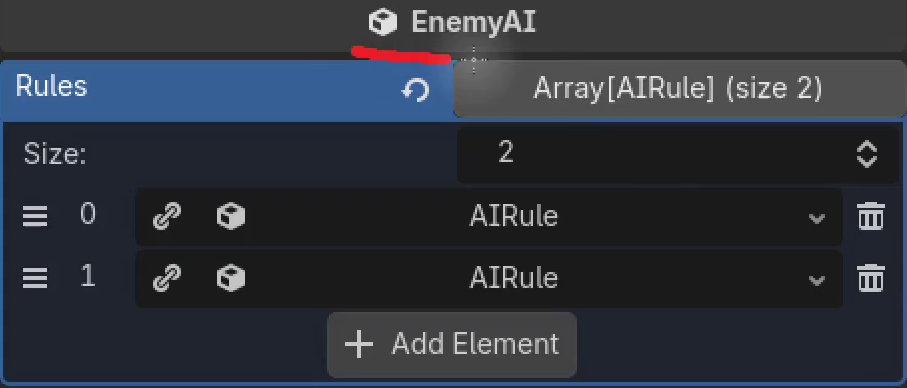
Order is important because the AI evaluates rules from top to bottom. When the first valid rule is found, the AI stops checking and performs that rule’s action. A rule can also include a chance value, so a valid condition does not have to trigger every time. If the AI reaches the end of the list without selecting a rule, it falls back to a basic attack.
Configuring Rule Conditions and Actions
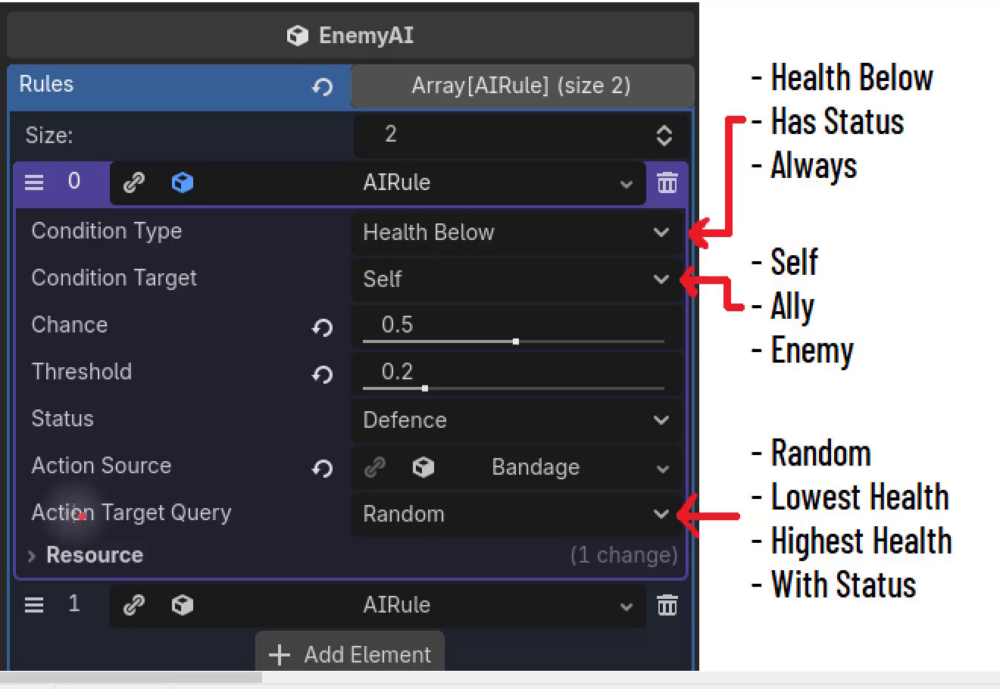
The Condition Type property defines what the rule checks. Health Below compares a battler’s health percentage with a threshold, Has Status checks for a selected status effect, and Always requires no condition. A health or status check can target Self, an Ally, or an Enemy. These names are interpreted from the acting enemy’s perspective, so an ally is another enemy battler and an enemy is one of the player’s party members.
The Chance property controls the probability that the rule will be accepted. For example, a value of 0.5 gives the rule a 50% chance. The Threshold supplies the comparison value for a health check, while Status identifies the effect used by a status check.
After the condition passes, Action Source identifies the useable that the enemy will execute. Action Target Query then chooses from the valid targets supported by that useable. A query can select a random target, the target with the lowest health, the target with the highest health, or a target with a specified status.
Creating a Low-Health Healing Rule
One example checks whether the acting enemy’s health is below 20%. Set Condition Type to Health Below, Condition Target to Self, and Threshold to 0.2. A chance of 0.5 means that even when the enemy is below the threshold, the healing action is selected only half of the time.
The rule uses Bandage as its action source. Because Bandage can only target the user, the acting enemy is the only valid target. The target query therefore does not change the result for this self-targeted useable.
Targeting the Healthiest Party Member
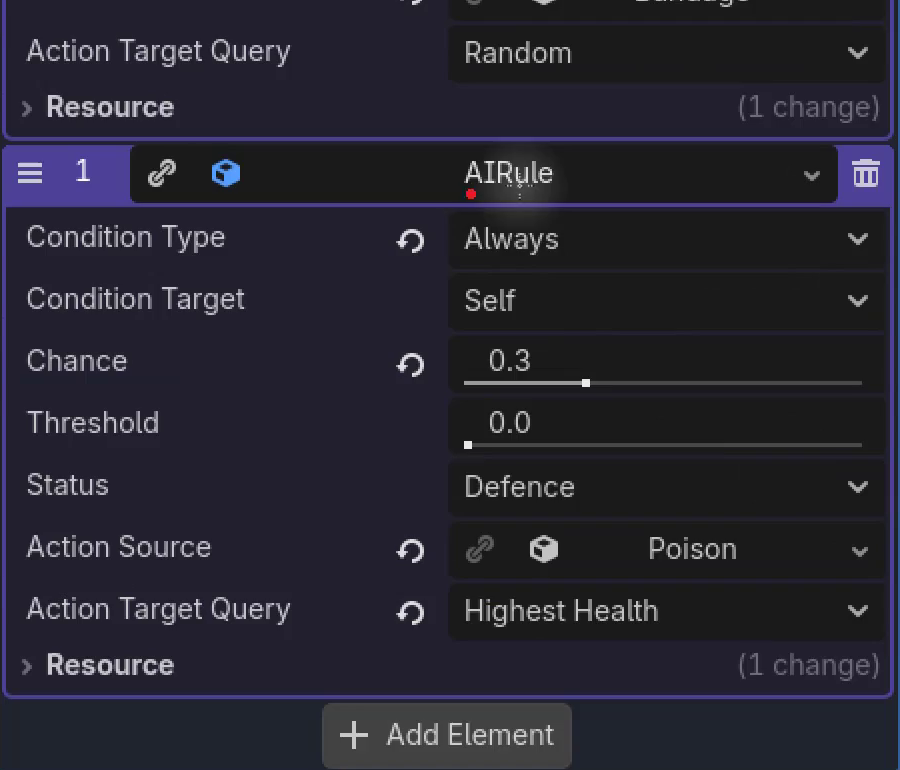
A second example uses Always as its condition type and gives the rule a 30% chance. Because there is no condition to evaluate, the condition target, threshold, and status values do not affect this rule. Only the chance, action source, and target query are relevant.
For this rule, the action source is Poison and the target query is Highest Health. Poison can target a single enemy of the acting battler. From an enemy battler’s perspective, that target pool is the player party, so the AI selects the party member with the highest health. A similar rule could instead prioritize a low-health target for a finishing blow or choose a target that already has a particular status effect.
Combining Rules Into Varied Behavior
By stacking rules in priority order, you can make enemies react to health, status effects, target state, and random chance. The same structure supports both predictable priorities and occasional variation, while the basic-attack fallback guarantees that the enemy can still act when no rule is selected.
Now it’s time to create the scripts that connect these resources and implement each rule property.
Create the AI Rule Resource
In Scripts/Battle, create a new folder named AI. Inside it, create ai_rule.gd. This script extends Resource, which lets you create reusable AI rule data that can be configured in the Godot Inspector.
class_name AIRule
extends Resource
Define the Rule Categories
The first enum defines the condition that a rule checks. HEALTH_BELOW compares a battler’s health with a threshold, HAS_STATUS checks for a particular status effect, and ALWAYS creates a rule without a condition requirement.
enum ConditionType
{
    HEALTH_BELOW,
    HAS_STATUS,
    ALWAYS
}
Next, define who the condition applies to. SELF checks the acting enemy, ALLY checks one of its teammates, and ENEMY checks an opponent.
enum ConditionTarget
{
    SELF,
    ALLY,
    ENEMY
}
The final enum controls how the AI selects a target for its action. A rule can choose randomly, target the battler with the lowest or highest health, or find a battler with a specified status.
enum ActionTargetQuery
{
    RANDOM,
    LOWEST_HEALTH,
    HIGHEST_HEALTH,
    WITH_STATUS
}
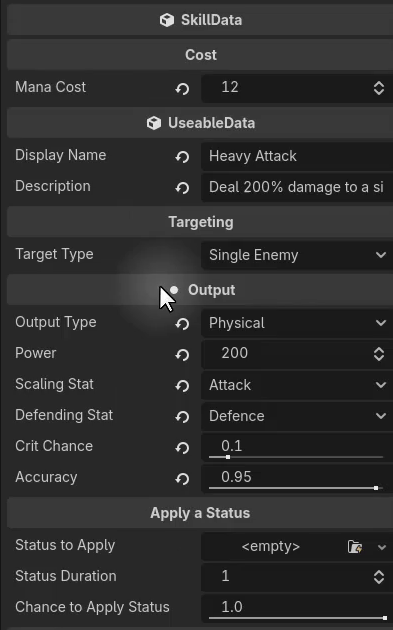
Target queries matter when a useable can affect one of several valid battlers. For example, Heavy Attack targets a single enemy, so the AI must decide which opponent should receive the attack.
Add the Condition Properties
Export the condition and target enum values so you can select them in the Inspector. You’ll also add a probability check. The chance value ranges from 0.0 to 1.0, where 1.0 represents a 100% chance. Both the configured condition and this random chance must succeed for the rule to run.
@export var condition_type : ConditionType
@export var condition_target : ConditionTarget
@export_range(0.0, 1.0) var chance : float = 1.0
Some conditions need an additional value. The general-purpose threshold stores a percentage for checks such as HEALTH_BELOW, so a value of 0.5 represents 50% health. The status property identifies the StatusData resource used by HAS_STATUS.
@export_range(0.0, 1.0) var threshold : float
@export var status : StatusData
Add the Action Properties
The action properties define what the rule does after its checks succeed. action_source stores the UseableData resource for a heal, attack, or effect. action_target_query determines which eligible battler receives that action.
@export var action_source : UseableData
@export var action_target_query : ActionTargetQuery
Create the Parent Enemy AI Resource
Create another script in Scripts/Battle/AI named enemy_ai.gd. This resource contains an array of AIRule objects. The individual rules will exist as subresources inside each enemy AI resource, so you do not need a separate file for every rule.
class_name EnemyAI
extends Resource

@export var rules : Array[AIRule]
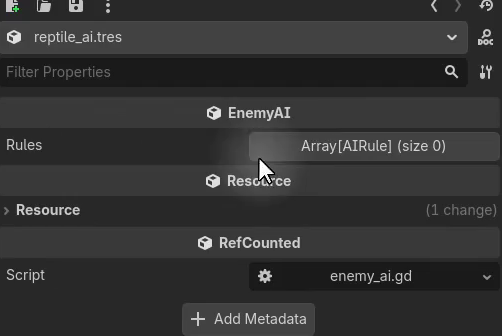
In the Data folder, create a new AI folder. Add an EnemyAI resource named reptile_ai.tres for the reptile enemy. Its Rules array starts empty and is ready to receive AIRule subresources.
Configure a Low-Health Healing Rule
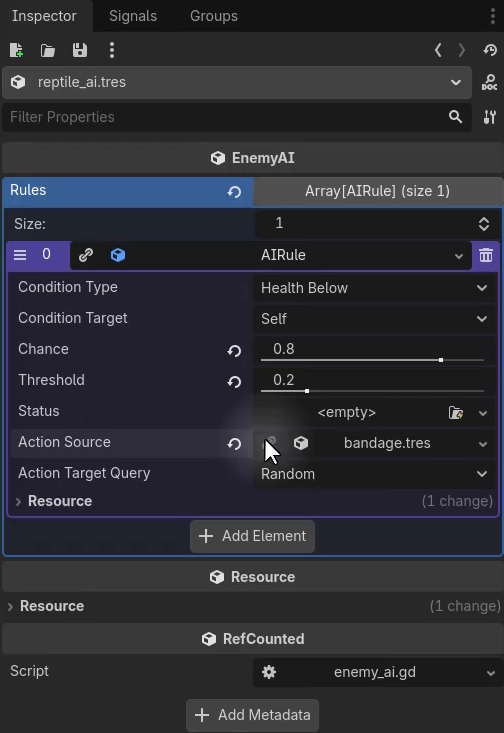
Add one element to the reptile AI’s Rules array and create a new AIRule in that slot. Configure it with the following values:
- Condition Type: Health Below
- Condition Target: Self
- Chance:
0.8, giving the rule an 80% chance to run - Threshold:
0.2, representing 20% health - Status: Empty, because this rule does not check a status
- Action Source:
bandage.tres - Action Target Query: Random
Bandage can only target the acting battler, so the target query has just one valid target in this case. The completed rule gives the reptile an 80% chance to heal itself when its health is at or below 20%.
Challenge: Add a Heavy Attack Rule
Add a second rule to reptile_ai.tres. Configure it to have a 50% chance of using Heavy Attack against the opponent with the highest health. Remember that rules are evaluated from top to bottom, so their order determines which valid action receives priority. The configuration follows.
Configure the Ordered AI Rules
The EnemyAI resource stores an array of AIRule resources. Rule order matters because the AI checks the array from top to bottom. As soon as one rule passes its condition and chance checks, the AI uses that rule and stops evaluating the remaining entries.
For the reptile AI, add a second rule below the existing low-health healing rule. Set its condition type to Always, leave the condition target at its default because it is not needed, set the chance to 0.5, assign heavy_attack.tres as the action source, and select Highest Health as the action target query. This gives the reptile a 50% chance to use Heavy Attack against the valid target with the highest health whenever evaluation reaches this rule.
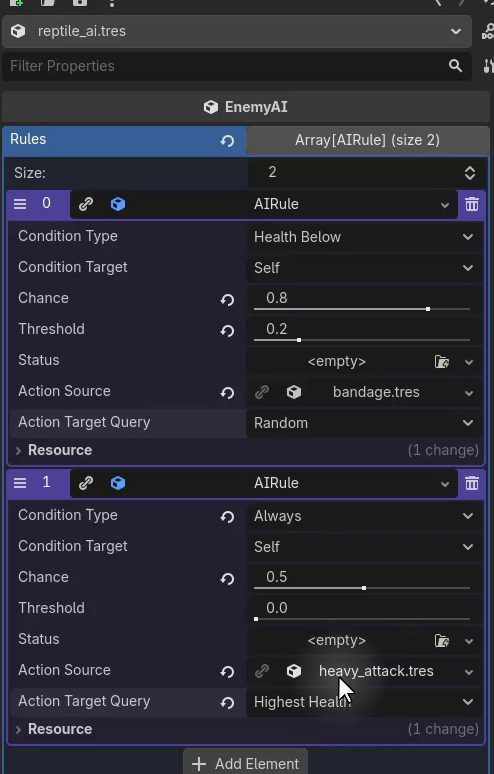
Both configured rules can fail their chance checks. If no rule produces an action, the AI will fall back to a basic attack. The rules therefore describe special useable actions, while the fallback guarantees that the enemy can still act.
Plan the Action-Selection Flow
The battle manager currently creates an enemy’s basic attack directly and chooses a random player battler as its target. You’ll move that responsibility into the actor’s EnemyAI resource. The battle manager will ask the AI to choose an action, the AI will evaluate its rules in order, and a valid rule will create the resulting BattleAction. If no rule succeeds, the AI will construct the fallback action instead.
Define the AI Rule Functions
Begin in ai_rule.gd by declaring the functions that will implement the rule logic. Each main rule function receives the acting Battler, an array containing its allies, and an array containing its opponents.
func condition_met (actor : Battler, party : Array[Battler], enemies : Array[Battler]) -> bool:
    return false

func build_action (actor : Battler, party : Array[Battler], enemies : Array[Battler]) -> BattleAction:
    return null

func _fetch_targets (actor : Battler, party : Array[Battler], enemies : Array[Battler]) -> Array[Battler]:
    return []
The condition_met() function will determine whether the rule’s condition and random chance allow it to run. The build_action() function will convert a successful rule into a BattleAction. The _fetch_targets() helper will interpret the action source’s target type and the rule’s target query to return the required battlers. For now, these functions use placeholder return values.
Calculate Health as a Percentage
Health-based rules compare the current health ratio against a decimal threshold, such as 0.2 for 20%. Add a small helper that divides current health by maximum health:
func _health_percent (battler : Battler) -> float:
    return float(battler.current_health) / battler.get_stat(BattlerData.Stat.MAX_HEALTH)
Because current_health is an integer, it is converted to a float before division. This ensures that a battler with 10 health out of 20 returns 0.5 instead of an integer result.
Add the EnemyAI Entry Points
Next, declare choose_action() in enemy_ai.gd. The battle manager will call this function to evaluate the rules and obtain an action. Its full rule-selection logic arrives in the next step, so it temporarily returns null.
func choose_action (actor : Battler, party : Array[Battler], enemies : Array[Battler]) -> BattleAction:
    return null
The names party and enemies are relative to the acting enemy. Inside the AI scripts, party contains the enemy battler and its allies, while enemies contains the player-controlled battlers.
Build the Basic-Attack Fallback
The fallback action reuses the behavior that previously lived in the battle manager. It creates a new BattleAction, assigns the acting enemy, selects a random opposing battler, sets the action type to BASIC_ATTACK, and uses the actor’s configured basic attack.
func _fallback_action (actor : Battler, enemies : Array[Battler]) -> BattleAction:
    var action : BattleAction = BattleAction.new()
    action.actor = actor
    action.targets = [enemies.pick_random()]
    action.type = BattleAction.Type.BASIC_ATTACK
    action.useable = actor.data.basic_attack
    return action
With the rule configuration, function signatures, health helper, and fallback action in place, the AI now has the structure required for ordered rule evaluation.
Choosing an Action From Ordered AI Rules
The choose_action function checks the AI’s rules in array order. Every rule receives the acting battler, its party, and its opponents. When condition_met returns true, the rule attempts to build a BattleAction.
func choose_action (actor : Battler, party : Array[Battler], enemies : Array[Battler]) -> BattleAction:
    for rule in rules:
        if rule.condition_met(actor, party, enemies):
            var action : BattleAction = rule.build_action(actor, party, enemies)

            if action:
                return action

    return _fallback_action(actor, enemies)
An action is only returned when it is valid. If a matching rule cannot construct an action, the loop can continue checking later rules. If no rule produces an action, _fallback_action creates the basic attack behavior instead.
Adding AI to Battler Data
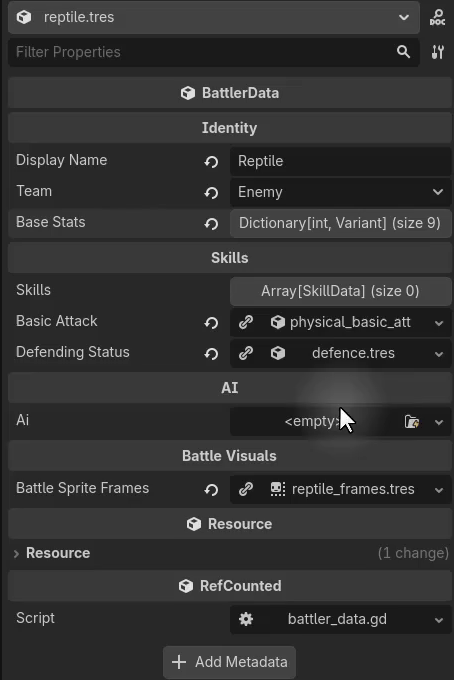
Each battler is represented by a BattlerData resource. Add an exported EnemyAI property so computer-controlled battlers can reference their decision-making resource.
@export_category("AI")
@export var ai : EnemyAI
You can also organize the existing exported properties into the Identity, Skills, AI, and Battle Visuals categories. These categories keep the Inspector easier to navigate as the battler resource grows.
For the reptile resource, assign reptile_ai.tres to the new AI property. Player-controlled battlers, such as the knight and wizard, do not need an AI resource because their actions come from the battle UI.
Delegating Enemy Turns to the AI
Inside _enter_battler_input, player-controlled battlers still wait for the battle UI. For an enemy turn, the battle manager now asks the current battler’s AI to choose an action and then moves into turn resolution.
func _enter_battler_input ():
    if current_actor.data.team == BattlerData.Team.PARTY:
        pass # Do nothing as this is managed by the BattleUI script
    else:
        current_action = current_actor.data.ai.choose_action(current_actor, alive_enemies, alive_party)
        _change_state(State.TURN_RESOLUTION)
The argument order uses the acting enemy’s perspective. alive_enemies is passed as its own party, while alive_party is passed as the set of opponents that it can target.
Testing the Fallback Action
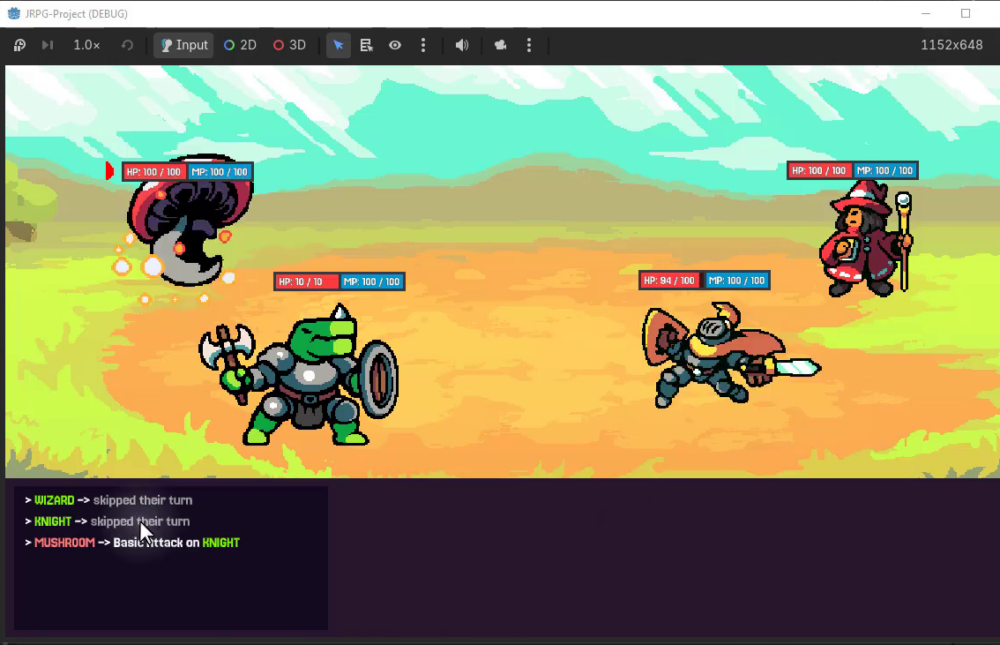
When the battle first runs, the mushroom reaches its turn without an AI resource and causes an error. As a temporary setup, assign the same reptile_ai.tres resource to the mushroom. It will get distinct behavior later.
The current rule conditions return false, so neither enemy builds an action from a rule. Both enemies therefore reach _fallback_action and perform a basic attack. This confirms that the AI resource is connected to the turn flow and that its fallback behavior works.
Conclusion
Your enemies now decide their own actions through an ordered, resource-based rule system. Along the way, you covered:
- Structuring enemy AI as an ordered list of AIRule resources
- Checking health, status, and unconditional rules from any perspective
- Choosing actions and targets with chance, thresholds, and target queries
- Writing the condition, build, and target-fetch function signatures
- Calculating health percentages for threshold checks
- Choosing the first valid rule and falling back to a basic attack
- Connecting the AI to battler data and the battle manager’s turn flow
From here, you can implement the individual rule conditions so enemies can make even more varied decisions, and give each enemy its own AI resource for distinct personalities.
If you want to keep building this JRPG battle with a structured, project-based path, the Intermediate Godot Mini-Degree continues this project through the complete battle system and other intermediate Godot topics.
Did you come across any errors in this tutorial? Please let us know by completing this form and we’ll look into it!
FINAL DAYS: Unlock coding courses in Unity, Godot, Unreal, Python and more.