If your 3D platformer character moves but stays in a fixed pose, Unity character animation is the next piece to connect. With experience teaching coding and game development across a catalog of over 400 courses, Zenva can guide you through the link between player input and character visuals. In this walkthrough, you will add smooth rotation, then connect idle, moving, and jump animations to the player controller.
This tutorial assumes you have Unity installed, know basic C#, and are using the supplied player assets and an existing PlayerController.cs with moveInput and IsGrounded().
Download Project Files
The project files and full project are available through the course included in the Unity Game Development Mini-Degree. Follow the full guided path there, or keep reading to work through the rotation and animation setup in this free tutorial.
Rotate the Player Toward the Movement Direction
Start by making the character face the direction of travel. Right input should turn it right, upward input should turn it away from the camera, and downward input should turn it toward the camera.
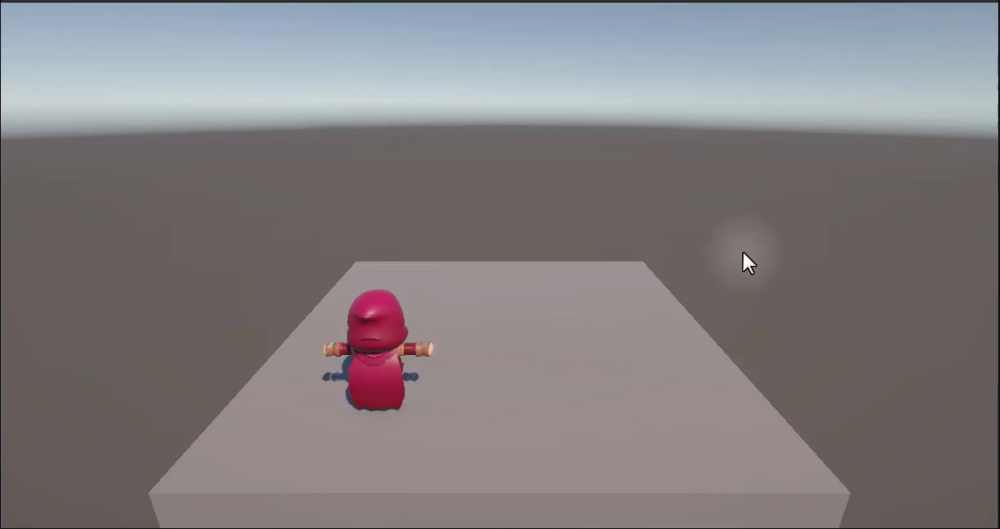
Setting Up the Update Function
The rotation in this setup is a visual change rather than part of the physics simulation. Put it in Update, which runs every rendered frame, instead of FixedUpdate.
Open PlayerController.cs and add this method beneath FixedUpdate:
void Update ()
{

}
Understanding Rotation in Unity
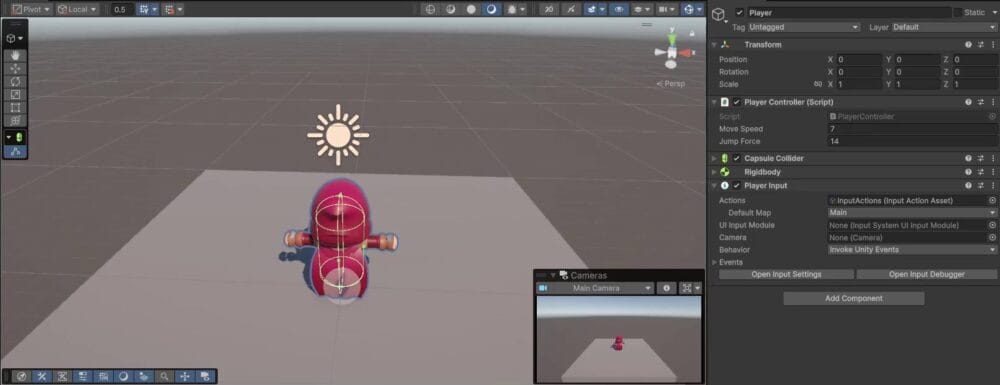
Select the Player object and look at its Transform component in the Inspector. The X, Y, and Z rotation values are displayed in degrees. To turn the character left or right, you will change its Y-axis rotation.
Calculating the Target Angle
The existing moveInput variable is a Vector2. Its X component represents left/right input, while Y represents forward/back input. You need to convert that direction into an angle for the character’s Y rotation.
Mathf.Atan2 returns the angle between the positive X-axis and a point defined by its two arguments. For this setup, pass moveInput.x first and moveInput.y second to map WASD input to the correct facing direction.
The result is in radians. Multiply it by Mathf.Rad2Deg to get degrees, then apply it through transform.eulerAngles:
void Update ()
{
    float targetAngle = Mathf.Atan2(moveInput.x, moveInput.y) * Mathf.Rad2Deg;
    transform.eulerAngles = new Vector3(0, targetAngle, 0);
}
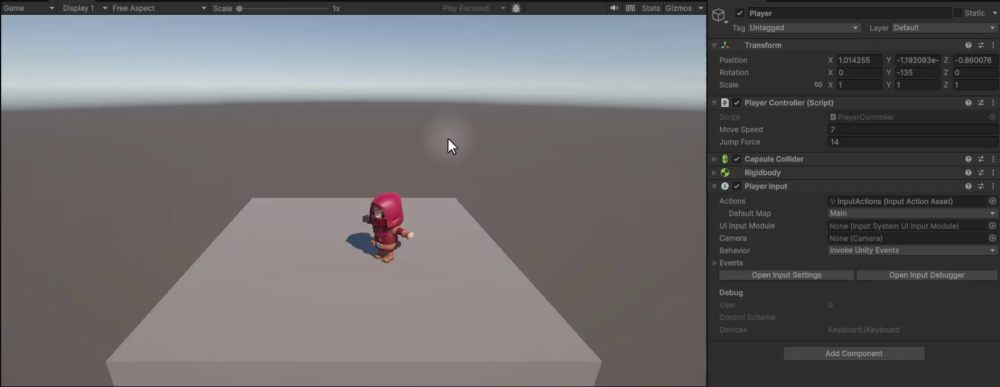
Save the script and press Play. The character now snaps to face each movement direction, including diagonals.
Preventing Rotation Snap-Back
When you release the keys, this first version snaps the player back to zero degrees. To keep the last facing direction, skip rotation when there is no movement input.
The vector’s magnitude is its length. When both components are zero, its magnitude is zero; when a movement key produces a non-zero component, the magnitude is greater than zero. Add an early return to Update:
void Update ()
{
    if(moveInput.magnitude == 0)
        return;

    float targetAngle = Mathf.Atan2(moveInput.x, moveInput.y) * Mathf.Rad2Deg;
    transform.eulerAngles = new Vector3(0, targetAngle, 0);
}
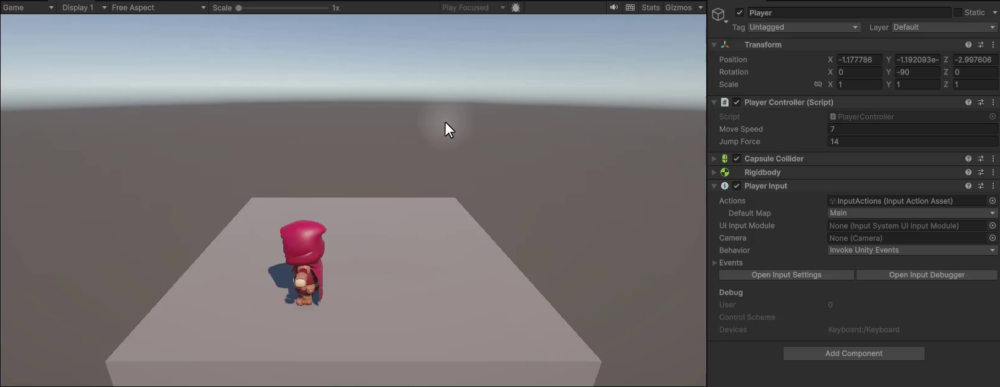
Save and test again. Releasing the movement keys now leaves the character facing its last direction.
Adding Smooth Rotation
The character keeps its facing direction, but still snaps between angles while moving. Use Mathf.LerpAngle to interpolate toward each new direction. Unlike a regular Mathf.Lerp, it handles the angle wraparound from 359 degrees to 0 degrees.
Supply three arguments:
- The current Y rotation,
transform.eulerAngles.y, as the starting angle. - The calculated
targetAngleas the destination. Time.deltaTime * 50as the interpolant, scaling the change by the elapsed frame time.
Store the interpolated value in angle and use it when setting the rotation:
void Update ()
{
    if(moveInput.magnitude == 0)
        return;

    float targetAngle = Mathf.Atan2(moveInput.x, moveInput.y) * Mathf.Rad2Deg;
    float angle = Mathf.LerpAngle(transform.eulerAngles.y, targetAngle, Time.deltaTime * 50);
    transform.eulerAngles = new Vector3(0, angle, 0);
}
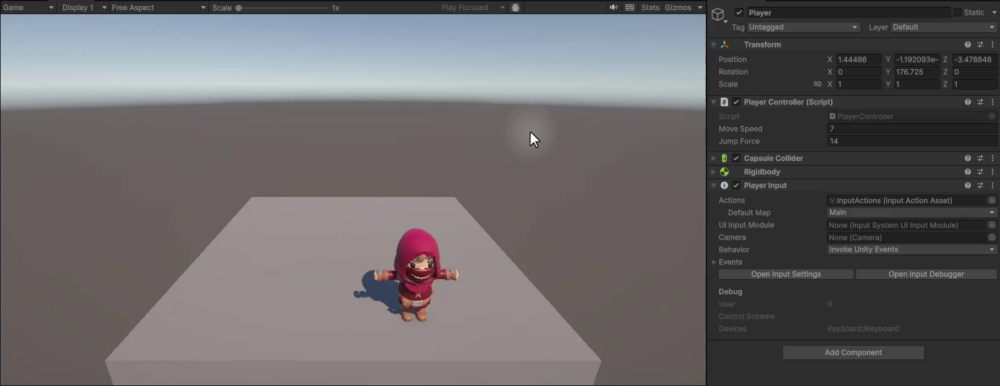
Press Play to check the smoother turn. The multiplier 50 controls how quickly the character turns; a lower value such as 30 makes the turn more gradual, while a higher value makes it more responsive.
With the facing direction working, you can now replace the character’s fixed pose with animations.
Set Up Unity Character Animation With an Animator Controller
Your player needs an idle animation when standing still, a moving animation while running, and an in-air animation for jumping and falling. Begin with the supplied clips and the idle-to-movement state machine.
Finding the Animation Assets
In the Project window, open Assets > Models > Player. Alongside the Rogue_Hooded model, you will find Rig_Medium_General and Rig_Medium_MovementBasics. These FBX files contain the animation clips for the character.
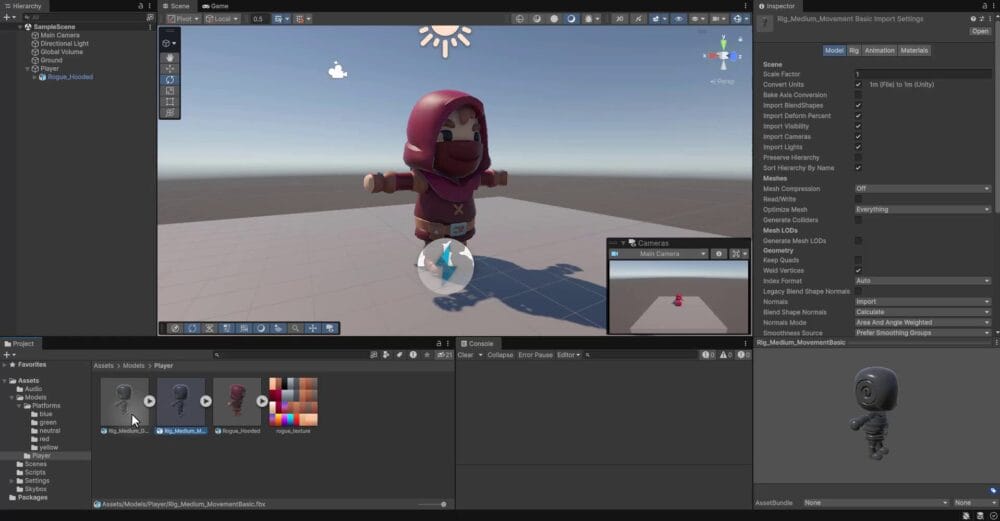
Select Rig_Medium_General and open the Inspector’s Animation tab to see clips such as Idle_A, Hit_A, Interact, PickUp, and spawn animations. Rig_Medium_MovementBasics contains clips such as Running_A, Running_B, walking variants, and jumps.
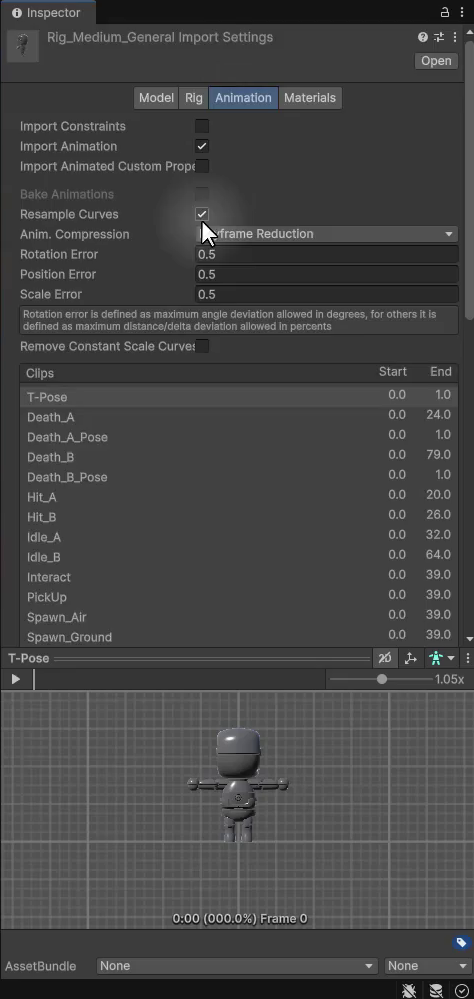
Previewing Animation Clips
Select a clip in the Animation tab and press the play button in the preview pane at the bottom of the Inspector. Hold the right mouse button and drag inside the preview to rotate the camera around the model and inspect the motion.
For this character, use Running_B from Rig_Medium_MovementBasics for movement and Idle_B from Rig_Medium_General for idle.
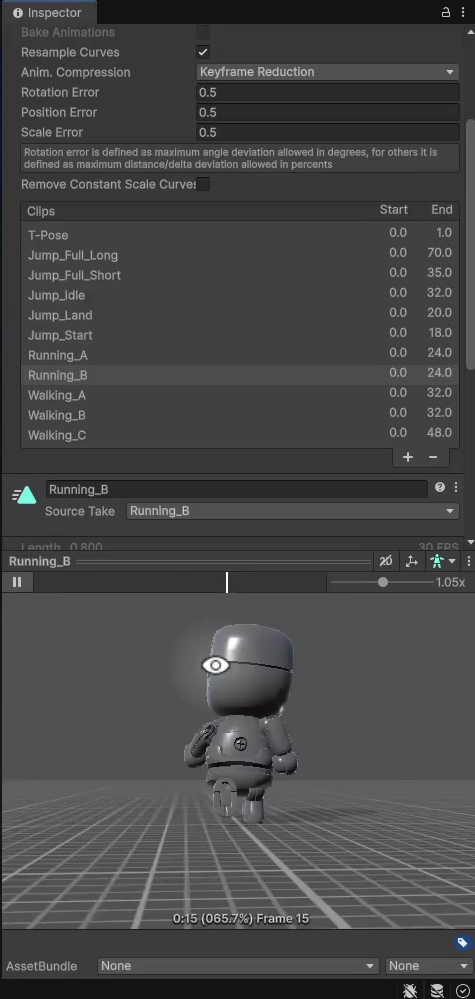
Creating an Animator Controller
An Animator Controller defines a state machine: animation states and the rules for moving between them.
Create an Animation folder inside Assets. Right-click inside it, choose Create > Animator Controller, and name the asset Player.
In the Hierarchy, select the Rogue_Hooded child under the Player GameObject. Drag the Player controller onto that model in the Inspector. This adds an Animator component linked to the controller.
The Animator Window
Double-click the Player controller to open the Animator window. Use the scroll wheel to zoom and the middle mouse button to pan around its state-machine grid.
The new controller starts with three nodes:
- Entry: the green starting point for the state machine.
- Any State: a teal node for transitions that can occur from any state.
- Exit: a red node.
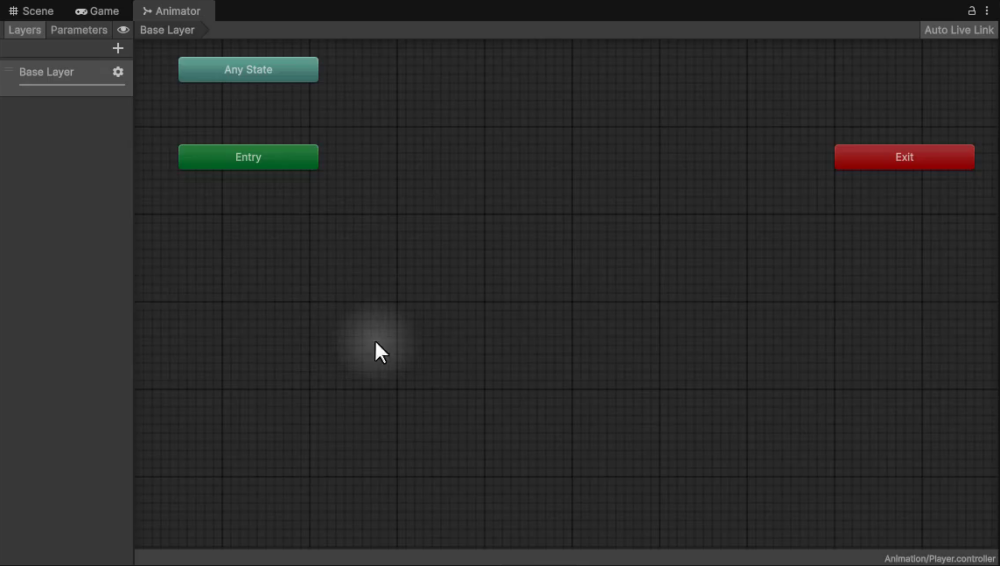
Adding the First Animation State
Expand Rig_Medium_MovementBasics using the arrow beside it in the Project window. Drag Running_B onto the Animator grid.
The new state is orange, with an arrow from Entry. Orange marks the default state, so Running_B begins playing when this Animator starts.
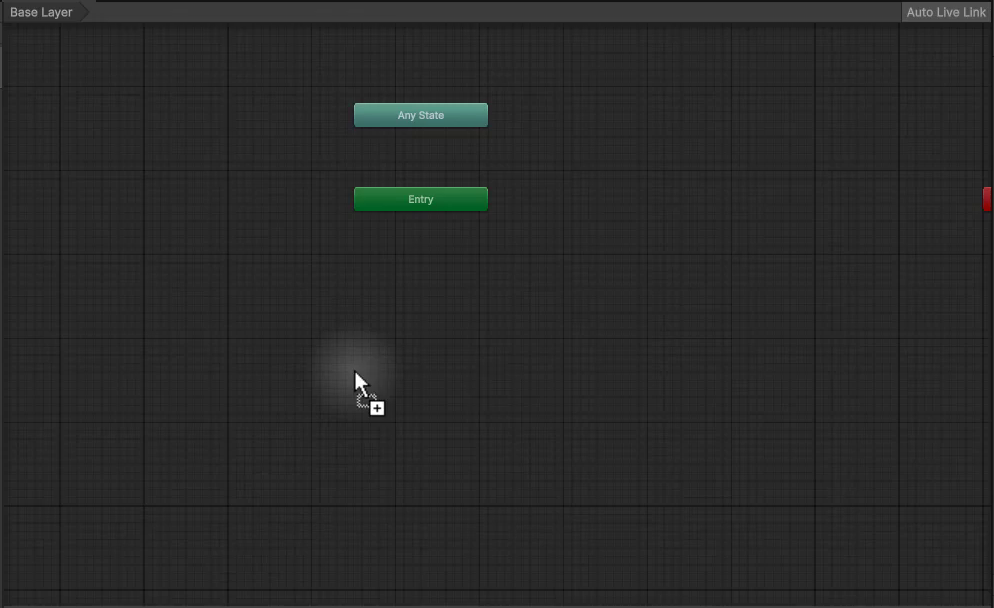
Save and press Play. The running animation plays even while the player stands still. That confirms the state is working, but you still need an idle state and conditions for switching.
Adding the Idle Animation State
Stop Play mode, expand Rig_Medium_General, and drag Idle_B onto the Animator grid. It appears gray and unconnected because Running_B is still the default state.
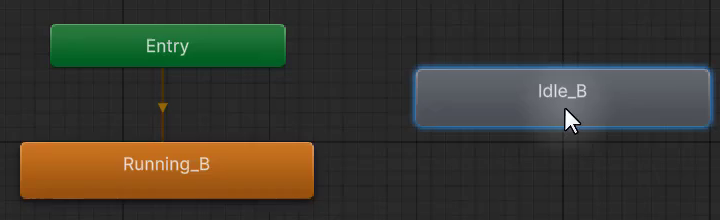
Right-click Idle_B and select Set as Layer Default State. It turns orange, and the Entry arrow moves to it. The character will now start in the idle animation.
Enabling Loop Time
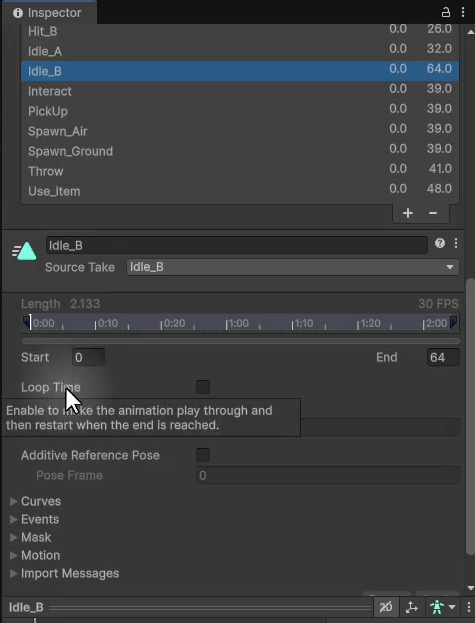
If a clip plays once and stops, enable looping in its source asset. For Idle_B, select Rig_Medium_General, open the Animation tab, and select the clip. Enable Loop Time, then click Apply.
Repeat this for the clips you intend to use, including Running_B, so they repeat when they reach the end.
Renaming States for Clarity
Select each state and use the name field at the top of the Inspector to rename Idle_B to Idle and Running_B to Moving. These names make the state machine easier to follow.
Creating Transitions
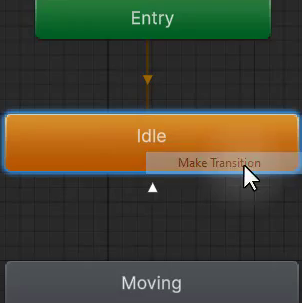
Right-click Idle, choose Make Transition, and click Moving. Then create the reverse transition from Moving to Idle.
You now have arrows in both directions, but neither has conditions yet. You need conditions to make these changes respond to gameplay.
Adding a Parameter to Control Transitions
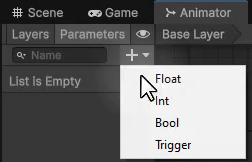
In the Animator window’s Parameters tab, click + and choose Bool. Name the parameter Moving.
This true/false value will control the transitions. The player script will set it to true when there is movement input and false when that input stops.
Assigning Conditions to Transitions
Select the Idle to Moving arrow. Under Conditions in the Inspector, click + and set Moving to true.
Select the reverse arrow, from Moving to Idle, and add Moving equals false. The parameter now determines which transition can occur.
Testing the State Machine
Before adding code, test the parameter manually. Select Rogue_Hooded in the Hierarchy and press Play. A blue progress bar on Idle shows that it is active.
In the Parameters tab, check Moving to switch to the running animation, then uncheck it to return to Idle.
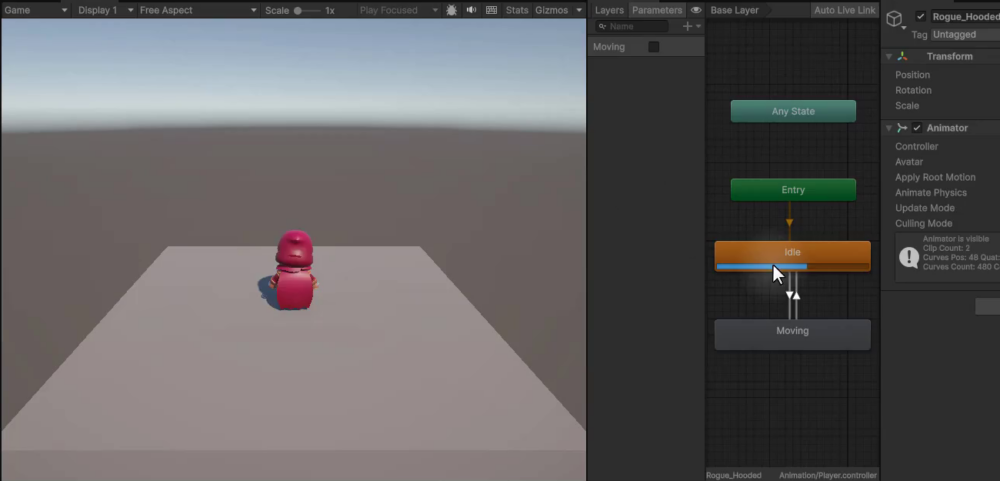
If the change feels delayed, the Animator is waiting for the current animation to reach its exit point. Next, you will remove that wait and connect the parameters to the player script.
Drive Movement and Jump Animations From the Player Controller
The state machine is ready for input. First, make its transitions responsive, then connect it to PlayerController and add the airborne state.
Fixing Animation Transitions
Select the transition from Idle to Moving in the Animator window. By default, Has Exit Time is enabled, making the animation wait for a set duration before it can transition.
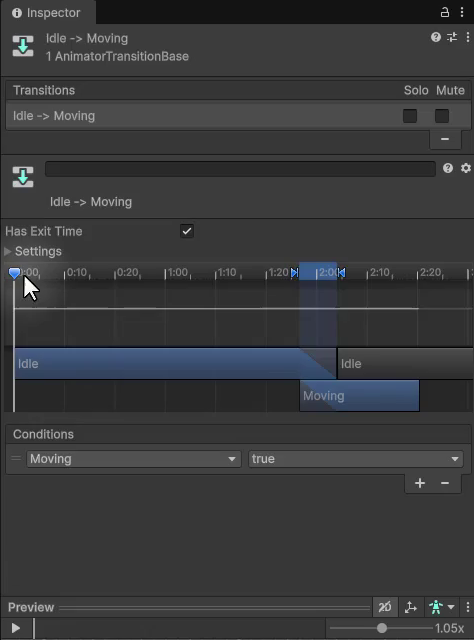
Disable Has Exit Time so the transition can start as soon as Moving becomes true. The Animator still blends between animations. Expand Settings and set Transition Duration to 0.1 for a responsive change.
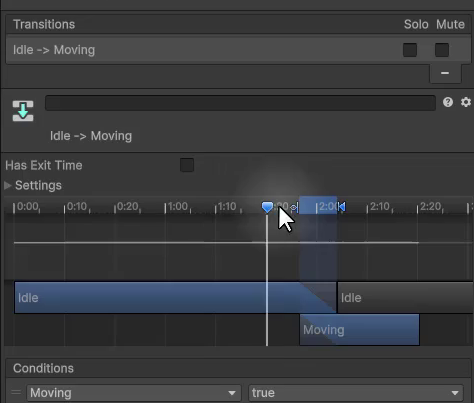
Make the same changes to the Moving to Idle transition: disable Has Exit Time and set Transition Duration to 0.1.
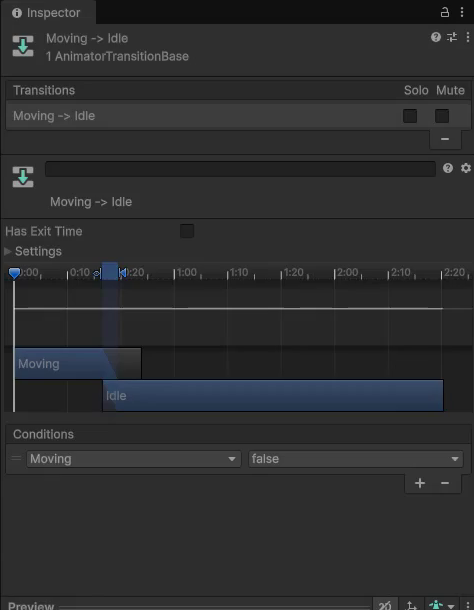
Both transitions should now react almost immediately when the movement parameter changes.
Connecting the Animator to the Script
Open PlayerController.cs and add a serialized reference to the Animator alongside the existing serialized fields:
[SerializeField]
private Animator anim;
[SerializeField] exposes the private field in the Inspector. Save the script, let Unity compile, and select the Player GameObject. The Player Controller component now has an Anim field.
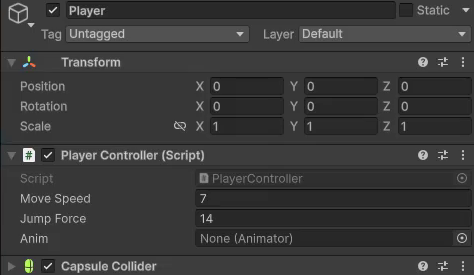
Drag the Rogue_Hooded child model into Anim to assign its Animator component.
In FixedUpdate, add this line after the existing velocity and jump calculations:
// Update the animation state.
anim.SetBool("Moving", moveInput.magnitude > 0);
This updates Moving every physics frame. When moveInput.magnitude is greater than zero, the parameter becomes true; with no movement input, it becomes false.
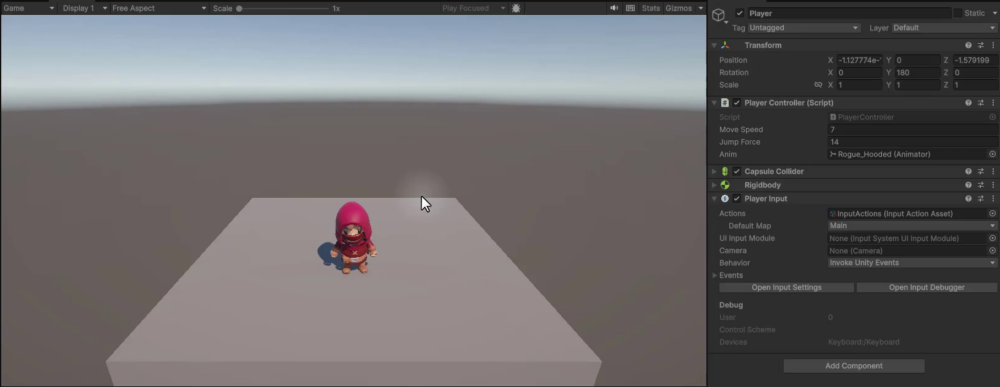
Press Play and check that pressing and releasing movement keys switches between the idle and moving animations.
Adding the Jump Animation State
The character still uses idle or moving animations while airborne. In the Project panel, find Jump_Idle, drag it into the Animator window, and rename the new state Jump.
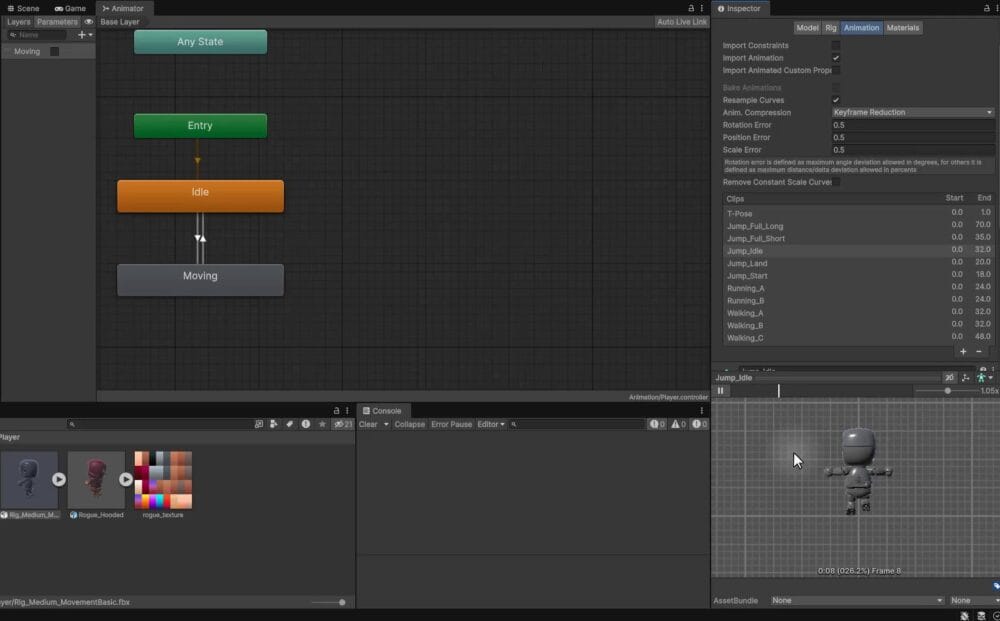
In the Parameters tab, click +, select Bool, and name the parameter InAir. This will track whether the character is airborne.
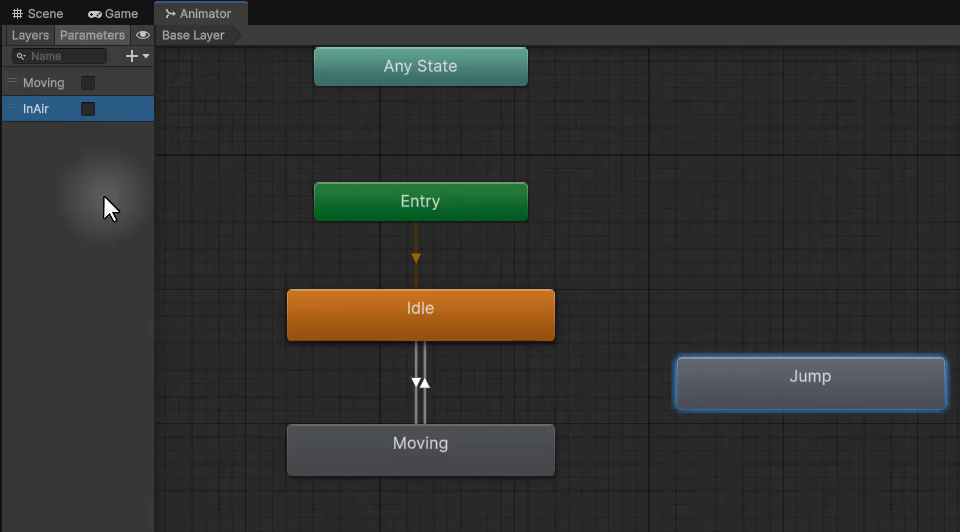
Configuring the Jump Transitions
Connect Jump to the other states with four transitions:
- Idle to Jump
- Jump to Idle
- Moving to Jump
- Jump to Moving
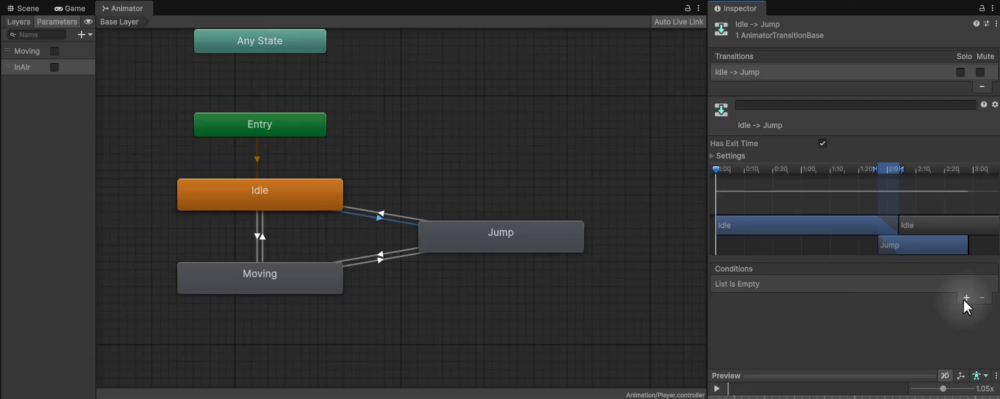
For each transition, disable Has Exit Time and set Transition Duration to 0.1. Then set the conditions:
| Transition | Conditions |
|---|---|
| Idle to Jump | InAir is true |
| Moving to Jump | InAir is true |
| Jump to Idle | InAir is false AND Moving is false |
| Jump to Moving | InAir is false AND Moving is true |
The two conditions on each outgoing Jump transition select the appropriate animation when the character lands, depending on whether movement input is still held.
Controlling the Jump Animation From Code
The existing IsGrounded() method returns true while the character is on the ground. In FixedUpdate, add this directly below the Moving setter:
anim.SetBool("InAir", !IsGrounded());The ! operator reverses the boolean. When IsGrounded() is true, InAir becomes false. When the character is airborne and IsGrounded() is false, InAir becomes true.
The animation-update block in FixedUpdate now reads:
// Update the animation state.
anim.SetBool("Moving", moveInput.magnitude > 0);
anim.SetBool("InAir", !IsGrounded());
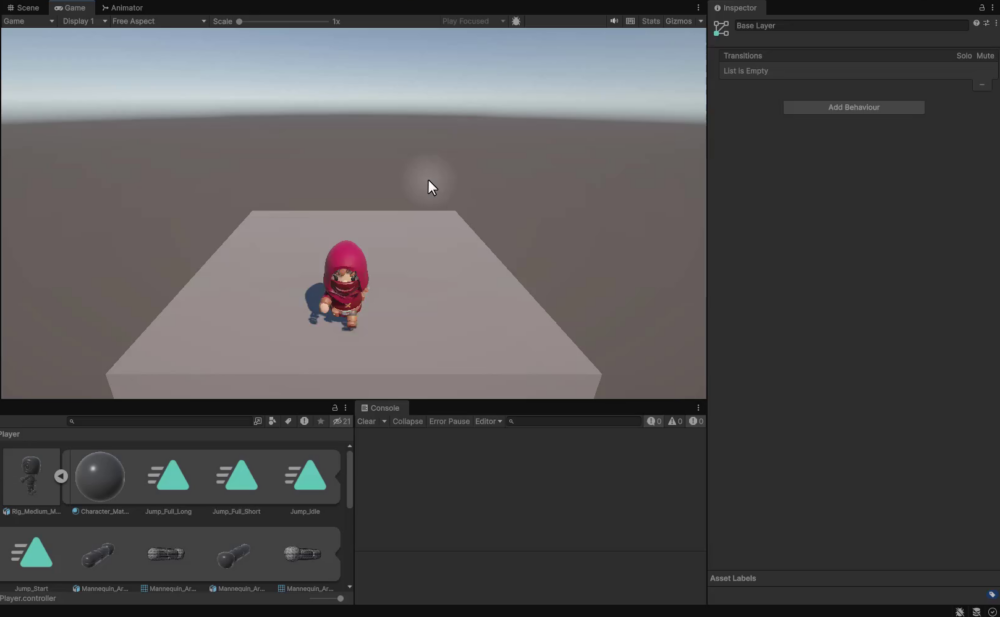
Save and press Play. Check for idle when standing still, moving when walking, and Jump while airborne, with smooth transitions between the three states.
Review Your Platformer Character Setup
Your character now turns toward movement and changes animation to match its grounded or airborne state. You have connected the main pieces of the setup:
- Converted movement input into a Y-axis angle and smoothed it with
Mathf.LerpAngle. - Kept the last facing direction when movement input stops.
- Built Idle, Moving, and Jump states from the supplied animation clips.
- Configured transition conditions and reduced delays with Has Exit Time and Transition Duration.
- Driven the Moving and InAir parameters from
PlayerController.cs.
Run the scene and check the full sequence: move in different directions, release the keys, then jump and land with and without movement input. This lets you see the rotation and animation transitions working together.
Continue building your Unity skills with the Unity Game Development Mini-Degree. Follow a structured, project-based path to connect individual mechanics like these into games of your own.
Did you come across any errors in this tutorial? Please let us know by completing this form and we’ll look into it!
FINAL DAYS: Unlock coding courses in Unity, Godot, Unreal, Python and more.