Vague Claude Code instructions can turn a small improvement into extra files, new abstractions, or an architectural change you never requested. With experience helping a community of over one million learners and developers gain digital skills, Zenva breaks this problem down into two practical habits: precise prompts and a maintained CLAUDE.md file. You’ll explore both through an AI slide deck generator project.
This tutorial assumes you have Claude Code set up and are comfortable opening a project and editing Markdown files.
Table of contents
Download Project Files
The project files and full AI slide deck generator project are available through the course included in the Agentic AI Coding Mini-Degree. You can follow the full guided path there, or keep reading this free walkthrough of the prompts and project guidance.
Make Your Claude Code Instructions More Precise
How Claude Code Thinks
Claude Code works from instructions, context, and constraints. When those are incomplete, it fills in gaps by inferring your goals and predicting what the project might need.
That initiative can help, but it can also produce changes beyond your request. Clear boundaries give it a more specific task to work toward.
The Danger of Vague Instructions
Consider this request for the slide deck generator:
“Improve how slides are generated.”
That leaves several questions open. Should Claude change the API, modify prompt templates, or add caching? The request does not say.
Now compare it with a version that specifies both the improvement and its limits:
“Improve slide generation quality by refining the existing prompt template. Do not introduce new services. Do not change the request flow or data model.”
You still want better slides, but you have identified the part of the application to change and the parts to leave alone.
The Decision-Making Hierarchy
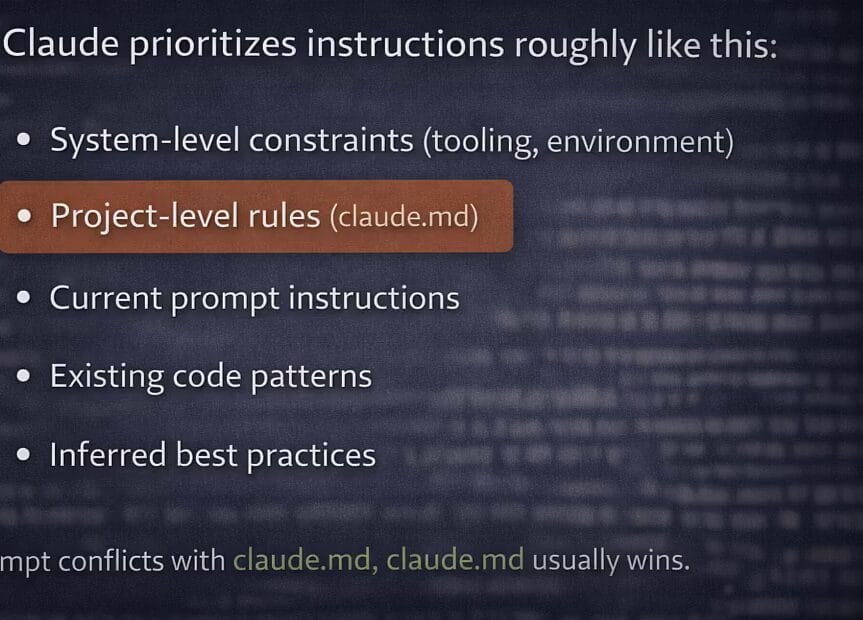
It helps to separate the layers of guidance available to Claude Code:
- Environment and project rules: the tooling, setup, and ongoing guidance captured in
CLAUDE.md. - Your current prompt: the specific task you are requesting now.
- Existing code patterns: the conventions and architecture already in the repository.
- Inferred best practices: general approaches Claude may draw on when project-specific direction is missing.
A weak prompt leaves more room for inferred practices that may not fit your application. Project-level guidance gives Claude more context than a single task description can provide.
Advanced Prompting: Precision Over Length
A broad feature request can invite a larger design effort, including abstractions, configuration layers, and unrelated refactoring. More words are not necessarily the answer; a defined scope is.
For example, you can ask for a layout option while limiting where the change belongs:
“Add a new slide layout option. Implement it within the existing layout switch. Do not refactor unrelated code.”
This gives Claude a clear implementation boundary without a long explanation.
Framing Matters
The way you describe the work also changes its scope. Compare these requests:
- Vague: “Refactor slide generation logic.” This leaves room for architectural changes.
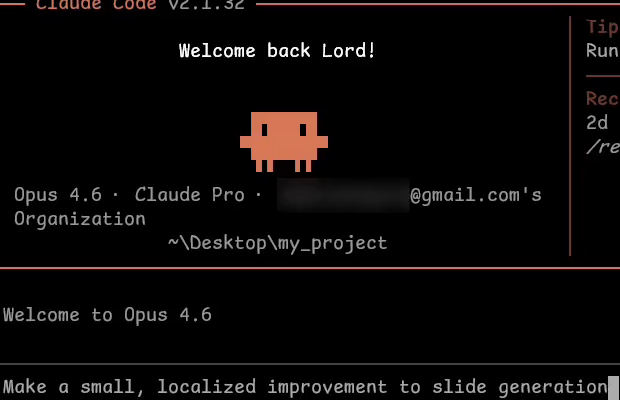
- Precise: “Make a small, localized improvement to slide generation logic without changing structure.” This keeps the request focused.
If you want a small adjustment, say so directly instead of using “refactor” as a general synonym for improvement.
A Critical Warning: You Are Still in Control
You remain responsible for protecting your application’s architecture. Do not rely on Claude to catch every request that could cause problems; define the boundaries yourself.
Practical Exercise: From Vague to Precise
Try tightening this analytics request:
“Add analytics to track slide generation usage.”
Before sending it, decide:
- Where should the new logic live?
- Which parts of the code must stay unchanged?
- Should it affect runtime performance?
- Is it a production-ready feature or a temporary one?
Those decisions turn the request into something more specific:
“Add lightweight, production-ready analytics to track slide generation usage. The analytics logic must live in a dedicated, isolated module or service and must not modify existing slide generation logic, data models, or APIs. Do not introduce new dependencies or architectural changes. The implementation must have negligible runtime overhead and must be safe to run in production. If analytics cannot be added without violating these constraints, stop and explain why.”

The final sentence also tells Claude what to do if it cannot meet the constraints: stop and explain the conflict.
Build Your Project’s CLAUDE.md File
Why CLAUDE.md Matters
A CLAUDE.md file captures ongoing project guidance instead of leaving it scattered across individual prompts. Its rules can continue to guide your work when you clear a conversation.
Start with one focused file. Larger projects may split context into architecture documents, change logs, and other supporting files, but that extra material also consumes tokens. The goal here is to give every line in CLAUDE.md a clear purpose, not to create generic documentation.
Generating the File With /init
You do not have to write the file from a blank page. The /init command analyzes your project and generates a starting point.
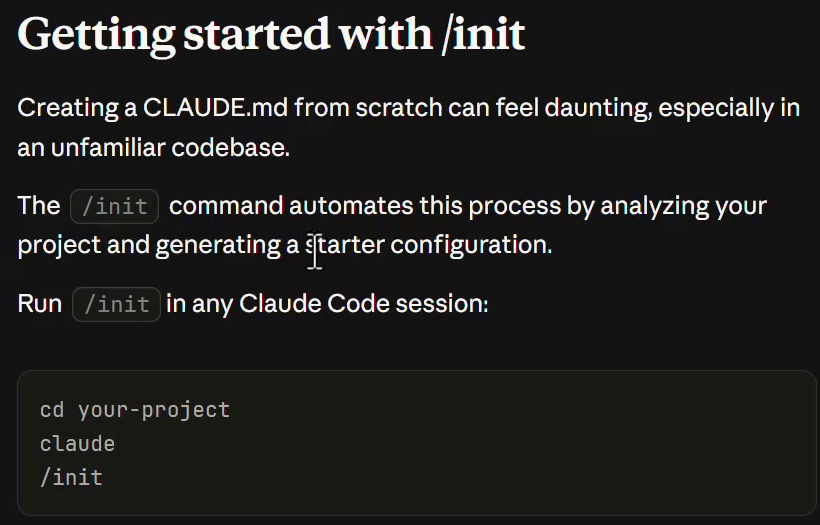
Launch a Claude Code session from the project folder and run /init. Claude examines package files, existing documentation such as the README, and the codebase to create project-specific guidance.
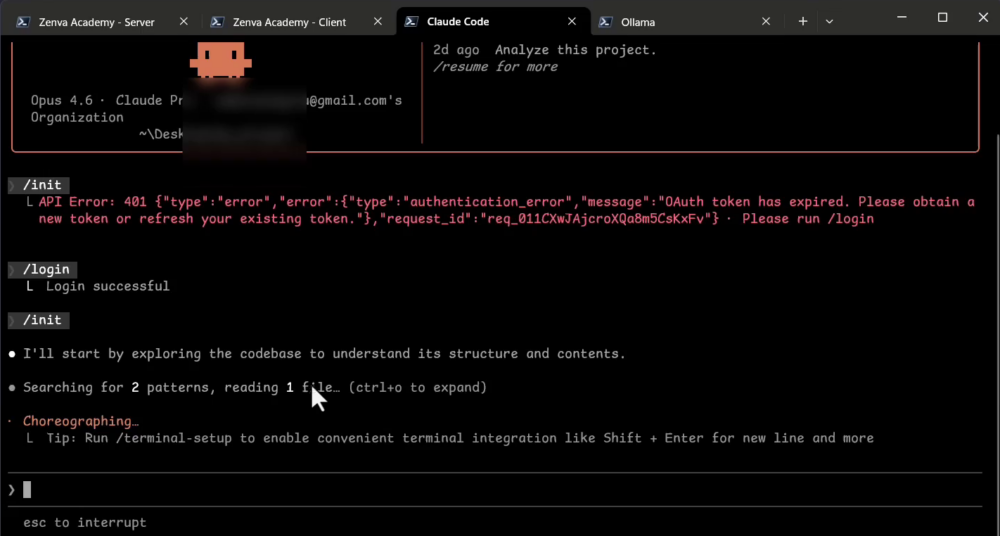
In the example session, an expired OAuth token first required a login and authorization before /init could run again. Once the analysis finished, Claude requested permission to create the file. The analysis also surfaced an exposed API-key warning, a reminder to pay attention to the findings rather than only the generated document.
Reading the Generated CLAUDE.md
Open the new file at the project root. Its Project Overview describes the example application: a full-stack web app that turns Markdown into slide presentations, with optional AI enhancement through OpenAI or a local Ollama model.
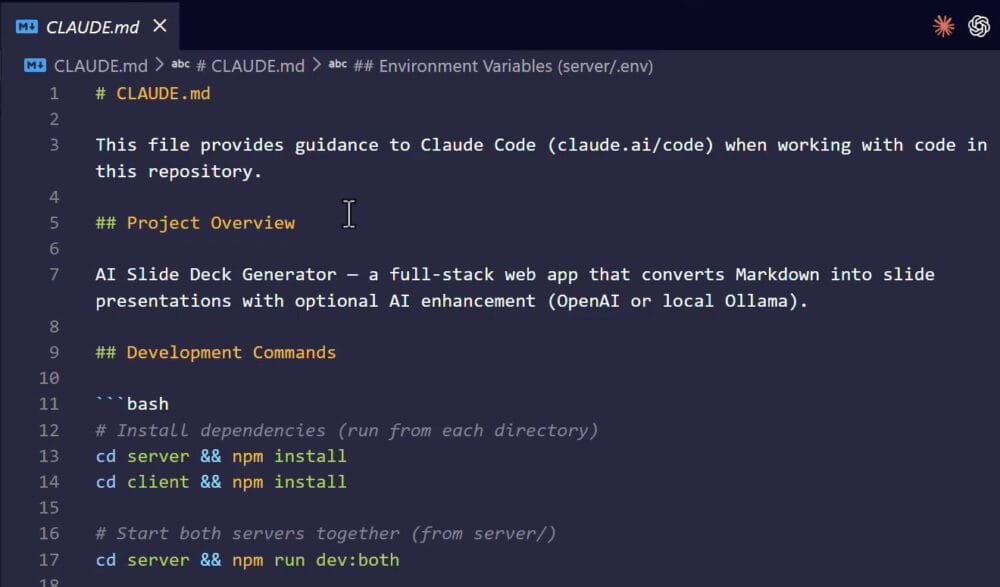
The Development Commands section records how to install dependencies in the server and client folders, run the backend and frontend separately or together, and create a production build. Much of this comes from the README, giving Claude practical context for running and modifying the app.
Architecture, Server, and Client Breakdown
Next, read the architecture description. The project is a monorepo with two independent npm projects: an Express server and a React client. During development, the client proxies API requests to the server’s port.
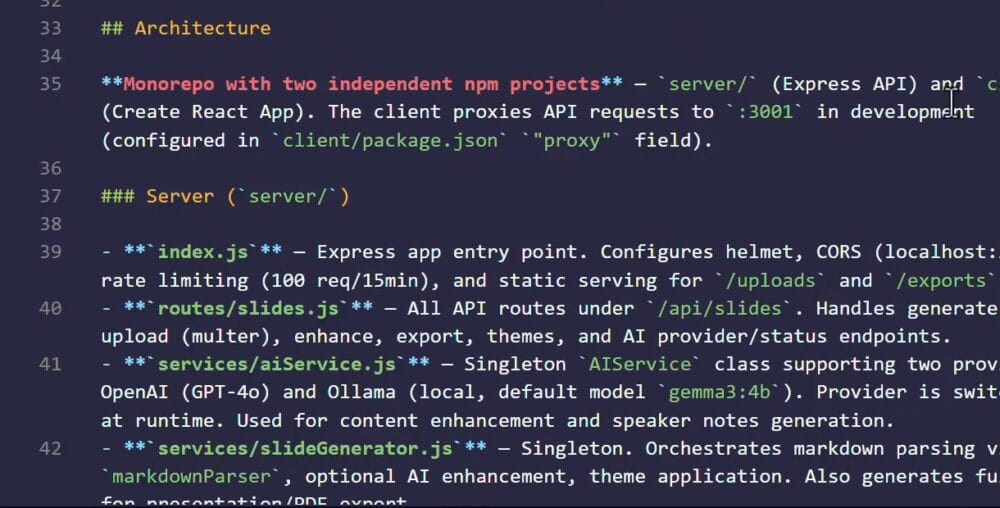
The server breakdown identifies its entry point, slide API routes, and services. One singleton service supports switching between OpenAI and Ollama at runtime; another coordinates Markdown parsing, optional AI enhancement, themes, and HTML generation.
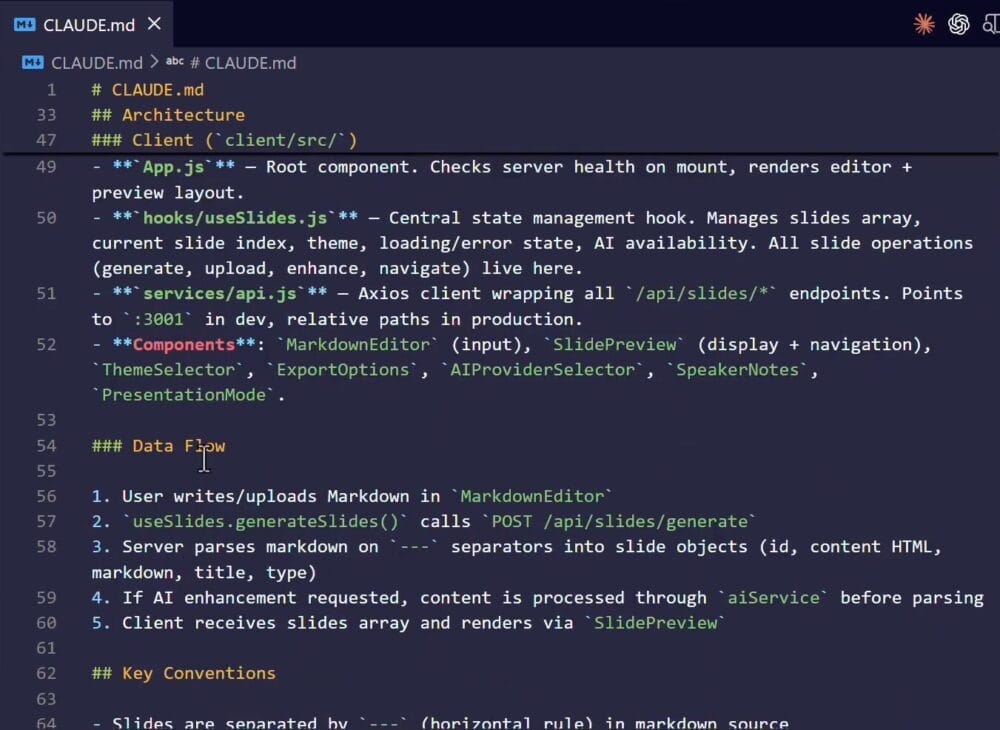
The client breakdown identifies hooks, services, and the root App.js component, which checks server health and renders the editor and preview layout. It also lists the Markdown editor, slide preview, theme selector, and export options.
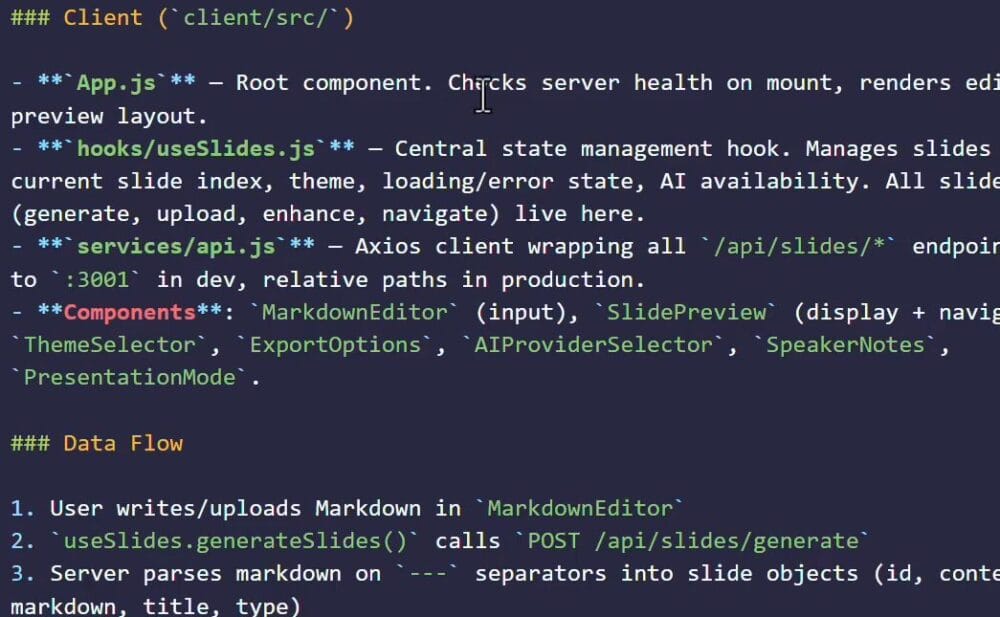
The Data Flow section connects those pieces:
- The user writes or uploads Markdown in the editor.
- The slide-generation hook sends the request to the server.
- If requested, the AI service enhances the content before parsing.
- The server parses the Markdown into slide objects and returns the slides array.
- The client renders the slides through the preview component.
This makes the location of each responsibility explicit before you ask Claude to change it.
Key Conventions and Environment Variables
The generated guidance also records the project’s smaller conventions:
- A Markdown horizontal rule separates slides.
- Syntax determines slide types.
- API responses contain a success flag and either data or an error.
- Server services are singletons.
- The slide generator has a fixed list of hardcoded themes.
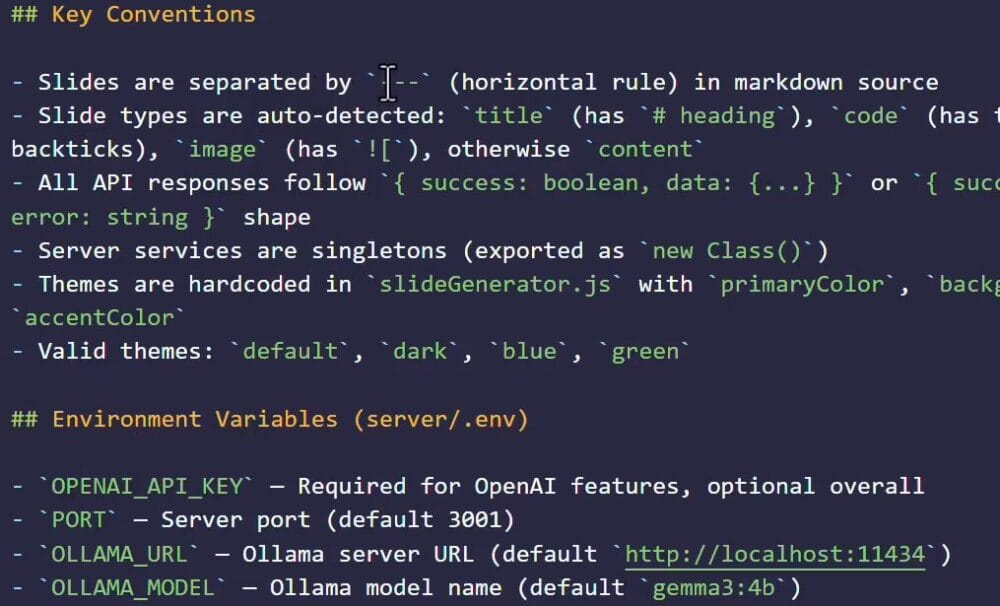
The Environment Variables section describes the server’s configuration, including the OpenAI API key, server port, and local Ollama URL and model name.
What Happens Without a CLAUDE.md File
Without written project guidance, Claude has to rely more heavily on existing code patterns, inferred best practices, and its tendency to help beyond the immediate request. That can lead to extra abstractions, moved files, or assumptions about future features and scalability.
Those changes are not necessarily wrong on their own. The problem is that you did not define whether they belong in this project.
Adding a Project Boundaries Section
The generated file is a starting point. Extend it with decisions Claude cannot reliably infer, beginning with what your application should and should not do.
You can write a Project Boundaries section yourself or ask Claude to add one that lists in-scope and out-of-scope functionality for the AI slide deck generator.

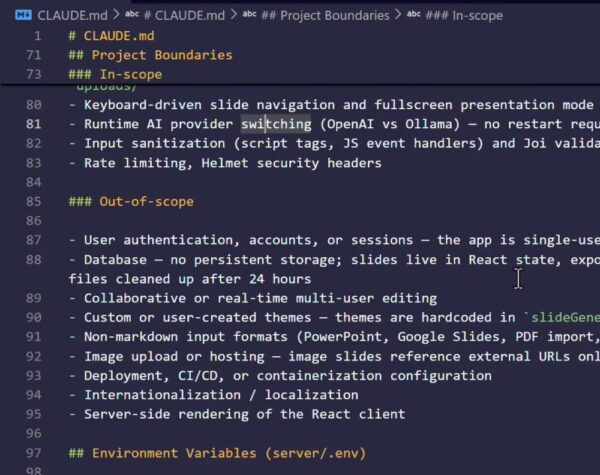
In the example, Claude reads the existing file and adds two lists. The in-scope guidance covers keyboard-driven slide navigation, runtime switching between OpenAI and Ollama, input validation, and rate limiting.
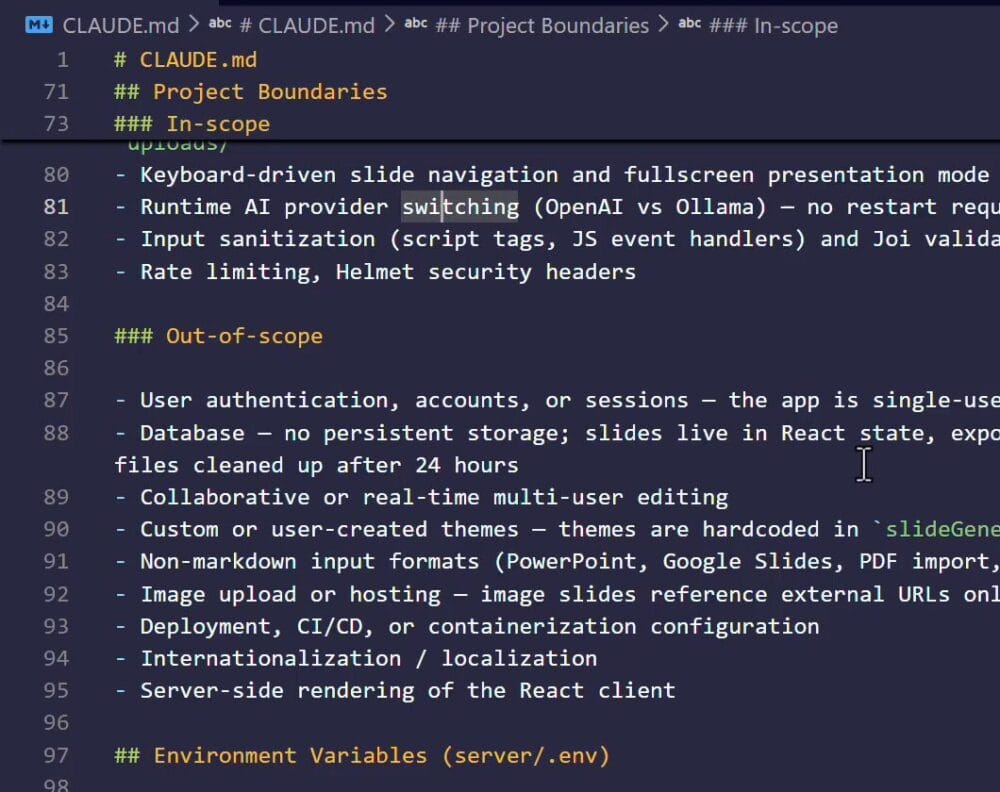
The out-of-scope guidance establishes that:
- The app is single-user, with no login, accounts, or sessions.
- There is no persistent database; slides remain in React state.
- Exported files are temporary and are cleaned up after roughly twenty-four hours.
- Collaborative editing, custom themes, non-Markdown formats, and image upload or hosting are outside the project’s scope.
- Deployment or CI/CD, internationalization, and server-side rendering are also excluded.
These are boundaries for this specific application, not a feature list for every project. They tell Claude which directions to avoid when proposing changes here.
Add Environment Facts and Keep the Guidance Useful
Why Environment Facts Matter
Project boundaries explain what should happen. Environment Facts explain the setup Claude must work within.
Write facts rather than preferences. For example, if a project uses Redis locally, state its host and port. If development does not use cloud services, state that the app must run without them. This helps prevent unnecessary hosted services, configuration layers, or attempts to solve problems your environment does not have.
The CLAUDE.md File So Far
Your file now describes the architecture, services, data flow, conventions, environment variables, and project boundaries. Environment Facts adds the concrete details of the system running the project.
Asking Claude to Add the Section
You can ask Claude to inspect the system and add the section instead of writing every detail yourself. The example runs in PowerShell, so its request sets these constraints:
- Use PowerShell commands only, not bash.
- Check tools relevant to this project: the operating system, PowerShell, Python, Node.js, and Docker.
- Do not scan for unrelated tools such as Go, Rust, yarn, or Ruby.
- Write the findings into
CLAUDE.mdwhile preserving existing content.

In the walkthrough, Claude requests permissions and corrects small command errors while completing the inspection.
Reviewing the Generated Results
Once the task finishes, the terminal lists the detected operating system and tool versions.
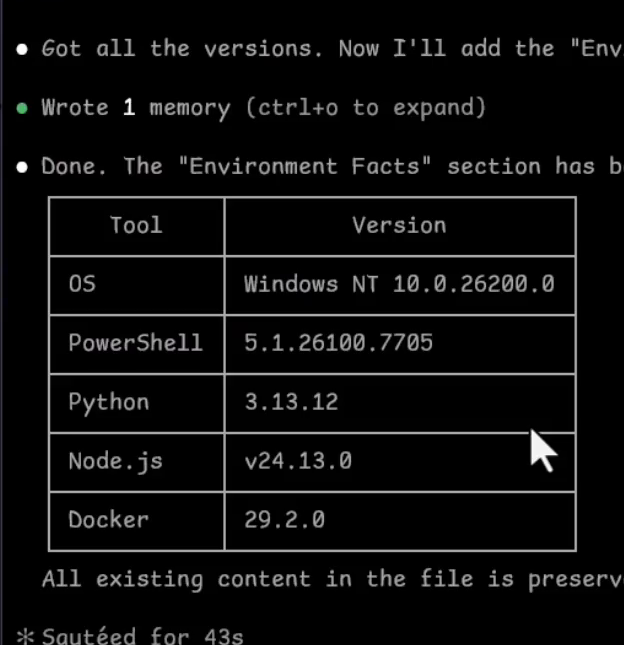
Open CLAUDE.md to review the new Environment Facts table. In the example, it lists the tools and their versions, with the rest of the document left intact.
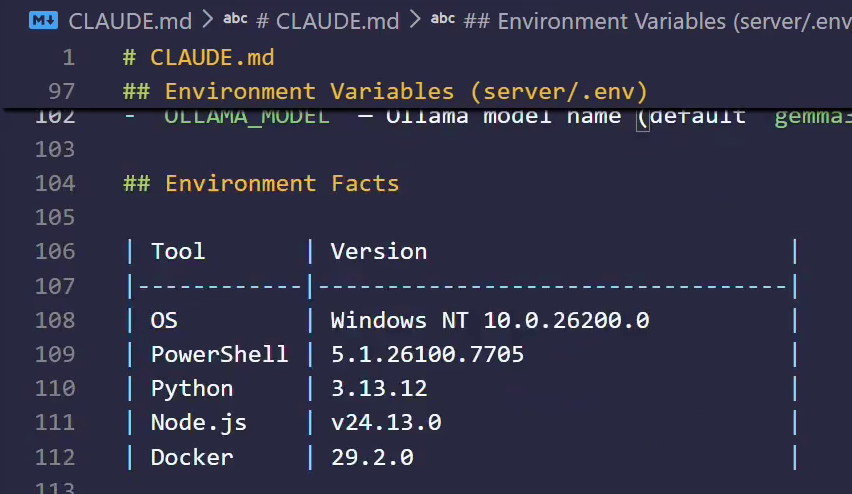
Claude now has written environment information to consult instead of guessing which stack it is working with.
CLAUDE.md Is a Living Document
Keep improving the file as the project evolves. If you correct Claude twice on the same issue, notice a recurring mistake, or add a non-negotiable constraint, put that guidance into CLAUDE.md.
The file becomes a memory layer and a quality gate for future code and commands. You can improve the guidance over time without treating a more capable model as the only answer.
Common Mistakes to Avoid
To keep the file useful, avoid:
- Turning it into onboarding documentation aimed at human developers.
- Making it too long.
- Leaving it unchanged while the project evolves.
- Using it as a substitute for planning.
Use CLAUDE.md to prevent recurring problems, not as the place to solve every task.
Prompts vs CLAUDE.md
A simple distinction keeps the two forms of guidance clear: prompts describe what you want done now, while CLAUDE.md records how work should be approached across tasks.
Keeping Context Fresh
A session accumulates history, including details that may no longer matter to your next task. Use /clear between distinct tasks to remove that accumulated history while keeping the CLAUDE.md configuration.
Put Your Project Guidance to Work
You now have a practical way to make requests more precise and keep project guidance available beyond a single conversation. The walkthrough covered how to:
- Turn vague feature requests into prompts with explicit limits and a stop-and-explain condition.
- Generate a starting
CLAUDE.mdwith/initand review its architecture and conventions. - Record in-scope and out-of-scope functionality in Project Boundaries.
- Add relevant Environment Facts without replacing existing guidance.
- Update recurring rules and clear session history between distinct tasks.
For your next task, pair a focused prompt with the project rules you have recorded, and keep refining those rules when the same correction comes up again.
To practice this workflow in the full project and develop a more structured approach to AI-assisted coding, explore the Agentic AI Coding Mini-Degree.
Did you come across any errors in this tutorial? Please let us know by completing this form and we’ll look into it!
FINAL DAYS: Unlock coding courses in Unity, Godot, Unreal, Python and more.