Welcome to the magical world of game development with Godot 4! Today, we delve into a fascinating class known as ColorRect. As the name suggests, this class is all about creating and manipulating colorful rectangles, the building blocks of many gaming interfaces. Whether you’re a novice coder or a seasoned developer, understanding the ColorRect class will equip you with a powerful tool to design visually appealing games.
Table of contents
What is ColorRect?
ColorRect is a class in Godot 4 that allows you to display a rectangle filled with a solid color. Imagine being able to create a vast field of green grass, a blue sky, or a red wall with just a few lines of code. That’s the power of ColorRect!
What is it For?
The ColorRect class is primarily used to create colorful backgrounds, panels, and overlays in your game. It can also be used to create visual elements such as buttons, icons, and progress bars. If you want to display a border alone, consider using a Panel instead.
Why Should I Learn It?
Learning the ColorRect class is a stepping stone to mastering Godot 4 and advancing your game development skills. It’s a simple yet versatile class, offering a myriad of possibilities for game design. From creating vibrant game environments to crafting intuitive user interfaces, the ColorRect class is a game-changer.
Developer API
Ready to start your ColorRect adventure? Visit the official Godot 4 ColorRect documentation to delve deeper into its properties and functions. Remember, the best way to learn is by doing. So, roll up your sleeves and start coding!
Example Project
You can download the project here.
The ColorRect node is fairly straightforward to use, it only has a single property, color.
Lets go through a simple example where we learn to manipulate the ColorRect itself, along with it’s color.
Create a new scene called ‘Main’ with the root node of type Control. ColorRect is a UI node, so it is ideal to have a Control parent, but note that you can also add it as a child to non Control nodes. The only difference is, you will not be able to harness the power of Control node features, such as anchors or containers. This may or may not be relevant to the exact use case you might be facing, but it’s good to keep in mind.
With the Scene dock highlighted, add a ColorRect node by clicking on the ‘+’ icon or pressing Ctrl + A. You can resize the ColorRect by:
- Making sure you’re in ‘select mode’ (
Q). - Selecting the ColorRect.
- Dragging on the red handles in the corners.
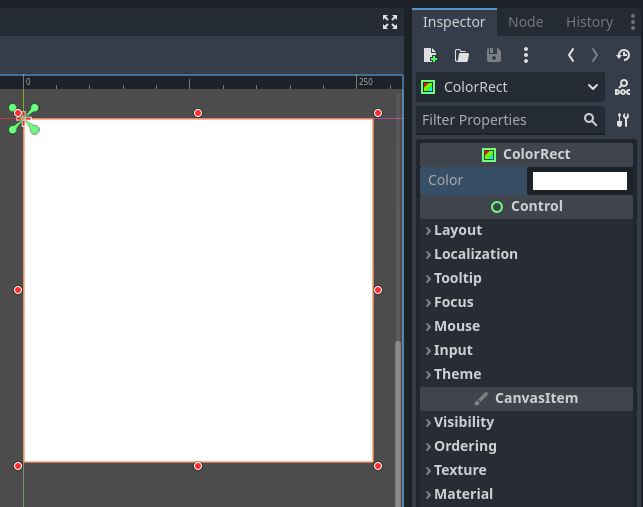
You can change it’s color by setting it’s color property in the inspector.
Now, lets look at how we can set it to a random color every time the player presses the Space key on the keyboard!
First, lets set up the input map to detect the spacebar being pressed. At the top left corner, go to Project → Project Settings → Input map.
Here, lets add a new action called ‘color_change’, then click on the ‘+’ icon to the right of the newly created action. Press the Spacebar key on your keyboard and select ‘Space’ in the list. Hit okay and close the project settings window.

Create a script on the root node of the scene called color_change.gd.
- Get a reference to the ColorRect node in the scene.
- We will be doing this using an
@onreadyvariable.
- We will be doing this using an
- In
_process():- Check if the ‘color_change’ action was pressed.
- Set the color property
- We do this by invoking the constructor of the
Colorclass.
- We do this by invoking the constructor of the
extends Control

@onready var color_rect: ColorRect = $ColorRect

func _process(delta: float) -> void:
  if Input.is_action_just_pressed("color_change"):
    color_rect.color = Color(randf(), randf(), randf())
We are constructing a new Color object by calling the constructor that takes r, g, b float values. In computers, color is represented by a mix of rgb values that range from 0 to 1 each. For example, Color(1, 0, 0) would represent the color red, since it contains the maximum amount of red (1) and none of green (0) and blue(0).
randf() is a function that returns a random float in the range 0 to 1, which happens to be exactly what we need!
We can now run the scene and every time we the Space key, we see that the ColorRect changes to a random color!
Lets also print the ColorRect’s color value after setting it, to properly visualize what’s going on. print(color_rect.color)
Whenever we press space, we see three random float values followed by a 1 each time. This is because colors are actually represented with rgba values, Color(r, g, b, a), but since we used that constructor that only takes rgb values, the a value automatically gets set to 1 by default. a represents ‘Alpha’, which is essentially the transparency of the color, which also ranges from 0 to 1.
An alpha of 1 would mean that the color if fully opaque, while 0 would mean that it is completely transparent.
Full Script Code
You can download the Godot project here. The project was developed and tested in version 4.2.
extends Control

@onready var color_rect: ColorRect = $ColorRect

func _process(delta: float) -> void:
  if Input.is_action_just_pressed("color_change"):
    color_rect.color = Color(randf(), randf(), randf())
Where to Go Next?
Your journey into the world of game development is just beginning! To continue expanding your skills and knowledge, we invite you to explore our Godot Game Development Mini-Degree. This self-paced, comprehensive learning pathway is tailored for aspiring game developers of all skill levels and focuses on the free, open-source Godot 4 engine.
Our program simplifies game development by combining node-based systems and GDScript, ensuring a straightforward learning experience. It covers a wide range of game development topics, from 2D and 3D game creation to complex gameplay mechanics across various genres. We also provide interactive live coding lessons in the browser, enhancing practical learning. Upon completion, you’ll earn a certificate to showcase your newly acquired skills.
For a broader collection of resources, check out our Godot courses. With over 250 courses available in programming, game development, and AI, we at Zenva are committed to boosting your career and helping you transition from beginner to professional. Happy coding!
Did you come across any errors in this tutorial? Please let us know by completing this form and we’ll look into it!
FINAL DAYS: Unlock coding courses in Unity, Godot, Unreal, Python and more.


